Running & monitoring workflows
- Find workflow instances
- Process approvals (without a dedicated document page)
- Integration into common standard pages (default tables)
- Module: Out of Office
- Module: Workflow Visualization
- Module: Monitoring & Administration
- Module: Approval Reassignment
Find workflow instances
Open AWF Workflow Management (e.g. via "Approvals & Workflows" → "Advanced Workflows").
There you see, among others:
- Template Code
- Status
- Current Step
- Date/Time Started
Here you can, among other things:
- See details
- Show audit trail
- Cancel workflow (if active)

Process approvals (without a dedicated document page)
For day-to-day work as an approver, the workflow management is often not the key page, but the page "Requests to Approve":
- You see the record in the FactBox "Record Preview".
- You use the Approval Actions (Approve/Reject/Delegate).
- For group approvals you typically work with Take Over Approval / Release Take-Over.

Integration into common standard pages (default tables)
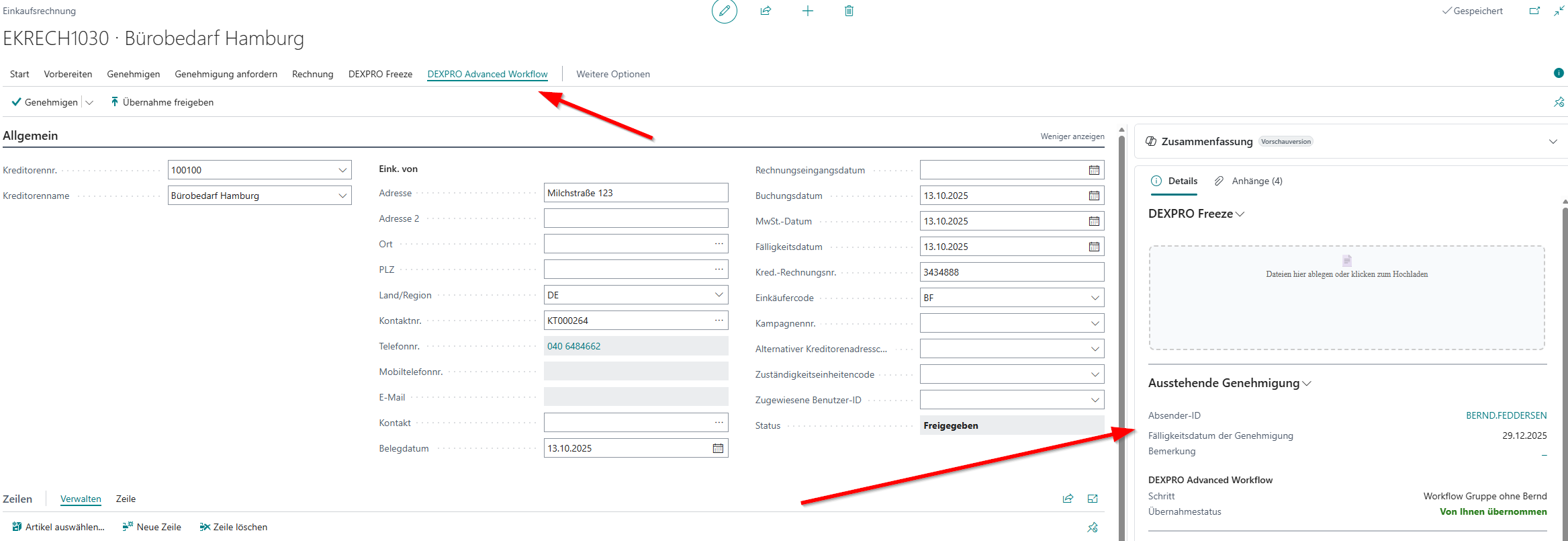
For common tables that are delivered as default in AWF Supported Tables , there is additionally a direct integration into the respective standard pages of the record.
Typical examples (depending on setup/role profile):
- Cards such as customer/vendor/item
- Sales and purchase documents (e.g. order/invoice/credit memo/quote)
- Journals, incoming documents, job queue
This lets users process the approval directly on the record in many cases, without the detour via the "Requests to Approve" list..
Module: Out of Office
With out-of-office management, users define absence periods and specify how approval requests are handled during their absence.
How it works
- When a workflow creates an approval and the intended approver has an active out-of-office entry (today’s date is between Start Date and End Date), the approval is automatically redirected to the configured substitute.
- The redirection is logged in the Audit Trail of the workflow instance with action type "OOO Substitution" .
- In the approval entry, the "Original Approver (OOO)" is stored, so it remains traceable who was originally responsible.
Two levels of OOO resolution
Out-of-office processing happens at two levels:
- Level 1 (before distribution): can change the Assignee Type – e.g. from a single user to a workflow user group. Runs before the approval entries are created.
- Level 2 (per entry): replaces individual users with other individual users. Runs within approval entry creation. Redirecting to a workflow user group is not possible at this level (it would break the group logic).
Configure out-of-office entries
- Open AWF Setup → action "Out of Office" or search via Tell Me for "Out of Office Entries".
- New.
- Fill in the fields:
- User ID: the absent user.
- Start Date: first day of the absence.
- End Date: last day of the absence.
- Description: optional description (e.g. "Vacation Q2").
- Enabled: Yes/No.
Substitute types
| Type | Description |
|---|---|
| No Substitute | Approvals stay with the absent user. No redirection takes place. |
| Approver | Approvals are redirected to a defined user. The field "Substitute" is shown. |
| Workflow User Group | Approvals are redirected to a workflow user group. The field "Substitute WF User Group" is shown. |
| Use Delegation | Uses the standard BC substitution from the Approval User Setup (field "Substitute"). Single-level resolution (no chain). |
Rule-based substitution (optional)
Via the action "Show Rules" on the out-of-office entry you can define rule-based substitution overrides :
- The rules are evaluated against the workflow template record .
- This lets you define different substitutes for different workflow templates (e.g. "for purchase invoices user A substitutes, for sales orders user B").
- If no rule matches, the default substitution settings of the out-of-office entry apply.
Out-of-office entries apply **across companies** (DataPerCompany = false). One entry applies in all companies of the environment.
Module: Workflow Visualization
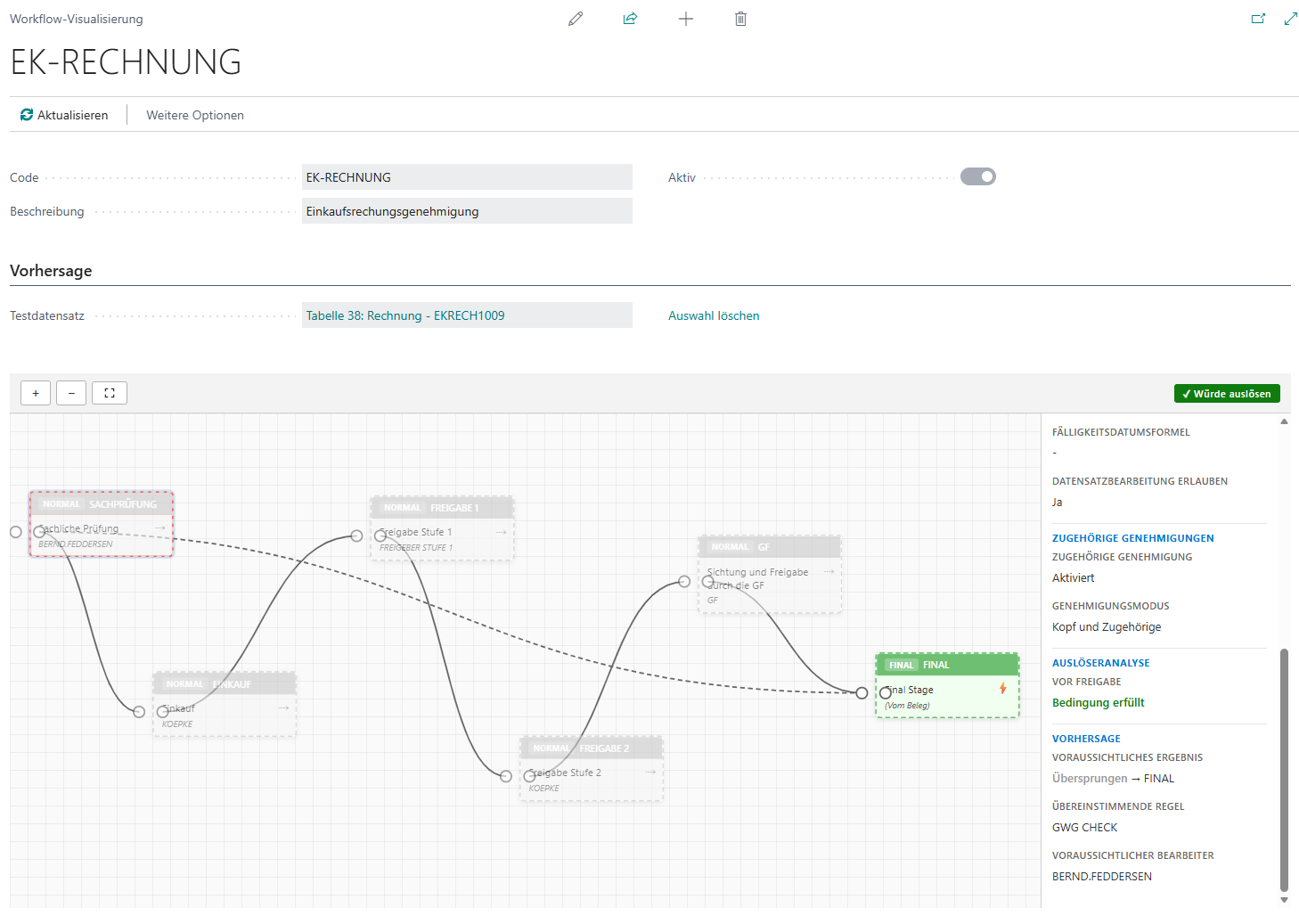
The workflow visualization shows an interactive graphical representation of the workflow template with all steps and connections.
Open the visualization
- In the AWF Workflow Template → action "Visualization".
- The visualization shows:
- Step nodes with step code, step name, and step type (Normal / Error / Final)
- Connections between steps (based on rule actions and default transitions)
- Color coding by step type
Prediction
In the "Prediction" area you can select a test record:
- Click "Test Record" and select a specific record from the primary table.
- The visualization then shows the expected path of the workflow:
- Which steps would be auto-approved
- Which steps would be skipped
- Which steps require a manual approval
- With "Clear Selection" you reset the prediction.
Instance mode
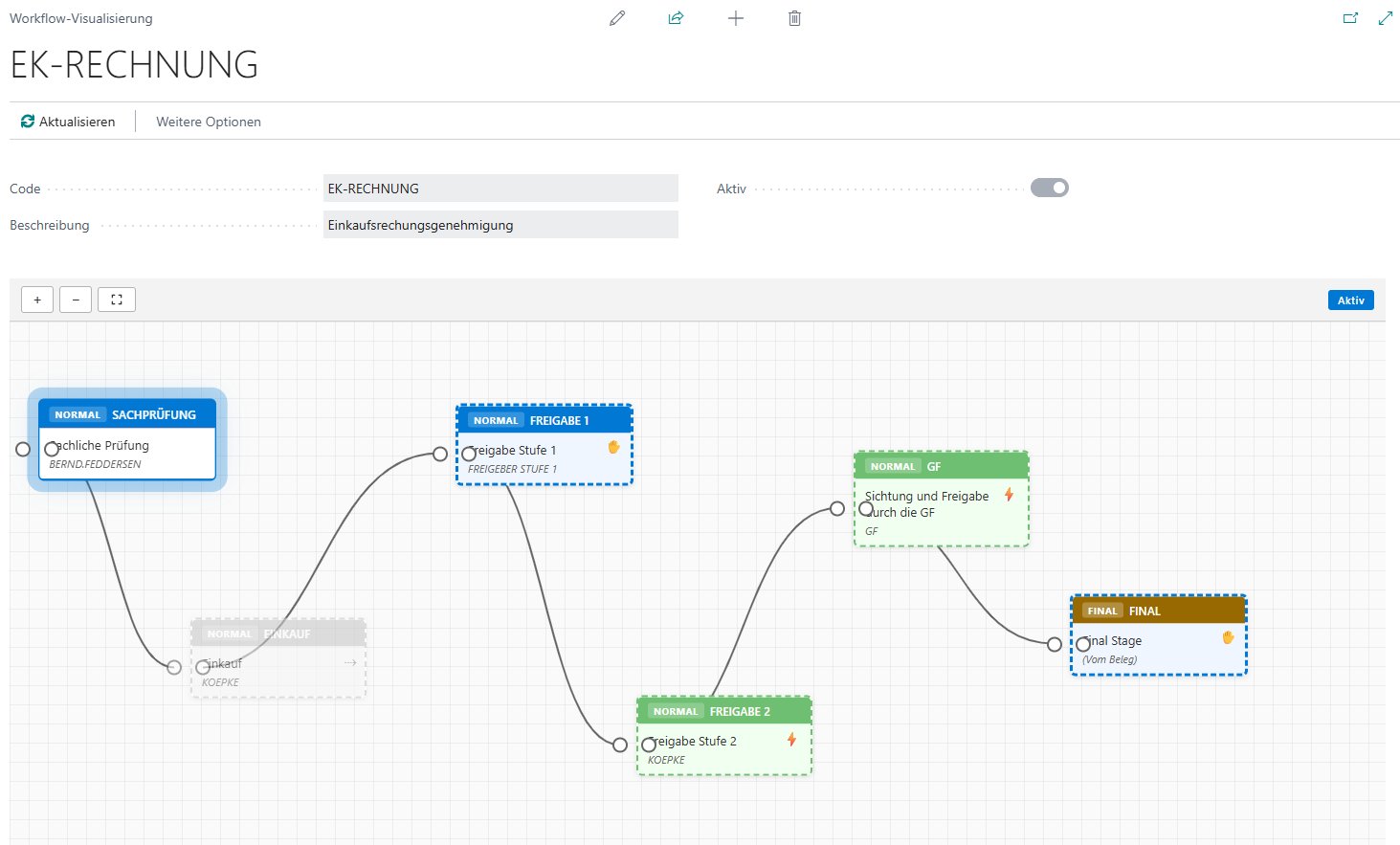
From the AWF Workflow Instancecard, the visualization can also be opened. In this case it shows the current progress of the workflow instance (which step is currently active, which steps have already been passed).
Save positions
The positions of the step nodes are saved automatically when moved (drag & drop). The next time the visualization is opened, the nodes are shown at the saved positions.
Module: Monitoring & Administration
The monitoring functions provide a comprehensive overview of all workflow instances and their status.
AWF Workflow Management
The page AWF Workflow Management is the central overview for all workflow instances:
- Filter options: status (Active / Completed / Error / Cancelled), template code, date
- Views: all workflows, only active, only completed
Actions on this page:
- Show Details: opens the workflow instance card with complete information
- Show Audit Trail: shows the log of all actions for this instance
- Cancel Workflow: cancels an active workflow (requires a reason)
- Restart Workflow: restarts a failed or cancelled workflow
Workflow instance card
The card shows all details of a workflow instance:
- General: template code, status, current step, start/end date
- Source Record: linked record (with navigation)
- Audit Trail: chronological log of all workflow actions
- Visualization: graphical representation of progress (see Workflow Visualization)
Active workflows
The page "Active Workflows" specifically shows only workflows in status Active. Useful for daily monitoring and quick intervention.
Recent Activity
The page "Recent Activity" shows the most recent workflow actions (audit-log entries) in chronological order. This lets you quickly see which workflows were recently started, approved, rejected, or escalated.
Performance analysis
The Performance analysis provides statistical evaluations of workflow lead times and frequencies.
Workflow Statistics
The Workflow Statisticspage shows aggregated key figures:
- Number of active workflows
- Number of completed workflows
- Number of failed workflows
- Number of cancelled workflows
Module: Approval Reassignment
Administrators can reassign active approvals to another person or group without cancelling the workflow. In addition, users who are not approval administrators can reassign or cancel approvals – if configured.
Prerequisites
- The user must have the field "Can Reassign" enabled in the User Setup (
DXP Can Reassign). - The workflow must be in status Active .
Perform a reassignment
- Open the AWF Workflow Management.
- Mark the desired active workflow and click Show Details
- Action Reassign Approval" (or via the page "Requests to Approve").
- In the dialog "Reassign Approval":
- Recipient Type: Approver / Workflow User Group / Salesperson/Purchaser
- User or Workflow User Group select
- Reason: mandatory – why is it being reassigned?
- OK confirm.
The reassignment is logged in the Audit Trail (action type "Workflow Reassigned").
Additional extended permissions
In the "Can Reassign" (extended by AWF) there are the following fields:
- Can Reassign (
DXP Can Reassign): allows the user to reassign active workflows. - Can Cancel (
DXP Can Cancel): allows the user to cancel active workflows.