# Advanced Workflow for Dynamics 365 BC - en-US
This manual provides a step-by-step guide to DEXPRO Advanced Workflow. Among other things, it shows you how to
\- create workflow templates,
\- define stages,
\- configure triggers (workflow triggers/template triggers),
\- use the DEXPRO Core Rule Engine (rule sets / rule groups / rules / rule conditions) to control when a workflow starts and how it progresses from step to step.
# System Requirements
System requirements for using Advanced Workflow for Dynamics 365 BC
# Supported Microsoft Dynamics 365 Business Central versions
Microsoft Dynamics 365 Business Central integration is possible from the following version due to minimum technical requirements:
[Supportet Microsoft Dynamics 365 Business Central Versions](https://docs.squeeze.one/books/dexpro-business-central-apps/page/unterstutzte-microsoft-dynamics-365-business-central-versionen "Supportet Microsoft Dynamics 365 Business Central Versions")
The prerequisite for operation is that the respective Microsoft Dynamics 365 Business Central version is still in regular support. The extended support is excluded.
# Installation
# Licenses
### Microsoft
Information about the [Microsoft Business Central licenses](https://docs.squeeze.one/books/dexpro-business-central-apps/page/bc-lizenzen).
# Obtaining the DEXPRO module
Detailed Information are [here](https://docs.squeeze.one/books/dexpro-business-central-apps/page/bezug-der-dexpro-module).
### OnPrem
For OnPrem installations, an runtime package with the required apps is provided upon request of a registered reseller / partner. These modules are added to the customer license by the partner and then imported into Microsoft Dynamics Business Central. It should be noted that the DEXPRO Core module forms the basis for all DEXPRO modules and must therefore be imported first.
### Cloud
For cloud installations, you only need the Microsoft [AppSource](https://appsource.microsoft.com/de-de/product/dynamics-365-business-central/PUBID.dexprosolutionsgmbh%7CAID.69470%7CPAPPID.368db399-65f5-4250-9afd-b2a67a49e809?tab=Overview). This is where the required DEXPRO modules are downloaded.
[](https://appsource.microsoft.com/de-de/product/dynamics-365-business-central/PUBID.dexprosolutionsgmbh%7CAID.69470%7CPAPPID.368db399-65f5-4250-9afd-b2a67a49e809?tab=Overview)
# AWF Setup
### General
- **Enabled**: Turns the DEXPRO Advanced Workflow app on or off. When disabled, no new workflow instances are started.
### Trial Status
When the app runs in trial mode (no license activated), this section shows:
- **Status**: Current trial status (active / limit reached).
- **Workflow Runs Used**: Shows how many of the allowed trial workflow runs have already been used.
### Activation
- **Activation Endpoint URL**: URL for the license check. Provided by DEXPRO Solutions GmbH.
### Job Queue
- **Escalation Job Status**: Shows the current status of the escalation job queue entry (for example "Ready", "In Process", "Not Configured"). Click the status to open the related job queue entry.
### Actions
- **Create Escalation Job**: Creates the recurring escalation job queue entry. Use this action if the entry was deleted or could not be created during installation.
- **Out of Office**: Opens the out-of-office entries where users can configure absence periods and substitute settings.
- **Check License**: Performs a manual license check against the activation endpoint.
- **Show Installation ID**: Shows the installation ID for this environment – required for license activation.
# What can the app do?
With DEXPRO Advanced Workflow you model approval and decision processes:
\- A workflow is started for a specific Business Central record (e.g. a document header).
\- The workflow runs in steps/stages (e.g. 1. review, 2. release, final).
\- Each step defines an assignee (user, workflow user group, salesperson/purchaser, etc.).
\- Rules can decide whether and where the workflow moves next.
# Central objects
- **Workflow Template** ("AWF Workflow Template") – your definition (one-time)
- **Workflow Instance** ("AWF Workflow Management") – a running/completed execution of the template (per record)
- **Step** ("AWF Workflow Step") – an approval/decision step within the template
- **Workflow Trigger** ("Workflow Trigger") – starts an instance when an event occurs
- **Rule Engine (DEXPRO Core)** – the decision logic:
- **Rule Set**: framework for tables + rule groups
- **Rule Group**: collection of rules (e.g. "trigger conditions" or "step selection")
- **Rule**: a single rule with priority
- **Rule Conditions**: concrete conditions (field/operator/value)
- **Rule Action**: defines *what happens*, when a rule matches (e.g. step transition, override assignee, auto-approve)
- **Applies To**: determines whether the rule action applies to the header approval, related approvals (lines), or both
# Approving in practice
### Requests to Approve (for every table)
####
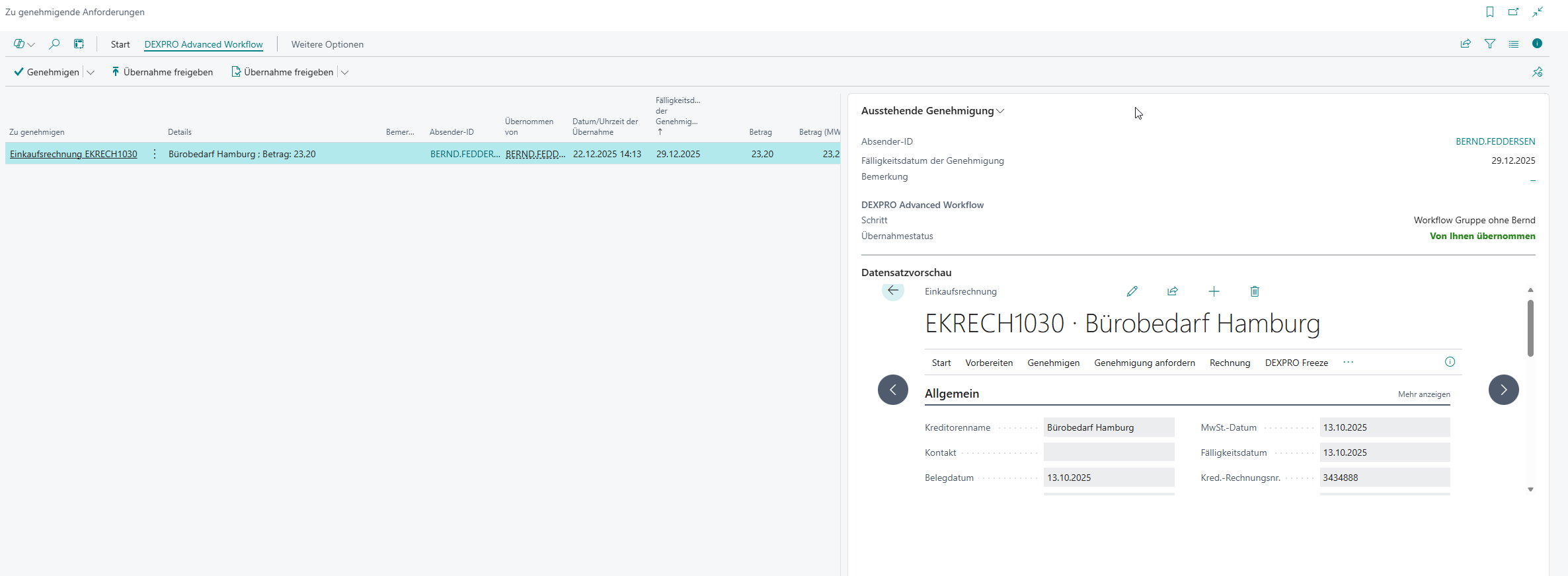
DEXPRO Advanced Workflow can be used **for practically any table** because processing the approval does not necessarily have to happen on a specific document/card page.
When a workflow creates an approval, approvers can process it via the (standard Business Central) page **"Requests to Approve"** . This page is extended by AWF:
- **Record Preview**: In the **"Record Preview"** FactBox you see the underlying record.
- **Take-over information**: The fields **"Taken Over By"** and **"Take-Over Date/Time"** show who has taken over a group approval.
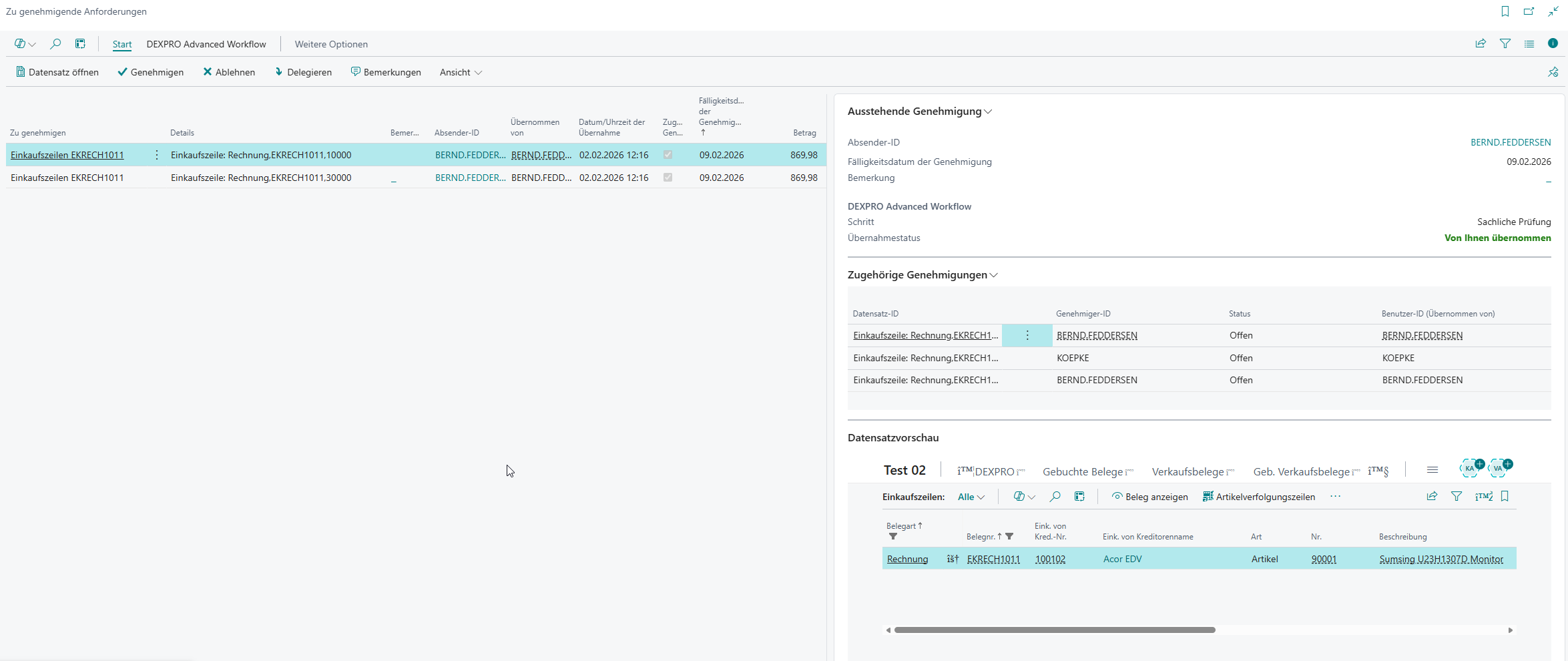
- **Related Approvals**: The field **"Related Approval"** marks line approvals; the **"Related Approvals"** FactBox shows further related line approvals for the same workflow instance.
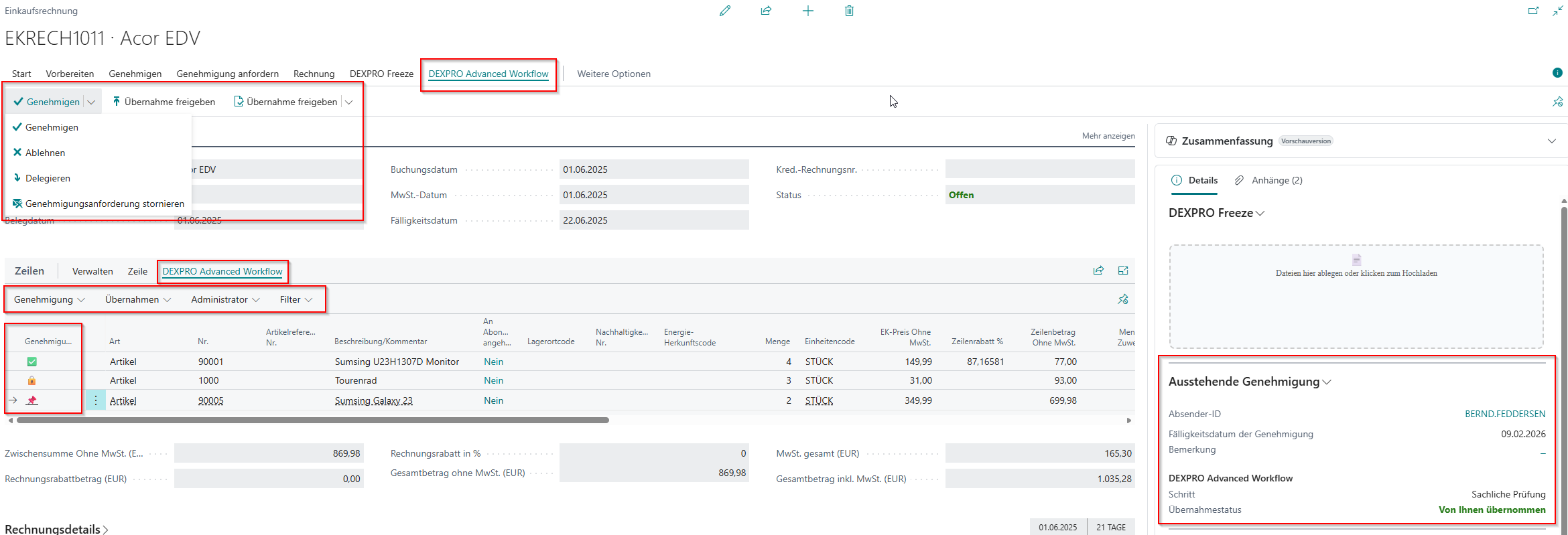
- **Approval Actions**: Actions such as **"Approve"**, **"Reject"**, **"Delegate"** and **and "Cancel Approval Request".**.
- **Approval take-overs**: Actions **"Take Over Approval"** and **and "Release Take-Over".**.
- **Approval Administrator** (if authorized): among others **"Reassign Workflow".**.
Important: Before **approving/rejecting/delegating** , first choose "Take Over Approval" **"Take Over Approval"**so that you can work on the request exclusively.
### [](https://docs.squeeze.one/uploads/images/gallery/2025-12/image-1766409803804.png)
Using a purchase invoice as an example:
Here you can control the approval process at header and (if enabled) line level.
[](https://docs.squeeze.one/uploads/images/gallery/2026-02/image-1770033224208.png)
# Related approvals
Related approvals are **additional approval requests** for a running workflow instance – typically for **related records (e.g. document lines)**.
Goal: You can model approvals **at line level** without all processing having to happen exclusively on the document header.
### Prerequisites
- In the workflow template, [Related Tables](https://docs.squeeze.one/link/1350 "Configure related tables (optional)") (e.g. sales/purchase lines) are correctly linked to the primary table. - In the respective step, **Enable Related Approval** is enabled.
### Configuration in the step
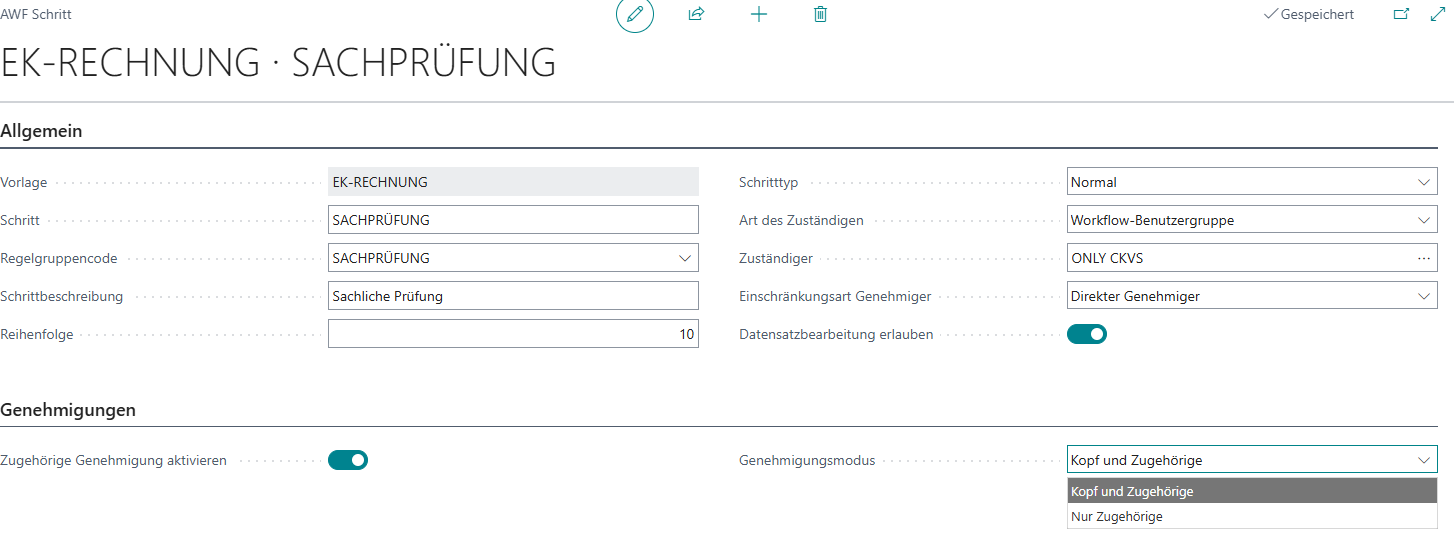
1. In the workflow template → section **Steps** → open the desired step.
2. In the area **Approvals**:
- **Enable Related Approval** = Yes
- **Approval Mode** choose:
- **Header and Related**: approval(s) for the header *and* related approvals (lines)
- **Related Only**: only related approvals (lines)
[](https://docs.squeeze.one/uploads/images/gallery/2026-02/image-1770030130803.png)
### Rule effect (rule action) for related approvals
When related approvals are active, rules can additionally control **for which approval type** the action applies:
*Applies To*:
- **Header**: the rule action affects only the header approval.
- **Related Only**: the rule action affects only related approvals (lines).
- **Header and Related:** the rule action affects both.
[](https://docs.squeeze.one/uploads/images/gallery/2026-02/image-1770030898922.png)
### Usage in practice
- In **"Requests to Approve"** line approvals are marked via **Related Approval** .
- When you select a line approval, the FactBox **"Related Approvals"** shows further related approvals for the same workflow instance (incl. status/take-over info).
[](https://docs.squeeze.one/uploads/images/gallery/2026-02/image-1770031112743.png)
# Navigation (where to find what?)
# Entry via "Tell Me" (Alt+Q)
**Directly searchable via Tell Me**:
- **AWF Workflow Templates** (list)
- **AWF Workflow Management** (list)
- **Rule Sets** (DEXPRO Core)
- **Requests to Approve** (standard page; extended by AWF)
**Not directly searchable via Tell Me**, but still reachable:
- **AWF Supported Tables**: open a template (**AWF Workflow Template**) and use the lookup on **"Primary Table ID"**.
- **AWF Workflow Template** (card): open it from the list **AWF Workflow Templates**.
- **Rule Groups / Rules / Rule Conditions**: open these starting from **Rule Sets** via the respective actions (e.g. **"Show Rules"**, **"Show Conditions"**).
- **AWF Workflow Management**
- **AWF Workflow Templates**
In addition, you will typically find the standard area there, **"Pending Approvals"** with the entry point **"Requests to Approve".**.
[ ](https://docs.squeeze.one/uploads/images/gallery/2025-12/image-1766410203485.png)[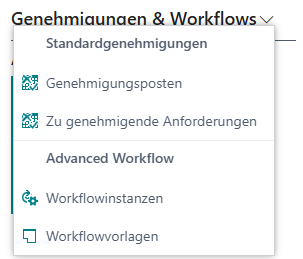](https://docs.squeeze.one/uploads/images/gallery/2025-12/image-1766410694926.png)
# Prerequisites (permissions & master data)
# Permissions
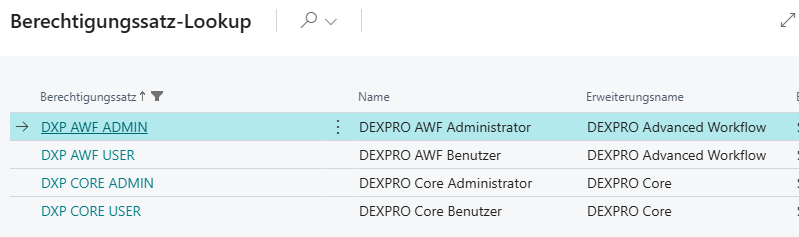
You typically need:
- **DEXPRO AWF Admin**: for setup/template maintenance
- **DEXPRO AWF User**: for usage/monitoring
- **DEXPRO Core Administrator or DEXPRO Core User:** For rule creation/usage
The app also includes the internal permission set **DEXPRO AWF Objects - Exec**. This set is **not assignable** and grants wildcard execute permission on all app building blocks (objects). It is used internally and does not need to be assigned to users.
[](https://docs.squeeze.one/uploads/images/gallery/2025-12/image-1766410890231.png)
# Workflow user groups
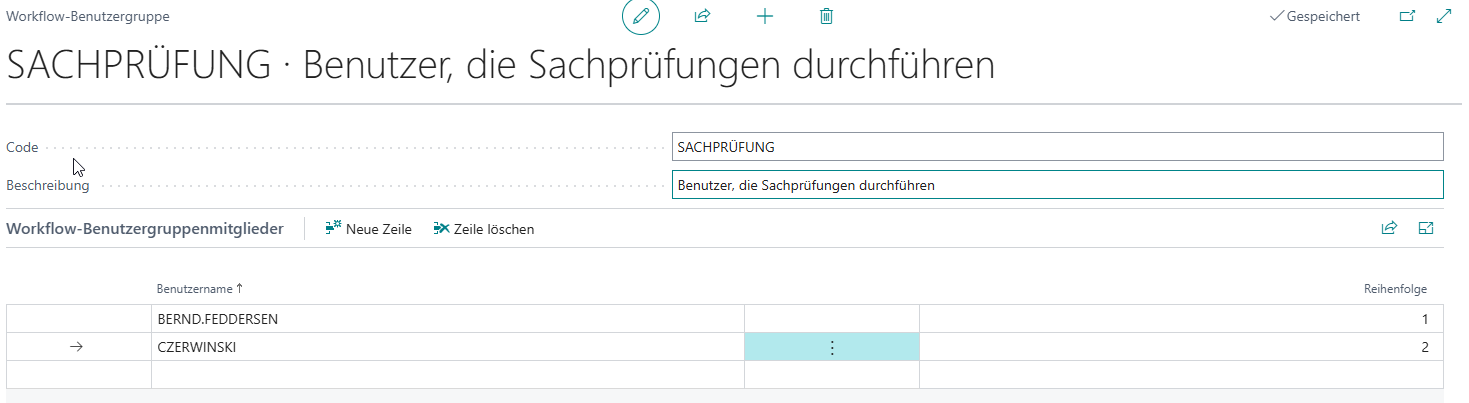
As a rule you will use **Workflow User Groups** to organize the distribution of approvals/reviews. Make sure the user group
- exists
- has members
If groups are missing/empty, execution can fail (the workflow may be moved to the error step).
[](https://docs.squeeze.one/uploads/images/gallery/2025-12/image-1766411194537.png)
# Creating a workflow template
# The minimum configuration: when is a workflow template "valid"?
A workflow template is only fully usable in this app once at least these criteria are met:
1. **Active = Yes** (the template must be active)
2. **Primary Table** is set
3.
**Rule Set** exists (is created/updated automatically when the primary table is set)
4. **At least one normal step (Step Type = Normal)** exists
5. **At least one workflow trigger** exists and is **active**
- In the workflow template, only **supported tables** can be chosen as the primary table.
- Per supported table, the following is additionally maintained:
- **Workflow Events** (which events may be used as triggers)
[](https://docs.squeeze.one/uploads/images/gallery/2025-12/image-1766411778422.png)
### Initialize default tables
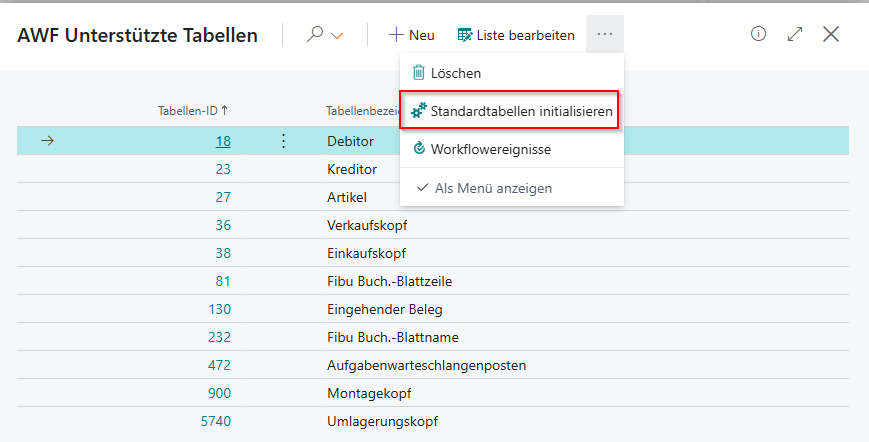
Since **AWF Supported Tables** is not directly searchable via Tell Me, open the page as follows:
1. Open **AWF Workflow Templates**.
2. Open a template (or create a new template).
3. In the **"Primary Table"** area, open the lookup of **"Primary Table ID".**.
4. In the opened list **AWF Supported Tables** Action **"Initialize Default Tables"** run it (it is also initialized directly when opening).
5. Confirm.
This action initializes or repairs the default configuration.
[](https://docs.squeeze.one/uploads/images/gallery/2026-02/image-1770031600177.png)
### View workflow events per table
On **AWF Supported Tables**:
- Action **"Workflow Events"**: shows valid workflow events for the table
[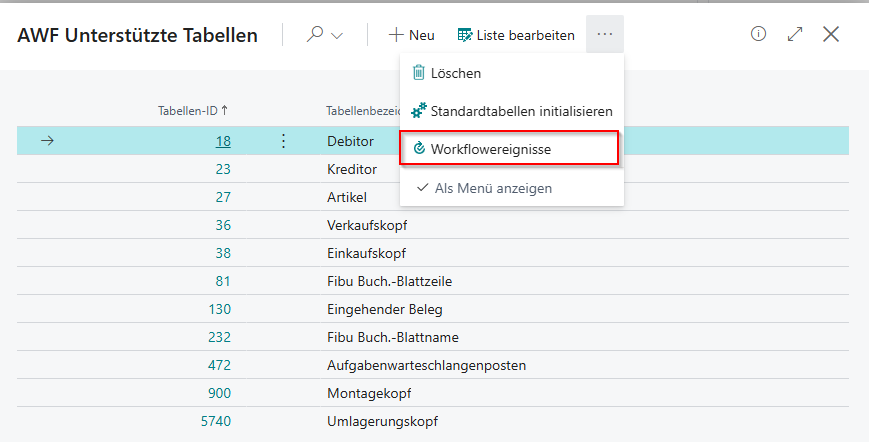](https://docs.squeeze.one/uploads/images/gallery/2026-02/image-1770031630214.png)
# Create a workflow template
### Create a new workflow template
1. Open **AWF Workflow Templates**.
2. **New**.
3. Fill in the area **General**:
- **Code** (unique)
- **Description**
- **Active** initially **No** (recommended)
1. In the workflow template (card), go to the area **"Primary Table"**.
2. Field **"Primary Table ID"** select.
- The list opens: **AWF Supported Tables**.
3. Select a table.
4. Check whether **"Primary Table Caption"** is filled automatically.
What happens in the background:
- The app automatically creates/updates a **Rule Set** for the template.
- The primary table is automatically stored as the **Primary Table** in the rule set.
1. Open the appropriate area (e.g. **Workflow Trigger** → **Show Rules)**)
2. Create a rule condition (action **Show Conditions**).
). 3. Choose as the source field e.g. "Document Type" (a field of the primary table or a related table).
4. Set operator/value (e.g. "= Order").
1. In the **AWF Workflow Template** → field **"Save Audit Trail to Attachments"** = Yes.
2. On successful completion of the workflow, the audit trail report is generated automatically as a PDF and attached as a document attachment to the source record.
- **Attachments of the source record** (e.g. scanned invoices)
- **Attachments of the workflow instance** (e.g. generated audit-trail PDFs)
- **Related Tables** (technically: "DXP Rule Set Tables")
1. In the template, in the section, **Related Tables** create a new line.
2. **Table ID** select (lookup).
3. Define the relation to the primary table:
-
**Relation Field 1** (field number in the related table)
- **Primary Field 1** (field number in the primary table)
-
Optionally also **Relation Field 2 / Primary Field 2** etc.
-
Relation field(s) = "foreign key" in the related table
-
Primary field(s) = the matching key/reference fields in the primary table
- **Step Code**
- **Step Name**
- **Order**
- **Step Type** (Normal / Error / Final)
- **Allow Record Editing**
- Assignment logic
-
**Approvals / Related Approvals**: optionally enable line approvals (**Enable Related Approval**) and set the **Approval Mode** .
1. In the section → **Steps** → **New**.
2. **Step Type = Normal**.
3. **Step Code** and **Step Name** assign.
4. In the card, set the **Assignee Type** and set the **Assignee** .
- When the first normal step is created, the app automatically generates:
- an **Error**step (code e.g. `ERROR`)
- an **Final**step (code e.g. `FINAL`)
- **Assignee Type**
- **Assignee
- **Approver Limit Type**
Notes:
- With **Salesperson/Purchaser** the assignee is derived automatically from the record (salesperson/purchaser).
- With **Workflow User Group** a workflow user group must exist and have members.
If a step cannot resolve a valid assignee, the workflow is typically moved to the error step at runtime.
[](https://docs.squeeze.one/uploads/images/gallery/2025-12/image-1766415688087.png)
### Due Date Formula (Due Date)
On the **AWF Step**card a **Due Date Formula** can be configured:
- Field: **Due Date Formula** (e.g. `<+3D>`, `<+1W>`, `<+2W>`)
- When set, approval entries created in this step automatically receive a due date.
- The due date is relevant for:
- The display in **"Requests to Approve"**
- The **Escalation Engine** (escalation steps are based on the due date)
- Standard BC due-date notifications
# Step rules: how does the workflow move to the next step?
The app uses the DEXPRO Rules Engine to determine:
- which rule matches
- to which **next step** it switches
- whether the assignee is overridden
- whether it auto-approves
- and whether the action applies to the header approval, related approvals (lines), or both.
If no rule is defined, the respective step configuration applies.
### Rule group per step ("Show Rules")
1. In the **Steps**list, mark the desired step.
2. Action **"Show Rules"**.
If no rule group is stored yet, the app automatically creates a **Rule Group** and enters it on the step.
[](https://docs.squeeze.one/uploads/images/gallery/2025-12/image-1766416116752.png)
### Create rules (DEXPRO Core)
On the opened page **Rules**:
1. **New**.
2. **Rule Code** and **Rule Name** set.
3. **Sequence/Priority** assign.
4. **Active = Yes**.
5. Optional:
- **Condition Conjunction** (AND/OR)
- **Record Matching Type** (Any Record / All Records)
1. **Rule Action** set (lookup/drilldown) and choose the desired action, e.g.
- **Step Transition**
- **Override Assignee**
- **Auto-Approve**
2. For **Step Transition** additionally choose **Next Step** (the lookup shows the next possible steps).
3. If related approvals are active: **Applies To** set (Header / Related Only / Header and Related).
4. For **Override Assignee:** **Assignee Type** and **Assignee** maintain.
- The **escalation job queue entry** must be set up and active (see [AWF Setup](https://docs.squeeze.one/link/1333 "AWF Setup")).
- The approval entries must have a **Due Date** (configurable via **"Due Date Formula"** in the step).
| Action | Description |
|---|
| **Send Notification** | Sends an escalation notification (via the standard BC notification mechanism). |
| **Delegate** | Delegates the approval automatically via the BC standard substitute chain (from "Approval User Setup"). |
| **Reassign** | Reassigns the approval to a defined recipient. **Recipient Type** and **Recipient Code** are configured (user or workflow user group). |
| **Custom Action** | Runs a custom object (codeunit or report). Optionally the source record can be passed (**Pass Source Record**). |
### Configure recipient (for "Send Notification" and "Reassign")
- **Recipient Type**: approver (specific user) or workflow user group.
- **Recipient Code**: user ID or code of the workflow user group.
- For "Reassign", the approval is redirected to the new recipient.
- For "Send Notification", the recipient receives an escalation notification.
| Type | Description |
|---|
| **No Substitute** | Approvals stay with the absent user. No redirection takes place. |
| **Approver** | Approvals are redirected to a defined user. The field **"Substitute"** is shown. |
| **Workflow User Group** | Approvals are redirected to a workflow user group. The field **"Substitute WF User Group"** is shown. |
| **Use Delegation** | Uses the standard BC substitution from the **Approval User Setup** (field "Substitute"). Single-level resolution (no chain). |
### Rule-based substitution (optional)
Via the action **"Show Rules"** on the out-of-office entry you can define **rule-based substitution overrides** :
- The rules are evaluated against the **workflow template record** .
- This lets you define different substitutes for different workflow templates (e.g. "for purchase invoices user A substitutes, for sales orders user B").
- If no rule matches, the default substitution settings of the out-of-office entry apply.
Out-of-office entries apply \*\*across companies\*\* (DataPerCompany = false). One entry applies in all companies of the environment.
# Module: Workflow Visualization
The workflow visualization shows an interactive graphical representation of the workflow template with all steps and connections.
### Open the visualization
1. In the **AWF Workflow Template** → action **"Visualization"**.
2. The visualization shows:
- **Step nodes** with step code, step name, and step type (Normal / Error / Final)
- **Connections** between steps (based on rule actions and default transitions)
- **Color coding** by step type
### Prediction
In the **"Prediction"** area you can select a test record:
1. Click **"Test Record"** and select a specific record from the primary table.
2. The visualization then shows the expected path of the workflow:
- Which steps would be auto-approved
- Which steps would be skipped
- Which steps require a manual approval
3. With **"Clear Selection"** you reset the prediction.
[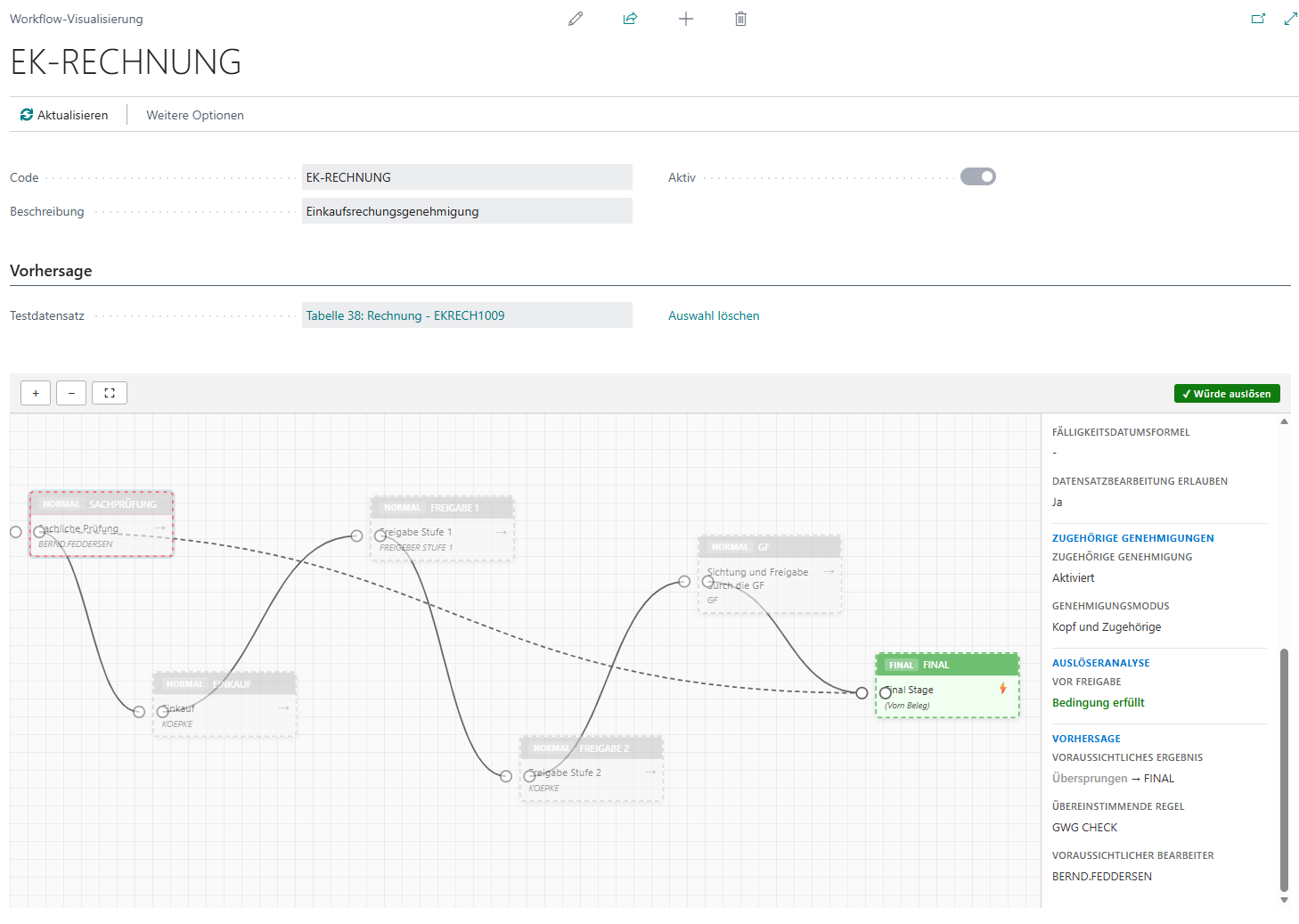](https://docs.squeeze.one/uploads/images/gallery/2026-03/image-1773248171728.png)
### Instance mode
From the **AWF Workflow Instance**card, the visualization can also be opened. In this case it shows the current progress of the workflow instance (which step is currently active, which steps have already been passed).
[](https://docs.squeeze.one/uploads/images/gallery/2026-03/image-1773248219911.png)
### Save positions
The positions of the step nodes are saved automatically when moved (drag & drop). The next time the visualization is opened, the nodes are shown at the saved positions.
# Module: Monitoring & Administration
The monitoring functions provide a comprehensive overview of all workflow instances and their status.
### AWF Workflow Management
The page **AWF Workflow Management** is the central overview for all workflow instances:
- **Filter options**: status (Active / Completed / Error / Cancelled), template code, date
- **Views**: all workflows, only active, only completed
Actions on this page:
- **Show Details**: opens the workflow instance card with complete information
- **Show Audit Trail**: shows the log of all actions for this instance
- **Cancel Workflow**: cancels an active workflow (requires a reason)
- **Restart Workflow**: restarts a failed or cancelled workflow
### Workflow instance card
The card shows all details of a workflow instance:
- **General**: template code, status, current step, start/end date
- **Source Record**: linked record (with navigation)
- **Audit Trail**: chronological log of all workflow actions
- **Visualization**: graphical representation of progress (see [Workflow Visualization](https://docs.squeeze.one/link/1372 "Module: Workflow Visualization"))
### Active workflows
The page **"Active Workflows"** specifically shows only workflows in status **Active**. Useful for daily monitoring and quick intervention.
### Recent Activity
The page **"Recent Activity"** shows the most recent workflow actions (audit-log entries) in chronological order. This lets you quickly see which workflows were recently started, approved, rejected, or escalated.
### Performance analysis
The **Performance analysis** provides statistical evaluations of workflow lead times and frequencies.
### Workflow Statistics
The **Workflow Statistics**page shows aggregated key figures:
- Number of active workflows
- Number of completed workflows
- Number of failed workflows
- Number of cancelled workflows
# Module: Approval Reassignment
Administrators can reassign active approvals to another person or group without cancelling the workflow. In addition, users who are not approval administrators can reassign or cancel approvals – if configured.
### Prerequisites
- The user must have the field **"Can Reassign"** enabled in the **User Setup** (`DXP Can Reassign`).
- The workflow must be in status **Active** .
### Perform a reassignment
1. Open the **AWF Workflow Management**.
2. Mark the desired active workflow and click **Show Details**
3. Action **Reassign Approval"** (or via the page **"Requests to Approve"**).
4. In the dialog **"Reassign Approval"**:
- **Recipient Type**: Approver / Workflow User Group / Salesperson/Purchaser
- **User** or **Workflow User Group** select
- **Reason**: mandatory – why is it being reassigned?
5. **OK** confirm.
The reassignment is logged in the **Audit Trail** (action type **"Workflow Reassigned"**).
### Additional extended permissions
In the **"Can Reassign"** (extended by AWF) there are the following fields:
- **Can Reassign** (`DXP Can Reassign`): allows the user to reassign active workflows.
- **Can Cancel** (`DXP Can Cancel`): allows the user to cancel active workflows.
# Export/Import & Copying
# Export a template
On the template:
- Action **"Export Template"**
A JSON file is created (e.g. `AWF_Template_.json`).
[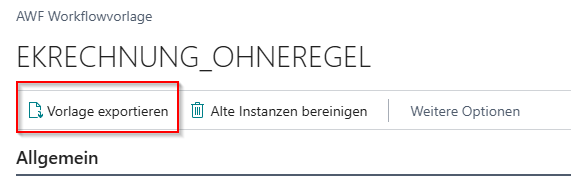](https://docs.squeeze.one/uploads/images/gallery/2025-12/image-1766996642475.png)
# Import / overwrite a template
On import, the system checks the JSON structure. If the template already exists, an overwrite can be prompted.
[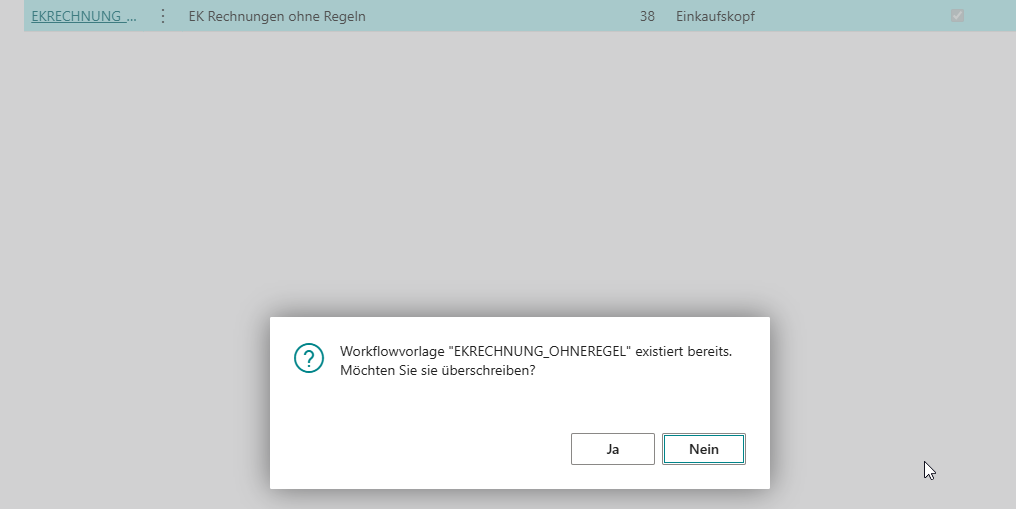](https://docs.squeeze.one/uploads/images/gallery/2025-12/image-1766996710571.png)
# Copy a workflow
There is a function **"Copy Workflow"**, to duplicate a template including steps/triggers/rules.
[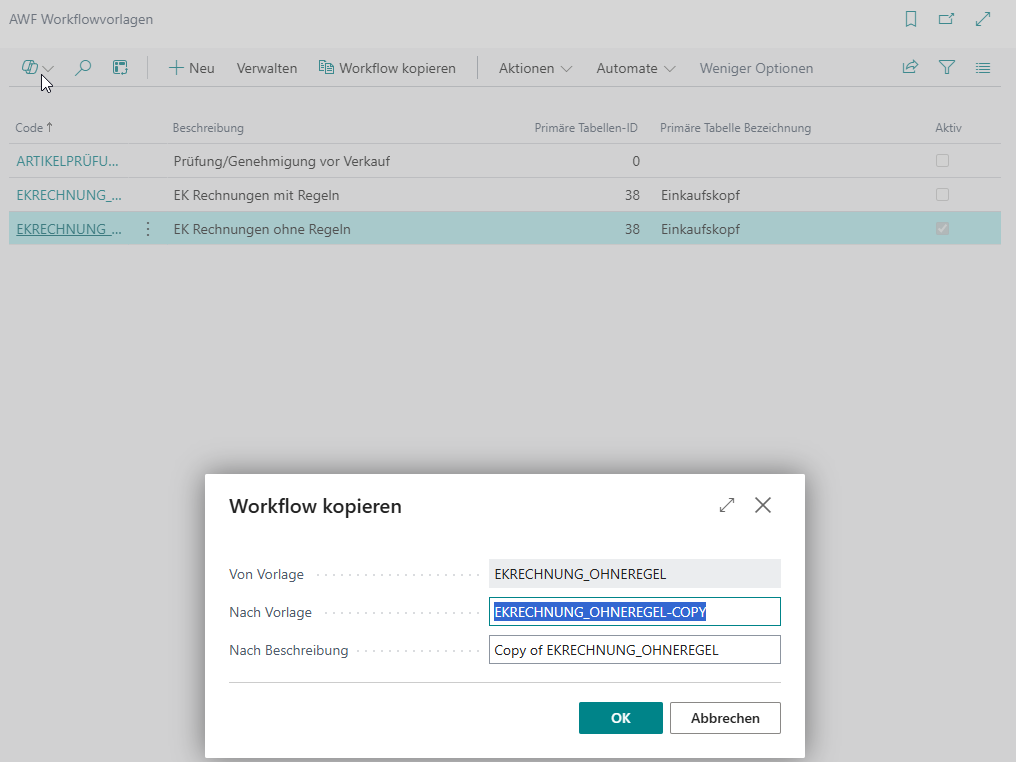](https://docs.squeeze.one/uploads/images/gallery/2025-12/image-1766996766845.png)
# Troubleshooting (common error patterns)
# An error list is shown after activation
Typical causes:
- Primary table missing
- No normal step present
- No active trigger present
Procedure:
1. Open the error list.
2. Jump to the field via Navigation (Open).
3. Correct, activate again.
# Trigger does not fire
Checklist:
- Trigger **Active = Yes**?
- Trigger/step rules are missing or are defined so that no rule matches (e.g. filter on document type not set)
| API Integration | SharePoint Integration |
|---|
| **Setup** | None beyond BC API access | App registration, SP site, wizard |
| **Notification** | Your system handles it | Power Automate → Teams Adaptive Card |
| **Response collection** | Your UI calls the BC API directly | Approver responds in Teams; PA writes to SP; BC polls SP |
| **Licence needed (approver)** | Paid BC user licence (see licensing note) | Paid BC user licence, plus M365 for Teams (see licensing note) |
| **Good for** | Custom portals, mobile apps, vendor self-service | Quick Teams rollout, minimal dev effort |
> **Licensing — customer/partner responsibility:** Acting on Business Central data — whether directly via the API or indirectly through the SharePoint relay — requires each approver to hold an **appropriate paid Business Central user licence**. A Microsoft 365 licence alone does **not** grant API or write access to BC, and routing actions through a service account does **not** remove the per-user requirement (Microsoft's multiplexing / indirect-access terms). A **Team Member** licence may be sufficient for approval-only use, but Microsoft restricts Team Member to designated scenarios and this is **not guaranteed** for custom or third-party interfaces — a full **Essentials/Premium** user may be required. **DEXPRO makes no licensing representation.** The customer and their Microsoft licensing partner are solely responsible for determining and maintaining correct licensing; verify against the current [Microsoft Dynamics 365 Licensing Guide](https://go.microsoft.com/fwlink/?LinkId=866544).
---
### Prerequisites
| Requirement | Details |
|---|
| **Business Central** | DEXPRO AWF extension installed, BC 25 or later |
| **Entra App Registration** | An Entra ID app with `Financials.ReadWrite.All` (or a delegated user flow) for BC API access |
| **BC permission set** | The API caller's service account needs a permission set that grants read access to `DXP AWF Ext. Approval Entry` and write access for the bound actions (`approve`, `reject`, `claim`, `releaseClaim`, `markNotified`, `setTeamsMessageId`). The **DXP AWF Admin** set covers this. No explicit Execute permission on the API page is required — it is granted automatically via the page's inherent entitlements. |
| **External Approvers** | At least one external approver configured in BC (AWF Setup → External Approvers) |
---
### Authentication
The BC API V2 uses OAuth 2.0 with Microsoft Entra ID. Obtain a bearer token from:
```
POST https://login.microsoftonline.com/{tenantId}/oauth2/v2.0/token
grant_type=client_credentials
&client_id={clientId}
&client_secret={clientSecret}
&scope=https://api.businesscentral.dynamics.com/.default
```
Include the token on every request:
```
Authorization: Bearer {access_token}
```
> **Note:** Client Credentials flow is suitable for backend service integrations. For user-delegated flows (e.g. a web portal where each approver authenticates as themselves), use Authorization Code + PKCE instead — the token then carries the user's identity, which is useful for audit purposes.
---
### Base URL
```
https://api.businesscentral.dynamics.com/v2.0/{tenantId}/{environmentName}/api/dexpro/advancedWorkflow/v1.0
```
All examples below use `{baseUrl}` as a shorthand for this full base URL.
To find your company ID (a GUID required in most requests):
```
GET {baseUrl}/companies
```
Response (abbreviated):
```
{
"value": [
{
"id": "5e9f4c3a-0001-ef11-9f8a-6045bd028c9f",
"name": "CRONUS International Ltd.",
...
}
]
}
```
Use the `id` value as `{companyId}` in subsequent requests.
---
### Entities
Three read-only entity sets are available. All use **`SystemId`** (a platform-assigned GUID, exposed as `id`) as the OData key — the standard BC API V2 convention and a requirement for Power Automate / Power Apps compatibility.
| Entity set | OData URL segment | OData key field | Description |
|---|
| Approval entries | `externalApprovalEntries` | `id` (SystemId) | The actionable entries — one per approver per approval request. Main entity for integrations. |
| Approvers | `externalApprovers` | `id` (SystemId) | The registered external approver records. Useful for bootstrap / pre-population. |
| Group members | `externalApproverMembers` | `id` (SystemId) | Members of external approver groups. |
| Entry document | `externalApprovalEntryDocuments` | `id` (SystemId) | Source document record as JSON. Separate endpoint — only fetched on demand. |
| Entry attachments | `externalApprovalEntryAttachments` | `id` (SystemId) | Standard BC document attachments for the source record. Separate endpoint — only fetched on demand. |
> **Why GUIDs, not integers?** The `entryNo` integer field is still present in the response body for display and correlation, but it is not the OData key. Using SystemId (GUID) as the key follows Microsoft's official BC API guidance and ensures compatibility with Power Automate, Power Apps, and Logic Apps connectors. Always use `id` in URL paths.
---
### Working with Approval Entries
#### List all pending entries for one approver
```
GET {baseUrl}/companies({companyId})/externalApprovalEntries
?$filter=approverEmail eq 'john.doe@contoso.com' and status eq 'Pending'
&$orderby=createdDateTime asc
```
Response:
```
{
"@odata.context": "...",
"value": [
{
"id": "b9f3a2c1-0001-ef11-bf8d-6045bd028c9f",
"entryNo": 42,
"approvalEntryNo": 17,
"workflowInstanceId": "a1b2c3d4-0000-0000-0000-000000000001",
"templateCode": "PURCHASE-APPROVAL",
"stageCode": "EXT-REVIEW",
"stageDescription": "External Review",
"documentNo": "PO-00123",
"documentType": "Order",
"approverEmail": "john.doe@contoso.com",
"approverDisplayName": "John Doe",
"status": "Pending",
"isGroupApproval": false,
"isRelatedApproval": false,
"description": "Fabrikam Inc.",
"recordDescription": "Purchase Order PO-00123",
"amount": 15000.00,
"dueDate": "2026-05-15",
"senderUserId": "PROCUREMENT",
"languageCode": "ENU",
"processed": false,
"createdDateTime": "2026-05-04T09:12:33Z",
"errorMessage": "",
"spListItemId": "",
"spAttachmentsUrl": ""
}
]
}
```
#### Retrieve a single entry
```
GET {baseUrl}/companies({companyId})/externalApprovalEntries(b9f3a2c1-0001-ef11-bf8d-6045bd028c9f)
```
#### Common filter patterns
```
# All pending entries for an approver (individual + group)
$filter=approverEmail eq 'jane@contoso.com' and processed eq false and status ne 'Cancelled'
# All pending entries for a group (show to all members before one claims)
$filter=extApproverGroupCode eq 'FINANCE-GROUP' and status eq 'Pending'
# Entries with processing errors (for admin monitoring)
$filter=errorMessage ne '' and processed eq false
# All actionable entries for a group member (pending or claimed by them)
$filter=approverEmail eq 'jane@contoso.com'
and (status eq 'Pending' or status eq 'Notified' or status eq 'Claimed')
and processed eq false
```
---
### Bound Actions
Actions are called as OData bound actions via `POST`. The URL pattern is:
```
POST {baseUrl}/companies({companyId})/externalApprovalEntries({id})/Microsoft.NAV.{actionName}
Content-Type: application/json
```
`{id}` is the `id` field (SystemId GUID) from the entry. A successful call returns `200 OK` with the updated entry in the response body.
#### approve
Records an approval decision and advances the BC workflow.
```
POST {baseUrl}/companies({companyId})/externalApprovalEntries(b9f3a2c1-0001-ef11-bf8d-6045bd028c9f)/Microsoft.NAV.approve
Content-Type: application/json
{
"approverEmail": "john.doe@contoso.com",
"comment": "Looks good. Approved as per Q2 budget."
}
```
`approverEmail` is **required** — pass the email of the user who actually performed the approval. This is recorded in the BC audit log and on the approval entry. Since the API is typically called by a backend service (client credentials), BC has no other way to know the real actor's identity.
`comment` is optional. Omit or pass `""` to approve without a comment.
Response `200 OK`:
```
{
"id": "b9f3a2c1-0001-ef11-bf8d-6045bd028c9f",
"entryNo": 42,
"approverEmail": "john.doe@contoso.com",
"status": "Approved",
"responseComment": "Looks good. Approved as per Q2 budget.",
"responseDateTime": "2026-05-04T10:35:12Z",
"processed": true,
"processedDateTime": "2026-05-04T10:35:12Z",
...
}
```
#### reject
Records a rejection decision and drives the BC rejection flow (including reassignment for related approvals).
```
POST {baseUrl}/companies({companyId})/externalApprovalEntries(b9f3a2c1-0001-ef11-bf8d-6045bd028c9f)/Microsoft.NAV.reject
Content-Type: application/json
{
"approverEmail": "john.doe@contoso.com",
"comment": "Amount exceeds departmental authority. Escalate to CFO."
}
```
`approverEmail` is **required** for the same reasons as `approve`.
Response `200 OK`:
```
{
"id": "b9f3a2c1-0001-ef11-bf8d-6045bd028c9f",
"entryNo": 42,
"approverEmail": "john.doe@contoso.com",
"status": "Rejected",
"responseComment": "Amount exceeds departmental authority. Escalate to CFO.",
"responseDateTime": "2026-05-04T10:38:44Z",
"processed": true,
...
}
```
#### markNotified
Call this after your system has successfully delivered the approval notification to the approver (e.g. sent an email, shown the card in your portal). Transitions status from `Pending` → `Notified`. This is optional but recommended — it allows BC admins to distinguish between entries that were never delivered and entries awaiting a response.
```
POST {baseUrl}/companies({companyId})/externalApprovalEntries(b9f3a2c1-0001-ef11-bf8d-6045bd028c9f)/Microsoft.NAV.markNotified
Content-Type: application/json
{}
```
Response `200 OK`:
```
{
"id": "b9f3a2c1-0001-ef11-bf8d-6045bd028c9f",
"entryNo": 42,
"status": "Notified",
...
}
```
> Only effective when current status is `Pending`. A no-op on any other status.
#### setTeamsMessageId
Call this **instead of `markNotified`** when your transport can later need to update/close the posted message (e.g. a Microsoft Teams adaptive card). It does everything `markNotified` does (Pending → Notified) **and** stores the transport's message identifier on the entry (BC field `Teams Message ID`) and mirrors it onto the SharePoint column `TeamsMessageId`. The Power Automate v2 flow uses this so a peer claim/decision can replace (close) other group members' still-open cards via *Update an adaptive card*.
```
POST {baseUrl}/companies({companyId})/externalApprovalEntries(b9f3a2c1-0001-ef11-bf8d-6045bd028c9f)/Microsoft.NAV.setTeamsMessageId
Content-Type: application/json
{ "teamsMessageId": "1700000000000" }
```
Response `200 OK`:
```
{
"id": "b9f3a2c1-0001-ef11-bf8d-6045bd028c9f",
"entryNo": 42,
"status": "Notified",
"teamsMessageId": "1700000000000",
...
}
```
> Pass the message identifier your transport returns when it posts the message — for the Teams connector's *Post card in a chat or channel* action that is `body/id`. Empty input is ignored (the entry is still marked `Notified`). Calling it with the same id again is a no-op.
#### claim *(group approvals only)*
Claims a group approval entry. This is the "first wins" step: once claimed, all other group members' entries for the same approval request are cancelled, and only the claimer can then approve or reject.
```
POST {baseUrl}/companies({companyId})/externalApprovalEntries(c4e7d1a2-0002-ef11-bf8d-6045bd028c9f)/Microsoft.NAV.claim
Content-Type: application/json
{
"claimerEmail": "jane.smith@contoso.com"
}
```
`claimerEmail` is **required** — pass the email of the user who is claiming the entry. This is recorded in the audit log and written back to the BC approval entry as the claimer's identity.
```
Response `200 OK`:
```json
{
"id": "c4e7d1a2-0002-ef11-bf8d-6045bd028c9f",
"entryNo": 43,
"status": "Claimed",
"claimedByEmail": "jane.smith@contoso.com",
"claimedByDisplayName": "Jane Smith",
"claimedDateTime": "2026-05-04T10:41:02Z",
...
}
```
> **Race condition:** If two group members call `claim` simultaneously, only one wins. The loser receives `400 Bad Request` with the error body: *"This entry was already claimed by jane.smith@contoso.com."* Your UI should catch this and refresh the entry for the losing caller.
#### releaseClaim *(group approvals only)*
Releases a previously claimed entry, returning it to `Notified` status so another group member can claim it.
```
POST {baseUrl}/companies({companyId})/externalApprovalEntries(c4e7d1a2-0002-ef11-bf8d-6045bd028c9f)/Microsoft.NAV.releaseClaim
Content-Type: application/json
{}
```
Response `200 OK`:
```
{
"id": "c4e7d1a2-0002-ef11-bf8d-6045bd028c9f",
"entryNo": 43,
"status": "Notified",
"claimedByEmail": "",
"claimedByDisplayName": "",
...
}
```
---
### Status State Machine
```
┌───────────────────────────────────┐
│ │
BC creates ▼ │
entry ──────► Pending ──── markNotified ──────► Notified
│ │
│ (group only) │
└──────────────────── ──────────────┘
│
▼ claim
Claimed ◄──── releaseClaim ──┐
│ │
└──────────────────────────┘
│ │
approve ─────┤ │ approve / reject
reject ──────┤ │
▼ ▼
Approved / Rejected (same)
│
[processed = false, BC runs workflow engine]
│
[processed = true]
│
────┘
```
| Status | Meaning | Actionable? |
|---|
| `Pending` | Created, not yet delivered to the approver | `markNotified`, `approve`, `reject`, `claim` |
| `Notified` | Your system confirmed the approver was notified | `approve`, `reject`, `claim` |
| `Claimed` | A group member has claimed this entry | `approve`, `reject` (claimer only), `releaseClaim` |
| `Approved` | Approver approved; BC may still be processing | — |
| `Rejected` | Approver rejected | — |
| `Cancelled` | Cancelled by BC (peer claimed/decided, workflow reassigned, or document re-opened) | — |
> **`processed` vs. `status`:** `status` is the approver's decision. `processed = true` means BC's workflow engine has successfully consumed the decision. An entry can be `status = Approved` with `processed = false` if the workflow engine call failed — check `errorMessage` for details. BC admins can retry from the External Approval Entries page.
---
### Group Approvals
When an approval stage targets an **External Approver Group**, BC creates one `externalApprovalEntry` for each group member. They share the same `workflowInstanceId` and `approvalEntryNo` but have different `id`, `approverEmail`, and `externalApproverCode` values.
`isGroupApproval = true` on all of them.
#### Integration flow for group approvals
1. **Notify all members** — query entries by `extApproverGroupCode` + `status eq 'Pending'`. Show each member their own entry and store the entry's `id` for subsequent action calls.
2. **Member claims** — when a member taps "Claim", call `Microsoft.NAV.claim` on **their** entry's `id`. BC cancels the other members' entries automatically.
3. **Claimer decides** — show the approver their claimed entry. They call `approve` or `reject` on the same `id` they claimed.
4. **Poll for cancellations** — after a claim, entries belonging to other group members transition to `Cancelled`. Your UI should handle this gracefully (e.g. "This approval has been claimed by Jane Smith").
#### Detecting peer cancellations
```
GET {baseUrl}/companies({companyId})/externalApprovalEntries
?$filter=approverEmail eq 'bob@contoso.com' and status eq 'Cancelled' and processed eq false
&$orderby=createdDateTime desc
&$top=50
```
Entries in `Cancelled` state that have `processed = false` were cancelled because a peer claimed or decided first (not because the workflow was revoked by a BC user).
#### Single-member groups
BC auto-claims single-member group entries at creation time — `status` is already `Claimed` when first fetched and `claimedByEmail` is pre-populated. Skip the claim step and go straight to `approve` / `reject`.
---
### Field Reference — externalApprovalEntry
| JSON field | Type | Description |
|---|
| `id` | GUID | **OData key.** SystemId — use this in all action URLs and single-record GETs. |
| `entryNo` | Integer | Internal BC sequence number. Useful for display, correlation, and reading related SharePoint items (`BCEntryNo` column). Not the OData key. |
| `approvalEntryNo` | Integer | Key of the linked BC standard Approval Entry. |
| `workflowInstanceId` | GUID | BC workflow instance. Shared by all entries (including related lines) in the same workflow run. |
| `templateCode` | String | AWF Workflow Template code. |
| `stageCode` | String | AWF Workflow Stage code. |
| `stageDescription` | String | Human-readable stage description. Show to the approver. |
| `documentTableId` | Integer | BC table ID of the source record (e.g. `38` for Purchase Header, `36` for Sales Header). Useful for routing or rendering table-specific UI in your portal. |
| `documentNo` | String | Document number being approved (e.g. `PO-00123`). |
| `documentType` | String | Document type enum caption (e.g. `Order`, `Invoice`, `""` for custom tables). |
| `externalApproverCode` | String | Code of the External Approver record in BC. |
| `extApproverGroupCode` | String | Code of the External Approver Group, if this is a group approval. Empty for individual approvals. |
| `approverEmail` | String | Email of the approver assigned to this specific entry. Use for routing. |
| `approverDisplayName` | String | Display name of the assigned approver. |
| `status` | String | See [Status State Machine](#bkmrk-status-state-machine) above. |
| `isGroupApproval` | Boolean | Whether this is part of a claim-based group approval. |
| `claimedByEmail` | String | Email of the group member who claimed the entry. Empty on individual approvals. |
| `claimedByDisplayName` | String | Display name of the claimer. |
| `claimedDateTime` | DateTime | When the entry was claimed (UTC). |
| `processed` | Boolean | Whether BC's workflow engine has successfully consumed this decision. |
| `processedDateTime` | DateTime | When BC processed the decision (UTC). |
| `errorMessage` | String | Non-empty if `processed = false` after an Approved/Rejected decision — the workflow engine call failed. |
| `description` | String | Contextual description (e.g. vendor name, customer name). Good for display in a card or list. |
| `recordDescription` | String | Full record identifier (e.g. `"Table 38 (Purchase Header): Order, PO-00123"`). Use for detailed display. |
| `amount` | Decimal | Approval amount. |
| `dueDate` | Date | Approval due date (ISO 8601 date, e.g. `2026-05-15`). |
| `senderUserId` | String | BC User ID of the person who sent the document for approval. |
| `languageCode` | String | BC language code of the assigned approver (e.g. `ENU`, `DEU`). Use to localise your notification. |
| `responseComment` | String | Comment entered by the approver. Populated after approve/reject. |
| `responseDateTime` | DateTime | When the approver responded (UTC). |
| `isRelatedApproval` | Boolean | True for line-level (related) entries linked to a header approval. |
| `createdDateTime` | DateTime | When BC created this entry (UTC). |
| `spListItemId` | String | SharePoint list item ID. Only populated when SP Approvals is enabled. Ignore for pure API integrations. |
| `spAttachmentsUrl` | String | SharePoint sharing link for document attachments. Only populated when SP Approvals is enabled and attachments were uploaded. |
---
### Field Reference — externalApprover
| JSON field | Type | Description |
|---|
| `id` | GUID | **OData key.** SystemId. |
| `code` | String | Internal BC approver code (Code\[20\]). |
| `displayName` | String | Full name. |
| `email` | String | Email / UPN. |
| `languageCode` | String | BC language code for notifications. |
| `entraObjectId` | GUID | Entra ID object ID (populated for Entra-synced approvers). |
| `blocked` | Boolean | Blocked approvers cannot receive new entries. |
---
### Field Reference — externalApproverMember
| JSON field | Type | Description |
|---|
| `id` | GUID | **OData key.** SystemId. |
| `groupCode` | String | The External Approver Group code. |
| `lineNo` | Integer | Line number within the group (informational only). |
| `externalApproverCode` | String | Member's approver code. |
| `displayName` | String | Member's display name. |
| `email` | String | Member's email. |
---
### Complete Example: Individual Approval Flow
The following sequence implements a minimal approval portal for individual approvers.
#### Step 1 — Authenticate and get pending entries
```
GET {baseUrl}/companies({companyId})/externalApprovalEntries
?$filter=approverEmail eq 'john.doe@contoso.com'
and status ne 'Cancelled'
and processed eq false
&$select=id,entryNo,documentNo,description,stageDescription,amount,dueDate,status,isGroupApproval,createdDateTime
&$orderby=createdDateTime asc
```
#### Step 2 — Show entry details to the approver
Use `description`, `stageDescription`, `amount`, `dueDate`, and `senderUserId` to build an approval card. Store the entry's `id` GUID — you need it for action calls.
#### Step 3 — Mark as notified
After showing the card to the approver:
```
POST {baseUrl}/companies({companyId})/externalApprovalEntries(b9f3a2c1-0001-ef11-bf8d-6045bd028c9f)/Microsoft.NAV.markNotified
Content-Type: application/json
{}
```
#### Step 4 — Collect decision
Approver clicks Approve with a comment:
```
POST {baseUrl}/companies({companyId})/externalApprovalEntries(b9f3a2c1-0001-ef11-bf8d-6045bd028c9f)/Microsoft.NAV.approve
Content-Type: application/json
{
"approverEmail": "john.doe@contoso.com",
"comment": "Within budget allocation, approved."
}
```
---
### Complete Example: Group Approval Flow
#### Step 1 — Notify all group members
Fetch entries for the group, one per member:
```
GET {baseUrl}/companies({companyId})/externalApprovalEntries
?$filter=extApproverGroupCode eq 'FINANCE-GROUP'
and (status eq 'Pending' or status eq 'Notified')
and processed eq false
```
Send each member a notification that includes their entry's `id`.
#### Step 2 — Member claims
Jane opens the portal and taps "Claim" (using the `id` from her own entry):
```
POST {baseUrl}/companies({companyId})/externalApprovalEntries(c4e7d1a2-0002-ef11-bf8d-6045bd028c9f)/Microsoft.NAV.claim
Content-Type: application/json
{
"claimerEmail": "jane.smith@contoso.com"
}
```
```
BC cancels all sibling entries (the other group members' entries for this same approval).
**Handle the race:** If the entry was already claimed by someone else, BC returns `400 Bad Request`:
```json
{
"error": {
"code": "Internal",
"message": "This entry was already claimed by bob.smith@contoso.com. CorrelationId: ..."
}
}
```
Refresh and show "This approval was claimed by Bob Smith" to Jane.
#### Step 3 — Claimer decides
Jane calls approve using the same `id`:
```
POST {baseUrl}/companies({companyId})/externalApprovalEntries(c4e7d1a2-0002-ef11-bf8d-6045bd028c9f)/Microsoft.NAV.approve
Content-Type: application/json
{
"approverEmail": "jane.smith@contoso.com",
"comment": "Reviewed line items, all within policy."
}
```
---
### Error Handling
#### HTTP status codes
| Code | When |
|---|
| `200 OK` | Action succeeded. Response body contains the updated entry. |
| `400 Bad Request` | Business logic error (entry already processed, already claimed by someone else, not in a claimable state). Read `error.message` for details. |
| `401 Unauthorized` | Missing or expired bearer token. |
| `403 Forbidden` | The API caller's BC user lacks the required permission set. |
| `404 Not Found` | Entry not found in this company, or wrong `id` GUID. |
#### Idempotency
- `approve` and `reject` are guarded: calling them on an already-processed entry returns `400` with *"This external approval entry has already been processed…"*. Safe to retry only if the previous call returned a non-`200` response.
- `markNotified` is a no-op when status is not `Pending` — safe to call multiple times.
- `claim` is not idempotent by design: calling it twice from two different callers is the race condition you need to handle.
#### SharePoint/Teams race condition
When SharePoint integration is active, the entry may have been decided via Teams between your last poll and your `approve`/`reject`/`claim` call. The API syncs live SP state before processing (`SyncFromSPIfNeeded`), so a now-closed entry is rejected with `400` and one of the actual guard messages:
> *"This external approval entry has already been processed by Business Central and cannot be acted on again."*
>
> *"This external approval entry has been cancelled (a peer in the group decided first, or the workflow was reassigned). Refresh the list to see the current state."*
This is not a retryable error — treat it like a `Cancelled` state and refresh the entry list for the user.
#### Entries that disappear
An entry's status can transition to `Cancelled` at any time due to external events:
- A BC user reassigns or cancels the underlying approval entry
- The document is re-opened (cancels the whole workflow)
- A peer in the same group claimed first (only for group entries)
Always check for `Cancelled` status before showing an entry to the approver, and handle `400` responses gracefully with a refresh.
---
### Polling Recommendations
There is no webhook or push mechanism — your integration polls the API. Recommended intervals:
| Use case | Interval |
|---|
| Notification delivery (fetch new `Pending` entries) | 1–5 minutes |
| Approval portal refresh (logged-in user) | On demand (user refresh) + on page load |
| Group membership refresh | Query `externalApproverMembers` on each portal login |
To detect newly created entries since the last poll, filter on `createdDateTime`:
```
GET {baseUrl}/companies({companyId})/externalApprovalEntries
?$filter=status eq 'Pending' and createdDateTime gt 2026-05-04T09:00:00Z
&$orderby=createdDateTime asc
```
---
### Record JSON
Each approval entry has a corresponding `externalApprovalEntryDocuments` endpoint that returns the full JSON representation of the source document record — the actual BC table row being approved (e.g. the Purchase Order, Sales Quote, or custom record).
This is a **separate endpoint** from `externalApprovalEntries`. It is only fetched when explicitly called, keeping list queries fast.
```
GET {baseUrl}/companies({companyId})/externalApprovalEntryDocuments(b9f3a2c1-0001-ef11-bf8d-6045bd028c9f)
```
The `id` is the same SystemId GUID as the corresponding `externalApprovalEntry`. Example response:
```
{
"id": "b9f3a2c1-0001-ef11-bf8d-6045bd028c9f",
"entryNo": 42,
"documentNo": "PO-00123",
"recordJson": "{\"No_\":\"PO-00123\",\"Document_Type\":\"Order\",\"Buy-from_Vendor_No_\":\"V00010\",\"Buy-from_Vendor_Name\":\"Fabrikam Inc.\",\"Amount\":15000.00,\"Amount_Including_VAT\":17850.00,\"Due_Date\":\"2026-05-15\",\"TableNo\":38,\"TableName\":\"Purchase Header\",\"TableCaption\":\"Purchase Header\",\"Company\":\"CRONUS International Ltd.\", ...}"
}
```
> `recordJson` is a JSON string (not a nested object) — parse it with `JSON.parse()` in your client.
#### What the JSON contains
The JSON object is produced by `DXP Json Helper.Rec2Json` and includes:
- **All table fields** — field captions (with spaces replaced by `_`) as keys, values serialized to their JSON-native types
- **Metadata fields** automatically added by the helper:
- `TableNo` — numeric table ID
- `TableName` — internal table name
- `TableCaption` — localized table caption
- `Company` — company name
- `RecordId` — BC RecordId string
- `SysLink` — SystemId + TableNo composite
#### Performance note
`recordJson` is computed on every record read — it navigates to the source document and serializes all its fields. Since it lives on a dedicated endpoint, it is only fetched when you explicitly call `externalApprovalEntryDocuments`. Use the entries endpoint for list queries and only call the documents endpoint when you need the full record:
```
# Fast list — no document lookup
GET {baseUrl}/companies({companyId})/externalApprovalEntries
?$filter=approverEmail eq 'john@contoso.com' and status eq 'Pending'
# On-demand — fetch the full record only for the entry the approver opened
GET {baseUrl}/companies({companyId})/externalApprovalEntryDocuments({id})
```
#### Fallback
If the source document was deleted or the Approval Entry link is missing, `recordJson` returns `"{}"` (an empty JSON object string) rather than an error.
---
### Record Attachments
Each approval entry has a corresponding `externalApprovalEntryAttachments` endpoint that returns all standard BC document attachments for the source record as a JSON array. Each element includes the file metadata and the full file content as a Base64 string, ready to render or download client-side.
This is a **separate endpoint** from `externalApprovalEntries`. It is only fetched when explicitly called.
```
GET {baseUrl}/companies({companyId})/externalApprovalEntryAttachments(b9f3a2c1-0001-ef11-bf8d-6045bd028c9f)
```
Example response:
```
{
"id": "b9f3a2c1-0001-ef11-bf8d-6045bd028c9f",
"entryNo": 42,
"documentNo": "PO-00123",
"recordAttachmentsJson": "[{\"fileName\":\"PO-00123 Specification\",\"fileExtension\":\"pdf\",\"attachedDate\":\"2026-05-03T14:22:00Z\",\"attachedBy\":\"Alice Johnson\",\"lineNo\":0,\"contentBase64\":\"JVBERi0xLjQK...\"},{\"fileName\":\"Vendor Quote\",\"fileExtension\":\"xlsx\",\"attachedDate\":\"2026-05-03T14:23:00Z\",\"attachedBy\":\"Alice Johnson\",\"lineNo\":0,\"contentBase64\":\"UEsDBBQA...\"}]"
}
```
> `recordAttachmentsJson` is a JSON string — parse it with `JSON.parse()`.
#### Attachment object fields
| Field | Type | Description |
|---|
| `fileName` | String | File name without extension. |
| `fileExtension` | String | File extension without dot (e.g. `pdf`, `xlsx`, `png`). |
| `attachedDate` | DateTime | When the file was attached (UTC). |
| `attachedBy` | String | BC user ID of the person who attached the file. |
| `lineNo` | Integer | `0` for document-level (header) attachments; non-zero for line-level attachments. |
| `contentBase64` | String | Full file content, Base64-encoded. Empty string if the file has no content. Decode with `atob()` in a browser or your platform's Base64 decoder. |
#### Client-side decode example (JavaScript)
```
const attachments = JSON.parse(entry.recordAttachmentsJson);
attachments.forEach(a => {
const bytes = Uint8Array.from(atob(a.contentBase64), c => c.charCodeAt(0));
const blob = new Blob([bytes], { type: mimeTypeFor(a.fileExtension) });
const url = URL.createObjectURL(blob);
// render download link or open inline
});
```
#### Performance note
`recordAttachmentsJson` reads and Base64-encodes every attachment for the source document on every record read. Since it lives on a dedicated endpoint, it is only fetched when you explicitly call `externalApprovalEntryAttachments`:
```
# Fast list — no attachment loading
GET {baseUrl}/companies({companyId})/externalApprovalEntries
?$filter=approverEmail eq 'john@contoso.com' and status eq 'Pending'
# On-demand — fetch attachments only when the approver opens an entry
GET {baseUrl}/companies({companyId})/externalApprovalEntryAttachments({id})
```
#### Fallback
Returns `"[]"` (empty JSON array string) if the source document has no attachments, or if the document was deleted.
---
### Related Documentation
| Document | Purpose |
|---|
| [`SETUP-GUIDE.md`](https://docs.squeeze.one/link/1330) | Admin setup guide for the SharePoint / Teams integration |
| [`SHAREPOINT-CONTRACT.md`](https://docs.squeeze.one/link/1332) | Contract for integrations that read/write the SharePoint list directly |
| [`POWERAUTOMATE-DEV-GUIDE.md`](https://docs.squeeze.one/link/1331) | Internal guide for maintaining the Power Automate reference flow |
# DEXPRO AWF External Approvals — Setup Guide
> **Audience:** customers / admins installing and configuring the feature.
>
> **Maintaining the Power Automate flow itself?** See [`POWERAUTOMATE-DEV-GUIDE.md`](https://docs.squeeze.one/link/1331) (DEXPRO developers / advanced admins).
>
> **Building a non-Teams integration on top of the SharePoint list?** See [`SHAREPOINT-CONTRACT.md`](https://docs.squeeze.one/link/1332).
>
> **Building a custom portal or app that calls BC directly?** See [`API-INTEGRATION-GUIDE.md`](https://docs.squeeze.one/link/1329) — no SharePoint setup needed.
## Overview
The DEXPRO Advanced Workflow (AWF) **External Approvals** feature lets approvers act on approval entries directly from Microsoft Teams — or from any other system that can read and write to a SharePoint list — without ever opening the Business Central web client. This lets organizations include managers, department heads, or other stakeholders in approval workflows from the tools they already use.
> **Licensing — customer/partner responsibility:** Acting on Business Central data still requires each approver to hold an appropriate paid Business Central user licence; a Microsoft 365 licence alone is not sufficient. DEXPRO makes no licensing representation — the customer and their Microsoft licensing partner are responsible for confirming the exact requirement with Microsoft. See [Prerequisites](#bkmrk-prerequisites) and the licensing note in [`API-INTEGRATION-GUIDE.md`](https://docs.squeeze.one/link/1329).
> **Integrating a non-Teams system?** The SharePoint list is the contract. See [`SHAREPOINT-CONTRACT.md`](https://docs.squeeze.one/link/1332) for the full integration reference, column definitions, state machine, and sample payloads. This setup guide focuses on the Teams / Power Automate reference implementation.
>
> **Approving directly in SharePoint:** the list uses typed columns — `ApprovalStatus` is a dropdown, `ResponseDateTime` has a native date picker, `ResponseComment` is a multi-line text area. An approver with SharePoint access can open a pending item and approve it directly from the list edit form without Teams or Power Automate. BC's polling Job Queue picks it up on the next cycle.
### How It Works
When an approval entry is assigned to an external approver, Business Central writes the approval request to a **SharePoint list** via the Microsoft Graph API. A **Power Automate flow** detects the new list item and sends the approver a rich **Adaptive Card** in Microsoft Teams. The approver taps **Approve** or **Reject** directly in Teams, and Power Automate updates the SharePoint list item with the response. A **Job Queue** in Business Central polls the SharePoint list and processes the decisions through the workflow engine.
### Architecture
```
BC creates Approval Entry (external approver)
│
│ BC server-side (Graph API)
▼
SharePoint List: new item created
│
│ Power Automate trigger (Standard connector — free)
▼
"When an item is created" fires
│
▼
Power Automate sends Adaptive Card to Teams
│
▼
Approver taps Approve / Reject in Teams
│
│ Power Automate (Standard connector)
▼
SharePoint list item updated with response
│
│ BC Job Queue polls SharePoint list (Graph API)
▼
BC processes response → workflow advances
```
> **Licence benefit:** Both the SharePoint and Teams connectors are **Standard** (free) connectors in Power Automate, included with all Microsoft 365 business licences. No Power Automate Premium licence is required.
---
## Prerequisites
| Requirement | Details |
|---|
| **Business Central** | DEXPRO AWF extension installed, BC 25 or later |
| **External approver BC licence** | Each external approver needs an appropriate **paid Business Central user licence** — acting on BC data (directly or via the SharePoint relay) is not covered by a Microsoft 365 licence alone (Microsoft multiplexing terms). A Team Member licence may suffice for approval-only use but is **not guaranteed** for custom/external scenarios. **DEXPRO makes no licensing representation** — the customer/partner must confirm the requirement with Microsoft |
| **Microsoft 365** | External approvers also need a Teams-capable M365 licence (Business Basic or higher) for the Teams card |
| **Power Automate** | Standard licence (included in M365) — no Premium required |
| **SharePoint site** | A SharePoint site for the approval list (existing or new) |
| **Entra App Registration** | Required for BC to read/write the SharePoint list via Graph API. Also used for Entra ID group resolution if needed |
| **BC service account** | A BC-licensed user with the **DXP AWF Admin** permission set. This user runs the Job Queue entries that poll SharePoint |
---
## Step 1: Create an Entra ID App Registration
Business Central communicates with SharePoint and Microsoft Graph using OAuth2 client credentials. You need an App Registration in Microsoft Entra ID (formerly Azure AD).
> **Tip:** If you already have a DXP-related App Registration (e.g. from DXP Core), you can reuse it — just add the required permissions.
### 1.1 Register the Application
1. Go to the [Microsoft Entra admin center](https://entra.microsoft.com)
2. Navigate to **Identity** → **Applications** → **App registrations**
3. Click **New registration**
- **Name:** `DEXPRO AWF Graph API` (or any descriptive name)
- **Supported account types:** `Accounts in this organizational directory only` (single tenant)
- **Redirect URI:** Leave blank (not needed for client credentials)
4. Click **Register**
5. On the app's **Overview** page, copy:
- **Application (client) ID** — you will need this later
- **Directory (tenant) ID** — you will need this later
### 1.2 Add API Permissions
1. In the app registration, navigate to **API permissions**
2. Click **Add a permission** → **Microsoft Graph** → **Application permissions**
3. Add the following permissions:
| Permission | Type | Purpose |
|---|
| `Sites.ReadWrite.All` | Application | **Required.** Read/write list items, upload attachments, create sharing links. |
| `Sites.Manage.All` | Application | **Required.** Create the approval list and its columns (including typed columns like `AmountRaw` / `DueDateRaw`). Without this permission the initial setup fails with `403 accessDenied`. |
| `GroupMember.Read.All` | Application | *(Optional)* Resolve Entra ID Security Group members |
| `Group.Read.All` | Application | *(Optional)* List available Entra groups for lookup |
1. Click **Add permissions**
2. Click **Grant admin consent for \[your organization\]** and confirm
> **Both `Sites.ReadWrite.All` and `Sites.Manage.All` are required** — the latter is needed to create the approval list and its columns. If only `Sites.ReadWrite.All` is granted, the wizard's SharePoint step will fail with `403 accessDenied` the first time you run it.
>
> The `GroupMember.Read.All` and `Group.Read.All` permissions are only needed if you plan to use **Entra ID Security Groups** as external approver groups. You can skip them for manual groups or individual approvers.
### 1.3 Create a Client Secret
1. Navigate to **Certificates & secrets**
2. Click **New client secret**
3. Set a description (e.g. `DEXPRO AWF`) and choose an expiry period
4. Click **Add**
5. **Copy the secret value immediately** — it will not be shown again
---
## Step 2: Run the Setup Wizard in Business Central
The setup wizard handles everything — OAuth2 configuration, SharePoint connection, list creation, and Job Queue setup — in a single guided flow. No manual OAuth2 or field configuration required.
### 2.1 Open AWF Setup
1. In Business Central, search for **AWF Setup** (Alt+Q) and open the page
2. Click **Setup External Approvals** in the action bar to launch the wizard
### 2.2 Wizard Steps
The wizard guides you through six steps:
| Step | What Happens |
|---|
| **1. Welcome** | Overview of prerequisites and what the wizard will configure |
| **2. Setup Type** | Choose what to configure: **Entra Group Sync** (resolve Entra groups to members for group approvals), **SharePoint Approvals** (Teams notification layer via Power Automate — requires a SharePoint site), or **Both**. When you pick **Entra Group Sync** only, the SharePoint Site step is skipped. |
| **3. Credentials** | Enter the **Tenant ID**, **Client ID**, and **Client Secret** from the Entra App Registration (Step 1) — *or* enable **Reuse an existing OAuth2 setup** to pick an existing DXP OAuth2 Setup code (e.g. one already created for DXP Core). The wizard creates the DXP OAuth2 Setup record automatically. On a re-run it defaults to the reuse option. |
| **4. Connection Test** | The wizard tests the OAuth2 credentials by requesting an access token. If the test fails, you can correct the credentials and retry. |
| **5. SharePoint Site** | Enter your **SharePoint Site URL** (e.g. `https://yourcompany.sharepoint.com/sites/approvals`) and optionally a custom **Approval List Name** (default: `DXP AWF Approvals`). The wizard resolves the site, creates the list if it does not exist, **or reuses an existing list with that name and adds any missing columns**, resolves the document library drive, and stores all internal IDs. |
| **6. Done** | Summary of what was configured. Click **Finish** to enable the feature and create the Job Queue entries. |
On completion, the wizard:
- Creates a **DXP OAuth2 Setup** record with code `AWF` (credentials stored securely in Isolated Storage)
- Creates (or reuses) the SharePoint list **"DXP AWF Approvals"** with all required columns
- Sets the attachments folder to **"AWF-Attachments"** (used when Upload Attachments is enabled)
- Creates **Job Queue Entries** for:
- **External Approval Polling** — polls the SharePoint list for responses (every 2 minutes)
- **Entra Group Sync** — periodically refreshes Entra ID group memberships (every 4 hours)
- Toggles **SharePoint Approvals Enabled** to Yes
> **Re-running the wizard:** You can re-run the wizard at any time. It will load existing credentials and update the configuration. The SharePoint list is not duplicated — the wizard finds the existing list by name and, if the schema is outdated, adds any missing columns in place (no data loss).
### 2.2.1 Diagnose / Health Check
After the initial setup, the **AWF Setup** page exposes a **Diagnose SharePoint Approvals** action. It runs a non-destructive end-to-end check: OAuth2 token acquisition, SharePoint site / drive / list reachability, column schema, job queue status, and an overview of entries in error or older than seven days. Run it whenever a user reports a problem — the output tells you exactly which step is broken.
### 2.3 Upload Attachments Toggle
After the wizard completes, the **AWF Setup** page shows an **Upload Attachments** toggle in the External Approvals section. When enabled (default), document attachments from the source record are uploaded to SharePoint and a sharing link is included in the Teams Adaptive Card. Disable this if you don't want attachments shared with external approvers.
### 2.4 Manual Job Queue Setup (Alternative)
If you need to adjust Job Queue intervals or prefer to create them manually:
1. Search for **Job Queue Entries** and open it
2. Create a new entry:
- **Object Type to Run:** Codeunit
- **Object ID to Run:** `70954832` (DXP AWF Ext. Approval Poller)
- **Recurring Job:** Yes
- **No. of Minutes between Runs:** `2` (or your preferred polling interval)
- **Status:** Ready
3. *(Optional)* Create a second entry for Entra group sync:
- **Object Type to Run:** Codeunit
- **Object ID to Run:** `70954833` (DXP AWF Entra Group Sync)
- **Recurring Job:** Yes
- **No. of Minutes between Runs:** `240` (4 hours)
- **Status:** Ready
---
## Step 3: Create External Approvers
External approvers are people who participate in approval workflows from Teams or another system instead of the Business Central web client. Each approver needs an appropriate **paid Business Central user licence** (a Microsoft 365 licence alone is not sufficient; the customer/partner is responsible for confirming the exact requirement with Microsoft), plus a Microsoft 365 account with Teams access.
### 3.1 Open External Approvers
From the **AWF Setup** page, click **External Approvers** in the action bar. Alternatively, search for **External Approvers** in the BC search bar.
### 3.2 Create an Individual External Approver
1. On the **External Approvers** list page, click **New**
2. The **External Approver Card** opens. Fill in:
| Field | Description | Example |
|---|
| **Code** | Unique identifier (Code\[20\]) | `EXT-JOHN` |
| **Display Name** | Full name | `John Doe` |
| **Email** | The person's Microsoft 365 email or User Principal Name (UPN). Must match their Teams identity exactly. | `john.doe@company.com` |
| **Language Code** | *(Optional)* Language for the Teams card labels. If blank, the BC environment's default language is used. | `DEU` for German, `ENU` for English |
| **Entra Object ID** | *(Optional)* Automatically filled when synced from an Entra group. Not needed for manual setup. | |
### 3.3 Create an External Approver Group
Groups enable claim-based approvals — the approval request is sent to all members, and the first member to respond wins.
1. On the **AWF Setup** page, click **External Approver Groups** in the action bar
2. Click **New**
3. The **External Approver Group Card** opens. Fill in:
| Field | Description | Example |
|---|
| **Code** | Unique identifier | `FINANCE-GROUP` |
| **Description** | Group description | `Finance Approvers` |
1. In the **Members** subpage at the bottom, add each member:
- **External Approver Code** — Lookup to select an existing external approver
- **Email** — Member's email (populated from the approver record)
- **Display Name** — Member's name
When a workflow assigns this group, **each member** receives their own external approval entry. The **first member** to approve or reject determines the outcome.
### 3.4 Create an Entra ID Group–Based Approver Group
Instead of manually managing members, you can link a group to a **Microsoft Entra ID Security Group**. The system resolves members directly from Entra via the Graph API.
> **Why not use BC's built-in Security Groups?** BC's Security Group system only returns users who already exist as BC users. External approvers by definition don't have BC accounts, so Entra group resolution must go directly through Graph API.
1. Create a new External Approver Group (see 3.3)
2. In the **Entra ID Synchronization** section, use the **assist (⋯) button** on the **Entra Group Name** field. This calls the Graph API and shows a picker of the security-enabled Entra groups; select the group and BC fills the (hidden) Entra Group ID automatically and runs a first sync.
3. To refresh later, click **Sync from Entra ID** in the action bar
- The system calls the Graph API and populates the **Members** list with all direct members of the Entra group
- The **Last Entra Sync** timestamp is updated
4. Review the members list to verify the correct people were found
> **Note:** Group members are also resolved **live at runtime** when approval entries are created for an Entra-linked group. The persisted member list is primarily for review purposes. An automatic Entra Group Sync Job (if configured in Step 2.2) keeps the member list up to date periodically.
---
## Step 4: Assign External Approvers to Workflow Stages
1. Open a **AWF Workflow Template** (search for "AWF Workflow Templates")
2. Open a stage or create a new stage
3. Set the **Assignee Type** field to one of:
- **External Approver** — assigns to a single external person
- **External Approver Group** — assigns to a group (each member gets their own entry)
4. In the **Assignee Code** field, look up and select the external approver or group
> **Important:** Stages with external approvers must have **rejection groups** enabled (validation is enforced). When the feature "Related Approvals" is enabled on a stage, the related rejection group setting must also be enabled.
---
## Step 5: Install the Power Automate Solution Package
The Teams approval automation is shipped as a **Power Platform solution package** — a `.zip` you import once. During import you bind the solution's two connection references to your tenant's SharePoint and Teams connections and configure the environment variables to point the flow at the SharePoint site and list the wizard created. Total time: 5–10 minutes.
> Want to build the flow by hand instead (e.g. for customisation, or to see exactly what it does step by step)? See [`POWERAUTOMATE-DEV-GUIDE.md`](https://docs.squeeze.one/link/1331). The package import path described here is what most customers will use; the dev guide is for DEXPRO maintainers and advanced admins.
The flow uses only **Standard connectors** (SharePoint + Teams) — no Power Automate Premium licence required.
### 5.1 Import the solution
1. Open <https://make.powerapps.com> and switch to the environment you want the flow to run in (top-right environment picker).
2. Left nav → **Solutions** → **Import solution**.
3. **Browse** and select the `DEXPROApprovalFlow_x.x.x.x.zip` package shipped with this release. Click **Next**.
4. Power Apps shows a summary of the solution contents (one cloud flow, two connection references). Click **Next**.
5. **Connection references** — bind each to a connection in your tenant:
- **SharePoint DEXPROApprovalFlow-…** → pick (or create) a SharePoint connection authenticated as a user who can read/write the approval list.
- **Microsoft Teams DEXPROApprovalFlow-…** → pick (or create) a Teams connection authenticated as a user who can post Flow-bot messages on behalf of itself.
6. **Environment variables** — set each to point at your SharePoint list:
- **Sharepoint Site Address** — the full URL of your SharePoint site (e.g. `https://yourcompany.sharepoint.com/sites/approvals`). This is the same site URL you entered in the wizard.
- **Sharepoint List Name** — the name of the list the wizard created (default: `DXP AWF Approvals`).
7. Click **Import**. Wait for "Solution imported successfully" (typically under a minute).
### 5.2 Update environment variable values (if needed)
The environment variables you set during import default to the DEXPRO sandbox site. If you used the import wizard to set them (Step 5.1, step 6), this step is already done.
If you need to change the values after import:
1. Open the imported solution → **Environment variables**.
2. Click **Sharepoint Site Address** → edit the **Current value** to your SharePoint site URL.
3. Click **Sharepoint List Name** → edit the **Current value** to your list name.
The flow uses these variables in all SharePoint actions — no manual rebinding of individual actions is needed.
### 5.3 Turn the flow on
1. Back in the solution view, open **Cloud flows** → **DEXPRO AWF Externe Genehmigung**.
2. The flow's status should read **On** after import. If it reads **Off**, click ⋯ → **Turn on**.
> **Note:** The flow is named `DEXPRO AWF Externe Genehmigung` in the solution. This is the name it appears under in your Power Automate environment.
### 5.4 What the approver sees
When BC creates an external approval entry, the approver receives an Adaptive Card from the Flow bot in their Teams **Chat** view. The card shows:
- The localised approval-request title and the workflow stage it belongs to.
- A FactSet with description, amount, due date, and requester.
- A **Details** section with the source record's key fields (e.g. for a Purchase Line: Type, No., Description, Quantity, Direct Unit Cost, Line Amount).
- A multi-line **Comment** input (when the approver can decide).
- Action buttons:
- **Approve / Reject** — for individual approvers and single-member groups (BC auto-claims those at entry creation).
- **Claim** — only on multi-member group approvals that haven't been claimed yet. Clicking Claim cancels the other group members' cards (PA writes Cancelled to their SP items) and posts a second card to the claimer with Approve / Reject.
- **Approval Documents** — opens the SharePoint sharing link to attached documents (visible only when there are attachments).
- **Open in Business Central** — deep link to the source record (visible only for tables BC has a registered card page for; useful for licensed approvers).
All button labels and placeholder text are pre-translated based on the External Approver's **Language Code** field. See **Step 3** for assigning a language to an approver.
> **Customising the card layout** — the card JSON (both the initial card and the post-claim card) lives inside the flow's *Post adaptive card and wait* actions. To change branding, fields, or layout, see [`POWERAUTOMATE-DEV-GUIDE.md`](https://docs.squeeze.one/link/1331) → *Reference: Card JSONs*.
---
## Step 6: Test the End-to-End Flow
1. In Business Central, open or create an **AWF Workflow Template**
2. Add or modify a stage:
- **Assignee Type:** `External Approver` or `External Approver Group`
- **Assignee Code:** Select the external approver you created
3. Trigger the workflow on a test document (e.g., create a Purchase Order and send it for approval)
4. Verify step by step:
| Step | What to Check |
|---|
| **SharePoint list** | A new item should appear within seconds. Open the list in your browser and verify the item has the correct data (Title, ApproverEmail, Status = Pending, translated labels). |
| **Power Automate** | Go to [Power Automate](https://make.powerautomate.com) → **My flows** → click your flow → **Run history**. A new run should appear. Click it to inspect each step's inputs and outputs. |
| **Teams** | The external approver should receive an Adaptive Card in their Teams chat with the Flow bot. Verify the record description, amount, due date, and translated labels are correct. |
| **Approve/Reject** | Have the approver tap **Approve** or **Reject** (or, for an unclaimed multi-member group, **Claim** first → second card → Approve / Reject). Optionally enter a comment. The card should update after submission. |
| **SharePoint (after response)** | The list item's **ApprovalStatus** column should show `Approved` or `Rejected`. The ResponseComment and ResponseDateTime columns should be populated. For group approvals, **ClaimedBy** holds the email of whoever clicked Claim (or the auto-claimer for a single-member group). |
| **BC Job Queue** | Wait for the next polling cycle (default: every 2 minutes). The Job Queue processes the response. On the **External Approval Entries** page the entry's **Status** stays at the approver's decision (`Approved` / `Rejected`) and the **Processed** column flips to `Yes` with a **Processed DateTime**. |
| **BC Approval Entry** | Verify that the corresponding BC standard Approval Entry has been updated (Approved/Rejected) and the workflow has advanced to the next stage or completed. |
---
## Multi-company installs
A single SharePoint list can be safely shared across multiple BC companies. BC writes the current company's name to `BCCompanyName` on every item, and each company's polling job queue only picks up items whose `BCCompanyName` matches its own — both server-side (via the Graph `$filter`) and client-side. You do **not** need a separate list per company.
If you prefer company isolation anyway, run the setup wizard in each company with a different list name (Step 2.2 now lets you name the list).
---
## SharePoint List Reference
The SharePoint list is created automatically by the setup wizard with the following columns. If you create the list manually, use these column names exactly.
### Data Columns
| Column Name | Type | Description |
|---|
| `SchemaVersion` | Text | Integration contract version written by BC. Currently `1`. |
| `BCCompanyName` | Text | BC company that owns the entry. Used by the poller to separate companies sharing one list — see "Multi-company installs" below. |
| `Title` | Single line of text | Record description (built-in SharePoint column) |
| `BCEntryNo` | Text | BC external approval entry number (unique within `BCCompanyName`, not globally) |
| `BCApprovalEntryNo` | Text | BC standard Approval Entry No. that this external approval is bound to. Together with `BCInstanceID` and `GroupCode` it uniquely identifies the set of peer items the PA flow should cancel when one member claims. |
| `BCInstanceID` | Text | BC workflow instance ID (GUID, globally unique) |
| `Description` | Text | Document description (vendor/customer name, etc.) |
| `ApproverEmail` | Text | Target approver's email / UPN |
| `ApproverDisplayName` | Text | Target approver's display name |
| `ApprovalStatus` | Choice | Dropdown in SharePoint. Values: `Pending`, `Notified`, `Approved`, `Rejected`, `Claimed`, `Processed`, `Error`, `Cancelled`. Default: `Pending`. |
| `ResponseComment` | Multi-line text | Comment entered by the approver (multi-line area in SharePoint). |
| `ResponseDateTime` | Date/Time | Native SharePoint DateTime with picker; BC uses the current time if left blank. |
| `ClaimedBy` | Text | Email of the group member who claimed the entry |
| `AttachmentsUrl` | Text | SharePoint sharing link for document attachments |
| `BCDocumentUrl` | Text | Direct link to the source record in Business Central. Empty if BC couldn't determine a card page for the record's table. |
| `RecordDetails` | Multi-line text | Markdown rendering of the approved record's own fields — what the adaptive card shows below the FactSet so a Teams approver can see the document/line-level data. |
| `Processed` | Yes/No | Whether BC has processed this response |
| `IsGroupApproval` | Yes/No | Whether this is a group (claim-based) approval |
| `GroupCode` | Text | Approver group code |
| `Amount` | Text | Display-formatted approval amount |
| `AmountRaw` | Number | Machine-readable amount — use this for filters and calculations |
| `SenderName` | Text | BC user who requested the approval |
| `DueDate` | Text | Display-formatted due date |
| `DueDateRaw` | Date/Time | ISO 8601 UTC due date — use this for filters |
| `CreatedRaw` | Date/Time | ISO 8601 UTC creation timestamp |
| `StageName` | Text | Workflow stage description |
### Pre-Translated Label Columns
These columns contain UI labels translated to the approver's language. They are set by BC when the list item is created and used by the Adaptive Card in Teams.
| Column Name | Default (English) | Description |
|---|
| `LblTitle` | Approval Request | Card header title |
| `LblApprove` | Approve | Approve button text |
| `LblReject` | Reject | Reject button text |
| `LblComment` | Comment | Comment field label |
| `LblClaim` | Claim | Claim button text (group approvals) |
| `LblRelease` | Release | Release claim button text |
| `LblAmount` | Amount | Amount fact label |
| `LblSender` | Requested by | Sender fact label |
| `LblDueDate` | Due Date | Due date fact label |
| `LblStage` | Stage | Stage fact label |
| `LblDescription` | Description | Description fact label |
| `LblAttachments` | Approval Documents | Attachments button text |
| `LblOpenInBC` | Open in Business Central | Deep-link button text |
| `LblDetails` | Details | Section header above the rendered record details |
| `LblAlreadyClaimedByMsg` | This approval ({title}) has already been claimed by {claimer}. You can safely ignore this card. | Template for the "already claimed" Teams message. Placeholders `{title}` and `{claimer}` are substituted by the PA flow at runtime. |
| `LblAlreadyHandledMsg` | This approval ({title}) has already been handled by another approver or cancelled in Business Central. You can safely ignore the earlier card. | Template for the stale-card scope's Teams message. Placeholder `{title}` is substituted by the PA flow at runtime. |
| `LblClaimedSuccessMsg` | The approval entry "{title}" has been successfully processed. | Confirmation shown after the claimer submits their Approve or Reject decision on Card B (replaces the card in Teams chat). Placeholder `{title}` is substituted by the PA flow at runtime. |
---
## Entra ID Group Resolution
### When to Use It
- You have a team of potential approvers managed as an Entra ID Security Group
- You want group membership to sync automatically rather than maintaining a manual list
- External approvers are added/removed in Entra, and you want BC to reflect those changes
### Setup
1. Ensure the App Registration has **`GroupMember.Read.All`** and **`Group.Read.All`** Application permissions with admin consent (see Step 1.2)
2. Create an External Approver Group in BC (see Step 3.4)
3. Enter the Entra Group ID and click **Sync from Entra ID**
### Sync Behaviour
| Context | When Members Are Resolved |
|---|
| **Manual sync** | Click "Sync from Entra ID" on the group card page |
| **Entra Group Sync** | The Entra Group Sync Job Queue entry runs periodically (if configured) |
| **Runtime** | When a workflow creates approval entries for an Entra-linked group, members are resolved live via Graph API to ensure the most current membership |
> Only **direct members** of the security group are resolved. Nested groups are not expanded.
---
## Troubleshooting
| Issue | Possible Cause | Resolution |
|---|
| **SharePoint item not created** | OAuth2 setup incorrect or missing permissions | Verify the setup wizard completed successfully. The App Registration needs `Sites.ReadWrite.All` and `Sites.Manage.All` (Application) permissions with admin consent. Re-run the wizard from AWF Setup → **Setup External Approvals** to re-test. |
| **`403 accessDenied` during wizard / `Diagnose SharePoint Approvals`** | `Sites.Manage.All` not granted or admin consent not given | Open the App Registration, confirm both `Sites.ReadWrite.All` *and* `Sites.Manage.All` Application permissions are listed, then click **Grant admin consent**. Re-run the wizard. |
| **Flow not triggering** | SharePoint trigger misconfigured | Verify the trigger points to the correct site and list. Open the list in SharePoint to confirm items are being created. |
| **Job Queue not processing responses** | Job Queue not running | Check that the Job Queue Entry for codeunit `70954832` has **Recurring Job = Yes** and **Status = Ready**. Check the Job Queue Log Entries for errors. |
| **Adaptive Card not appearing in Teams** | Email mismatch | The `ApproverEmail` on the SharePoint item must exactly match the user's UPN or primary email in Microsoft 365. Verify in Entra admin center → Users. |
| **Card shows "This card isn't valid"** | JSON syntax error | Re-import the Power Platform solution package, or compare the card JSON against the reference in **POWERAUTOMATE-DEV-GUIDE.md**. Verify all `@{...}` expressions are intact. Test the static JSON in the [Adaptive Card Designer](https://adaptivecards.io/designer/). |
| **Labels appear in English instead of the expected language** | Language code not set on the approver | Set the **Language Code** field on the External Approver record (e.g., `DEU` for German). BC uses this to translate all labels before writing them to SharePoint. |
| **"401 Unauthorized" in Job Queue log** | OAuth2 credentials expired or incorrect | Re-run the setup wizard to verify credentials. If the client secret has expired, create a new one in the Entra admin center and re-enter it in the wizard. |
| **Duplicate cards sent** | Multiple flow runs for the same item | This shouldn't normally happen — each BC approval creates exactly one SharePoint item. If duplicates occur, check the Power Automate run history for concurrent triggers and add a **Trigger Conditions** expression on the trigger: `@equals(triggerOutputs()?['body/ApprovalStatus'], 'Pending')` |
| **Entra group shows 0 members** | Group empty, nested groups, or permission error | The Graph API `/members` endpoint only returns direct members. Ensure users are direct members of the security group. Verify `GroupMember.Read.All` permission is granted with admin consent. |
| **Approver responded but BC shows "Pending"** | Job Queue polling hasn't run yet | Wait for the next polling cycle. Check that the Job Queue entry is running (status Ready, not On Hold). Reduce the polling interval if faster processing is needed. |
| **"Permission denied" when running the polling Job Queue** | Service account missing permission set | Assign the **DXP AWF Admin** permission set to the BC user running the Job Queue entries. |
| **SharePoint list columns missing** | List created manually with wrong column names | Column names are case-sensitive and must match exactly (e.g., `BCEntryNo`, not `bcEntryNo`). The easiest fix: delete the list and let the setup wizard re-create it. |
| **Attachments link absent from the card** | No document attachments on the source record, or Upload Attachments is disabled | Verify the source document has at least one Document Attachment before triggering the workflow. Check that **Upload Attachments** is enabled in AWF Setup. |
---
## Appendix: SharePoint List Columns Created by BC
When you use the **Setup External Approvals** wizard or the `CreateApprovalList` procedure, BC creates the SharePoint list via the Graph API with all columns pre-configured. The list uses a `genericList` template with a mix of typed columns: Text (most columns), Boolean (`Processed`, `IsGroupApproval`), Number (`AmountRaw`), DateTime (`ResponseDateTime`, `DueDateRaw`, `CreatedRaw`), Multi-line Text (`ResponseComment`, `RecordDetails`, message template columns), and Choice (`ApprovalStatus` — dropdown enforcing known states).
You do **not** need to create the list or its columns manually unless you have a specific reason to customize the list structure.
# DEXPRO AWF External Approvals — Power Automate Developer Guide
> **Audience:** DEXPRO developers / maintainers of the Power Automate solution package.
>
> **Customers / admins:** see [`SETUP-GUIDE.md`](https://docs.squeeze.one/link/1330). The customer flow is "import the solution package, configure connections and environment variables" — they do not need to read this document.
This guide describes how the `DEXPROApprovalFlow` Power Platform solution package is constructed: the structure of the cloud flow, the two adaptive cards, and the steps to rebuild / re-export the package after changes.
---
## Solution package overview
The shipped solution contains **one cloud flow** and **two connection references**:
| Component | Type | Notes |
|---|
| `DEXPRO AWF Externe Genehmigung` | Cloud flow (modern flow, type 1, category 5) | The entire end-to-end automation |
| `dxp_sharedsharepointonline_*` | Connection reference | Used by the SharePoint trigger and every list / item action |
| `dxp_sharedteams_*` | Connection reference | Used by *Post adaptive card and wait* and *Post message in a chat or channel* |
> **One Teams connection reference**, not two. Earlier exports had a duplicate because the *Post message* actions had been authored against a different Teams connection from the *Post adaptive card and wait* actions. Always reuse the same connection across all Teams actions before exporting.
The trigger is *When an item is created* on the SharePoint approval list. Site Address and List Name are configured as **environment variables** (`dxp_SharepointSiteAddress` and `dxp_SharepointListName`), which the import wizard prompts for during installation.
---
## Flow structure
```
Trigger: When an item is created (SharePoint)
│
▼
Compose_Actions (build Card A buttons)
│
▼
Post adaptive card and wait for a response ← Card A (full body, actions from Compose_Actions)
│
▼
Switch on body(...)?.['data']?.['action']
│
├─ case "claim" → Get item → Condition (already claimed?)
│ ├─ Yes → Teams message + Terminate
│ └─ No → Update item (Claimed + ClaimedBy)
│ → Get peer items
│ → Apply to each (Update item: Cancel peer)
│ → Compose_Actions2 (build Card B buttons)
│ → Post adaptive card and wait ← Card B
│ → Update item (final decision)
│ → Post message (Teams) ← Result card (✅/❌)
│
├─ case "approve" → Update item (Approved + ResponseComment + ResponseDateTime)
│ → Post message (Teams) ← Result card (✅)
│
└─ case "reject" → Update item (Rejected + ResponseComment + ResponseDateTime)
│ → Post message (Teams) ← Result card (❌)
│
▼
Handle_error (Scope, run after Switch: Failed | TimedOut)
└─ Post message (Teams) — "already handled" template
```
The Switch is what makes the flow safe for the three possible card actions. The `claim` case must:
1. Re-check the SP item's current `ClaimedBy` (Get item) before proceeding, to catch peer claimers who beat us in the BC poll-interval window.
2. Pre-cancel peer items (Get peer items + Apply to each) so other members see "already claimed by …" immediately, without waiting for BC's polling cycle.
3. Post a second card (Card B) to the claimer for the actual Approve/Reject decision.
---
## Peer-card handling when one member decides (v2 — info card)
> **Status:** **Shipped in solution v1.0.0.7.** When one group member claims/decides, every other member's still-open card is followed by a neutral **"no longer open" info card**, and a click on the now-stale card is rejected by BC's `GuardActionable`. This is the **non-premium** solution. It does **not** delete/replace the original card in place — see the finding below for why that needs premium.
### Finding: in-place closing of peer cards is not possible on Standard licensing
We investigated truly *replacing* each peer's open card (so the buttons vanish). It can't be done reliably without premium, for a chain of connector constraints:
1. The peer cards are sent with **Post adaptive card and wait for a response**, which **does not expose the card's message ID while it waits** (and none at all on timeout). ([Microsoft Q&A](https://learn.microsoft.com/en-us/answers/questions/2279002/logic-apps-ms-teams-connector-messageid-not-availa))
2. Each peer card runs in its **own flow instance** (the SharePoint trigger uses `splitOn`), so the claimer's run can't reach into a peer's run to update its card anyway.
3. The obvious redesign — *Post card in a chat or channel* (returns a message ID) + a separate *When someone responds to an adaptive card* trigger — is **documented by Microsoft as not combinable**: that trigger *"cannot be combined with Post adaptive card in a chat or channel … use Post adaptive card and wait for a response instead."* In practice the response trigger never fires for those cards. ([Teams connector reference](https://learn.microsoft.com/en-us/connectors/teams/) · [community report](https://community.powerplatform.com/forums/thread/details/?threadid=fbb31aa1-60db-f011-8544-000d3a56922f))
So in-place closing would require a **premium** path (a custom bot / HTTP action with Graph, or a Power Apps component). That is tracked as a future option; it is **not** in this package.
### What v2 (info card) actually does
Two existing fire-and-forget messages become neutral **info cards** ([Close Card JSON](#bkmrk-close-card-json)) — same width and look as the result card, grey `emphasis` header, no buttons:
| Where | Trigger | Card body text |
|---|
| `claim` case → Condition **Yes** (a peer already claimed) | the second member clicks anything | `LblAlreadyClaimedByMsg` (with `{claimer}` from `Get item`) |
| `Handle_error` scope (stale card after BC cancelled the peer) | the peer clicks a button on an already-cancelled entry | `LblAlreadyHandledMsg` |
Both use **`PostCardToConversation`** (Standard, *Post as Flow bot* / *Chat with Flow bot*, **recipient** = the approver email) — fire-and-forget, no response needed, so none of the trigger-combination limits apply. The card reads its localized strings (`LblClosedTitle`, `LblAlready…Msg`) from the SharePoint trigger body, so it renders in the approver's language.
> **Why the BC plumbing is still in place.** The BC side (field `Teams Message ID`, bound action `setTeamsMessageId`, SP column `TeamsMessageId`) was built before this finding and is **kept**: it is harmless, and it is exactly what a future premium in-place-close path would need. The flow simply doesn't call `setTeamsMessageId` today, so `TeamsMessageId` stays empty.
---
## Step-by-step build (rebuild from scratch)
This is the procedure for re-creating the flow from an empty Power Automate environment. Use it when the source flow is lost, when you need to upgrade to a newer template, or when on-boarding a new developer.
### Build pre-requisites
- An environment with the **SharePoint** and **Microsoft Teams** standard connectors authorised under your DEXPRO account.
- A SharePoint list to bind to. Easiest: run the BC **Setup External Approvals** wizard once in a sandbox; it creates `DXP AWF Approvals` for you.
- The Compose expressions and Card A / Card B JSON in [Reference: Compose expressions & Card JSONs](#bkmrk-reference%3A-compose-e) below.
### 1. Create the flow
1. <https://make.powerautomate.com> → **Create** → **Automated cloud flow**.
2. **Flow name:** `DEXPRO AWF Externe Genehmigung`.
3. Trigger: search for *When an item is created* under **SharePoint**. Click **Create**.
4. Before binding the trigger, add the two **environment variable parameters** the flow uses for the SharePoint coordinates:
- In the flow designer toolbar, click **Parameters** → **New parameter**.
- Add parameter **1**:
- **Name:** `Sharepoint Site Address (dxp_SharepointSiteAddress)`
- **Type:** `String`
- **Default value:** `https://dexprosolutions.sharepoint.com/sites/MSBCDev` (DEXPRO sandbox — customers update this during import)
- Add parameter **2**:
- **Name:** `Sharepoint List Name (dxp_SharepointListName)`
- **Type:** `String`
- **Default value:** `DXP AWF Approvals` (must match the list name BC creates — see `DefaultListNameLbl` in AWFSPIntegration; the SETUP-GUIDE uses the same name)
5. Back in the **When an item is created** trigger, set:
- **Site Address** → switch to the Expression tab → `parameters('Sharepoint Site Address (dxp_SharepointSiteAddress)')`
- **List Name** → switch to the Expression tab → `parameters('Sharepoint List Name (dxp_SharepointListName)')`
All subsequent SharePoint actions in the flow must reference the same parameters in the same way.
### 2. Send the first adaptive card (Card A)
1. **+ New step** → *Compose* (Data Operation). Rename it to **Compose\_Actions**. Paste the [Compose\_Actions expression](#bkmrk-compose_actions-%28car) into its **Inputs**. This builds Card A's action buttons dynamically (claim vs. approve/reject, plus the attachment/Open-in-BC links) so the card body does not need per-action `isVisible` bindings — the Teams renderer ignores those on actions, which is why the buttons are assembled here instead.
2. **+ New step** → *Post adaptive card and wait for a response* (Microsoft Teams).
3. Configure:
| Setting | Value |
|---|
| **Post as** | `Flow bot` |
| **Post in** | `Chat with Flow bot` |
| **Recipient** | trigger `ApproverEmail` |
| **Adaptive Card** | Paste the [Card A JSON](#bkmrk-card-a-json) below — its `actions` reference `@{outputs('Compose_Actions')}` |
| **Update message** (Expression tab) | `@{triggerOutputs()?['body/LblResponseSent']}` |
> This action **blocks** until the approver responds (default 30 days). The **Update message** is the plain text Teams collapses the card into once the approver clicks a button. Keep it **short and status-neutral** — `LblResponseSent` ("Response sent.") — for two reasons: (1) Power Automate rejects any expression here that references this action's *own* `body(...)` (`InvalidTemplate: the action cannot reference itself`), so it cannot carry the ✅/❌ decision; (2) the decision and record details are shown in full on the [result card](#bkmrk-3d.-result-card-afte) posted right below, so a long collapse line is just wasted space. A ✅ glyph here would also be misleading on a reject.
### 3. Branch on the action value
1. **+ New step** → **Switch** (Control).
2. **On** (expression): `body('Post_adaptive_card_and_wait_for_a_response')?['data']?['action']`
3. Add three cases. The **Equals** field takes a plain lowercase literal — no quotes, no `@{}`:
| Case | Equals |
|---|
| Claim | `claim` |
| Approve | `approve` |
| Reject | `reject` |
#### 3a. `claim` case
The decision tree is: re-check current `ClaimedBy` → either tell the approver someone else got there first, or write the claim, cancel peers, and post Card B.
1. **Get item** (SharePoint) — read the current row.
| Setting | Value |
|---|
| **Site Address** | same as trigger |
| **List Name** | same as trigger |
| **Id** | trigger `ID` |
1. **Condition** — has someone else already claimed?
Both values **must** be entered via the **Expression** tab; otherwise PA stores the literal strings and the comparison fails.
| Field | Tab | Value |
|---|
| **Left value** | Expression | `not(empty(body('Get_item')?['ClaimedBy']))` |
| **Operator** | — | `is equal to` |
| **Right value** | Expression | `true` |
> **Why not `ClaimedBy is not equal to ''`?** SharePoint returns `null` for an unset text column. `null != ""` evaluates to `true`, which would route every first-ever claim into the "already claimed" branch. `empty()` correctly treats `null` and `""` the same.
- **Yes** branch:
1. **Post message in a chat or channel** (Teams)
- **Recipient:** trigger `ApproverEmail`
- **Message** (Expression tab): ``` replace(replace(triggerOutputs()?['body/LblAlreadyClaimedByMsg'], '{title}', triggerOutputs()?['body/Title']), '{claimer}', body('Get_item')?['ClaimedBy']) ```
2. **Terminate** (Control), Status = `Succeeded`. Stops the flow cleanly without tripping the stale-card scope.
- **No** branch — continue with steps 3 to 7 below.
| Setting | Value |
|---|
| **Id** | trigger `ID` |
| **Title** | trigger `Title` |
| **Approval Status** | `Claimed` |
| **ClaimedBy** | **Expression tab**: `triggerOutputs()?['body/ApproverEmail']` |
> ⚠️ The `ClaimedBy` field **must** be entered via the Expression tab. If you type the value as text, PA stores the literal string and SharePoint writes that literal into the column. Every subsequent claim attempt would then read it as "already claimed" and the message would say "claimed by `triggerOutputs()?...`".
1. **Get items** (SharePoint) — find peer SP items in the same group.
| Setting | Value |
|---|
| **Site Address** | same as trigger |
| **List Name** | same as trigger |
| **Filter Query** | `BCCompanyName eq '@{triggerOutputs()?['body/BCCompanyName']}' and BCInstanceID eq '@{triggerOutputs()?['body/BCInstanceID']}' and BCApprovalEntryNo eq '@{triggerOutputs()?['body/BCApprovalEntryNo']}' and GroupCode eq '@{triggerOutputs()?['body/GroupCode']}' and Id ne @{triggerOutputs()?['body/ID']} and Processed ne 1` |
The five `eq` clauses scope the result to peer items belonging to **the same BC standard Approval Entry** in the same workflow instance, group, and BC company — excluding the current item. The trailing `Processed ne 1` skips items the BC poller has already finalised. Including `BCApprovalEntryNo` matters for the (rare) case of two parallel stages of the same workflow assigned to the same group.
Rename this action to `Get peer items`.
1. **Apply to each** over `value` from `Get peer items`. Inside the loop, **a single Update item** action:
| Setting | Value |
|---|
| **Id** | Expression: `items('Apply_to_each')?['ID']` |
| **Title** | Expression: `items('Apply_to_each')?['Title']` |
| **Approval Status** | `Cancelled` |
| **ClaimedBy** | Expression: `triggerOutputs()?['body/ApproverEmail']` |
| **Processed** | `Yes` |
> **One** loop, not three. Power Automate's designer sometimes auto-nests `Apply to each` when you reference an item from one foreach inside another action — verify after saving that the JSON has only one `Foreach` action here. A nested triple loop runs the Update item N³ times for N peers.
1. **Compose** — add a *Compose* (Data Operation) action and rename it to **Compose\_Actions2**. Paste the [Compose\_Actions2 expression](#bkmrk-compose_actions2-%28ca) into its **Inputs**. Card B always shows Approve/Reject (the claimer has already taken the entry), so this variant omits the claim branch.
2. **Post adaptive card and wait for a response** — send Card B to the claimer.
| Setting | Value |
|---|
| **Post as** | `Flow bot` |
| **Post in** | `Chat with Flow bot` |
| **Recipient** | Expression: `outputs('Update_item_record_the_claim_on_the_SP_item')?['body/ApproverEmail']` |
| **Adaptive Card** | Paste the [Card B JSON](#bkmrk-card-b-%28after-claim%29) — its `actions` reference `@{outputs('Compose_Actions2')}` |
| **Update message** (Expression tab) | `@{triggerOutputs()?['body/LblResponseSent']}` |
> The **Update message** is the text Teams replaces Card B with once the claimer submits Approve/Reject (the card collapses). Same as Card A: keep it short and status-neutral (`LblResponseSent`) — it cannot reference this action's own `body(...)` (PA `InvalidTemplate` self-reference error), and the outcome is shown on the [result card](#bkmrk-3d.-result-card-afte) posted right below. (This supersedes the earlier `LblClaimedSuccessMsg` text; that label is still written to the SP item for backward compatibility but is no longer the Card B update message.) The visible result card follows from [step 9](#bkmrk-3a.-claim-case).
1. **Update item** — stamp the final decision.
| Setting | Value |
|---|
| **Id** | Expression: `outputs('Update_item_record_the_claim_on_the_SP_item')?['body/ID']` |
| **Title** | Expression: `outputs('Update_item_record_the_claim_on_the_SP_item')?['body/Title']` |
| **Approval Status** | Expression: `if(equals(body('Post_adaptive_card_and_wait_for_a_response_2')?['data']?['action'], 'approve'), 'Approved', 'Rejected')` |
| **ResponseComment** | `@{body('Post_adaptive_card_and_wait_for_a_response_2')?['data']?['comment']}` |
| **ResponseDateTime** | `@{utcNow()}` |
> Do **not** add a `ClaimedBy` value here. Leaving it unset preserves the value written in step 3. An empty expression would clear it.
> **Note (existing package behaviour):** In the exported flow the Update item in this step sits inside a `For_each` loop over the peer items returned in step 4 (`value` from `Get peer items`). The loop iterates over peers but writes the same claimed-item ID and data on every iteration — so the Update item runs N times for N peers but always touches the claimed item, not the peers. The result is functionally identical to a single Update item outside the loop. This quirk is documented here so that a sanity check doesn't mistake it for a nested-loop bug.
1. **Post the result card** — add a *Post message in a chat or channel* action as described in [step 3d](#bkmrk-3d.-result-card-afte), reading the decision from the **Card B** response (`body('Post_adaptive_card_and_wait_for_a_response_2')?['data']?['action']`). Place it after step 8, outside the peer loop if the designer didn't nest it.
#### 3b. `approve` case
1. **Update item**:
| Setting | Value |
|---|
| **Id** | trigger `ID` |
| **Title** | trigger `Title` |
| **Approval Status** | `Approved` |
| **ResponseComment** | `@{body('Post_adaptive_card_and_wait_for_a_response')?['data']?['comment']}` |
| **ResponseDateTime** | `@{utcNow()}` |
1. **Post the result card** — add a *Post message in a chat or channel* action as described in [step 3d](#bkmrk-3d.-result-card-afte), passing `approve` as the decision.
#### 3c. `reject` case
1. Same Update item as `approve`, just `Approval Status = Rejected`.
> Don't omit `ResponseComment` / `ResponseDateTime` on Reject — the approver's reason and timestamp belong in the BC audit trail.
1. **Post the result card** — same *Post message* action as [step 3d](#bkmrk-3d.-result-card-afte), passing `reject` as the decision.
#### 3d. Result card after every decision
This is the visible "lite" card the approver sees after responding. The collapsed *wait* card shows only a short neutral "Response sent." line; **this** card carries the actual outcome — a clear coloured header (✅/❌) and the record details, using the **full chat width**.
Add a **Post message in a chat or channel** (Teams) action — *Post as Flow bot*, *Post in Chat with Flow bot*, **Recipient** = trigger `ApproverEmail`. Switch the **Message** to the rich-card editor (the ⟨/⟩ *Code view* / adaptive-card editor) and paste the [Result Card JSON](#bkmrk-result-card-json).
The card needs to know which decision was made. The three call sites differ only in **how they read the action value**, so bind the card's decision fact and header to one of:
| Call site | Decision expression to substitute for `@{DECISION}` in the Result Card JSON |
|---|
| `approve` case (3b) | `body('Post_adaptive_card_and_wait_for_a_response')?['data']?['action']` |
| `reject` case (3c) | `body('Post_adaptive_card_and_wait_for_a_response')?['data']?['action']` |
| `claim` case (3a, after Card B) | `body('Post_adaptive_card_and_wait_for_a_response_2')?['data']?['action']` |
> Practically, the `approve` and `reject` cases share the exact same Result Card (same `_2`-less expression). The `claim` case uses an otherwise identical card that reads the action from the **Card B** response (`..._2`). Keep them as two copies of the same JSON differing only in that one expression — see the note in the [Result Card JSON](#bkmrk-result-card-json) section.
### 4. Handle stale cards from cancelled entries
When BC cancels a peer's entry (after another member's claim), the peer's still-rendered Teams card is now stale. If they click anything, the Switch's Update item fails with `404 itemNotFound`. Catch it with a Scope:
1. Below the Switch, **+ New step** → **Scope** (Control). Rename it `Handle_error`.
2. ⋯ on the scope → **Configure run after** → uncheck `is successful`, check `has failed` and `has timed out`. The dialog targets the Switch — that's what we want.
3. Inside, **Add an action** → *Post message in a chat or channel* (Teams):
- **Recipient:** trigger `ApproverEmail`
- **Message** (Expression tab): ``` replace(triggerOutputs()?['body/LblAlreadyHandledMsg'], '{title}', triggerOutputs()?['body/Title']) ```
### 5. Save the flow
Click **Save** in the top right. Verify it appears under **My flows** with status *On*.
---
## Reference: Compose expressions & Card JSONs
Both card JSONs target Adaptive Cards **1.5** — the version Microsoft Teams' Power Automate connector renderer supports. Bumping to 1.6 (e.g. to use the `Icon` element and the `ApprovalsApp` catalog icon) makes Teams refuse the card with *"We're sorry, this card couldn't be displayed"*.
Each card's `actions` array is **not** inlined in the card JSON anymore — it is produced by a `Compose` action that runs immediately before the *Post adaptive card* step, and the card references it via `"actions": @{outputs('Compose_Actions')}` (Card A) / `@{outputs('Compose_Actions2')}` (Card B). This replaces the old per-action `isVisible` bindings, which the Teams card renderer does not honour on actions. Each `if(...)` branch returns either a one/two-element action array or `json('[]')`, and `union(...)` concatenates them — so a button is present only when its condition holds.
### Compose\_Actions (Card A)
Builds Card A's buttons: the **Claim** button only for an unclaimed group approval; **Approve/Reject** for an individual approval or an already-claimed group entry; plus **Attachments** / **Open in BC** links when those URLs are present.
```
union(
if(and(equals(triggerOutputs()?['body/IsGroupApproval'], true), empty(triggerOutputs()?['body/ClaimedBy'])),
createArray(json(concat('{"type":"Action.Submit","title":"', triggerOutputs()?['body/LblClaim'], '","data":{"action":"claim"}}'))),
json('[]')),
if(or(not(equals(triggerOutputs()?['body/IsGroupApproval'], true)), not(empty(triggerOutputs()?['body/ClaimedBy']))),
createArray(
json(concat('{"type":"Action.Submit","title":"', triggerOutputs()?['body/LblApprove'], '","style":"positive","data":{"action":"approve"}}')),
json(concat('{"type":"Action.Submit","title":"', triggerOutputs()?['body/LblReject'], '","style":"destructive","data":{"action":"reject"}}'))),
json('[]')),
if(not(empty(triggerOutputs()?['body/AttachmentsUrl'])),
createArray(json(concat('{"type":"Action.OpenUrl","title":"', triggerOutputs()?['body/LblAttachments'], '","url":"', triggerOutputs()?['body/AttachmentsUrl'], '"}'))),
json('[]')),
if(not(empty(triggerOutputs()?['body/BCDocumentUrl'])),
createArray(json(concat('{"type":"Action.OpenUrl","title":"', triggerOutputs()?['body/LblOpenInBC'], '","url":"', triggerOutputs()?['body/BCDocumentUrl'], '"}'))),
json('[]'))
)
```
### Compose\_Actions2 (Card B)
Card B is posted only after a claim, so it always offers **Approve/Reject** (no claim branch) plus the **Attachments** / **Open in BC** links when present.
```
union(
createArray(
json(concat('{"type":"Action.Submit","title":"', triggerOutputs()?['body/LblApprove'], '","tooltip":"', triggerOutputs()?['body/LblApprove'], '","style":"positive","data":{"action":"approve"}}')),
json(concat('{"type":"Action.Submit","title":"', triggerOutputs()?['body/LblReject'], '","tooltip":"', triggerOutputs()?['body/LblReject'], '","style":"destructive","data":{"action":"reject"}}'))
),
if(not(empty(triggerOutputs()?['body/AttachmentsUrl'])),
createArray(json(concat('{"type":"Action.OpenUrl","title":"', triggerOutputs()?['body/LblAttachments'], '","tooltip":"', triggerOutputs()?['body/LblAttachments'], '","url":"', triggerOutputs()?['body/AttachmentsUrl'], '"}'))),
json('[]')),
if(not(empty(triggerOutputs()?['body/BCDocumentUrl'])),
createArray(json(concat('{"type":"Action.OpenUrl","title":"', triggerOutputs()?['body/LblOpenInBC'], '","tooltip":"', triggerOutputs()?['body/LblOpenInBC'], '","url":"', triggerOutputs()?['body/BCDocumentUrl'], '"}'))),
json('[]'))
)
```
> **Note:** Card B references `@{outputs('Compose_Actions2')}`. If your exported flow instead points Card B at `Compose_Actions`, update either the card or this guide so the two agree — Card B must use the claim-less variant.
### Card A JSON
Sent first to every approver. The `actions` come from **Compose\_Actions**, which covers the three group-approval scenarios (individual, single-member group auto-claimed, multi-member group claim flow). The body still uses `isVisible` on its **containers** (record details, comment box) — that binding *is* honoured on body elements.
> The FactSet's "Description" row shows `coalesce(Description, Title)`. BC writes `Description` as the localized RecordId text (`Format(RecId, 0, 1)` — translated table/field captions), so this renders the record identity for any table, in the approver's language.
```
{
"$schema": "http://adaptivecards.io/schemas/adaptive-card.json",
"type": "AdaptiveCard",
"version": "1.5",
"body": [
{
"type": "TextBlock",
"text": "@{triggerOutputs()?['body/LblTitle']}",
"style": "heading",
"weight": "Bolder",
"size": "Large",
"wrap": true
},
{
"type": "TextBlock",
"text": "@{triggerOutputs()?['body/StageName']}",
"spacing": "None",
"isSubtle": true,
"wrap": true
},
{
"type": "FactSet",
"spacing": "Medium",
"facts": [
{ "title": "@{triggerOutputs()?['body/LblDescription']}", "value": "@{coalesce(triggerOutputs()?['body/Description'], triggerOutputs()?['body/Title'])}" },
{ "title": "@{triggerOutputs()?['body/LblAmount']}", "value": "@{triggerOutputs()?['body/Amount']}" },
{ "title": "@{triggerOutputs()?['body/LblDueDate']}", "value": "@{triggerOutputs()?['body/DueDate']}" },
{ "title": "@{triggerOutputs()?['body/LblSender']}", "value": "@{triggerOutputs()?['body/SenderName']}" }
]
},
{
"type": "Container",
"spacing": "Medium",
"isVisible": "@{not(empty(triggerOutputs()?['body/RecordDetails']))}",
"items": [
{ "type": "TextBlock", "text": "@{triggerOutputs()?['body/LblDetails']}", "weight": "Bolder", "wrap": true },
{ "type": "TextBlock", "text": "@{triggerOutputs()?['body/RecordDetails']}", "wrap": true, "spacing": "Small" }
]
},
{
"type": "Container",
"spacing": "Medium",
"isVisible": "@{or(not(equals(triggerOutputs()?['body/IsGroupApproval'], true)), not(empty(triggerOutputs()?['body/ClaimedBy'])))}",
"items": [
{
"type": "Input.Text",
"id": "comment",
"label": "@{triggerOutputs()?['body/LblComment']}",
"placeholder": "@{triggerOutputs()?['body/LblComment']}...",
"isMultiline": true,
"maxLength": 250
}
]
}
],
"actions": @{outputs('Compose_Actions')}
}
```
### Card B (after claim) JSON
Sent only by the `claim` branch after Card A's Claim button is pressed. Same body content as Card A, except the comment box is always visible (no `isVisible` on its container). The `actions` come from **Compose\_Actions2** (always Approve/Reject, no Claim button).
```
{
"$schema": "http://adaptivecards.io/schemas/adaptive-card.json",
"type": "AdaptiveCard",
"version": "1.5",
"body": [
{
"type": "TextBlock",
"text": "@{triggerOutputs()?['body/LblTitle']}",
"style": "heading",
"weight": "Bolder",
"size": "Large",
"wrap": true
},
{
"type": "TextBlock",
"text": "@{triggerOutputs()?['body/StageName']}",
"spacing": "None",
"isSubtle": true,
"wrap": true
},
{
"type": "FactSet",
"spacing": "Medium",
"facts": [
{ "title": "@{triggerOutputs()?['body/LblDescription']}", "value": "@{coalesce(triggerOutputs()?['body/Description'], triggerOutputs()?['body/Title'])}" },
{ "title": "@{triggerOutputs()?['body/LblAmount']}", "value": "@{triggerOutputs()?['body/Amount']}" },
{ "title": "@{triggerOutputs()?['body/LblDueDate']}", "value": "@{triggerOutputs()?['body/DueDate']}" },
{ "title": "@{triggerOutputs()?['body/LblSender']}", "value": "@{triggerOutputs()?['body/SenderName']}" }
]
},
{
"type": "Container",
"spacing": "Medium",
"isVisible": "@{not(empty(triggerOutputs()?['body/RecordDetails']))}",
"items": [
{ "type": "TextBlock", "text": "@{triggerOutputs()?['body/LblDetails']}", "weight": "Bolder", "wrap": true },
{ "type": "TextBlock", "text": "@{triggerOutputs()?['body/RecordDetails']}", "wrap": true, "spacing": "Small" }
]
},
{
"type": "Container",
"spacing": "Medium",
"items": [
{
"type": "Input.Text",
"id": "comment",
"label": "@{triggerOutputs()?['body/LblComment']}",
"placeholder": "@{triggerOutputs()?['body/LblComment']}...",
"isMultiline": true,
"maxLength": 250
}
]
}
],
"actions": @{outputs('Compose_Actions2')}
}
```
### Result Card JSON
The compact "lite" card posted **after** a decision (steps 3b / 3c / 3a-step-9) via a *Post message in a chat or channel* action. It is **action-less** — it confirms the outcome, it doesn't ask for input. The header is a coloured `Container` whose `style` (`good` = green for approved, `attention` = red for rejected) and glyph + word are chosen from the decision value, so the outcome is unmistakable at a glance and the card uses the full chat width.
Replace **`@{DECISION}`** below with the decision expression for the call site (see the table in [step 3d](#bkmrk-3d.-result-card-afte)) — `body('Post_adaptive_card_and_wait_for_a_response')?['data']?['action']` for the approve/reject cases, or `body('Post_adaptive_card_and_wait_for_a_response_2')?['data']?['action']` for the claim case. Everything else is identical between the two copies.
```
{
"$schema": "http://adaptivecards.io/schemas/adaptive-card.json",
"type": "AdaptiveCard",
"version": "1.5",
"body": [
{
"type": "Container",
"style": "@{if(equals(@{DECISION}, 'approve'), 'good', 'attention')}",
"bleed": true,
"items": [
{
"type": "TextBlock",
"text": "@{if(equals(@{DECISION}, 'approve'), concat('✅ ', triggerOutputs()?['body/LblApprovedResult']), concat('❌ ', triggerOutputs()?['body/LblRejectedResult']))}",
"weight": "Bolder",
"size": "Large",
"wrap": true
}
]
},
{
"type": "TextBlock",
"text": "@{triggerOutputs()?['body/LblResultTitle']}",
"spacing": "Small",
"isSubtle": true,
"wrap": true
},
{
"type": "TextBlock",
"text": "@{coalesce(triggerOutputs()?['body/Description'], triggerOutputs()?['body/Title'])}",
"weight": "Bolder",
"size": "Medium",
"wrap": true
},
{
"type": "FactSet",
"spacing": "Medium",
"facts": [
{ "title": "@{triggerOutputs()?['body/LblAmount']}", "value": "@{triggerOutputs()?['body/Amount']}" },
{ "title": "@{triggerOutputs()?['body/LblSender']}", "value": "@{triggerOutputs()?['body/SenderName']}" },
{ "title": "@{triggerOutputs()?['body/LblStage']}", "value": "@{triggerOutputs()?['body/StageName']}" }
]
}
]
}
```
> **Why `style` and not an `Icon`?** A coloured `Container` (`good` / `attention`) plus the ✅ / ❌ emoji in the heading gives an immediate red/green cue and stays within Adaptive Cards **1.5** — the version the Teams Power Automate renderer accepts. The `Icon` element needs 1.6, which Teams still rejects (see the version note at the top of this section).
> **Why no Open-in-BC / Attachments buttons on the result card?** It's a confirmation, posted after the decision — the work is done. Keeping it action-less avoids a dead "respond again" affordance. If you want the source-record link to remain reachable, add an `Action.OpenUrl` driven by `BCDocumentUrl` the same way Card A does.
### Close Card JSON
Used by **v2 (info card)** ([Peer-card handling](#bkmrk-peer-card-handling-w)) — posted via *Post card in a chat or channel* (`PostCardToConversation`) as a neutral, action-less follow-up after a peer interacts with a now-stale card. It does **not** replace the original card (that needs premium — see the finding). No red/green, because nothing was decided *by this peer*. Body uses `{title}` substitution exactly like the existing already-claimed message.
For the **claim** case use `LblAlreadyClaimedByMsg` (with `{claimer}`); for the **reassign/cancel** (`Handle_error`) case use `LblAlreadyHandledMsg`. Substitute with nested `replace(...)` the same way the v1 messages do.
```
{
"$schema": "http://adaptivecards.io/schemas/adaptive-card.json",
"type": "AdaptiveCard",
"version": "1.5",
"body": [
{
"type": "Container",
"style": "emphasis",
"bleed": true,
"items": [
{
"type": "TextBlock",
"text": "@{triggerOutputs()?['body/LblClosedTitle']}",
"weight": "Bolder",
"size": "Large",
"isSubtle": true,
"wrap": true
}
]
},
{
"type": "TextBlock",
"text": "@{coalesce(triggerOutputs()?['body/Description'], triggerOutputs()?['body/Title'])}",
"weight": "Bolder",
"wrap": true
},
{
"type": "TextBlock",
"text": "@{replace(replace(triggerOutputs()?['body/LblAlreadyClaimedByMsg'], '{title}', triggerOutputs()?['body/Title']), '{claimer}', triggerOutputs()?['body/ClaimedBy'])}",
"wrap": true,
"spacing": "Small"
}
]
}
```
> The `emphasis` container style renders as a subtle grey banner — deliberately *not* green/red, because this peer didn't make the decision; their card is simply no longer actionable. `LblClosedTitle` ("No Longer Open") and the already-claimed body both arrive pre-translated in the approver's language on the SP item.
---
## Localised message templates
The three Teams *Post message* / *Update message* fields use BC-translated message templates with placeholder substitution. BC writes:
- `LblAlreadyClaimedByMsg` — `"This approval ({title}) has already been claimed by {claimer}. You can safely ignore this card."`
- `LblAlreadyHandledMsg` — `"This approval ({title}) has already been handled by another approver or cancelled in Business Central. You can safely ignore the earlier card."`
- `LblClaimedSuccessMsg` — `"The approval entry \"{title}\" has been successfully processed."` — **legacy.** Was the Card B Update message; superseded by the neutral `LblResponseSent` collapse text. Still written to the SP item for backward compatibility, so an older flow that still binds to it keeps working.
The flow uses `replace(...)` in PA expressions to substitute `{title}` and `{claimer}` at runtime. Adding more placeholders means adding more nested `replace()` calls.
### Result-card labels
These plain-word, single-line labels back the result card and the collapse text. BC writes each in the approver's configured language:
| Field | EN source | Used by |
|---|
| `LblApprovedResult` | `Approved` | result-card header (prefixed `✅` in the flow) |
| `LblRejectedResult` | `Rejected` | result-card header (prefixed `❌` in the flow) |
| `LblResultTitle` | `Approval Decision` | result-card sub-heading |
| `LblClosedTitle` | `No Longer Open` | [Close Card](#bkmrk-close-card-json) header (v2 — peer card replacement) |
| `LblResponseSent` | `Response sent.` | wait-card collapse text (status-neutral; cannot self-reference the action) |
> The glyphs (✅ / ❌) and the red/green container `style` live in the **flow**, not in these labels — so the words stay translatable and the card stays renderer-safe on Adaptive Cards 1.5.
---
## Exporting and re-publishing the solution package
After modifying the source flow, re-publish the solution package customers import.
### 1. Verify the source flow
Run a quick sanity check before exporting:
- Open the flow in PA → verify that the SharePoint trigger and all list / item actions reference the environment variable parameters (`parameters('Sharepoint Site Address ...')`) rather than hard-coded URLs.
- Verify the `parameters` object in the exported JSON contains `dxp_SharepointSiteAddress` and `dxp_SharepointListName`, and that their `defaultValue` fields point to the DEXPRO sandbox site (not a customer's production site).
- Confirm `Apply to each` peer-cancel loop is **single**, not nested. The designer sometimes auto-nests when you re-bind expressions.
- Confirm all Teams actions point at the **same Teams connection**. Right-click each → *My connections* → ensure the same connection is selected. This keeps the exported solution to a single Teams connection reference.
### 2. Export
1. Power Apps maker portal → **Solutions** → open `DEXPROApprovalFlow`.
2. **Export** → **Publish** (only if you've made changes since last publish) → **Next**.
3. **Version**: bump (e.g. `1.0.0.x` → `1.0.0.x+1`). PA appends to the package filename.
4. Choose **Managed** for customer distribution (locked, version-tracked) or **Unmanaged** for in-house testing / branching.
5. **Export** — wait for the toast → click **Download**.
### 3. Sanity-check the exported `.zip`
Unzip and look at:
- `solution.xml` — version bumped, publisher correct.
- `customizations.xml` — **one** SharePoint connection ref + **one** Teams connection ref. If you see two Teams refs, return to the source flow, fix, and re-export.
- `Workflows/.json` — open and check:
- The `Compose_Actions` / `Compose_Actions2` actions match the [Compose expressions](#bkmrk-reference%3A-compose-e) section, and each *Post adaptive card and wait* action references the right one (`@{outputs('Compose_Actions')}` for Card A, `@{outputs('Compose_Actions2')}` for Card B).
- Card A and Card B JSON in the *Post adaptive card and wait* actions match the [Card JSONs](#bkmrk-card-a-json) section above.
- Each decision branch (approve / reject / claim-after-Card-B) ends with a *Post message in a chat or channel* action carrying the [Result Card JSON](#bkmrk-result-card-json), and its `@{DECISION}` expression reads the correct `Post_adaptive_card_and_wait_for_a_response` (approve/reject) or `..._2` (claim) action.
- The `Apply_to_each` action contains a single `Update_item`, not nested foreaches.
- No stale `https://dexprosolutions.sharepoint.com/...` references outside of the environment variable `defaultValue` fields.
### 4. Publish
Drop the `.zip` into the repo's `release/` folder (or wherever the customer-facing distribution lives) and bump the customer setup guide's reference link if it points at a specific filename / version.
### 5. Update version references
If the import-step instructions in [`SETUP-GUIDE.md`](https://docs.squeeze.one/link/1330) include a specific solution version or a download URL, update those.
---
## Future improvements
These are tracked but not in the current package.
- **English `LocalizedName`.** The customizations.xml only has `languagecode="1031"` (de-DE). Adding `"1033"` (en-US) gives non-German tenants a sensible flow name.
- **Separate cards into JSON files** (currently inline in the flow JSON). Easier to lint, easier to diff in code review.
- **Adaptive Cards 1.6** if/when Teams' Power Automate connector renderer supports it. Then we can swap the title block for an `Icon` element using the `ApprovalsApp` catalog icon and bump the visual polish.
---
## Cross-references
- [`SETUP-GUIDE.md`](https://docs.squeeze.one/link/1330) — customer / admin install guide. Step 5 (their version) is "import the solution".
- [`SHAREPOINT-CONTRACT.md`](https://docs.squeeze.one/link/1332) — the SharePoint list schema this flow consumes. Any column rename or addition there affects the flow's expressions.
# DEV TOOLS
## No longer present in released versions
The developer/sandbox override actions previously documented here have been **removed from the shipping product**. They were internal testing tools located in the **DEV TOOLS** action group on the **AWF Setup** page and were only intended for testing the trial/license mechanisms in sandbox environments before release.
The following actions and the underlying mechanism **no longer exist** in released versions of the app:
- **Enter Trial Mode**
- **Activate License**
- **Reset Trial Counter**
- **Set Runs to 1 Remaining**
- The internal **Sandbox Override** (IsolatedStorage key `AWF-DevSandboxOverride`) that forced `IsSandboxEnvironment()` to return `false`
As originally noted, these DEV TOOLS had to be removed before release; that removal has been completed. There are no developer/sandbox override actions in the released product.
# DEXPRO AWF External Approvals — SharePoint Integration Contract
This document describes the **SharePoint list contract** between Business Central (the AWF extension) and any external system that consumes or responds to approval requests. It is **transport-neutral**: the reference implementation uses Power Automate + Microsoft Teams (see `SETUP-GUIDE.md`), but any system that can read and write SharePoint list items via the Microsoft Graph API — or the native SharePoint REST API — can participate.
> **Audience:** integration developers. End-user setup is covered in `SETUP-GUIDE.md`.
---
## 1. Design principles
1. **The SharePoint list is the queue.** BC writes a list item when an external approver must decide; the consumer writes back to the same item with the decision; BC's Job Queue poller picks it up.
2. **BC is the system of record.** The SP item is transient — BC deletes it after processing. Consumers must not rely on SP history.
3. **Stable internal column names.** The column `name` (not `displayName`) is the contract. Display names are localized and must not be used.
4. **Forward compatibility.** BC writes a `SchemaVersion` value on every item. Consumers should reject / log items with an unsupported version instead of silently misbehaving.
5. **Idempotency.** BC only cares about the first terminal status a consumer writes. Writing the same status twice is a no-op.
---
## 2. Polling model
- BC runs a Job Queue entry (`Codeunit 70954832 "DXP AWF Ext. Approval Poller"`) on a recurring interval (default: every 2 minutes).
- The poller fetches items that match `Processed eq false and ApprovalStatus ne 'Pending' and BCCompanyName eq ''` (server-side filter; falls back to client-side if Graph declines the filter). The company clause is always applied — see § 7a.
- For each matched item, BC updates the corresponding AWF entry, calls the workflow engine, then sets `Processed = true` on the SharePoint item and attempts to `DELETE` it.
- If `DELETE` fails, the `Processed = true` flag is enough to exclude the item from subsequent polls; orphaned items are retried every cycle by `CleanupOrphanedSPItems`.
**Implication for consumers:** you have between 0 and *N* minutes (where *N* is the polling interval) between writing the decision and BC processing it. Do not expect synchronous confirmation. If you need a confirmation back, watch for the item's `Processed` field to flip or the item to disappear.
---
## 3. Column reference
Every column below uses **the internal `name`** — that is the contract. Display names may be localized.
### 3.1 Inputs (BC → consumer)
BC populates these when the item is created. Consumers **must not modify** them.
| Name | Type | Notes |
|---|
| `SchemaVersion` | Text | Currently `"1"`. Bump indicates a breaking change in this contract. |
| `BCCompanyName` | Text | The BC company that owns the entry. Always set on new rows; must not be changed by consumers. BC's per-company poller uses this to ignore items from other companies (see § 7a). |
| `Title` | Text | Short record description (e.g. purchase order no.). Part of the built-in SharePoint column. |
| `BCEntryNo` | Text | Entry No. of the AWF `Ext. Approval Entry` record **within `BCCompanyName`**. **Not globally unique** — always pair with `BCCompanyName` when correlating. |
| `BCApprovalEntryNo` | Text | Entry No. of the underlying BC standard `Approval Entry` (table 454). Identical across all peer rows in a group — useful for grouping rows by their underlying decision unit (e.g. cancelling peers when one claims). |
| `BCInstanceID` | Text | AWF workflow instance GUID — globally unique across companies. |
| `Description` | Text | Localized RecordId text of the approved record (`Format(RecId, 0, 1)`, e.g. *Purchase Line: Invoice,EKRECH1052,20000* with translated table/field captions). Shown on the card as the record line; works for any table. |
| `ApproverEmail` | Text | UPN / mail address. Route notifications to this address. |
| `ApproverDisplayName` | Text | Human-readable name. |
| `AttachmentsUrl` | Text | SharePoint sharing link to a folder containing document attachments. Empty when upload is disabled or no attachments exist. |
| `BCDocumentUrl` | Text | Direct link to the source record in Business Central. Opens for approvers whose Business Central licence grants web-client access; others see a sign-in wall. Empty if BC could not derive a card-page URL for the record. |
| `RecordDetails` | Multi-line text | CommonMark markdown rendering of the approved record's own fields (e.g. for a Purchase Line: Type, No., Description, Quantity, Direct Unit Cost, Line Amount). Renderable directly in an Adaptive Card `TextBlock` with `wrap=true`. Curated for the common Sales / Purchase header & line tables; falls back to a generic field walk for other tables. |
| `IsGroupApproval` | Boolean | `true` when this item is one of several for a claim-based group approval. |
| `GroupCode` | Text | External approver group code (only set when `IsGroupApproval = true`). |
| `Amount` | Text | Display-formatted amount (locale-dependent). |
| `AmountRaw` | Number | Machine-readable amount (always point-decimal). **Prefer this over `Amount`.** |
| `DueDate` | Text | Display-formatted date. |
| `DueDateRaw` | DateTime | ISO 8601, UTC. **Prefer this over `DueDate`.** |
| `CreatedRaw` | DateTime | ISO 8601, UTC. When the item was created by BC. |
| `SenderName` | Text | Display name of the requester (`User."Full Name"`); falls back to the BC user id when no full name is recorded. |
| `StageName` | Text | Workflow stage description. |
| `LblTitle` … `LblClaimedSuccessMsg` | Text | Pre-translated UI strings and message templates for the approver's language (see 3.4). The `LblAlready…Msg` and `LblClaimedSuccessMsg` columns carry message templates with `{title}` / `{claimer}` placeholders that the consumer (e.g. Power Automate) substitutes at runtime. |
### 3.2 Response fields (consumer → BC)
The consumer writes these once a decision is made. Only `ApprovalStatus` is required.
| Name | Type | Required | Notes |
|---|
| `ApprovalStatus` | Choice | **yes** | One of `Approved`, `Rejected`, `Claimed`. Case-insensitive on the BC side. SharePoint presents a dropdown with all valid values; the initial/default value is `Pending`. Any non-terminal value is logged by BC and the item is left alone. |
| `ResponseComment` | Multi-line Text | no | Free text, max 2048 chars on the BC side. SharePoint renders a multi-line text area for editing. Shown in BC's approval comment trail. |
| `ResponseDateTime` | DateTime | no | ISO 8601 UTC via Graph, native picker in SP. If omitted, BC uses the current time. |
| `ClaimedBy` | Text | yes when `ApprovalStatus = Claimed` | Email of the group member who claimed the entry. BC also writes this column on **peer items** that get cancelled because someone else in the group claimed first — in that case it identifies the user who took the entry over (the SP item's `ApprovalStatus` will simultaneously be `Cancelled`). |
| `TeamsMessageId` | Text | no | The Microsoft Teams message ID of the adaptive card the consumer posted for this item. A consumer that wants to **close peer cards** (replace a group member's still-open card once another member decides) writes this back right after posting the card, and reads peers' values during the claim cascade to target *Update an adaptive card*. BC also stores it (and accepts it via the `setTeamsMessageId` bound action) for diagnostics. Optional — leave empty if the consumer doesn't implement card-closing. |
> **Do not write** `Processed`, `SchemaVersion`, `BCEntryNo`, `BCInstanceID`, or any `Lbl*` column. BC owns them. (`TeamsMessageId` is the one consumer-writable transport column besides the response fields above.)
### 3.3 BC-managed state
| Name | Type | Written by | Purpose |
|---|
| `Processed` | Boolean | BC only | `true` once BC has consumed the response. Poller excludes these from subsequent fetches. Consumers must treat as read-only. |
### 3.4 Localized label columns
BC pre-translates the adaptive-card / UI labels for the approver's language and writes them as plain text. Consumers can use them directly without calling BC or a translation service.
| Name | Typical English value |
|---|
| `LblTitle` | Approval Request |
| `LblApprove` | Approve |
| `LblReject` | Reject |
| `LblComment` | Comment |
| `LblClaim` | Claim |
| `LblRelease` | Release |
| `LblAmount` | Amount |
| `LblSender` | Requested by |
| `LblDueDate` | Due Date |
| `LblStage` | Stage |
| `LblDescription` | Description |
| `LblAttachments` | Approval Documents |
| `LblOpenInBC` | Open in Business Central |
| `LblDetails` | Details |
| `LblAlreadyClaimedByMsg` | This approval ({title}) has already been claimed by {claimer}. You can safely ignore this card. |
| `LblAlreadyHandledMsg` | This approval ({title}) has already been handled by another approver or cancelled in Business Central. You can safely ignore the earlier card. |
| `LblClaimedSuccessMsg` (display name *Decision Confirmation*) | The approval entry "{title}" has been successfully processed. |
| `LblApprovedResult` (display name *Approved (Result)*) | Approved |
| `LblRejectedResult` (display name *Rejected (Result)*) | Rejected |
| `LblResultTitle` (display name *Result Title*) | Approval Decision |
| `LblClosedTitle` (display name *Closed Title*) | No Longer Open |
| `LblResponseSent` (display name *Response Sent*) | Response sent. |
---
## 4. ApprovalStatus state machine
```
┌─────────┐ consumer writes ┌──────────┐
│ Pending │──────────────────────▶ │ Approved │ ─┐
└────┬────┘ └──────────┘ │
│ │ BC poller
│ consumer writes │ picks up,
▼ │ sets Processed=true,
┌──────────┐ │ then DELETE
│ Notified │──────────────▶ Approved / Rejected ──┤
└────┬─────┘ │
│ │
│ group claim │
▼ │
┌─────────┐ │
│ Claimed │──────────────▶ Approved / Rejected ───┘
└─────────┘
```
- **`Pending`** — written by BC on creation.
- **`Notified`** *(optional)* — consumer can set this after the approver has been notified but before they respond. Purely informational; BC does not act on it.
- **`Claimed`** — group approvals only. Consumer must also set `ClaimedBy`.
- **`Approved` / `Rejected`** — terminal. Consumer may also set `ResponseComment` and `ResponseDateTime`.
- `Processed`, `Error`, `Cancelled` — BC-internal terminal states. Do not write them.
---
## 4a. Approving directly in SharePoint (no consumer app)
Because the list uses typed columns, a human can approve an entry by opening the list item in SharePoint and editing it — no Teams, no Power Automate, no BC access required:
1. Open the SharePoint approval list in a browser.
2. Click the pending item. SharePoint opens the edit form.
3. Pick a terminal value from the **Approval Status** dropdown: `Approved`, `Rejected`, or (for group approvals) `Claimed`.
4. Optionally type a reason in the **Response Comment** text area.
5. Optionally set **Response DateTime** (left blank, BC uses the current time).
6. Click **Save**.
BC's Job Queue poller picks up the change on the next cycle (default: every 2 minutes) and processes it through the approval workflow identically to a Power Automate write-back.
> **Permissions:** the SharePoint user needs Edit permission on the list. Because the `Processed`, `SchemaVersion`, `BCEntryNo`, and `Lbl*` columns are BC-owned, consider using a SharePoint view or column-level formatting to hide them from the edit form — users only need `ApprovalStatus`, `ResponseComment`, `ResponseDateTime`, and (for claim) `ClaimedBy`.
---
## 5. Minimal response payload
### Approve
```
PATCH /sites/{siteId}/lists/{listId}/items/{itemId}/fields HTTP/1.1
Authorization: Bearer ...
Content-Type: application/json
{
"ApprovalStatus": "Approved",
"ResponseComment": "Looks good to me.",
"ResponseDateTime": "2026-04-22T10:15:00Z"
}
```
### Reject
```
{ "ApprovalStatus": "Rejected", "ResponseComment": "Duplicate PO." }
```
### Claim (group approval)
```
{ "ApprovalStatus": "Claimed", "ClaimedBy": "maria@contoso.com" }
```
---
## 6. Alternative: native BC API
The SharePoint list is the recommended integration point because the approver works entirely in Teams/SharePoint rather than the BC web client. Note that acting on BC data still requires each approver to hold an appropriate **paid Business Central user licence** — routing responses through a service account does **not** remove the per-user licence requirement (Microsoft multiplexing / indirect-access terms). DEXPRO makes no licensing representation; the customer and their Microsoft licensing partner are responsible for confirming licensing with Microsoft. If your system has a BC service-to-service principal, you can bypass SharePoint entirely and post directly to BC:
- **Publisher:** `dexpro`
- **Group:** `advancedWorkflow`
- **Version:** `v1.0`
- **Entity:** `externalApprovalEntries`
- **Bound actions:** `approve`, `reject`, `claim`, `releaseClaim`, `markNotified`
Example:
```
POST /api/dexpro/advancedWorkflow/v1.0/companies({id})/externalApprovalEntries({entryNo})/Microsoft.NAV.approve
{ "comment": "Looks good to me." }
```
Both paths — SharePoint write-back and the BC API — converge on the same `ProcessApprovalResponse` code path and are fully interchangeable.
---
## 7a. Multi-company BC installs
A single SharePoint list can serve multiple BC companies. Each company's job-queue poller runs independently in its own company context, and the poller's server-side `$filter` includes `fields/BCCompanyName eq ''` so a company only picks up its own items. There is a belt-and-braces client-side re-check on every page — rows whose `BCCompanyName` does not match the current company are discarded even if the server-side filter was bypassed.
**Implications for consumers:**
- Always treat `(BCCompanyName, BCEntryNo)` as the composite key. `BCEntryNo` alone is only unique within a single company.
- Do not write or modify `BCCompanyName`. BC sets it on item creation and never changes it.
- `BCInstanceID` (GUID) is globally unique and is a safe correlation key without `BCCompanyName`.
- If you build a Power Automate flow that writes items (e.g. a custom intake), set `BCCompanyName` to the target company or BC's poller will never see your items.
---
## 7. Versioning
- **Additive changes** (new columns, new optional response fields) will **not** bump `SchemaVersion`. Consumers must ignore unknown fields.
- **Breaking changes** (renamed columns, changed semantics, required response fields) will bump `SchemaVersion`. BC will continue to write the old schema version until a deprecation release is announced.
- Consumers should validate `SchemaVersion` on every item and refuse items whose version they do not understand.
---
## 8. Troubleshooting checklist for integrators
| Symptom | Likely cause |
|---|
| BC never processes a response | `ApprovalStatus` not one of `Approved`/`Rejected`/`Claimed`; or consumer wrote `Processed=true`; or AWF Setup has `SP Approvals Enabled = No`. |
| Item keeps reappearing in polls | `Processed` was not touched by the consumer (expected) **and** DELETE fails server-side — check Graph app permissions (`Sites.ReadWrite.All`). BC marks `Processed=true` before delete, so a single `Processed` flip in the UI is typically not needed. |
| Claim succeeds for two members | Consumer wrote `ApprovalStatus=Claimed` without checking the current status first. Prefer the BC API `claim` bound action — it enforces optimistic locking. |
# Activation Endpoint Specification
## Overview
The DEXPRO Advanced Workflow BC app contacts an activation endpoint via HTTP POST to validate its license. The endpoint receives identification and usage data and must respond with HTTP 200 to confirm an active license. Any non-200 response is treated as a failed check.
## Endpoint Contract
- **Method:** `POST`
- **Content-Type:** `application/json`
- **Expected success response:** HTTP `200`
- **Failed response:** Any non-200 status code (e.g. 401, 403, 404, 500)
## Request Body
| Field | Type | Description | Example |
|---|
| `appId` | `string` (GUID) | Unique ID of the AWF app extension. Same for all installations. | `"a1b2c3d4-e5f6-7890-abcd-ef1234567890"` |
| `appVersion` | `string` | Installed app version. | `"1.0.3.1"` |
| `installationId` | `string` (GUID) | Unique ID generated per app installation. Stable across sessions. Useful for OnPrem where `tenantId` is `"default"`. | `"f47ac10b-58cc-4372-a567-0e02b2c3d479"` |
| `tenantId` | `string` | BC tenant ID. On SaaS this is a real GUID. On OnPrem this is typically `"default"`. | `"b3f8c2a1-1234-5678-9abc-def012345678"` (SaaS) or `"default"` (OnPrem) |
| `companyId` | `string` (GUID) | ID of the current BC company. | `"c9d0e1f2-3456-7890-abcd-ef1234567890"` |
| `companyName` | `string` | Name of the current BC company. | `"CRONUS AG"` |
| `environmentName` | `string` | Name of the BC environment. | `"Production"` or `"Sandbox"` |
| `isSaaS` | `boolean` | `true` if running on Microsoft SaaS (Business Central Online). `false` if OnPrem/self-hosted. | `true` |
| `isSandbox` | `boolean` | `true` if the environment is a sandbox. On SaaS this is controlled by Microsoft and reliable. On OnPrem this value is **not trusted** by the app (see OnPrem section). | `false` |
| `completedWorkflowsTotal` | `integer` | Total number of completed workflow instances (all time, all companies in this tenant). | `142` |
| `completedWorkflowsMonth` | `integer` | Number of completed workflow instances in the current calendar month. | `23` |
### Example Request Body
```lang-json
{
"appId": "a1b2c3d4-e5f6-7890-abcd-ef1234567890",
"appVersion": "1.0.3.1",
"installationId": "f47ac10b-58cc-4372-a567-0e02b2c3d479",
"tenantId": "b3f8c2a1-1234-5678-9abc-def012345678",
"companyId": "c9d0e1f2-3456-7890-abcd-ef1234567890",
"companyName": "CRONUS AG",
"environmentName": "Production",
"isSaaS": true,
"isSandbox": false,
"completedWorkflowsTotal": 142,
"completedWorkflowsMonth": 23
}
```
## Automatic License Validation
The app automatically contacts the endpoint in these situations:
| Trigger | When |
|---|
| **AWF Setup page opened** | On every page open |
| **Role Center opened** | When the Workflow Activities card part loads |
| **Workflow started** | Inside `CheckTrialAndBlockIfNeeded()` before each workflow execution |
### Timing Rules
- **24-hour interval:** If the last successful check was less than 24 hours ago, no HTTP call is made.
- **15-minute retry:** If the last check failed and was less than 15 minutes ago, no HTTP call is made (but the license is deactivated if the 24h window has expired).
- **24-hour expiry:** If no successful check within 24 hours, the license is deactivated and the app falls back to trial mode.
## Manual License Check
The AWF Setup page provides a **"Check License"** promoted action. This allows the administrator to manually trigger a license check at any time, **bypassing** the 24-hour and 15-minute timing intervals.
Use cases:
- The 24-hour window expired and no trial runs are available — the user needs to re-verify the license immediately.
- The endpoint was temporarily unreachable and has been fixed.
- Initial license activation after entering the endpoint URL.
Behavior:
- If no endpoint URL is configured, an error is shown: *"No activation endpoint URL is configured. Please enter the Activation Endpoint URL first."*
- On HTTP 200: The license is activated (if in trial mode), and a success message is shown.
- On failure: A failure message is shown. The license state is not changed by the manual check itself (unlike the automatic check which deactivates on expiry).
## License States
| State | `IsTrialMode()` | `Activated` | Description |
|---|
| **Trial Active** | `true` | `true` | App is in trial mode with remaining runs. |
| **Trial Limit Reached** | `true` | `false` | Trial runs exhausted. App deactivated. All templates deactivated. |
| **Licensed** | `false` | `true` | Valid license confirmed by endpoint. |
| **Sandbox** (SaaS only) | varies | varies | SaaS sandbox environment. Unlimited usage, no trial counting. |
## Trial Mode Behavior
- **Maximum workflow runs:** Default 50 (configurable via IsolatedStorage).
- **Template limit:** Only **1 active workflow template** is allowed in trial mode. Attempting to activate a second template shows an error.
- **Run counting:** Each completed workflow increments the run counter. Sandbox environments do not count.
- **90% warning:** When 90% of trial runs are used, a warning notification is shown.
- **Trial expiry (limit reached):**
- `AWFSetup.Activated` is set to `false`.
- **All active workflow templates are deactivated** (set to `Active = false`).
- Standard BC processes (posting, releasing, etc.) continue to work normally because deactivated templates don't trigger workflows.
## Licensed Mode Behavior
- No template limit.
- No run counting.
- License is validated every 24 hours via the activation endpoint.
- If the endpoint is unreachable for more than 24 hours, the license is deactivated and the app falls back to trial mode. If the trial limit was already reached, the app and all templates are deactivated.
## Sandbox Behavior (SaaS Only)
On **SaaS** environments where `IsSandbox()` is `true`:
- Trial runs are **not counted**.
- There is **no template limit**.
- The trial cue on the Role Center is **hidden**.
- The "Workflow Runs Used" field on the Setup page is **hidden**.
- The status shows **"Sandbox"**.
- The activation endpoint is still called if configured (for tracking/reporting purposes).
### OnPrem Environments
On **OnPrem** environments, **sandbox mode is disabled entirely**. Even if `IsSandbox()` returns `true`, the app treats it as a production environment. This is because OnPrem administrators can manipulate the environment type setting, which would allow bypassing trial restrictions. The `isSandbox` field in the JSON body still reflects the raw `IsSandbox()` value from BC, so the backend can see the environment's self-reported type — but the app itself does not trust it for licensing decisions on OnPrem.
## Deactivation Side Effects
When the app is deactivated (trial expired or license revoked):
1. `AWFSetup.Activated` is set to `false`.
2. All active workflow templates are set to `Active = false`.
3. This ensures that event subscribers in the integration engine exit early and do not interfere with standard BC processes.
4. Templates are **not** automatically re-activated when the license is restored. The administrator must manually re-activate the desired templates.
## Identification Strategy
| Environment | Primary Identifier | Notes |
|---|
| **SaaS** | `tenantId` + `companyId` | `tenantId` is a real GUID assigned by Microsoft. tenantId alone is enough to identify a unique tenant of a customer |
| **OnPrem** | `installationId` + `companyId` | `tenantId` is `"default"` on OnPrem. `installationId` is a stable GUID generated once during first install. |
# Custom actions: passing the source record to your own codeunit
Advanced Workflow can run **your own codeunit** at three points in a workflow's life: when the workflow completes, when it is cancelled with an action, and when an escalation step fires. In each case the app can hand your codeunit the **source record** that the workflow is running on — the purchase order, the customer, the item, whatever the template's primary table is.
This page is the developer contract: what exactly is passed, how to receive it, and what the app does with the result.
## Where a custom codeunit can be configured
| Trigger point | Where you configure it | Setting that controls the handover |
|---|
| Workflow completed | **Workflow Template** card, section **Workflow Action** → **Action on Completion** = **Custom action** | **Pass Source Record** |
| Workflow cancelled with action | **Workflow Template** card, section **Cancel Custom Action Configuration** → **Cancel Action** = **Custom action** | **Cancel Pass Source Record** |
| Escalation step reached | **Escalation Step** card → escalation action **Custom action** | **Pass Source Record** |
In all three places you choose **Custom Action Object Type** = **Codeunit** and enter the object ID in **Custom Action Object ID**. The lookup is filtered to codeunits, so you can pick from the list rather than typing the number.
The same three settings also accept **Report** as the object type. A report is rendered to PDF instead of being run; see *Passing the record to a report* at the end of this page.
## What exactly is passed
When **Pass Source Record** is enabled, the app calls your codeunit with the source record attached, which in AL terms means your codeunit's `OnRun` trigger receives that record in `Rec`. When the setting is disabled, the codeunit is run **without** any record — `Rec` is not populated.
Two properties of the handover matter in practice:
- **Exactly one record is passed, and no filters are set on it.** Your codeunit receives the single source document. If your logic needs the related lines, read them yourself from the header's key fields.
- **The record is the source document the workflow was started on, identified by its record ID.** Before running a completion action the app refreshes the record from the database if it has unsaved changes in memory, so your code sees the stored state rather than a half-modified copy. If your logic depends on a field that other processes may have changed in the meantime, it costs nothing to re-read the record with `Get` at the start of your `OnRun` and be certain.
## Writing the codeunit
Declare `TableNo` as the table your workflow template runs on. That is what makes `Rec` a typed record you can address by field name:
```
codeunit 50100 "MY Release Approved PO"
{
TableNo = "Purchase Header";
trigger OnRun()
var
MySetup: Record "MY Integration Setup";
begin
// Rec is the purchase order the workflow was running on.
Rec.TestField("Document Type", Rec."Document Type"::Order);
MySetup.Get();
if not MySetup."Notify ERP Gateway" then
exit;
SendToGateway(Rec."No.", Rec."Buy-from Vendor No.", Rec.Amount);
end;
local procedure SendToGateway(DocumentNo: Code[20]; VendorNo: Code[20]; DocAmount: Decimal)
begin
// your integration call
end;
}
```
Point the template's **Custom Action Object ID** at `50100`, keep **Pass Source Record** enabled, and the codeunit runs every time a workflow on **Purchase Header** completes.
### Modifying the source record
You may change and save the source record inside your codeunit. The app suppresses its own trigger detection while the action runs, so your `Modify` does not start a second workflow on the same document:
```
trigger OnRun()
begin
Rec."Your Custom Status" := Rec."Your Custom Status"::Approved;
Rec."Approved On" := CurrentDateTime();
Rec.Modify(true);
end;
```
If all you need is to set a few fields to fixed values, you do not need a codeunit at all — use **Define field value assignments** as the action instead and configure the fields in the **Field Value Assignments** section.
### Serving several tables
Because `TableNo` is fixed per codeunit, one codeunit fits the templates of one table. When the same logic should serve templates on several tables, write a thin codeunit per table and keep the logic in one shared codeunit that they all call:
```
codeunit 50101 "MY Workflow Action - Purch"
{
TableNo = "Purchase Header";
trigger OnRun()
var
SharedLogic: Codeunit "MY Workflow Action Logic";
begin
SharedLogic.NotifyGateway(Rec.RecordId(), Rec."No.", Rec.Amount);
end;
}
codeunit 50102 "MY Workflow Action - Sales"
{
TableNo = "Sales Header";
trigger OnRun()
var
SharedLogic: Codeunit "MY Workflow Action Logic";
begin
SharedLogic.NotifyGateway(Rec.RecordId(), Rec."No.", Rec.Amount);
end;
}
```
Each template then points at the codeunit matching its own primary table.
Give the codeunit the `TableNo` of the template's primary table. If the two do not match, the record cannot be handed over and the run is written to the audit trail as failed. A codeunit with no `TableNo` at all is only appropriate together with **Pass Source Record** switched off.
## Error handling and the audit trail
Every run is logged to the workflow's audit trail, which you find on the workflow instance under **Find workflow instances**:
- On success — **Custom codeunit 50100 executed successfully**
- On failure — **Custom codeunit 50100 execution failed**
- If the object type or ID is missing — **Custom action not configured properly**
An error inside your codeunit does **not** roll back the workflow and does not stop the document from being completed. The workflow stays completed, the failure is written to the audit trail, and processing continues. If your integration must not be lost silently, make your codeunit record its own failure — write a queue entry or a log record you monitor — rather than relying on the error surfacing to the user.
For the same reason, do not put a `Message` or a `Confirm` in a custom action. The action often runs in a background session — on escalation it runs from a job queue, and on completion it may be deferred to a background task — where there is no user to answer a dialog.
## Passing the record to a report
With **Custom Action Object Type** = **Report** the app does not run a report request page. It renders the report to PDF in the background, and with **Pass Source Record** enabled it filters the report's dataset down to that one source record before rendering. Your report therefore needs a `DataItem` on the source table for the filter to apply.
The generated PDF is not stored automatically. If you need the document archived, use a codeunit that produces and saves it, or enable **Save Audit Trail to Attachments** on the template for the workflow's own audit PDF.
## Related pages
- **Workflow action on completion** — configuring the action in the template
- **Module: Escalation Engine** — escalation steps and their actions
- **Find workflow instances** — where to read the audit trail