# Core Setup

The **Core Setup** card is the central configuration page for the DEXPRO Core module. From here you control document numbering, logging, the HTTP timeout, the automatic cleanup of old documents, and the File Viewer, and you reach the other Core configuration pages.

You can open it from the Role Center or by searching for **Core Setup** (it is listed under the Administration usage category).

[![Core Setup card with its actions and FastTabs](https://docs.squeeze.one/uploads/images/gallery/2026-11/scaled-1680-/core-setup.png)](https://docs.squeeze.one/uploads/images/gallery/2026-11/core-setup.png)

## Menu

The following actions are available on the Core Setup card:

- **Field Mapping** — opens the standard field mapping list, where source document fields are mapped to Business Central target tables and fields.
- **Copy Configuration to Companies** — opens a wizard that copies the Core Setup, the custom field mappings and the generic field mappings to one or more other companies, so you do not have to re-enter them manually. See "Copying the configuration to other companies" below.
- **Document Class Setups** — opens the list where each Document Class is linked to its next process step.
- **Document Creation Logs** — opens the diagnostic logs written during purchase document creation (only when logging is active).
- **Create Jobs** — (re)creates the recurring cleanup Job Queue Entry described below.
- **Setup File Viewer** — launches the File Viewer Setup Wizard to configure the SharePoint document preview.

## FastTabs

### Numbering

- **Document Nos.** — the No. Series used to assign numbers to incoming Core documents.

### General

- **Enable Logging** — when switched on, Core writes Document Creation Logs during purchase document creation for troubleshooting. Leave off during normal operation.
- **HTTP Timeout** — the timeout in **seconds** (default **100**) applied to outgoing HTTP calls made by DEXPRO apps through the shared web request client.

### Cleanup

- **Cleanup Job GUID** — the identifier of the automatically created cleanup Job Queue Entry.
- **Cleanup Interval** — a DateFormula that defines how long completed documents are kept. The default is **-1M** (keep documents for one month before they become eligible for deletion).

### File Viewer (SharePoint Preview)

- Settings that enable and configure the inline SharePoint/OneDrive document preview on attachment FactBoxes. These are normally filled in by the File Viewer Setup Wizard rather than by hand.

## Automatic cleanup job

When Core Setup is initialized, a recurring **Job Queue Entry** is created automatically to keep the document list tidy. It runs every **720 minutes** (twice a day), starting at **05:00**, and deletes old Core documents whose status is **Deleted**, **Closed**, or **Cancelled** and that are older than the configured **Cleanup Interval**.

<p class="callout info">You can re-create the cleanup job at any time with the **Create Jobs** action if it was removed. See "Cleanup and Job Queue" for details.</p>

<p class="callout warning">If the user setting up Core does not have permission to manage Job Queue Entries, a message is shown and the cleanup job is not created. An administrator with Job Queue permission should then run **Create Jobs**.</p>

## DEXPRO Apps registry

The Core Setup card embeds the **DEXPRO Apps** part, which lists the installed DEXPRO modules and lets you activate or deactivate them. See the "DEXPRO Apps" page for details.

## Copying the configuration to other companies

The **Copy Configuration to Companies** action opens a wizard that copies the DEXPRO Core configuration from the current company to one or more other companies in one run.

[![Copy Configuration to Companies wizard, welcome step](https://docs.squeeze.one/uploads/images/gallery/2026-11/scaled-1680-/copy-config-wizard.png)](https://docs.squeeze.one/uploads/images/gallery/2026-11/copy-config-wizard.png)
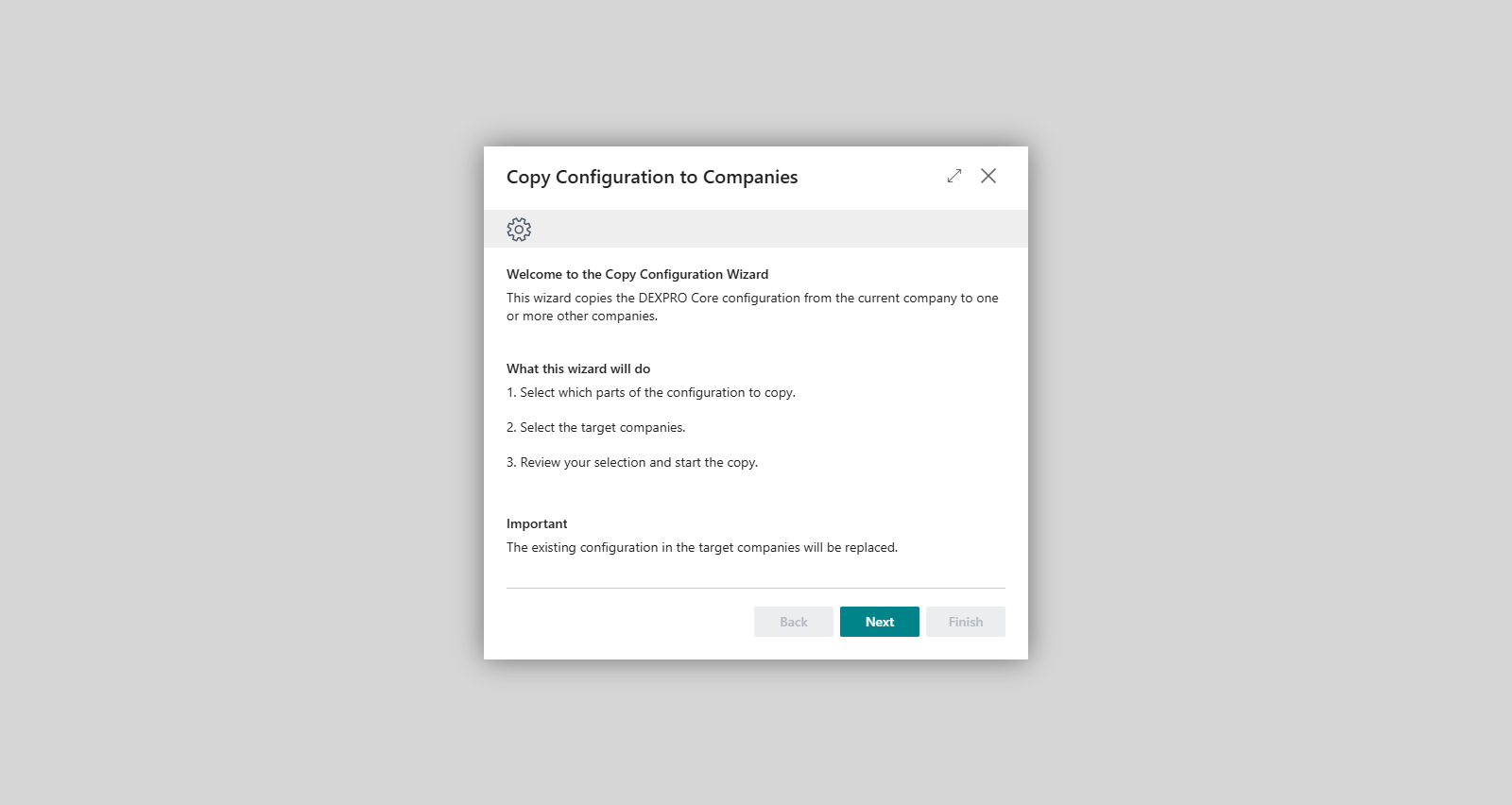
1. **Welcome** — explains what the wizard does and warns: **The existing configuration in the target companies will be replaced.**
2. **Select Configuration Parts** — choose which parts to copy: 
    - **Core Setup** — copies the Core Setup including the **Document Nos.** number series. The number series is created in the target company if it does not exist there yet.
    - **Custom Field Mappings** — replaces the custom field mappings of every document class that has custom field mappings in the current company. Document classes without mappings here are left untouched in the target companies.
    - **Generic Field Mappings** — replaces the generic field mappings (Generic Additional Fields) in the target companies.
    
    Installed DEXPRO apps such as SQUEEZE and Breeze Interface can add their own setup to this list.
3. **Select Target Companies** — use the assist button of the **Target Companies** field to select one or more companies. The current company cannot be a target.
4. **Review** — check the selected parts and companies, then choose **Next** to start copying.
5. **Copy Completed** — shows one result line per part, for example **Core Setup: copied to 2 of 3 company(ies).** A part with nothing to copy in the current company (for example no generic field mappings) is skipped and counted as 0. Choose **Finish** to close the wizard.

The wizard checks your input before it moves on:

- **"Please select at least one configuration part to copy."** — shown on the Select Configuration Parts step if no part is selected.
- **"Please select at least one target company."** — shown on the Select Target Companies step if no company is selected.

<p class="callout warning">Copying starts when you choose **Next** on the Review step and overwrites the selected parts in the target companies. Each company is saved as soon as it has been processed: if an error occurs, the wizard stays on the Review step, and the companies processed before the error keep the copied configuration.</p>

## Related features

- DEXPRO Apps
- Field Mapping
- Document Class Setup
- File Viewer Setup Wizard
- Cleanup and Job Queue