Application / Usage
Working with Electronic Invoices
Sales Documents
Sales Orders and Invoices
Sales documents such as orders and invoices now have a fact box for the e-invoice conformity check. This informs the user of the following:
- Required fields that are empty
- Validation warnings
- Compliance status
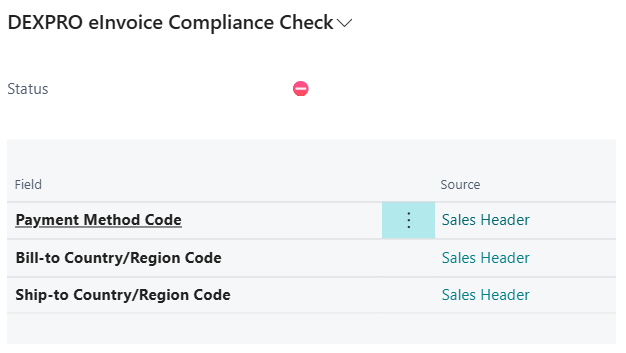
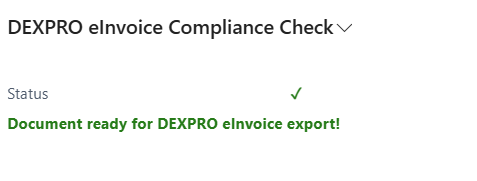
Common Missing Fields:
- Customer VAT registration numbers
- Complete billing addresses
- Valid email addresses
- Payment method codes
Posted Sales Invoices
In the Posted Sales Invoices list, you'll see:
New Fields:
- eInvoice Sent: Shows if electronic document was sent
New Actions:
{add screenshot of Posted Sales Invoice here}
- Download DEXPRO eInvoice: Download electronic document
Posted Sales Credit Memos
Similar functionality available in Posted Sales Credit Memos:
- Document status tracking
- Download action; emailing works as for invoices through the standard Email action
Service Invoices
Electronic invoicing is also available for Service Invoices with the same functionality.
Document Types and Formats
When downloading documents, you can choose from:

- XRechnung XML: Pure XML format compliant with German standards
- ZUGFeRD PDF: Hybrid PDF with embedded XML data
- XRechnung XML and Standard PDF: Both formats in a ZIP file
Sending Documents
Manual Sending
- Open any posted sales document
- Click Email, the standard Business Central action
- The app completes the email automatically:
- Attaches the e-invoice in the format of the sending profile if Add eInvoice to Email Attachments is on
- Uses the Override Contact Email as recipient and the CC Email Address as CC from the customer setup, if set
- Marks the document as eInvoice Sent once the email has been sent, and closes the document's entries in the Document Queue that are still Pending, Error or Failed as Sent, so the background processing does not send the document a second time
Which attachments the app replaces and which always stay is described on the eInvoice Sender Setup page, section E-invoice in email sending.
Automatic Processing
The system can automatically process documents through the Document Queue:
- Documents are queued when posted
- Background processing generates and sends electronic documents
- Status tracking shows processing progress
Document Management
Document Queue
Access via DEXPRO eInvoice Setup → Document Queue

Columns Displayed:
- Entry No.: Unique identifier
- XRechnung Document Type: XRechnung type code of the document (for example 380 invoice, 381 credit note)
- Source Table No.: Number of the table that holds the posted source document
- Document No.: Business Central document number
- Customer/Vendor No.: Trading partner
- Status: Current processing status
- Created Date Time: When queued
- Sending Profile: Format to be generated
- Attempts: How many times processing has failed with a retryable error
- Next Retry At: When the next retry is due
- Last Error Class: Class of the most recent failure (Retryable, Permanent or Authentication Failure)
Actions Available:
- Process Selected: Manually trigger processing of the selected entries. Each entry is processed on its own, so an error in one entry does not undo the others. At the end a message shows how many entries were processed and how many of them without success; the status of an entry shows what went wrong.
- Re-queue: Put the selected entries in status Error or Failed back to Pending with a fresh retry count, so that the next Job Queue run processes them again - for example after you corrected the data a KoSIT rejection pointed at. Entries in any other status are skipped.
- Delete: Remove from queue
Process Log
Monitor all system activities via DEXPRO eInvoice Setup → Process Log
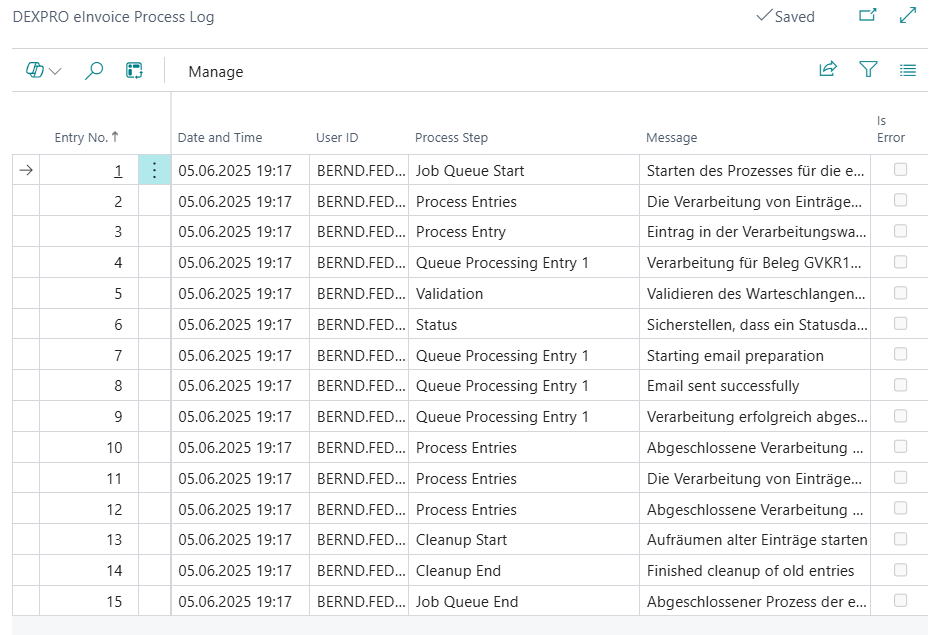
Information Tracked:
- Processing timestamps
- Success/failure status
- Error messages
- Document details