Configuration & Administration
Permission sets
In order to use the modules, the appropriate authorization set must be assigned to the respective users.
The following are supplied with:
-
DXP Core Admin - DEXPRO Core Administrator
-
DXP Core User - DEXPRO Core User
- DXP eInvoice Admin - DEXPRO eInvoice Administrator
- DXP eInvoice User - DEXPRO eInvoice User
- DXP eInvoice Support - DEXPRO eInvoice Support (read-only access to every eInvoice table, including artifact bytes and logs, plus Execute; intended for support and audit diagnosis with no write access)
DEXPRO Core
The DEXPRO Core manages the individual DEXPRO apps and their documents per client.
All documents that have been entered and processed via the various DEXPRO modules in Microsoft Dynamics 365 Business Central are displayed. A global number series, which is used across all DEXPRO apps, is used to complete individual documents. This offers the advantage that users only have to work with one number series per document.
Further information can be found here.
eInvoice Sender Setup
In the eInvoice Sender setup, both the connection to the DIGIvoice system and the processing within the app are set up.
Menue
Download Configuration
This is used to download the configuration and structure of the e-invoice documents.
Related
Document Queue
You can access the document queue via this menu item.
Process Log
You can access the process log of transactions with Digivoice via this menu item.
Customer Setup
You can access the customer-specific setup via this menu item.
Vendor Setup
You can access the vendor-specific setup via this menu item.
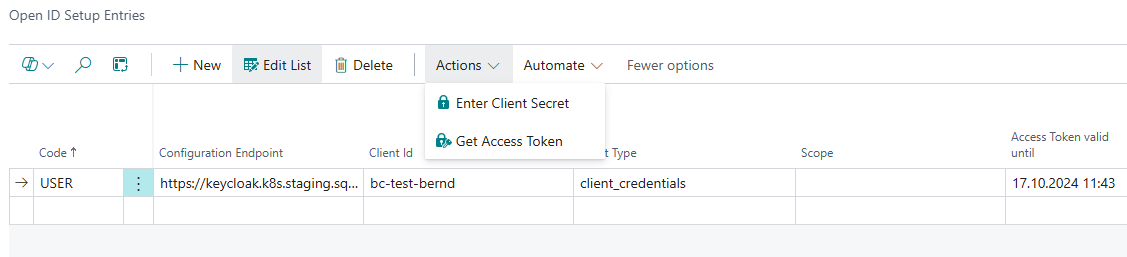
OAuth 2.0 Setup
This menu item takes you to the OAuth 2.0 setup for authentication on the Digivoice system.
Mappings
- Payment Term Keywords
- Unit of Measure Codes
- XR Field Structure
General
In this FastTab, you can activate/deactivate the use of this app and set up the connection to the Digivoice system.

Export Settings
The standards for the export are saved here.

XRechnung 3.0 defaults
The export defaults ship pre-configured for the current XRechnung 3.0 standard. The Business Process Type and Specification Identifier are the two profile fields that identify the e-invoice standard against which each document is generated:
- Business Process Type - default urn:fdc:peppol.eu:2017:poacc:billing:01:1.0.
- Specification Identifier - default urn:cen.eu:en16931:2017#compliant#urn:xeinkauf.de:kosit:xrechnung_3.0 (the XRechnung 3.0 CIUS identifier).
These defaults ensure generated documents declare conformance to XRechnung 3.0. Only change them if you are targeting a different profile and you understand the downstream validation impact.
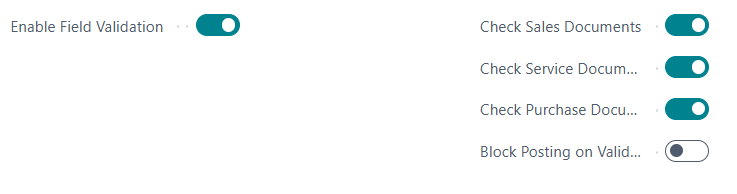
eInvoice Compliance Check
Here you will find the settings for the compliance check.
Document Queue
Here you can specify how long the entries are to be kept.

Expert Settings
The Show Expert Settings toggle hides advanced, low-level configuration by default. It is a UI-only switch (it is not stored in the setup). When you enable it, the following additional groups become visible on the setup page:
- XRechnung - profile identifiers and XRechnung-specific export defaults (see XRechnung 3.0 defaults above).
- XML Validation - settings controlling schema/schematron validation of the generated XML.
- Validation Patterns - the regular-expression patterns used by the compliance rules.
- Object Schemas - the schema definitions describing the document object structure.
Leave Expert Settings switched off during normal operation. These groups define how documents are built and validated - incorrect changes can cause generation or validation to fail.
The behaviour of individual compliance rules (enable/disable, severity override, category and stage) is configured separately - see the Rule Setup page.
Customer and Vendor Setup
Customer-Specific Settings
Access via DEXPRO eInvoice Setup → Customer Setup
Configuration Options:
- Override Email: Use different email than default
- Automatic Processing: Enable/disable automatic document sending
- Sending Profile: Default format for this customer
- Buyer Reference: Customer-specific reference requirements
Vendor-Specific Settings
Similar configuration available for vendors for purchase credit memos.
Email Templates
The system uses Word-based email templates:
Available Templates:
- SalesInvoiceEmail.docx: Sales invoice emails
- SalesCreditMemoEmail.docx: Sales credit memo emails
- ServiceInvoiceEmail.docx: Service invoice emails
- PurchaseCreditMemoEmail.docx: Purchase credit memo emails
Template Features:
- Professional formatting
- Dynamic content insertion
- Company branding
- Multi-language support
OAuth 2.0 Setup
The OAuth 2.0 / Open Id users and their access tokens are managed here.