Application / Use
- Archive search of documents
- Archiving of documents
- Freeze Queue Entries
- Quick Freeze
- PDF Viewer
- Recent Entries
- Page Extensions
Archive search of documents
Freeze Searchmask
The Freeze search mask enables a full-text search as well as a search based on table fields according to the Apache Lucene syntax. It is also possible to display results for specific time periods.
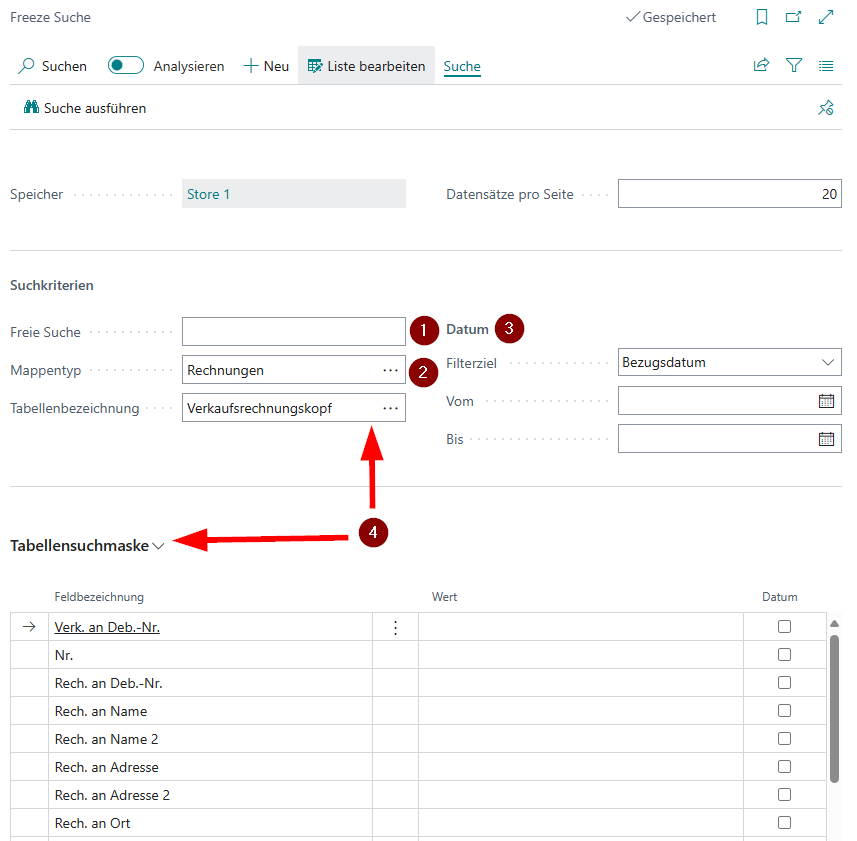
1. Full text search
A free search according to Apache Lucene syntax.
2. Folder type filter
Here you can filter the results by folder type (e.g. invoices). This filter is used in combination with the other search parameters.
3. Date filter
The date filter allows you to narrow down the results by archiving or reference date.
4. Table search mask
At this point, select any table whose structure you would like to use as a search mask. The table number is then part of the search.
Apache Lucene-Syntax
A query is divided into terms and operators. There are two types of terms: Single terms and phrases. A single term is a single word such as “test” or “hello”. A phrase is a group of words surrounded by double quotation marks, such as “hello dolly”.
Multiple terms can be combined with Boolean operators to form a more complex query. The following Boolean operators are supported: AND, OR and NOT. For example, the query “hello AND world” returns documents that contain both the words “hello” and “world”.
The following characters must be escaped in a query: + - && || ! ( ) { } [ ] ^ “ ~ * ? : \ To escape a character, simply place a backslash (\) in front of the character.
Wildcards can be used to search for words that contain a specific character string. The asterisk (*) stands for zero or more characters, while the question mark (?) stands for exactly one character. The query “te?t”, for example, returns documents containing words such as “test”, “text” and “tent”.
Data record-based search
The data record-based search is always executed when you open Freeze via a data record saved in BC (menu item “DEXPRO Freeze” or key combination CTRL+ALT+F). Here is an example of a vendor:
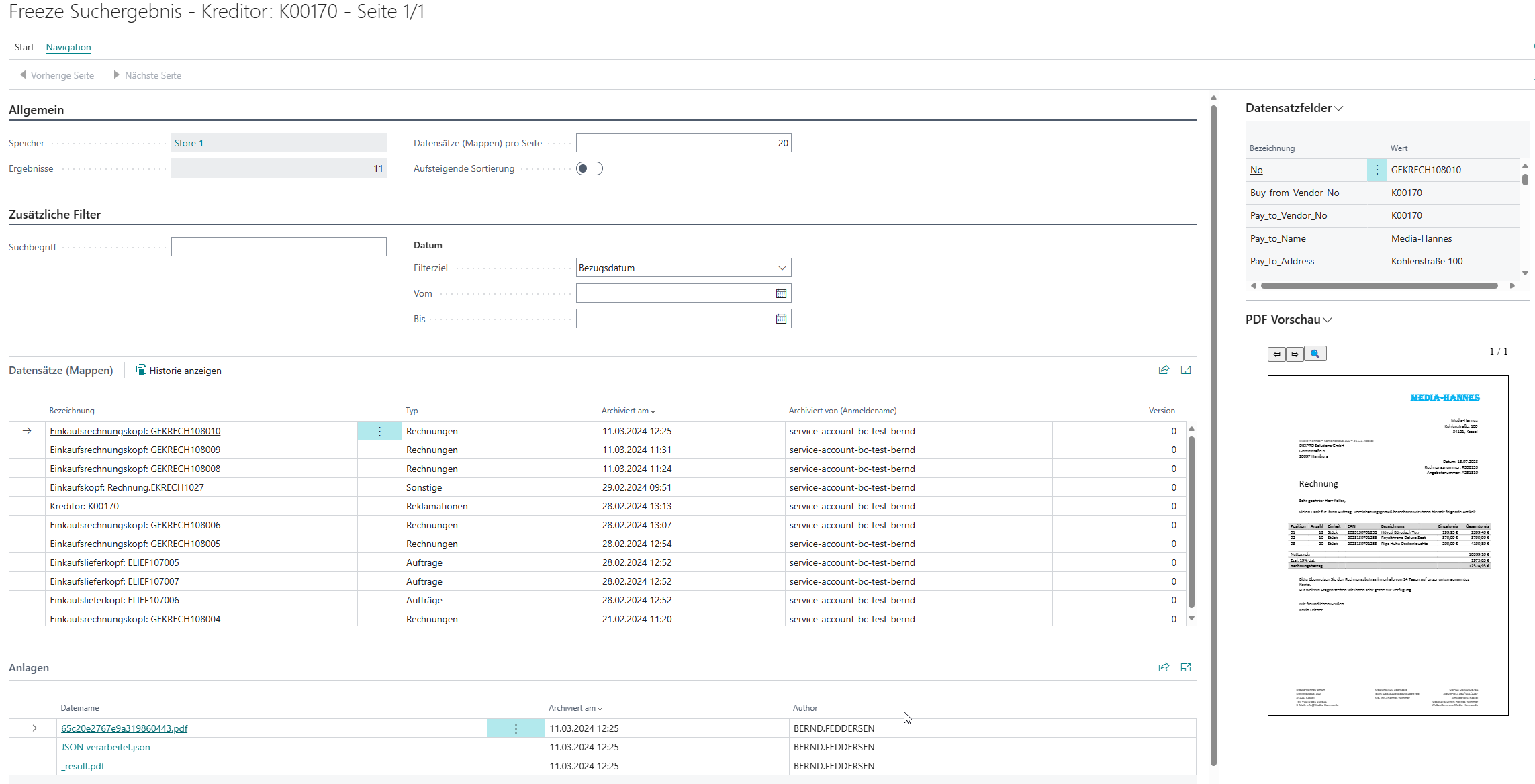
Typical jumping off points:
- customers
- creditors
- items
- Purchasing documents
- Sales documents
- Posted documents
- Financial accounting journals
- Ledger Entries
Archiving of documents
The following can be archived...
Archiving after Posting
When the option Archive after Posting is enabled in the respective area (Purchasing, Sales, General Journal) in the Freeze Setup, the corresponding documents are automatically archived after posting. This includes:
- Purchase invoices, purchase credit memos, purchase receipts, purchase return shipments
- Sales documents
- General journal entries (the resulting G/L register is archived)
Archiving of Outgoing Documents
When Archive Outgoing is enabled, standard reports (e.g. printed invoices) are archived after posting. The print count is incremented in the process.
Archiving of E-Mails
When Archive Email & Attachments is enabled, email attachments sent via the BC email module are automatically archived. This applies to posted documents as well as quotes and orders.
Archiving of Incoming Documents
When Archive Incoming is enabled, incoming documents linked to a record in Business Central are archived.
Archiving of Linked Attachments
When Archive Attachments is enabled, all attachments within Business Central that are linked to the record are archived.
Manual Archiving (Quick Freeze)
On most document and master data pages, the Quick Freeze action is available as a FactBox. Users can manually archive files via drag-and-drop or the upload dialog. The files are directly assigned to the current record in the archive.
Freeze Queue Entries
All archiving processes are listed and processed here.
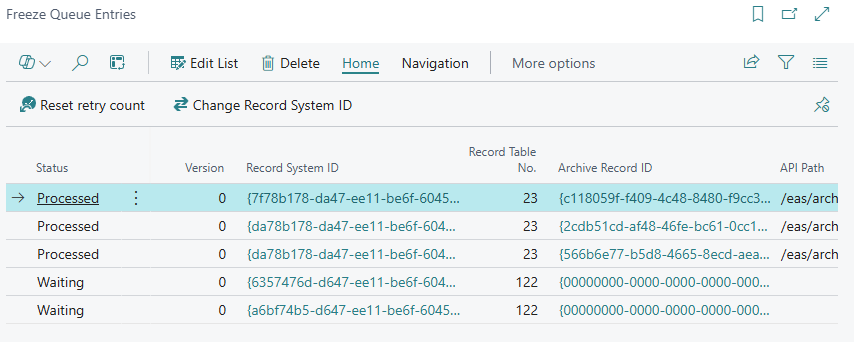
Queue Entry Fields
- Entry No.: Sequential number of the queue entry.
- Record Title: Title of the record to be archived.
- Record Type: The type of archive folder (e.g. Invoice, Credit Memo, Miscellaneous).
- Status: The current status of the entry:
New– Entry has been created but not yet processed.Processing– Entry is currently being processed.Completed– Archiving was successful.Error– An error has occurred.
- Error Notice: Brief error description for failed archiving operations.
- Last detailed error: Full error message with details.
- Retry count: Number of retry attempts so far.
- Reference Date: The reference date under which the record is stored in the archive.
- Attachment count not matching: Indicates whether the number of local attachments matches the count in the archive.
Setting up the Job Queue Entry
Codeunit 70954898 DXP Freeze Queue Processing must be set up as a Job Queue Entry to automatically process the queue entries. Recommended settings:
- Object Type: Codeunit
- Object ID: 70954898
- Recurrence Interval: 2 minutes (recommended)
Quick Freeze
The Quick Freeze FactBox enables manual archiving of files directly from documents and master data pages.
How it works
- Open a document or master data page (e.g. Purchase Invoice, Customer Card, Vendor Card).
- Use the Quick Freeze FactBox on the right side:
- Drag and drop files into the designated area, or
- Click Upload file to select files via the file picker dialog.
- A dialog opens where you can specify:
- Record Type: Type of the archive folder (e.g. Invoice, Credit Memo).
- Record Title: An optional custom title.
- Reference Date: Date under which the record is stored (default: work date).
- The files are added to the Freeze queue and archived in the background.
Availability
The Quick Freeze FactBox is available on all pages where Freeze Page Extensions are active. This includes:
- Purchase documents: Orders, Invoices, Credit Memos, Return Orders, Quotes
- Sales documents: Orders, Invoices, Credit Memos, Return Orders, Quotes
- Posted documents: Posted Purchase Invoices, Posted Purchase Receipts, Posted Sales Invoices, Posted Sales Shipments, etc.
- Master data: Customer Card, Vendor Card, Item Card
- Ledger entries: Customer Ledger Entries, Vendor Ledger Entries, G/L Entries, G/L Registers
- General Journals
PDF Viewer
The integrated PDF Viewer allows viewing PDF attachments directly within Business Central without leaving the application.
Features
- FactBox: The PDF Viewer is displayed as a FactBox on the search result page. When selecting an attachment, the PDF is rendered directly in the FactBox.
- Full screen view: The full-screen page allows viewing a PDF in a larger format.
- Alternative PDF Viewer URL: For on-premises environments with restricted internet access, an alternative URL for the PDF Viewer can be configured in the Freeze Setup.
Supported File Formats
The PDF Viewer displays PDF files directly. For other file formats, a placeholder PDF can be uploaded in the Freeze Setup, which is displayed instead of the file that cannot be rendered.
Recent Entries
The Recent Entries FactBox shows the most recent archiving operations performed for the currently opened record.
Displayed Information
- Title: The record title of the archived record.
- Type: The record type (e.g. Invoice, Credit Memo).
- Version: The version number of the archive record.
- Created DateTime: Date and time of the archiving operation.
Configuration
The maximum number of displayed entries can be controlled via the Maximum Recent Records field in the Freeze Setup (default: 5).
Navigation
Clicking an entry opens the archive folder directly in the Freeze search result, allowing you to view the associated attachments and fields.
Page Extensions
Freeze extends numerous standard pages in Business Central with archiving functions. The following features are available on each extended page:
Available Actions
- Open Freeze: Opens the Freeze archive search in the context of the current record. The search automatically uses the appropriate fields (e.g. document number, vendor, customer) as search criteria.
- Freeze History: Displays the archive history of the record, including all versions.
Available FactBoxes
- Quick Freeze: Enables manual uploading and archiving of files via drag-and-drop.
- Recent Entries: Shows the most recent archiving operations for the current record.
- Count per Record Type: Shows the number of archive folders per Record Type.
Extended Pages
Purchasing
- Purchase Order / Purchase Orders
- Purchase Invoice / Purchase Invoices
- Purchase Credit Memo / Purchase Credit Memos
- Purchase Quote / Purchase Quotes
- Purchase Return Order / Purchase Return Orders
- Posted Purchase Invoice / Posted Purchase Invoices
- Posted Purchase Receipt / Posted Purchase Receipts
- Posted Purchase Credit Memo / Posted Purchase Credit Memos
- Posted Return Shipment / Posted Return Shipments
Sales
- Sales Order / Sales Orders
- Sales Invoice / Sales Invoices
- Sales Credit Memo / Sales Credit Memos
- Sales Quote / Sales Quotes
- Sales Return Order / Sales Return Orders
- Posted Sales Invoice / Posted Sales Invoices
- Posted Sales Shipment / Posted Sales Shipments
- Posted Sales Credit Memo / Posted Sales Credit Memos
- Posted Return Receipt / Posted Return Receipts
Master Data
- Customer Card / Customer List
- Vendor Card / Vendor List
- Item Card / Item List
Ledger Entries & Registers
- Customer Ledger Entries
- Vendor Ledger Entries
- G/L Entries
- G/L Registers
- General Journals