# Freeze for Dynamics 365 BC - en-US

Manual for the administration and use of Freeze for Microsoft Dynamics 365 Business Central.  
  
With the Freeze Archive integration for Microsoft Dynamics 365 Business Central, you can access your audit-proof stored data and documents directly via the tried-and-tested Microsoft interface. Freeze Archive automatically links the documents to their business objects and also offers detailed search options via the index features and the full text of your documents.

# System Requirements

System requirements for using FREEZE for Dynamics 365 BC

# Supported Microsoft Dynamics 365 Business Central versions

Microsoft Dynamics 365 Business Central integration is possible from the following version due to minimum technical requirements:

[Supportet Microsoft Dynamics 365 Business Central Versions](https://docs.squeeze.one/books/dexpro-business-central-apps/page/unterstutzte-microsoft-dynamics-365-business-central-versionen "Supportet Microsoft Dynamics 365 Business Central Versions")

<p class="callout info">The prerequisite for operation is that the respective Microsoft Dynamics 365 Business Central version is still in regular support. The extended support is excluded.</p>

# Supported FREEZE versions

A licensed FREEZE system is required to connect FREEZE to Microsoft Dynamics 365 Business Central and for operation.

# Installation

# Licenses

### Microsoft

Information about the [Microsoft Business Central licenses](https://docs.squeeze.one/books/dexpro-business-central-apps/page/bc-lizenzen).

### FREEZE

The DEXPRO FREEZE system that should be connected to Business Central requires a valid customer license.

# Obtaining the DEXPRO modules

Detailed Information are [here](https://docs.squeeze.one/books/dexpro-business-central-apps/page/bezug-der-dexpro-module).

### OnPrem

For OnPrem installations, an runtime package with the required apps is provided upon request of a registered reseller / partner. These modules are added to the customer license by the partner and then imported into Microsoft Dynamics Business Central. It should be noted that the DEXPRO Core module forms the basis for all DEXPRO modules and must therefore be imported first.

### Cloud

For cloud installations, you only need the Microsoft [AppSource](https://appsource.microsoft.com/de-de/product/dynamics-365-business-central/PUBID.dexprosolutionsgmbh%7CAID.72374%7CPAPPID.b9c8c9cc-8cd1-41cc-bf86-7da37ac74c71?exp=ubp8&tab=Overview). This is where the required DEXPRO modules are downloaded.

[![Freeze_icon_appsource.png](https://docs.squeeze.one/uploads/images/gallery/2023-02/scaled-1680-/freeze-icon-appsource.png)](https://appsource.microsoft.com/de-de/product/dynamics-365-business-central/PUBID.dexprosolutionsgmbh%7CAID.72374%7CPAPPID.b9c8c9cc-8cd1-41cc-bf86-7da37ac74c71?exp=ubp8&tab=Overview)

# Configuration & Administration

# Permission sets

In order to use the modules, the appropriate authorization set must be assigned to the respective users.

The following are supplied with:

- DXP Core Admin - <span class="stringcontrol-read value thm-cont-u1-font-size-2--medflat thm-cont-u1-font-stack-2--medflat thm-cont-u1-color-2--medflat thm-cont-u1-color-2--medtint--grid-row-selected thm-cont-u1-color-2--mintint--grid-row-nosel-hovered thm-cont-g2-bgcolor-2 thm-cont-s1-bdrcolor--focus thm-cont-s1-outlinecolor--focus" id="bkmrk-dexpro-core-administ" tabindex="0" title="DEXPRO Core Administrator">DEXPRO Core Administrator</span>
- DXP Core User - <span class="stringcontrol-read value thm-cont-u1-font-size-2--medflat thm-cont-u1-font-stack-2--medflat thm-cont-u1-color-2--medflat thm-cont-u1-color-2--medtint--grid-row-selected thm-cont-u1-color-2--mintint--grid-row-nosel-hovered thm-cont-g2-bgcolor-2 thm-cont-s1-bdrcolor--focus thm-cont-s1-outlinecolor--focus" id="bkmrk-dexpro-core-benutzer" tabindex="0" title="DEXPRO Core Benutzer">DEXPRO Core User</span>
- DXP FREEZE Admin - <span class="stringcontrol-read value thm-cont-u1-font-size-2--medflat thm-cont-u1-font-stack-2--medflat thm-cont-u1-color-2--medflat thm-cont-u1-color-2--medtint--grid-row-selected thm-cont-u1-color-2--mintint--grid-row-nosel-hovered thm-cont-g2-bgcolor-2 thm-cont-s1-bdrcolor--focus thm-cont-s1-outlinecolor--focus" id="bkmrk-dexpro-squeeze-admin" tabindex="0" title="DEXPRO SQUEEZE Administrator">DEXPRO FREEZE Administrator</span>
- DXP FREEZE User - <span class="stringcontrol-read value thm-cont-u1-font-size-2--medflat thm-cont-u1-font-stack-2--medflat thm-cont-u1-color-2--medflat thm-cont-u1-color-2--medtint--grid-row-selected thm-cont-u1-color-2--mintint--grid-row-nosel-hovered thm-cont-g2-bgcolor-2 thm-cont-s1-bdrcolor--focus thm-cont-s1-outlinecolor--focus" id="bkmrk-dexpro-squeeze-benut" tabindex="0" title="DEXPRO SQUEEZE Benutzer">DEXPRO FREEZE User</span>

#### Freeze Permission Sets

- **DXP Freeze Admin**: Full access (Read, Insert, Modify, Delete) to all Freeze tables and execution rights for all Freeze pages and codeunits. Suitable for administrators who manage the Freeze setup.
- **DXP Freeze User**: Access to all Freeze functions with restricted write permissions on setup tables (Setup, Store, User Setup, Additional Queries). Suitable for standard users who use Freeze on a daily basis.

# DEXPRO Core

The DEXPRO Core manages the individual DEXPRO apps and their documents per client.

All documents that have been entered and processed via the various DEXPRO modules in Microsoft Dynamics 365 Business Central are displayed. A global number series, which is used across all DEXPRO apps, is used to track individual documents. This offers the advantage that users only have to work with one number series per document.

Further information can be found [here](https://docs.squeeze.one/books/dexpro-microsoft-dynamics-365-business-central-apps/chapter/dexpro-core).

# Freeze Setup

In the FREEZE setup, both the connection to the Freeze Archive System and the processing within the app are set up.

## Menu

### Home

[![image-1729157119593.png](https://docs.squeeze.one/uploads/images/gallery/2024-10/scaled-1680-/image-1729157119593.png)](https://docs.squeeze.one/uploads/images/gallery/2024-10/image-1729157119593.png)
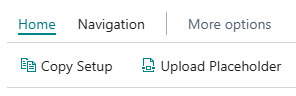
#### Copy Setup

This is used to copy the setup to another company.

#### Upload Placeholder

This function is used to upload a placeholder for file types that the PDF viewer cannot display.

### Navigation

[![image-1729157241343.png](https://docs.squeeze.one/uploads/images/gallery/2024-10/scaled-1680-/image-1729157241343.png)](https://docs.squeeze.one/uploads/images/gallery/2024-10/image-1729157241343.png)

#### Document Class Setup

This menu item takes you to the setup for the [document classes](https://docs.squeeze.one/books/freeze-for-dynamics-365-bc-en-us/page/document-class-setup).

#### OAuth 2.0-Setup

The users and their access tokens for OAuth 2.0 authentication are managed in this [menu item](https://docs.squeeze.one/books/freeze-for-dynamics-365-bc-en-us/page/oauth-20-setup).

#### User Setup

You can access the user assignment to the OAuth users via this [menu item](https://docs.squeeze.one/books/freeze-for-dynamics-365-bc-en-us/page/user-setup).

#### Additional Search Queries

[Setting up additional search queries](https://docs.squeeze.one/books/freeze-for-dynamics-365-bc-en-us/page/additional-search-queries) is particularly useful if you want to display archive folders that have not been archived via Freeze in BC. However, there are also other use cases.

## FastTabs

### General

You can activate/deactivate the use of this app in this FastTab.

[![image-1729157336315.png](https://docs.squeeze.one/uploads/images/gallery/2024-10/scaled-1680-/image-1729157336315.png)](https://docs.squeeze.one/uploads/images/gallery/2024-10/image-1729157336315.png)

### API

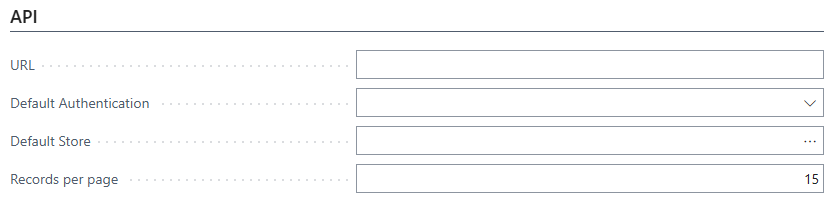
The URL of the FREEZE system is specified in this fast tab. The default archive storage and the default authentication are also stored. You can also specify here how many archive data records should be displayed simultaneously during searches.

[![image-1729157327342.png](https://docs.squeeze.one/uploads/images/gallery/2024-10/scaled-1680-/image-1729157327342.png)](https://docs.squeeze.one/uploads/images/gallery/2024-10/image-1729157327342.png)
### Archiving

Settings can be made here as to what should be archived automatically.

[![image-1729157310405.png](https://docs.squeeze.one/uploads/images/gallery/2024-10/scaled-1680-/image-1729157310405.png)](https://docs.squeeze.one/uploads/images/gallery/2024-10/image-1729157310405.png)
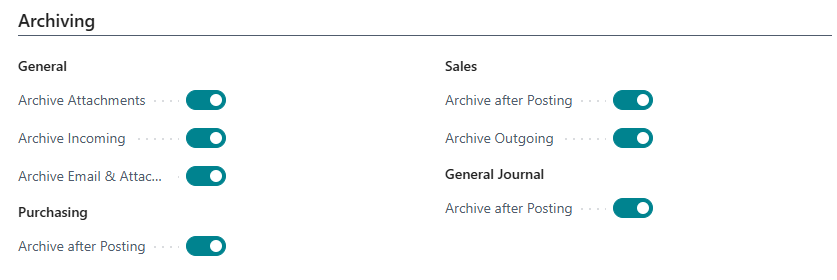
Automatic archiving after posting a receipt. Printing and archiving in one step. Archiving of emails with attachments if they are sent via the BC Email module.

## Field Descriptions

### General

- **Activated**: Enables or disables the Freeze app for the current company.
- **Attachments mandatory**: When enabled, attachments are required when manually archiving a record.
- **Validate Attachment Filesize**: When enabled, the system validates that no attachment has a file size of 0 during manual archiving. This helps prevent archiving defective files.
- **Max Results**: Specifies the maximum number of search results to retrieve (topn parameter).
- **Search Mode**: Controls which versions are displayed in archive searches. Possible values: `Default` (store configuration), `All Versions`, `Newest Version Only`.
- **Maximum Recent Records**: Specifies how many recently archived records per document are shown in the "Recent Entries" FactBox (default: 5).

### API

- **URL**: The base URL of the connected FREEZE archive system.
- **Default Authentication**: The OAuth 2.0 authentication used by default for API access.
- **Default Store**: The archive store used by default for searching and archiving.
- **Records per page**: Number of records (folders) displayed per page in search results (default: 15).
- **Alternative PDF Viewer URL**: For on-premises environments with restricted internet access, an alternative URL for the PDF viewer can be specified. This field is hidden by default.

### Archiving – General

- **Archive Attachments**: Archives attachments linked to the corresponding record in Business Central.
- **Archive Incoming**: Archives incoming documents linked to the record in Business Central.
- **Archive Email &amp; Attachments**: Archives email attachments sent via the BC email module, e.g. for posted documents, quotes, or orders.

### Archiving – Purchasing

- **Archive after Posting**: Enables automatic archiving of purchase documents after posting.
- **Archive Outgoing**: Additionally archives outgoing standard reports after posting. The print count is incremented in the process.
- **Purchase Invoice**: Archives outgoing purchase invoices after posting.
- **Purchase Cr. Memo**: Archives outgoing purchase credit memos after posting.
- **Purchase Receipt**: Archives outgoing purchase receipts after posting.
- **Purchase Ret. Shpt**: Archives outgoing purchase return shipments after posting.

### Archiving – Sales

- **Archive after Posting**: Enables automatic archiving of sales documents after posting.
- **Archive Outgoing**: Additionally archives outgoing standard reports after posting of sales documents.

### Archiving – General Journal

- **Archive after Posting**: Archives the resulting G/L Register after posting a General Journal.

# Freeze Storage

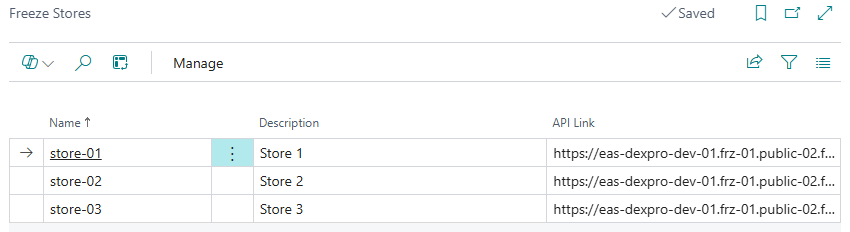
The archive memories of the connected Freeze System are managed here.

[![image-1729157980175.png](https://docs.squeeze.one/uploads/images/gallery/2024-10/scaled-1680-/image-1729157980175.png)](https://docs.squeeze.one/uploads/images/gallery/2024-10/image-1729157980175.png)
### Fields

- **Name**: The unique name of the archive store.
- **Description**: An optional description of the archive store.
- **API Link**: The API URL of the archive store. This is automatically retrieved from the FREEZE system.

Archive stores are automatically synchronized from the connected FREEZE system when the page is opened. The store specified as **Default Store** in the Freeze Setup is used preferentially for searches and archiving operations.

# Document Class Setup

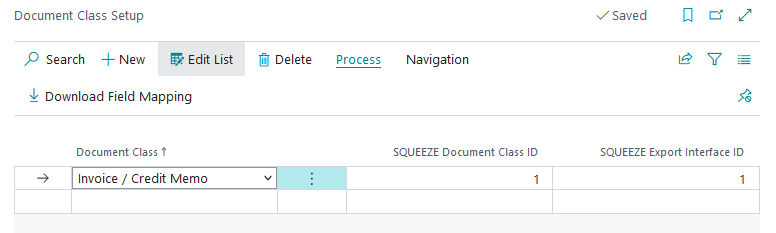
In the document class setup, the mapping between the respective document class and your export interface is done. Furthermore, the field mapping of each document class is downloaded here, creating a set of standard fields and their usage in Microsoft Dynamics 365 Business Central.

The document class setup is cross-app and is managed via the DEXPRO Core.

### Process

[![image-1647269521455.png](https://docs.squeeze.one/uploads/images/gallery/2022-03/scaled-1680-/image-1647269521455.png)](https://docs.squeeze.one/uploads/images/gallery/2022-03/image-1647269521455.png)

#### Download field mapping

This downloads the field structure of the SQUEEZE document class. These are needed for the [metadata mapping](https://docs.squeeze.one/books/squeeze-for-dynamics-365-bc-manual/page/metadata-assignment).

### Navigation

[![image-1647269553966.png](https://docs.squeeze.one/uploads/images/gallery/2022-03/scaled-1680-/image-1647269553966.png)](https://docs.squeeze.one/uploads/images/gallery/2022-03/image-1647269553966.png)

#### Metadata mapping

Via this menu item you reach the [metadata mapping](https://docs.squeeze.one/books/squeeze-for-dynamics-365-bc-manual/page/metadata-assignment)[.](https://docs.squeeze.one/books/squeeze-for-dynamics-365-bc-admin-handbuch/page/metadaten-zuordnung) This defines which fields are to be transferred to Microsoft Dynamics 365 Business Central and how.

### List

#### Document classes

This overview lists all the document classes that have been set up.

[![image-1647269475167.png](https://docs.squeeze.one/uploads/images/gallery/2022-03/scaled-1680-/image-1647269475167.png)](https://docs.squeeze.one/uploads/images/gallery/2022-03/image-1647269475167.png)
### Card

#### Document class

Here, each document class is set up individually.

### General

[![image-1694690581281.png](https://docs.squeeze.one/uploads/images/gallery/2023-09/scaled-1680-/image-1694690581281.png)](https://docs.squeeze.one/uploads/images/gallery/2023-09/image-1694690581281.png)

In this fastab the name of the document class, the next process step, as well as the automatic enrichment of the positions is set up.

### Freeze

[![image-1729158122610.png](https://docs.squeeze.one/uploads/images/gallery/2024-10/scaled-1680-/image-1729158122610.png)](https://docs.squeeze.one/uploads/images/gallery/2024-10/image-1729158122610.png)

The standard search mask is defined here.

# User Setup

[![image-1729158280739.png](https://docs.squeeze.one/uploads/images/gallery/2024-10/scaled-1680-/image-1729158280739.png)](https://docs.squeeze.one/uploads/images/gallery/2024-10/image-1729158280739.png)
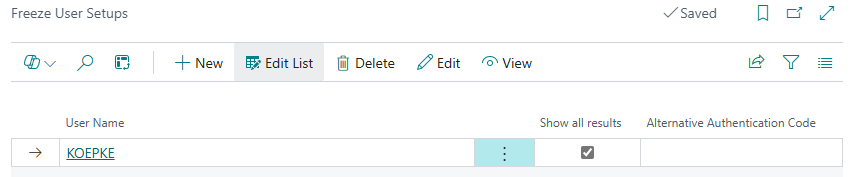
**Alternative authentication:** If users are to access the archive with alternative authentication, this can be entered here.

**Show all results:** The additional search queries (just like the full text search) only provide results for users who have been explicitly authorized to do so. This is necessary because archive folders that have not been archived via BC cannot be checked for effective authorizations due to the lack of a table number.

# OAuth 2.0 Setup

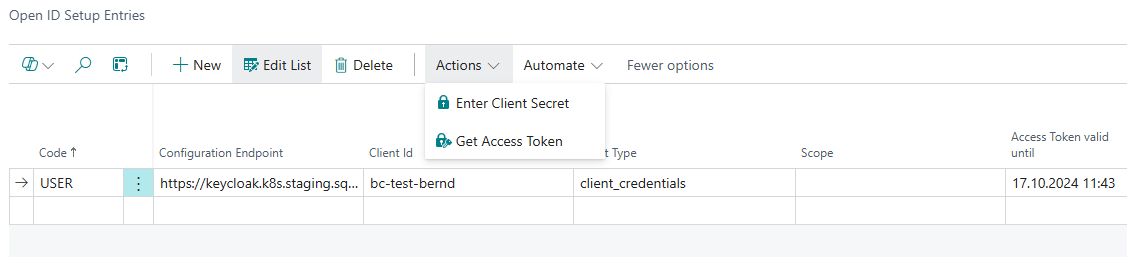
The OAuth 2.0 / Open Id users and their access tokens are managed here.

[![image-1729158448988.png](https://docs.squeeze.one/uploads/images/gallery/2024-10/scaled-1680-/image-1729158448988.png)](https://docs.squeeze.one/uploads/images/gallery/2024-10/image-1729158448988.png)
# Additional search queries

#### Creation of additional search queries

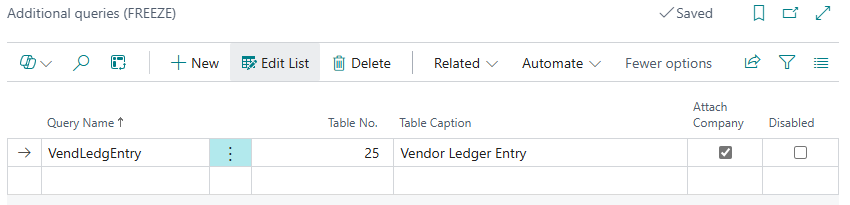
Below I have created a query that is appended to the system search query when you open Freeze via a record (here: vendor items - table 25). *Search queries with the same table number are OR-linked.*

[![image-1729158632771.png](https://docs.squeeze.one/uploads/images/gallery/2024-10/scaled-1680-/image-1729158632771.png)](https://docs.squeeze.one/uploads/images/gallery/2024-10/image-1729158632771.png)
#### Creation of additional search queries

You can access the query lines via **Related**:

[![image-1729158721056.png](https://docs.squeeze.one/uploads/images/gallery/2024-10/scaled-1680-/image-1729158721056.png)](https://docs.squeeze.one/uploads/images/gallery/2024-10/image-1729158721056.png)
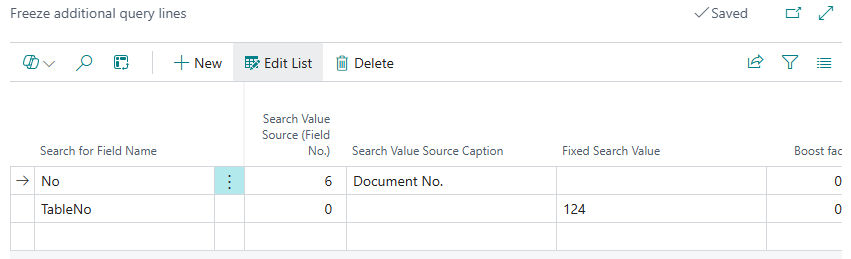
**Search by field name** - Specifies the value of the field name to be used for the search query. These are the native fields of the archive software, but also data record fields saved in any form:

**Search value source (field no.)** - Specifies the value to be searched for in combination with the field name.

**Fixed search value** - The fixed search term is used instead of the search value.

*The query lines are AND-linked.*

#### Show the result

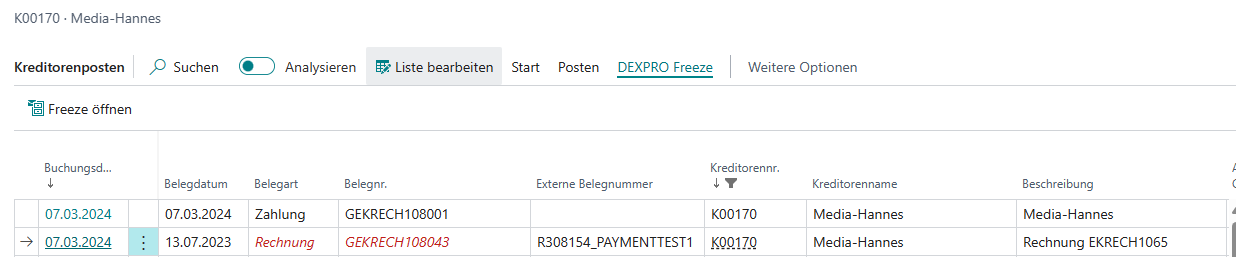
If you then open the vendor item Freeze...

[![image-1713950593376.png](https://docs.squeeze.one/uploads/images/gallery/2024-04/scaled-1680-/image-1713950593376.png)](https://docs.squeeze.one/uploads/images/gallery/2024-04/image-1713950593376.png)
...you will get the desired search result:

[![image-1713950552409.png](https://docs.squeeze.one/uploads/images/gallery/2024-04/scaled-1680-/image-1713950552409.png)](https://docs.squeeze.one/uploads/images/gallery/2024-04/image-1713950552409.png)
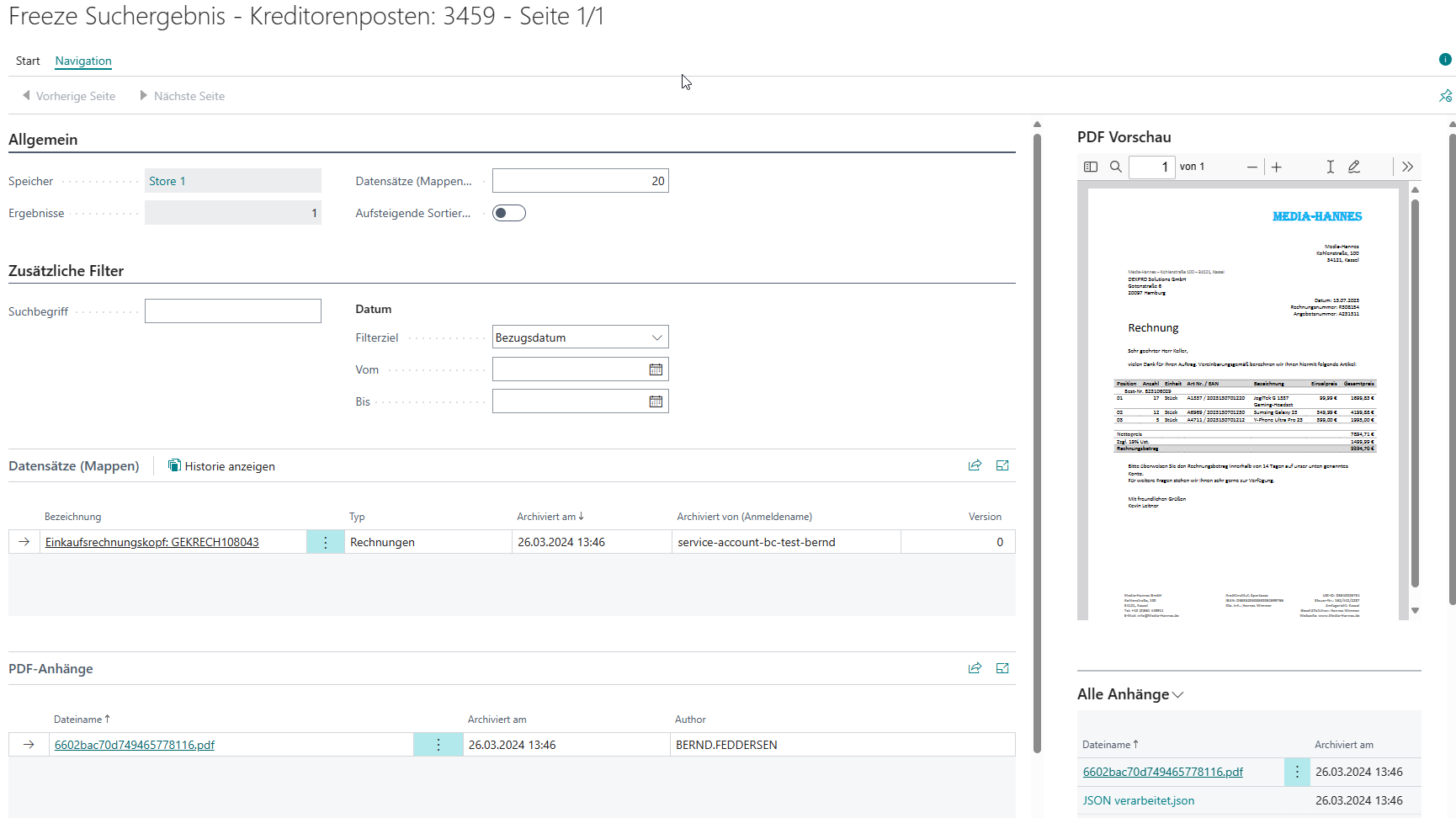
Do not forget: The additional search queries (just like the full text search) only provide results for users who have been explicitly authorized to do so in the [setup](https://docs.squeeze.one/books/freeze-for-dynamics-365-bc-de-de/page/benutzer-einrichtung). This is necessary because archive folders that have not been archived via BC cannot be checked for effective authorizations due to a lack of table numbers.

# Record Types

Record Types define the categorization of archive folders in FREEZE. Each archived record is assigned a Record Type, which can later be used for filtering and searching.

### Available Record Types

- **Miscellaneous** – Default type for general documents
- **Quotes**
- **Orders**
- **Blanket Orders**
- **Return Orders**
- **Invoices**
- **Credit Memos**
- **Payments**
- **Finance Charge Memos**
- **Reminders**
- **Refunds**
- **Contracts**
- **Claims**

### Setup

On the **Freeze Record Types** page, you can specify for each Record Type whether it should be used as the **Default** for certain document tables. This ensures that the appropriate Record Type is automatically assigned during automatic archiving.

When manually archiving (Quick Freeze), users are shown a dialog where they can set the Record Type, Record Title, and Reference Date.

### FactBox: Count per Record Type

On the search result page, the **Record Type Count** FactBox shows how many archive folders exist per Record Type for the current record.

# Application / Use

# Archive search of documents

### Freeze Searchmask

The Freeze search mask enables a full-text search as well as a search based on table fields according to the [Apache Lucene syntax](#bkmrk-apache-lucene-syntax). It is also possible to display results for specific time periods.

[![image-1710160654346.png](https://docs.squeeze.one/uploads/images/gallery/2024-03/scaled-1680-/image-1710160654346.png)](https://docs.squeeze.one/uploads/images/gallery/2024-03/image-1710160654346.png)
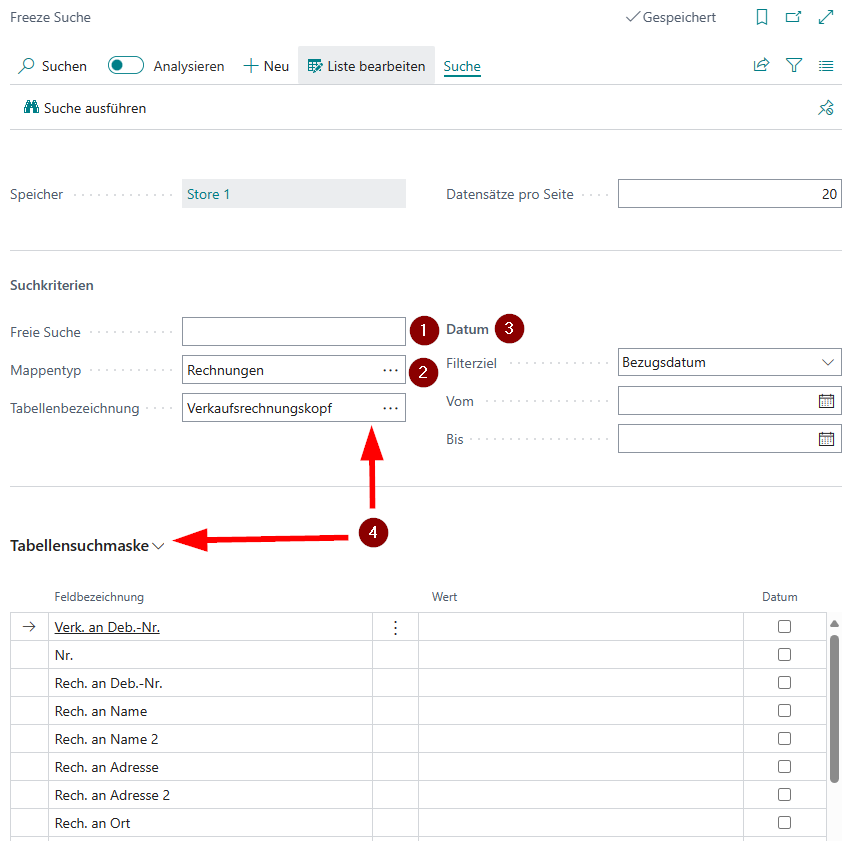
##### 1. Full text search

A free search according to [Apache Lucene syntax](#bkmrk-apache-lucene-syntax).

##### 2. Folder type filter

Here you can filter the results by folder type (e.g. invoices). This filter is used in combination with the other search parameters.

##### 3. Date filter

The date filter allows you to narrow down the results by archiving or reference date.

##### 4. Table search mask

At this point, select any table whose structure you would like to use as a search mask. The table number is then part of the search.

##### Apache Lucene-Syntax

A query is divided into terms and operators. There are two types of terms: Single terms and phrases. A single term is a single word such as “test” or “hello”. A phrase is a group of words surrounded by double quotation marks, such as “hello dolly”.  
Multiple terms can be combined with Boolean operators to form a more complex query. The following Boolean operators are supported: AND, OR and NOT. For example, the query “hello AND world” returns documents that contain both the words “hello” and “world”.  
The following characters must be escaped in a query: + - &amp;&amp; || ! ( ) { } \[ \] ^ “ ~ \* ? : \\ To escape a character, simply place a backslash (\\) in front of the character.  
Wildcards can be used to search for words that contain a specific character string. The asterisk (\*) stands for zero or more characters, while the question mark (?) stands for exactly one character. The query “te?t”, for example, returns documents containing words such as “test”, “text” and “tent”.

### Data record-based search

The data record-based search is always executed when you open Freeze via a data record saved in BC (menu item “DEXPRO Freeze” or key combination CTRL+ALT+F). Here is an example of a vendor:

[![image-1710161648319.png](https://docs.squeeze.one/uploads/images/gallery/2024-03/scaled-1680-/image-1710161648319.png)](https://docs.squeeze.one/uploads/images/gallery/2024-03/image-1710161648319.png)
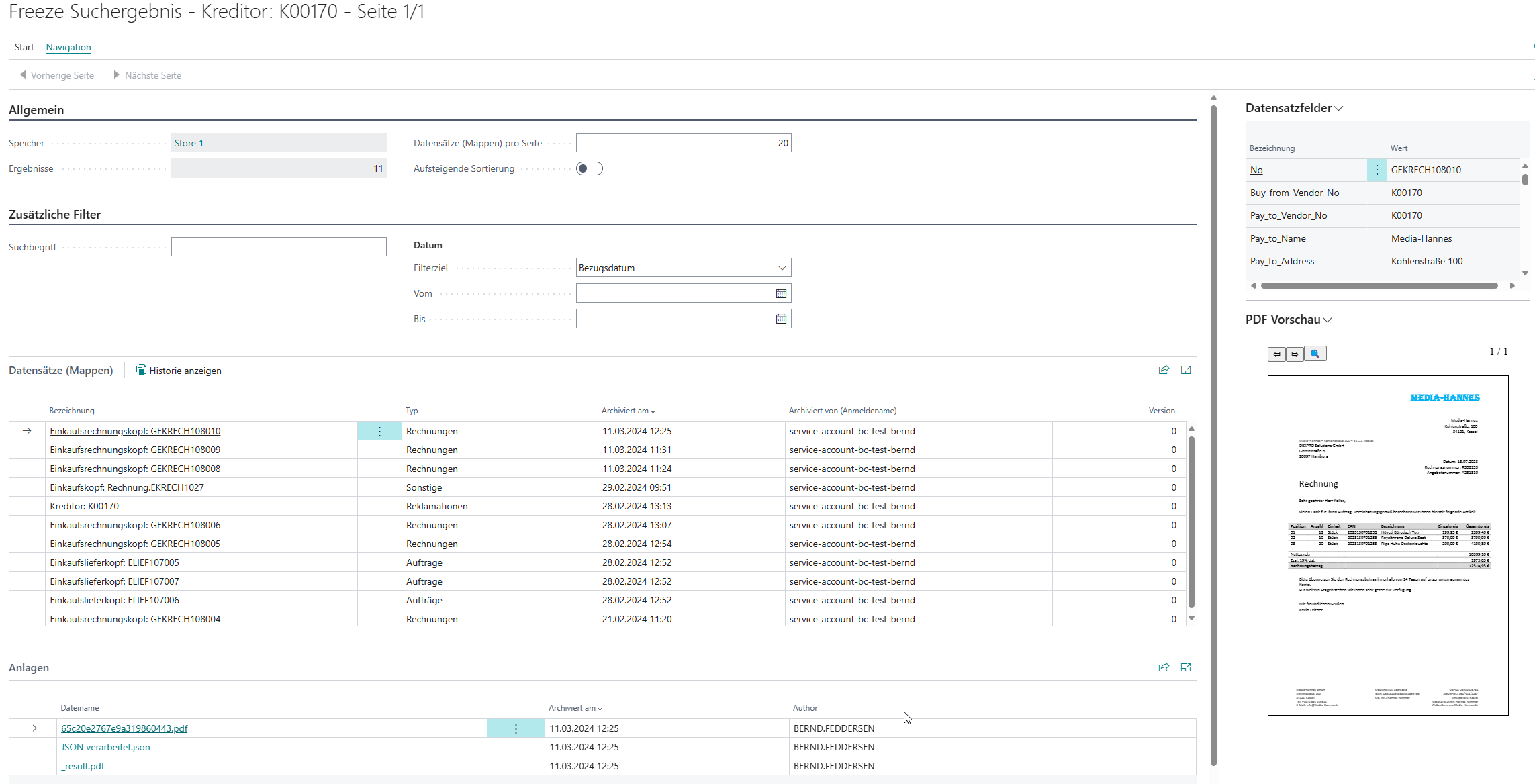
Typical jumping off points:

- customers
- creditors
- items
- Purchasing documents
- Sales documents
- Posted documents
- Financial accounting journals
- Ledger Entries

# Archiving of documents

The following can be archived...

### Archiving after Posting

When the option **Archive after Posting** is enabled in the respective area (Purchasing, Sales, General Journal) in the **Freeze Setup**, the corresponding documents are automatically archived after posting. This includes:

- Purchase invoices, purchase credit memos, purchase receipts, purchase return shipments
- Sales documents
- General journal entries (the resulting G/L register is archived)

### Archiving of Outgoing Documents

When **Archive Outgoing** is enabled, standard reports (e.g. printed invoices) are archived after posting. The print count is incremented in the process.

### Archiving of E-Mails

When **Archive Email &amp; Attachments** is enabled, email attachments sent via the BC email module are automatically archived. This applies to posted documents as well as quotes and orders.

### Archiving of Incoming Documents

When **Archive Incoming** is enabled, incoming documents linked to a record in Business Central are archived.

### Archiving of Linked Attachments

When **Archive Attachments** is enabled, all attachments within Business Central that are linked to the record are archived.

### Manual Archiving (Quick Freeze)

On most document and master data pages, the **Quick Freeze** action is available as a FactBox. Users can manually archive files via drag-and-drop or the upload dialog. The files are directly assigned to the current record in the archive.

# Freeze Queue Entries

All archiving processes are listed and processed here.

[![image-1729159479368.png](https://docs.squeeze.one/uploads/images/gallery/2024-10/scaled-1680-/image-1729159479368.png)](https://docs.squeeze.one/uploads/images/gallery/2024-10/image-1729159479368.png)
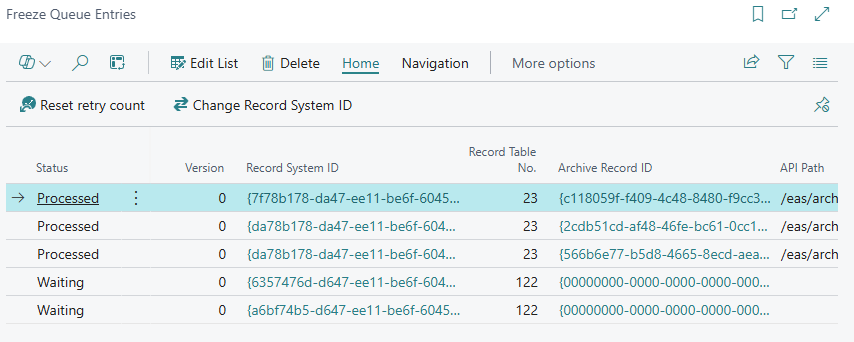
### Queue Entry Fields

- **Entry No.**: Sequential number of the queue entry.
- **Record Title**: Title of the record to be archived.
- **Record Type**: The type of archive folder (e.g. Invoice, Credit Memo, Miscellaneous).
- **Status**: The current status of the entry: 
    - `New` – Entry has been created but not yet processed.
    - `Processing` – Entry is currently being processed.
    - `Completed` – Archiving was successful.
    - `Error` – An error has occurred.
- **Error Notice**: Brief error description for failed archiving operations.
- **Last detailed error**: Full error message with details.
- **Retry count**: Number of retry attempts so far.
- **Reference Date**: The reference date under which the record is stored in the archive.
- **Attachment count not matching**: Indicates whether the number of local attachments matches the count in the archive.

### Setting up the Job Queue Entry

Codeunit `70954898 DXP Freeze Queue Processing` must be set up as a Job Queue Entry to automatically process the queue entries. Recommended settings:

- **Object Type**: Codeunit
- **Object ID**: 70954898
- **Recurrence Interval**: 2 minutes (recommended)

# Quick Freeze

The **Quick Freeze** FactBox enables manual archiving of files directly from documents and master data pages.

### How it works

1. Open a document or master data page (e.g. Purchase Invoice, Customer Card, Vendor Card).
2. Use the **Quick Freeze** FactBox on the right side:
- **Drag and drop** files into the designated area, or
- Click **Upload file** to select files via the file picker dialog.

4. A dialog opens where you can specify:
- **Record Type**: Type of the archive folder (e.g. Invoice, Credit Memo).
- **Record Title**: An optional custom title.
- **Reference Date**: Date under which the record is stored (default: work date).

6. The files are added to the Freeze queue and archived in the background.

### Availability

The Quick Freeze FactBox is available on all pages where Freeze Page Extensions are active. This includes:

- Purchase documents: Orders, Invoices, Credit Memos, Return Orders, Quotes
- Sales documents: Orders, Invoices, Credit Memos, Return Orders, Quotes
- Posted documents: Posted Purchase Invoices, Posted Purchase Receipts, Posted Sales Invoices, Posted Sales Shipments, etc.
- Master data: Customer Card, Vendor Card, Item Card
- Ledger entries: Customer Ledger Entries, Vendor Ledger Entries, G/L Entries, G/L Registers
- General Journals

# PDF Viewer

The integrated **PDF Viewer** allows viewing PDF attachments directly within Business Central without leaving the application.

### Features

- **FactBox**: The PDF Viewer is displayed as a FactBox on the search result page. When selecting an attachment, the PDF is rendered directly in the FactBox.
- **Full screen view**: The full-screen page allows viewing a PDF in a larger format.
- **Alternative PDF Viewer URL**: For on-premises environments with restricted internet access, an alternative URL for the PDF Viewer can be configured in the Freeze Setup.

### Supported File Formats

The PDF Viewer displays PDF files directly. For other file formats, a placeholder PDF can be uploaded in the Freeze Setup, which is displayed instead of the file that cannot be rendered.

# Recent Entries

The **Recent Entries** FactBox shows the most recent archiving operations performed for the currently opened record.

### Displayed Information

- **Title**: The record title of the archived record.
- **Type**: The record type (e.g. Invoice, Credit Memo).
- **Version**: The version number of the archive record.
- **Created DateTime**: Date and time of the archiving operation.

### Configuration

The maximum number of displayed entries can be controlled via the **Maximum Recent Records** field in the **Freeze Setup** (default: 5).

### Navigation

Clicking an entry opens the archive folder directly in the Freeze search result, allowing you to view the associated attachments and fields.

# Page Extensions

Freeze extends numerous standard pages in Business Central with archiving functions. The following features are available on each extended page:

### Available Actions

- **Open Freeze**: Opens the Freeze archive search in the context of the current record. The search automatically uses the appropriate fields (e.g. document number, vendor, customer) as search criteria.
- **Freeze History**: Displays the archive history of the record, including all versions.

### Available FactBoxes

- **Quick Freeze**: Enables manual uploading and archiving of files via drag-and-drop.
- **Recent Entries**: Shows the most recent archiving operations for the current record.
- **Count per Record Type**: Shows the number of archive folders per Record Type.

### Extended Pages

#### Purchasing

- Purchase Order / Purchase Orders
- Purchase Invoice / Purchase Invoices
- Purchase Credit Memo / Purchase Credit Memos
- Purchase Quote / Purchase Quotes
- Purchase Return Order / Purchase Return Orders
- Posted Purchase Invoice / Posted Purchase Invoices
- Posted Purchase Receipt / Posted Purchase Receipts
- Posted Purchase Credit Memo / Posted Purchase Credit Memos
- Posted Return Shipment / Posted Return Shipments

#### Sales

- Sales Order / Sales Orders
- Sales Invoice / Sales Invoices
- Sales Credit Memo / Sales Credit Memos
- Sales Quote / Sales Quotes
- Sales Return Order / Sales Return Orders
- Posted Sales Invoice / Posted Sales Invoices
- Posted Sales Shipment / Posted Sales Shipments
- Posted Sales Credit Memo / Posted Sales Credit Memos
- Posted Return Receipt / Posted Return Receipts

#### Master Data

- Customer Card / Customer List
- Vendor Card / Vendor List
- Item Card / Item List

#### Ledger Entries &amp; Registers

- Customer Ledger Entries
- Vendor Ledger Entries
- G/L Entries
- G/L Registers
- General Journals

# Extension Development

This chapter lists important integration events and examples to help you develop an extension for Freeze for MSDynamics 365 Business Central  
  
Important:  
Adaptations may only be carried out by appropriately trained consultants/developers. Furthermore, these are always outside the standard support provided by DEXPRO.

# Attachment Download

<div id="bkmrk-overview"><nav class="navigation-bar"><div><div><span style="color: #222222; font-size: 2.8275em; font-weight: 400;">Overview</span></div></div></nav></div>The DXP Freeze Result Management codeunit provides two primary methods for downloading archived attachments as ZIP files:

<div id="bkmrk-downloadattachmentsa"><div><div><div><div><div><div></div><div>1. **`DownloadAttachmentsAsZipWithPagination`** - Downloads attachments from search query results with pagination support
2. **`DownloadAttachmentsAsZipFromRecord`** - Downloads attachments from specific Business Central records

</div><div></div></div></div></div></div></div></div>Both methods organize attachments into structured ZIP archives with comprehensive metadata for audit and tracking purposes.

## Method 1: DownloadAttachmentsAsZipWithPagination

### Purpose

Downloads all attachments from a search query result set, processing results page by page to handle large datasets efficiently. Each record’s attachments are organized into individual ZIP files within a main ZIP archive.

Overloads Available

#### 1. Basic Usage

<div id="bkmrk-procedure-downloadat"><div><div><div><div><div><div></div><div>```al
procedure DownloadAttachmentsAsZipWithPagination(SearchQuery: Text; var ZipArchive: Codeunit "Data Compression"; var AttachmentCount: Integer): Boolean

```

</div><div></div></div></div></div></div></div></div>#### 2. With Filters

<div id="bkmrk-procedure-downloadat-0"><div><div><div><div><div><div></div><div>```al
procedure DownloadAttachmentsAsZipWithPagination(SearchQuery: Text; var ZipArchive: Codeunit "Data Compression"; var AttachmentCount: Integer; FilenameFilter: Text; FileExtensionFilter: Text): Boolean

```

</div><div></div></div></div></div></div></div></div>#### 3. Full Control

<div id="bkmrk-procedure-downloadat-1"><div><div><div><div><div><div></div><div>```al
procedure DownloadAttachmentsAsZipWithPagination(SearchQuery: Text; var ZipArchive: Codeunit "Data Compression"; var AttachmentCount: Integer; FilenameFilter: Text; FileExtensionFilter: Text; StoreApiLink: Text; RecordsPerPage: Integer; SuppressDialog: Boolean): Boolean

```

</div><div></div></div></div></div></div></div></div>#### 4. Pre-populated Records (Advanced)

<div id="bkmrk-procedure-downloadat-2"><div><div><div><div><div><div></div><div>```al
procedure DownloadAttachmentsAsZipWithPagination(var TempFrzResultQueryHeader: Record "DXP FRZ Query Result Header" temporary; var TempFrzResultRecordHeader: Record "DXP FRZ Record Result Header" temporary; var TempFrzResultRecordField: Record "DXP FRZ Result Record-Field" temporary; var TempFrzAttachmentResult: Record "DXP FRZ Attachment Result" temporary; SearchQuery: Text; var ZipArchive: Codeunit "Data Compression"; var AttachmentCount: Integer; FilenameFilter: Text; FileExtensionFilter: Text; SuppressDialog: Boolean): Boolean

```

</div><div></div></div></div></div></div></div></div>### Parameters

<div id="bkmrk-parameter-type-descr"><div><div><div><div><div><div></div><div><div><table><thead><tr><th style="width: 173px;">Parameter</th><th style="width: 119px;">Type</th><th style="width: 517px;">Description</th></tr></thead><tbody><tr><td style="width: 173px;">`SearchQuery`</td><td style="width: 119px;">Text</td><td style="width: 517px;">Freeze search query string. If empty in pre-populated overload, uses existing query or re-executes search</td></tr><tr><td style="width: 173px;">`ZipArchive`</td><td style="width: 119px;">Codeunit “Data Compression”</td><td style="width: 517px;">ZIP archive object that will contain the downloaded files</td></tr><tr><td style="width: 173px;">`AttachmentCount`</td><td style="width: 119px;">Integer (var)</td><td style="width: 517px;">Returns the total number of attachments downloaded</td></tr><tr><td style="width: 173px;">`FilenameFilter`</td><td style="width: 119px;">Text</td><td style="width: 517px;">Filter for attachment filenames (e.g., ‘*.pdf’, 'invoice*’)</td></tr><tr><td style="width: 173px;">`FileExtensionFilter`</td><td style="width: 119px;">Text</td><td style="width: 517px;">Filter for file extensions (e.g., ‘pdf’, ‘docx’)</td></tr><tr><td style="width: 173px;">`StoreApiLink`</td><td style="width: 119px;">Text</td><td style="width: 517px;">Optional specific store API link</td></tr><tr><td style="width: 173px;">`RecordsPerPage`</td><td style="width: 119px;">Integer</td><td style="width: 517px;">Number of records per page (default: 100)</td></tr><tr><td style="width: 173px;">`SuppressDialog`</td><td style="width: 119px;">Boolean</td><td style="width: 517px;">Whether to suppress progress dialog</td></tr></tbody></table>

</div></div><div></div></div></div></div></div></div></div>### Return Value

<div id="bkmrk-boolean%3A%C2%A0true%C2%A0if-att"><div><div><div><div><div><div></div><div>- `Boolean`: `true` if attachments were found and downloaded; `false` otherwise

</div><div></div></div></div></div></div></div></div>### Example Usage

#### Basic Download

<div id="bkmrk-procedure-downloadse"><div><div><div><div><div><div></div><div>```al
procedure DownloadSearchResults()
var
    ResultMgt: Codeunit "DXP FRZ Result Mgt.";
    ZipArchive: Codeunit "Data Compression";
    FileMgt: Codeunit "File Management";
    TempBlob: Codeunit "Temp Blob";
    AttachmentCount: Integer;
    InStr: InStream;
    OutStr: OutStream;
    SearchQuery: Text;
begin
    SearchQuery := 'invoice AND 2024';
    
    if ResultMgt.DownloadAttachmentsAsZipWithPagination(SearchQuery, ZipArchive, AttachmentCount) then begin
        // Save ZIP to file
        TempBlob.CreateOutStream(OutStr);
        ZipArchive.SaveZipArchive(OutStr);
        TempBlob.CreateInStream(InStr);
        
        FileMgt.DownloadFromStreamHandler(InStr, '', '', '', 'SearchResults.zip');
        Message('Downloaded %1 attachments successfully.', AttachmentCount);
    end else
        Message('No attachments found for the search query.');
end;

```

</div><div></div></div></div></div></div></div></div>#### With Filters

<div id="bkmrk-procedure-downloadpd"><div><div><div><div><div><div></div><div>```al
procedure DownloadPDFInvoices()
var
    ResultMgt: Codeunit "DXP FRZ Result Mgt.";
    ZipArchive: Codeunit "Data Compression";
    AttachmentCount: Integer;
    SearchQuery: Text;
begin
    SearchQuery := 'type:invoice';
    
    if ResultMgt.DownloadAttachmentsAsZipWithPagination(
        SearchQuery, 
        ZipArchive, 
        AttachmentCount, 
        '*.pdf', // Only PDF files
        'pdf'    // File extension filter
    ) then begin
        // Process the ZIP archive
        ProcessDownloadedFiles(ZipArchive, AttachmentCount);
    end;
end;

```

</div><div></div></div></div></div></div></div></div>#### Using Pre-populated Records

<div id="bkmrk-procedure-downloadfr"><div><div><div><div><div><div></div><div>```al
procedure DownloadFromExistingResults()
var
    ResultMgt: Codeunit "DXP FRZ Result Mgt.";
    TempFrzResultQueryHeader: Record "DXP FRZ Query Result Header" temporary;
    TempFrzResultRecordHeader: Record "DXP FRZ Record Result Header" temporary;
    TempFrzResultRecordField: Record "DXP FRZ Result Record-Field" temporary;
    TempFrzAttachmentResult: Record "DXP FRZ Attachment Result" temporary;
    ZipArchive: Codeunit "Data Compression";
    AttachmentCount: Integer;
begin
    // Assume these records are already populated from a previous search
    PopulateSearchResults(TempFrzResultQueryHeader, TempFrzResultRecordHeader, TempFrzResultRecordField, TempFrzAttachmentResult);
    
    // Download using existing results without re-executing search
    if ResultMgt.DownloadAttachmentsAsZipWithPagination(
        TempFrzResultQueryHeader,
        TempFrzResultRecordHeader,
        TempFrzResultRecordField,
        TempFrzAttachmentResult,
        'invoice search', // SearchQuery - if empty, will re-execute search
        ZipArchive,
        AttachmentCount,
        '',     // No filename filter
        '',     // No extension filter
        true    // Suppress dialog
    ) then begin
        ProcessDownloadedFiles(ZipArchive, AttachmentCount);
    end;
end;

```

</div><div></div></div></div></div></div></div></div>### ZIP Structure (Pagination)

<div id="bkmrk-searchresults.zip-%E2%94%9C%E2%94%80"><div><div><div><div><div><div></div><div>```
SearchResults.zip
├── export-metadata.json
├── Invoice_001_V1_20241201_1430.zip
│   ├── {GUID}_invoice.pdf
│   └── {GUID}_supporting_doc.docx
├── PurchaseOrder_002_V2_20241202_0900.zip
│   └── {GUID}_po_document.pdf
└── Contract_003_V1_20241203_1200.zip
    ├── {GUID}_contract.pdf
    └── {GUID}_amendment.pdf

```

</div><div></div></div></div></div></div></div></div>## Method 2: DownloadAttachmentsAsZipFromRecord

### Purpose

Downloads attachments from specific Business Central records. Each selected record’s attachments are organized into individual ZIP files within a main ZIP archive.

### Overloads Available

#### 1. Basic Usage

<div id="bkmrk-procedure-downloadat-3"><div><div><div><div><div><div></div><div>```al
procedure DownloadAttachmentsAsZipFromRecord(var SelectedRecord: RecordRef; var ZipArchive: Codeunit "Data Compression"): Boolean

```

</div><div></div></div></div></div></div></div></div>#### 2. With Filters

<div id="bkmrk-procedure-downloadat-4"><div><div><div><div><div><div></div><div>```al
procedure DownloadAttachmentsAsZipFromRecord(var SelectedRecord: RecordRef; var ZipArchive: Codeunit "Data Compression"; FilenameFilter: Text; FileExtensionFilter: Text): Boolean

```

</div><div></div></div></div></div></div></div></div>### Parameters

<div id="bkmrk-parameter-type-descr-0"><div><div><div><div><div><div></div><div><div><table><thead><tr><th>Parameter</th><th>Type</th><th>Description</th></tr></thead><tbody><tr><td>`SelectedRecord`</td><td>RecordRef (var)</td><td>RecordRef containing the selected Business Central records</td></tr><tr><td>`ZipArchive`</td><td>Codeunit “Data Compression”</td><td>ZIP archive object that will contain the downloaded files</td></tr><tr><td>`FilenameFilter`</td><td>Text</td><td>Filter for attachment filenames</td></tr><tr><td>`FileExtensionFilter`</td><td>Text</td><td>Filter for file extensions</td></tr></tbody></table>

</div></div><div></div></div></div></div></div></div></div>### Return Value

<div id="bkmrk-boolean%3A%C2%A0true%C2%A0if-att-0"><div><div><div><div><div><div></div><div>- `Boolean`: `true` if attachments were found and downloaded; `false` otherwise

</div><div></div></div></div></div></div></div></div>### Example Usage

#### Download from Sales Invoices

<div id="bkmrk-procedure-downloadin"><div><div><div><div><div><div></div><div>```al
procedure DownloadInvoiceAttachments()
var
    SalesInvoiceHeader: Record "Sales Invoice Header";
    ResultMgt: Codeunit "DXP FRZ Result Mgt.";
    ZipArchive: Codeunit "Data Compression";
    RecordRef: RecordRef;
    HasAttachments: Boolean;
begin
    // Select specific invoices
    SalesInvoiceHeader.SetRange("Posting Date", DMY2Date(1, 1, 2024), DMY2Date(31, 12, 2024));
    SalesInvoiceHeader.SetFilter("Sell-to Customer No.", '10000|20000');
    
    if SalesInvoiceHeader.FindSet() then begin
        RecordRef.GetTable(SalesInvoiceHeader);
        
        HasAttachments := ResultMgt.DownloadAttachmentsAsZipFromRecord(RecordRef, ZipArchive);
        
        if HasAttachments then
            SaveZipFile(ZipArchive, 'InvoiceAttachments.zip')
        else
            Message('No attachments found for the selected invoices.');
    end;
end;

```

</div><div></div></div></div></div></div></div></div>#### Download with Filters from Page

<div id="bkmrk-%2F%2F-in-a-page-extensi"><div><div><div><div><div><div></div><div>```al
// In a page extension
action(DownloadAttachmentsFiltered)
{
    Caption = 'Download Filtered Attachments';
    Image = ExportFile;
    
    trigger OnAction()
    var
        ResultMgt: Codeunit "DXP FRZ Result Mgt.";
        ZipArchive: Codeunit "Data Compression";
        RecordRef: RecordRef;
        FilenameFilter: Text;
        FileExtensionFilter: Text;
    begin
        // Show filter dialog
        if ShowFilterDialog(FilenameFilter, FileExtensionFilter) then begin
            CurrPage.SetSelectionFilter(Rec);
            RecordRef.GetTable(Rec);
            
            if ResultMgt.DownloadAttachmentsAsZipFromRecord(
                RecordRef, 
                ZipArchive, 
                FilenameFilter, 
                FileExtensionFilter
            ) then
                DownloadZipFile(ZipArchive, 'FilteredAttachments.zip');
        end;
    end;
}

```

</div><div></div></div></div></div></div></div></div>### ZIP Structure (Records)

<div id="bkmrk-recordattachments.zi"><div><div><div><div><div><div></div><div>```
RecordAttachments.zip
├── export-metadata.json
├── Sales_Invoice_Header_Company_SI-001.zip
│   ├── {GUID}_invoice.pdf
│   └── {GUID}_terms.pdf
├── Sales_Invoice_Header_Company_SI-002.zip
│   └── {GUID}_invoice.pdf
└── Sales_Invoice_Header_Company_SI-003.zip
    ├── {GUID}_invoice.pdf
    ├── {GUID}_delivery_note.pdf
    └── {GUID}_receipt.jpg

```

</div><div></div></div></div></div></div></div></div>## Metadata Structure

Both methods generate comprehensive metadata in `export-metadata.json`:

### Pagination Export Metadata

<div id="bkmrk-%7B-%22exportinfo%22%3A-%7B-%22e"><div><div><div><div><div><div></div><div>```json
<span class="token punctuation">{</span>
  <span class="token string">"exportInfo"</span><span class="token punctuation">:</span> <span class="token punctuation">{</span>
    <span class="token string">"exportTimestamp"</span><span class="token punctuation">:</span> <span class="token string">"2024-12-19T10:13:52.248Z"</span><span class="token punctuation">,</span>
    <span class="token string">"exportedBy"</span><span class="token punctuation">:</span> <span class="token string">"USER001"</span><span class="token punctuation">,</span>
    <span class="token string">"searchQuery"</span><span class="token punctuation">:</span> <span class="token string">"type:invoice AND year:2024"</span><span class="token punctuation">,</span>
    <span class="token string">"totalRecordsFound"</span><span class="token punctuation">:</span> <span class="token number">150</span><span class="token punctuation">,</span>
    <span class="token string">"totalPages"</span><span class="token punctuation">:</span> <span class="token number">15</span><span class="token punctuation">,</span>
    <span class="token string">"exportType"</span><span class="token punctuation">:</span> <span class="token string">"paginated-search"</span><span class="token punctuation">,</span>
    <span class="token string">"description"</span><span class="token punctuation">:</span> <span class="token string">"Freeze Search Query Export"</span>
  <span class="token punctuation">}</span><span class="token punctuation">,</span>
  <span class="token string">"appliedFilters"</span><span class="token punctuation">:</span> <span class="token punctuation">{</span>
    <span class="token string">"filenameFilter"</span><span class="token punctuation">:</span> <span class="token string">"*.pdf"</span><span class="token punctuation">,</span>
    <span class="token string">"fileExtensionFilter"</span><span class="token punctuation">:</span> <span class="token string">"pdf"</span>
  <span class="token punctuation">}</span><span class="token punctuation">,</span>
  <span class="token string">"statistics"</span><span class="token punctuation">:</span> <span class="token punctuation">{</span>
    <span class="token string">"pagesProcessed"</span><span class="token punctuation">:</span> <span class="token number">15</span><span class="token punctuation">,</span>
    <span class="token string">"totalRecordsProcessed"</span><span class="token punctuation">:</span> <span class="token number">150</span><span class="token punctuation">,</span>
    <span class="token string">"recordsWithAttachments"</span><span class="token punctuation">:</span> <span class="token number">120</span><span class="token punctuation">,</span>
    <span class="token string">"recordsWithoutAttachments"</span><span class="token punctuation">:</span> <span class="token number">30</span><span class="token punctuation">,</span>
    <span class="token string">"totalAttachments"</span><span class="token punctuation">:</span> <span class="token number">245</span><span class="token punctuation">,</span>
    <span class="token string">"exportCompletedAt"</span><span class="token punctuation">:</span> <span class="token string">"2024-12-19T10:15:33.021Z"</span>
  <span class="token punctuation">}</span><span class="token punctuation">,</span>
  <span class="token string">"records"</span><span class="token punctuation">:</span> <span class="token punctuation">[</span>
    <span class="token punctuation">{</span>
      <span class="token string">"recordId"</span><span class="token punctuation">:</span> <span class="token string">"{GUID}"</span><span class="token punctuation">,</span>
      <span class="token string">"title"</span><span class="token punctuation">:</span> <span class="token string">"Invoice INV-2024-001"</span><span class="token punctuation">,</span>
      <span class="token string">"version"</span><span class="token punctuation">:</span> <span class="token number">1</span><span class="token punctuation">,</span>
      <span class="token string">"archivedAt"</span><span class="token punctuation">:</span> <span class="token string">"2024-12-01T09:30:00Z"</span><span class="token punctuation">,</span>
      <span class="token string">"archivedBy"</span><span class="token punctuation">:</span> <span class="token string">"SYSTEM"</span><span class="token punctuation">,</span>
      <span class="token string">"type"</span><span class="token punctuation">:</span> <span class="token string">"Sales Invoice"</span><span class="token punctuation">,</span>
      <span class="token string">"masterId"</span><span class="token punctuation">:</span> <span class="token string">"{GUID}"</span><span class="token punctuation">,</span>
      <span class="token string">"attachmentCount"</span><span class="token punctuation">:</span> <span class="token number">3</span><span class="token punctuation">,</span>
      <span class="token string">"hasAttachments"</span><span class="token punctuation">:</span> <span class="token boolean">true</span><span class="token punctuation">,</span>
      <span class="token string">"zipFile"</span><span class="token punctuation">:</span> <span class="token string">"Invoice_INV-2024-001_V1_20241201_0930.zip"</span>
    <span class="token punctuation">}</span>
  <span class="token punctuation">]</span>
<span class="token punctuation">}</span>

```

</div><div></div></div></div></div></div></div></div>### Record Export Metadata

<div id="bkmrk-%7B-%22exporttimestamp%22%3A"><div><div><div><div><div><div></div><div>```json
<span class="token punctuation">{</span>
  <span class="token string">"exportTimestamp"</span><span class="token punctuation">:</span> <span class="token string">"2024-12-19T14:30:00Z"</span><span class="token punctuation">,</span>
  <span class="token string">"exportedBy"</span><span class="token punctuation">:</span> <span class="token string">"USER001"</span><span class="token punctuation">,</span>
  <span class="token string">"totalRecordsProcessed"</span><span class="token punctuation">:</span> <span class="token number">25</span><span class="token punctuation">,</span>
  <span class="token string">"description"</span><span class="token punctuation">:</span> <span class="token string">"DXP Freeze Attachments Export"</span><span class="token punctuation">,</span>
  <span class="token string">"sourceTable"</span><span class="token punctuation">:</span> <span class="token punctuation">{</span>
    <span class="token string">"tableNumber"</span><span class="token punctuation">:</span> <span class="token number">112</span><span class="token punctuation">,</span>
    <span class="token string">"tableName"</span><span class="token punctuation">:</span> <span class="token string">"Sales Invoice Header"</span><span class="token punctuation">,</span>
    <span class="token string">"tableCaption"</span><span class="token punctuation">:</span> <span class="token string">"Posted Sales Invoice"</span>
  <span class="token punctuation">}</span><span class="token punctuation">,</span>
  <span class="token string">"appliedFilters"</span><span class="token punctuation">:</span> <span class="token punctuation">{</span>
    <span class="token string">"filenameFilter"</span><span class="token punctuation">:</span> <span class="token string">"*.pdf"</span><span class="token punctuation">,</span>
    <span class="token string">"fileExtensionFilter"</span><span class="token punctuation">:</span> <span class="token string">"pdf"</span>
  <span class="token punctuation">}</span><span class="token punctuation">,</span>
  <span class="token string">"statistics"</span><span class="token punctuation">:</span> <span class="token punctuation">{</span>
    <span class="token string">"totalAttachments"</span><span class="token punctuation">:</span> <span class="token number">45</span><span class="token punctuation">,</span>
    <span class="token string">"recordsWithAttachments"</span><span class="token punctuation">:</span> <span class="token number">20</span><span class="token punctuation">,</span>
    <span class="token string">"recordsWithoutAttachments"</span><span class="token punctuation">:</span> <span class="token number">5</span><span class="token punctuation">,</span>
    <span class="token string">"totalZipFiles"</span><span class="token punctuation">:</span> <span class="token number">20</span>
  <span class="token punctuation">}</span><span class="token punctuation">,</span>
  <span class="token string">"records"</span><span class="token punctuation">:</span> <span class="token punctuation">[</span>
    <span class="token punctuation">{</span>
      <span class="token string">"recordId"</span><span class="token punctuation">:</span> <span class="token string">"Sales Invoice Header: Company, SI-001"</span><span class="token punctuation">,</span>
      <span class="token string">"systemId"</span><span class="token punctuation">:</span> <span class="token string">"{GUID}"</span><span class="token punctuation">,</span>
      <span class="token string">"primaryKey"</span><span class="token punctuation">:</span> <span class="token punctuation">{</span>
        <span class="token string">"fields"</span><span class="token punctuation">:</span> <span class="token punctuation">[</span>
          <span class="token punctuation">{</span>
            <span class="token string">"fieldName"</span><span class="token punctuation">:</span> <span class="token string">"No."</span><span class="token punctuation">,</span>
            <span class="token string">"fieldValue"</span><span class="token punctuation">:</span> <span class="token string">"SI-001"</span><span class="token punctuation">,</span>
            <span class="token string">"fieldType"</span><span class="token punctuation">:</span> <span class="token string">"Code"</span>
          <span class="token punctuation">}</span>
        <span class="token punctuation">]</span>
      <span class="token punctuation">}</span><span class="token punctuation">,</span>
      <span class="token string">"hasAttachments"</span><span class="token punctuation">:</span> <span class="token boolean">true</span><span class="token punctuation">,</span>
      <span class="token string">"attachmentCount"</span><span class="token punctuation">:</span> <span class="token number">2</span><span class="token punctuation">,</span>
      <span class="token string">"zipFile"</span><span class="token punctuation">:</span> <span class="token string">"Sales_Invoice_Header_Company_SI-001.zip"</span>
    <span class="token punctuation">}</span>
  <span class="token punctuation">]</span>
<span class="token punctuation">}</span>

```

</div><div></div></div></div></div></div></div></div>## Performance Considerations

### Pagination Method

<div id="bkmrk-large-result-sets%3A-a"><div><div><div><div><div><div></div><div>- **Large Result Sets**: Automatically handles pagination to process large datasets efficiently
- **Memory Management**: Processes one page at a time, clearing memory between pages
- **Progress Tracking**: Shows real-time progress for long-running operations
- **Recommended For**: Search queries that may return hundreds or thousands of records

</div><div></div></div></div></div></div></div></div>### Record Method

<div id="bkmrk-selected-records%3A-pr"><div><div><div><div><div><div></div><div>- **Selected Records**: Processes only the records you specifically select
- **Direct Processing**: No pagination overhead for smaller datasets
- **Batch Processing**: Efficient for processing specific record sets
- **Recommended For**: Targeted downloads from specific Business Central records

</div><div></div></div></div></div></div></div></div>## Error Handling

Both methods include comprehensive error handling:

### Common Scenarios

<div id="bkmrk-no-results-found%3A-re"><div><div><div><div><div><div></div><div>- **No Results Found**: Returns `false` when no records or attachments are found
- **Permission Issues**: Automatically excludes records the user cannot access
- **API Failures**: Gracefully handles API communication errors
- **Empty Filters**: Handles empty or invalid filter parameters

</div><div></div></div></div></div></div></div></div>### Best Practices

<div id="bkmrk-%2F%2F-always-check-retu"><div><div><div><div><div><div></div><div>```al
// Always check return value
if not ResultMgt.DownloadAttachmentsAsZipWithPagination(SearchQuery, ZipArchive, AttachmentCount) then begin
    Message('No attachments found or download failed.');
    exit;
end;

// Validate attachment count
if AttachmentCount = 0 then begin
    Message('Search completed but no attachments matched the criteria.');
    exit;
end;

// Handle large downloads
if AttachmentCount > 1000 then
    if not Confirm('This will download %1 attachments. Continue?', false, AttachmentCount) then
        exit;

```

</div><div></div></div></div></div></div></div></div>## Integration Events

Both methods support integration events for customization:

### Available Events

<div id="bkmrk-onbeforedownloadatta"><div><div><div><div><div><div></div><div>- `OnBeforeDownloadAttachmentsAsZip`: Modify behavior before download starts
- `OnBeforeProcessAttachmentForZip`: Skip or modify individual attachments
- `OnAfterGetAttachmentBase64`: Modify attachment content after retrieval
- `OnAfterAddAttachmentToZip`: Perform actions after adding to ZIP
- `OnNoAttachmentsFound`: Handle no attachments scenario

</div><div></div></div></div></div></div></div></div>### Example Integration

<div id="bkmrk-%5Beventsubscriber%28obj"><div><div><div><div><div><div></div><div>```al
[EventSubscriber(ObjectType::Codeunit, Codeunit::"DXP FRZ Result Mgt.", 'OnBeforeProcessAttachmentForZip', '', false, false)]
local procedure OnBeforeProcessAttachmentForZip(var TempFrzAttachmentResult: Record "DXP FRZ Attachment Result" temporary; var IsHandled: Boolean)
begin
    // Skip attachments larger than 10MB
    if TempFrzAttachmentResult.Filesize > 10485760 then
        IsHandled := true;
end;

```

</div><div></div></div></div></div></div></div></div>## File Naming Conventions

### Automatic Sanitization

All filenames are automatically sanitized using the `SanitizeFileName` method:

<div id="bkmrk-invalid-characters-%28"><div><div><div><div><div><div></div><div>- Invalid characters (`< > : " / \ | ? *`) are replaced with underscores
- Spaces are replaced with underscores
- Maximum filename lengths are enforced

</div><div></div></div></div></div></div></div></div>### Unique Naming

<div id="bkmrk-individual-files%3A-in"><div><div><div><div><div></div><div>- **Individual Files**: Include attachment GUID prefix to ensure uniqueness
- **ZIP Files**: Include record information and timestamps
- **No Conflicts**: Guaranteed unique names within each ZIP archive

</div></div></div></div></div></div>