Document Search
Here you will learn how to search and find documents.
Save search
Manage searches
If the icon for managing the search is not displayed, please contact your project contact person.
The corresponding function may need to be activated in the Squeeze instance
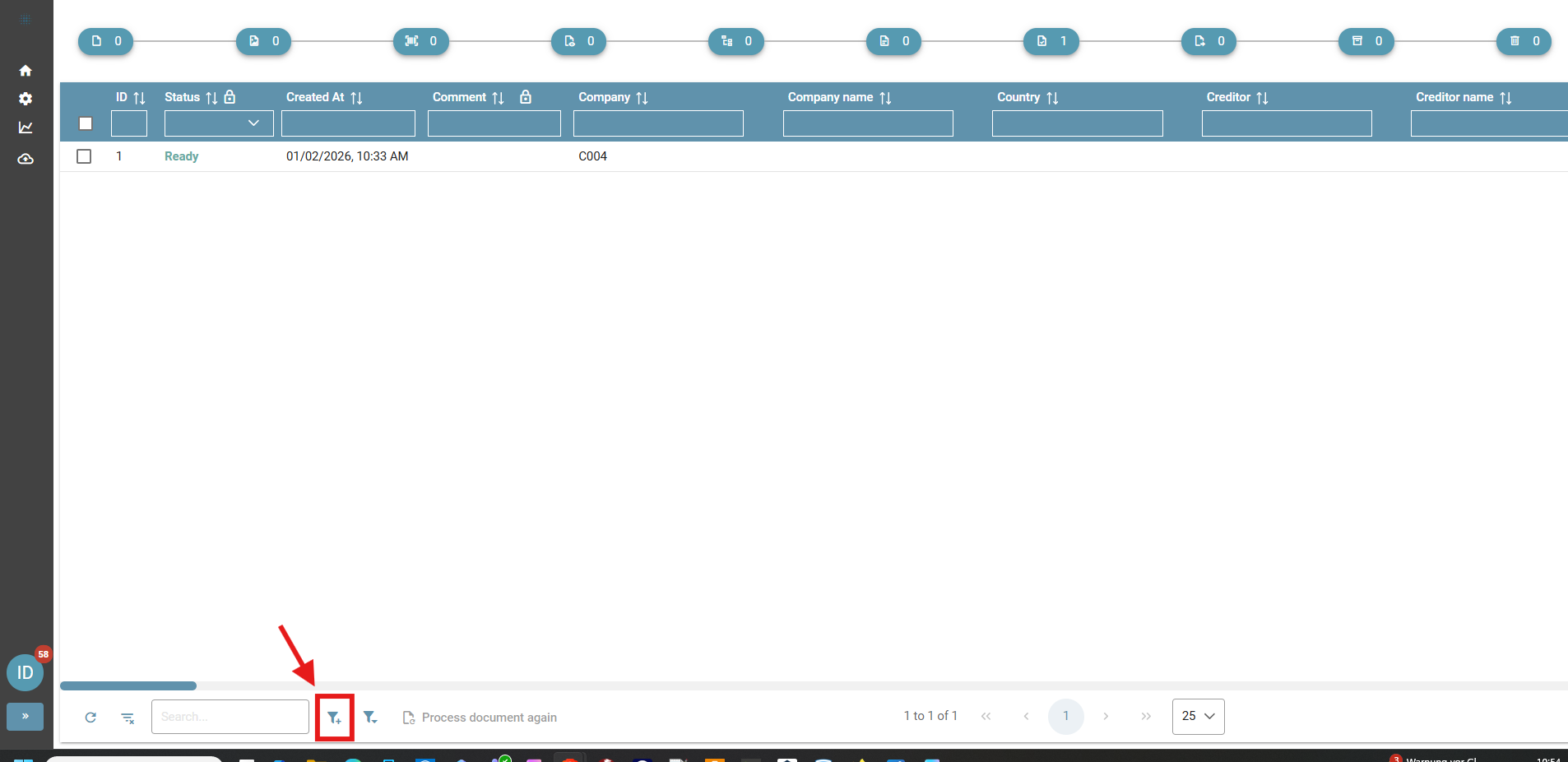
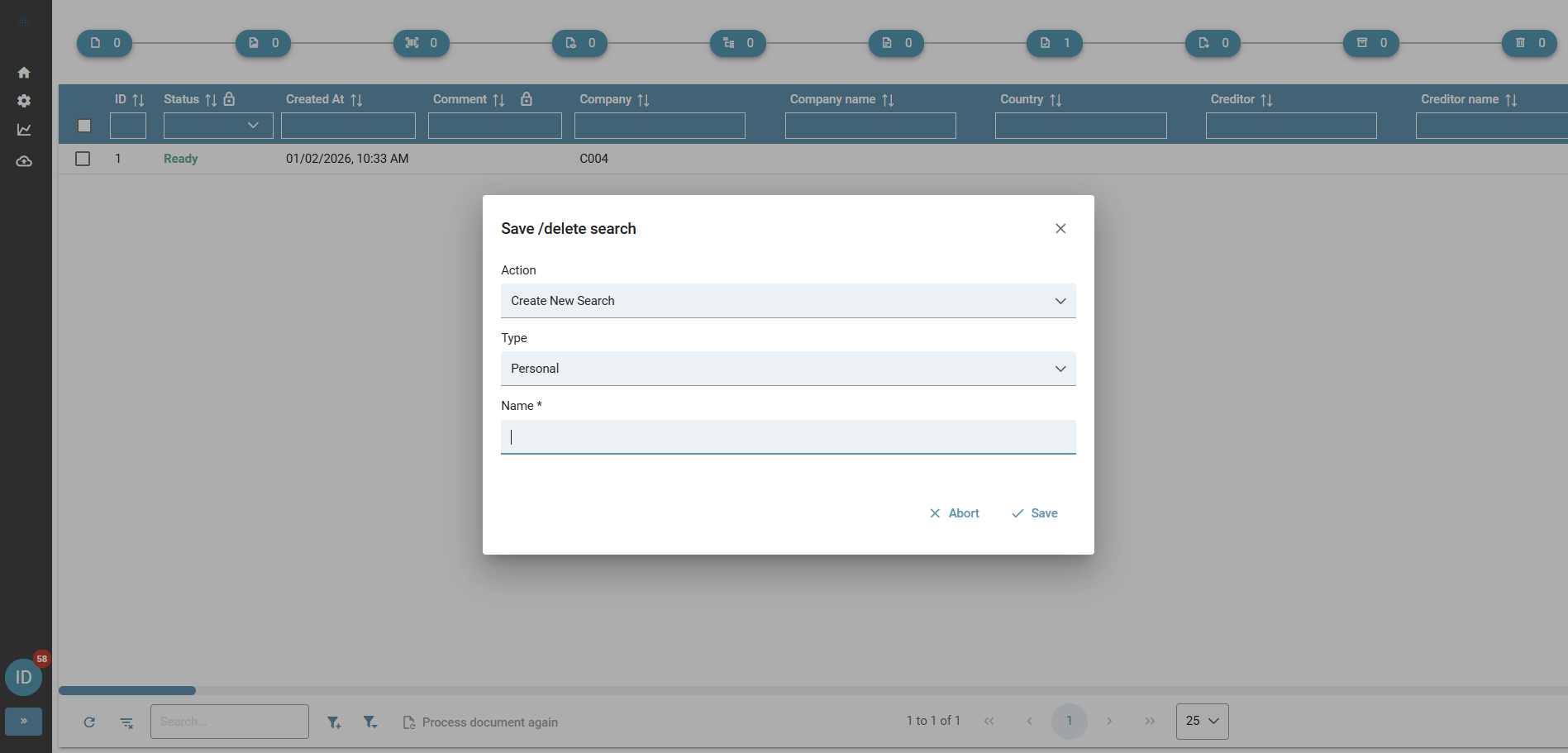
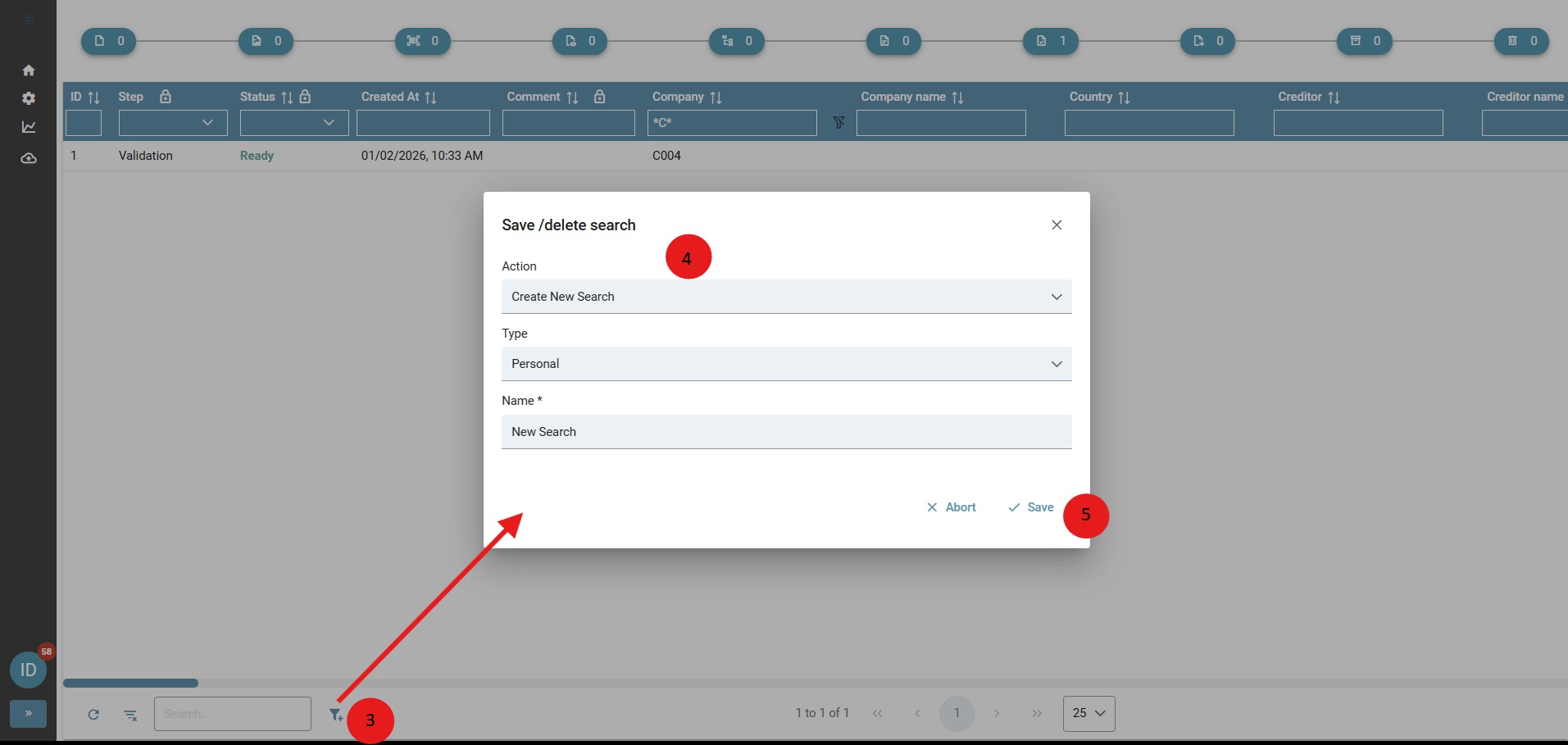
Creating a search To save a search, first carry out a search. Then click on "Save / delete search" in the hit list of the document search. In the following dialogue, you can give the search a name and save it as personal or global.
Search as a separate tile on the dashboard
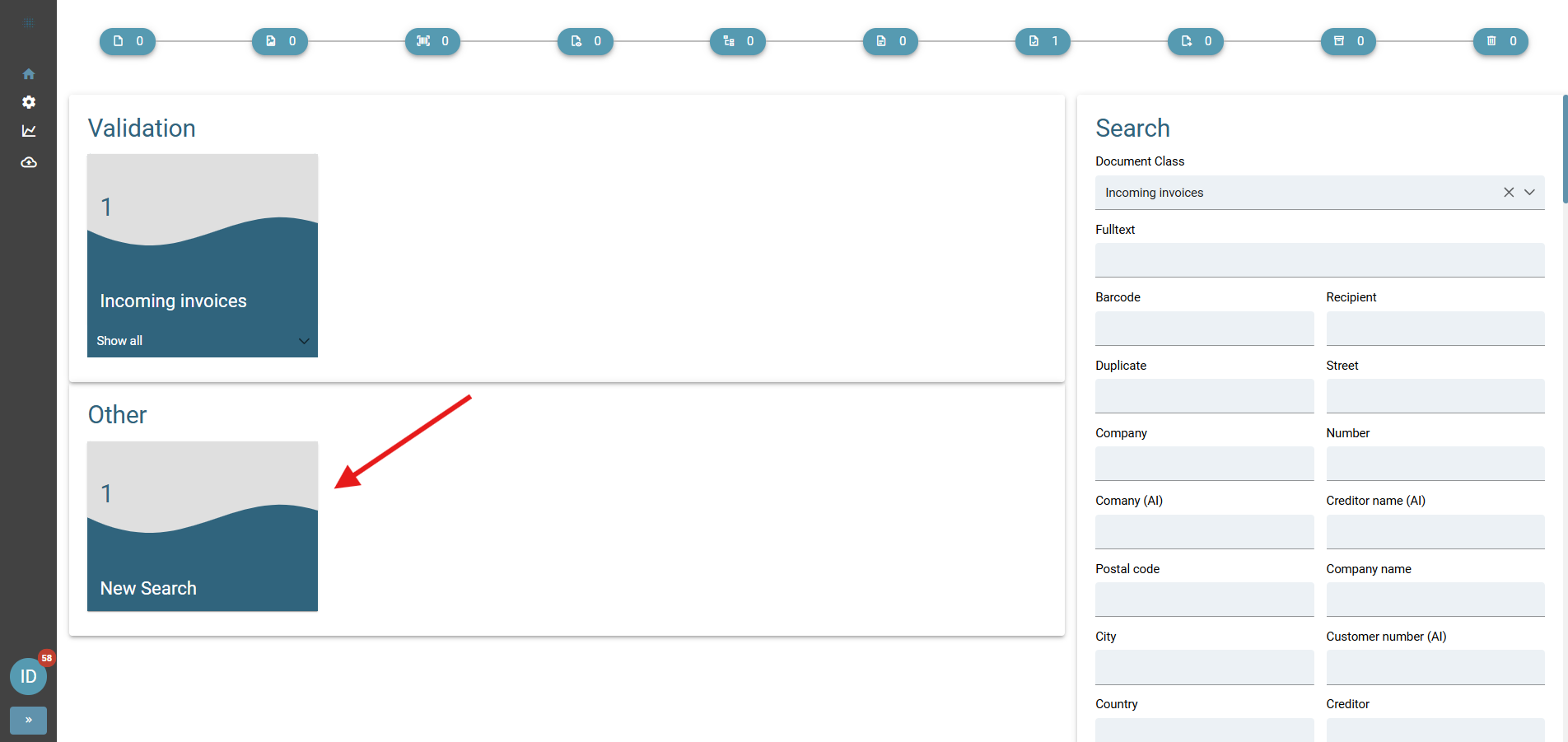
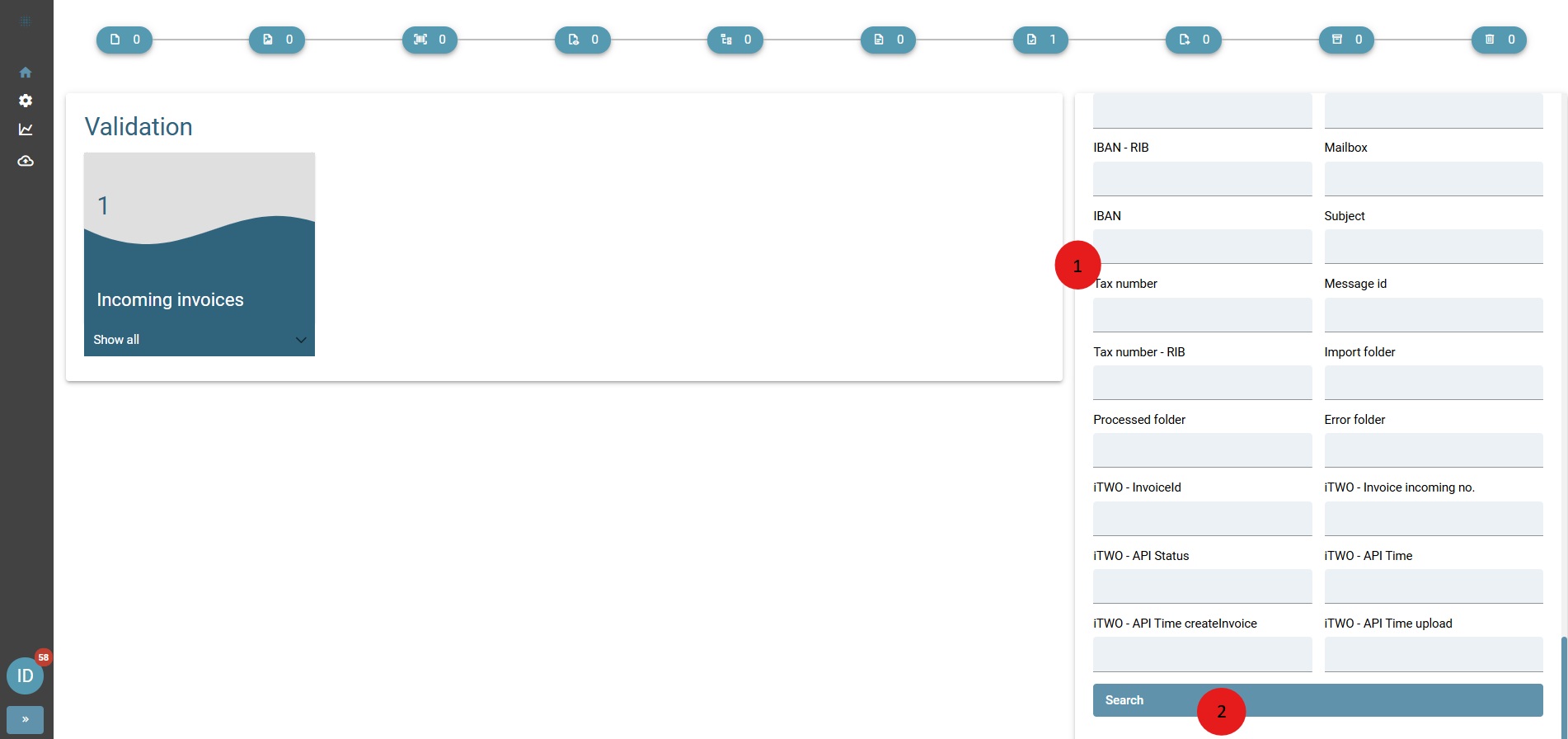
The search result can also be displayed as a tile directly on the dashboard. The number of hits is displayed directly on the tile.
Procedure:
1) Fill in the search field(s) on the dashboard
2) Click on Search
3) Click on Save search in the displayed results list
4) Fill in the fields (Name / Global or Personal)
5) Save
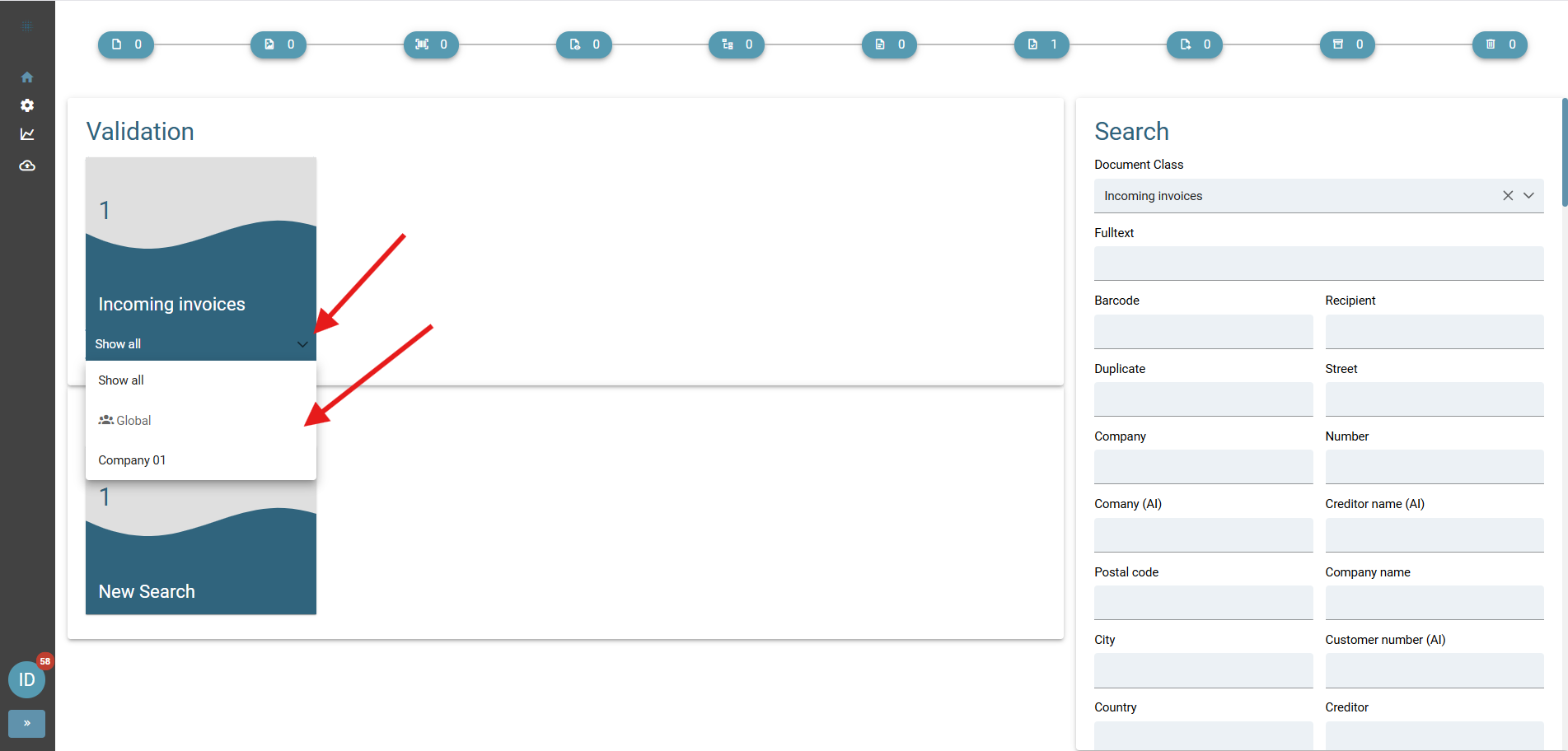
Use saved search
Saved searches are displayed on the dashboard below the respective validation tile. Use the dropdown to select the search you want to use.
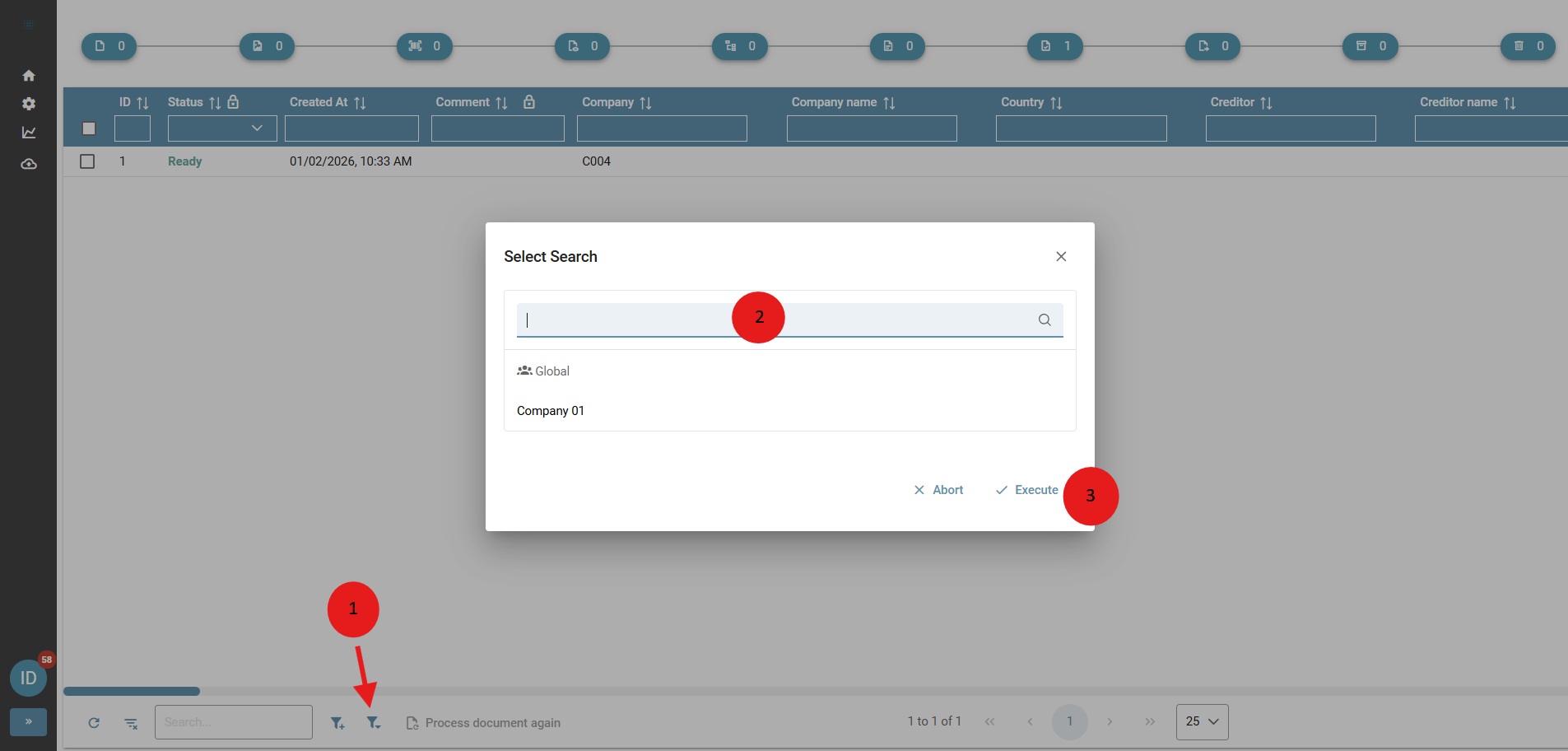
You can also select searches in the hit list. To do this, use the "Select search" button in the lower ribbon of the table.
Search for documents
The document search is the entry point for searching and filtering documents.
Sort
You can sort the results of your document search by using the Sort button:

Filter
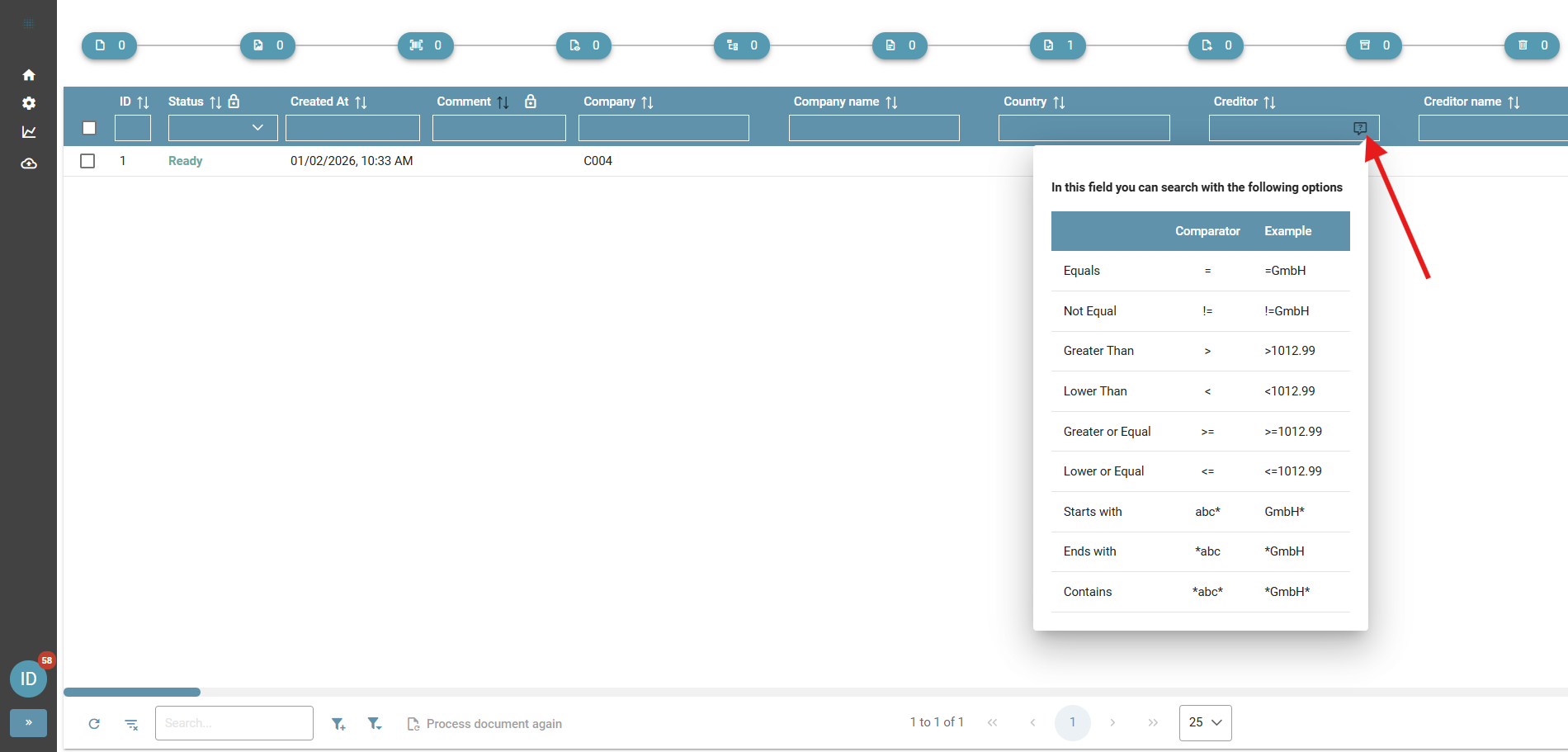
You can filter the results of your document search by using the input fields in the header row of the table. To find out how to search in a field, press the help button (available from Squeeze 2.6 onwards). The menu that opens will show you examples of searches in the selected field: