# SQUEEZE 2 User Manual
Manual for getting started with Squeeze.
This manual is intended for end users in specialist departments, accounting and scanning workstations.
# General OBSOLETE
# Squeeze Invoice in your ERP system
DEXPRO Squeeze is connected to your ERP system and analyzes incoming invoices based on the invoice information and creditor master data from your system.
Below you will find the necessary steps for invoice processing in Squeeze.
The following input channels can be imported with Squeeze:
- Paper-based invoices (scanner)
- Invoices as email attachments in PDF format
- File system import (TIF, PDF)
**Work preparation**:
Paper invoices are prepared for digitization before import. The “barcode” method is used for this purpose. This serves to clearly separate invoices and their attachments.
To do this, a barcode with a sequential number is placed on the **first** page of each invoice document.
#
Example:
[](https://docs.squeeze.one/uploads/images/gallery/2025-08/image-1755597764056.png)
#
If attachments are sent with the invoice, they must be separated from the invoice “visually.” To do this, a barcode is also placed on the first page of the attachment. This is the same type of barcode, the main difference being that no consecutive numbering is used here; instead, attachments are always marked with a “zero barcode.”
Example:
[](https://docs.squeeze.one/uploads/images/gallery/2025-08/image-1755598391984.png)
This enables the system to clearly and reliably recognize where an invoice begins, which attachments are included, and where the end of a multi-page document is reached.
Each new sequential barcode represents a new, separate invoice.
Note: If barcodes of the same type are already on the invoice, e.g., because the supplier prints them themselves, this information must be covered with the barcode sticker or made unrecognizable by blacking it out (with a black pencil).
**Digital capture and evaluation of paper-based invoices:**
Paper documents can be scanned in batches using the document scanner provided after they have been labeled with the appropriate barcodes.
**Digital capture and evaluation of invoices as email attachments:**
The previously specified email inboxes are monitored by DEXPRO Squeeze and when an invoice arrives, it is imported into your ERP system.
Requirements for successful import:
- The invoice must be attached to an email in PDF format
- If the email has more than one attachment, these are added to a single file
**Content evaluation in Squeeze:**
DEXPRO Squeeze has all the creditor master data from your ERP system.
This information is synchronized daily and used for document capture.
The quality of the master data, such as supplier information, is essential for good automated invoice recognition.
Squeeze identifies the supplier based on IBAN, VAT ID, telephone numbers, email addresses, internet addresses, and other information.
The result is presented to users in the specialist department for validation of the reading results in the web client/your ERP system.
# Start und Login
**Login:**
Use a modern/up-to-date browser to access the system.
We recommend using the latest version of Google Chrome or Firefox.
Log in to your Squeeze client with your initial user login details at the following URL:
[https://squeeze.dexpro-solutions.de/main.php](https://squeeze.dexpro-solutions.de/main.php)
If the initial password needs to be changed or is no longer known, the password can be reset using the “Forgot password?” function.
[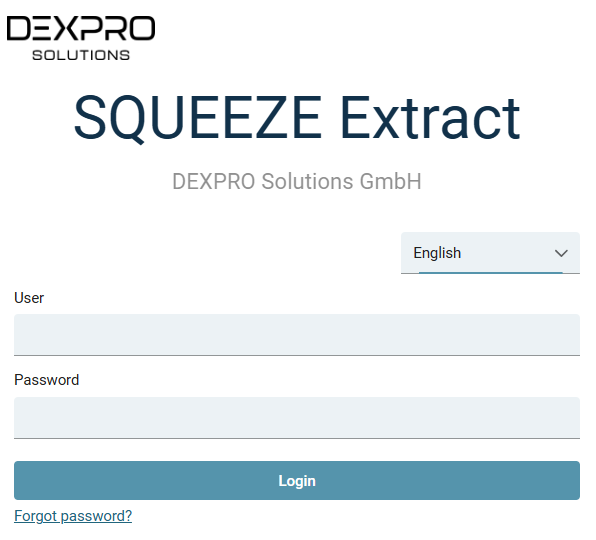](https://docs.squeeze.one/uploads/images/gallery/2025-08/image-1755601433698.png)
A message with further information will be sent to the user's registered email address.
A new password can then be assigned.
After successfully logging in, the central dashboard appears with live tiles and additional application options.
[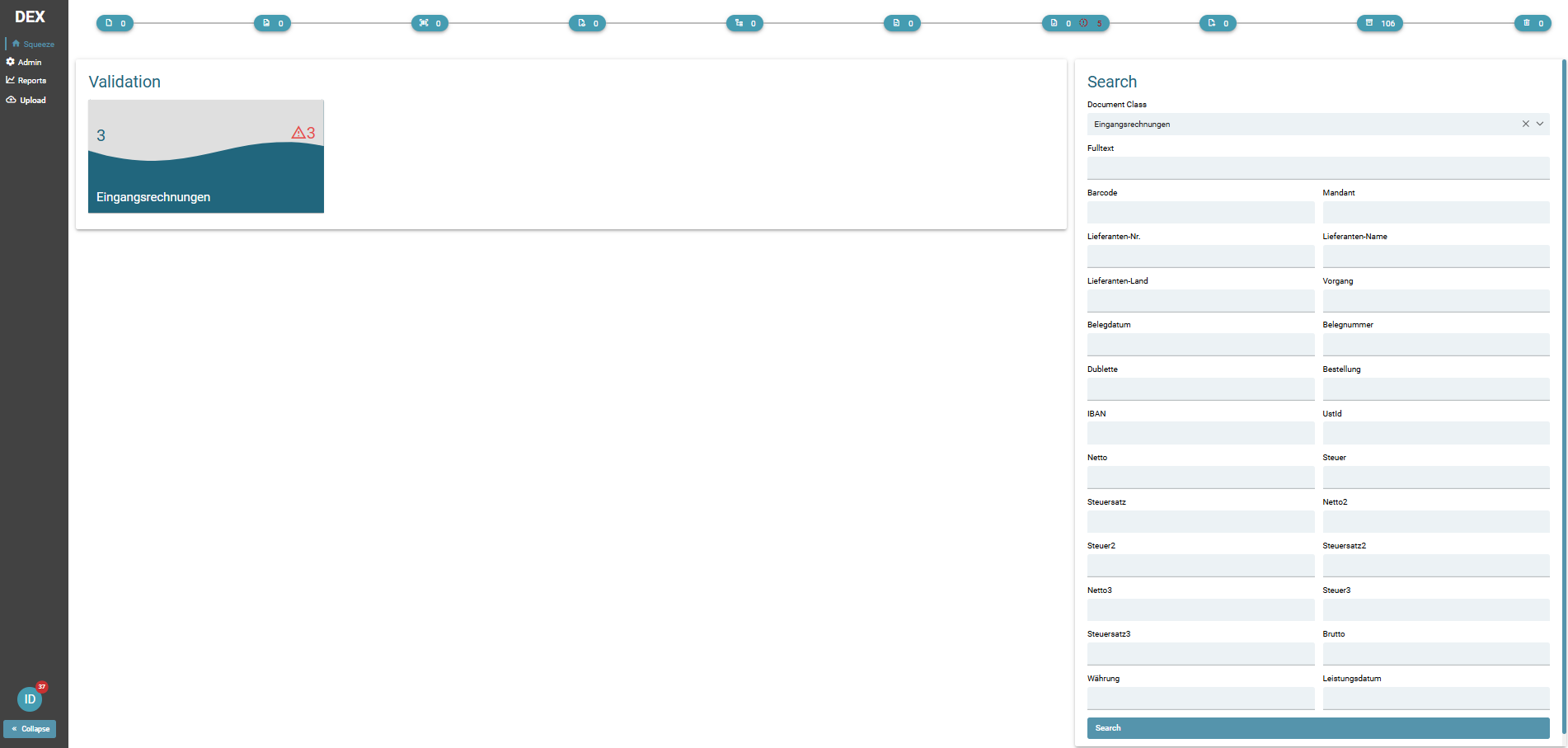](https://docs.squeeze.one/uploads/images/gallery/2025-08/image-1755601814221.png)
**The live tiles in detail:**
[](https://docs.squeeze.one/uploads/images/gallery/2025-08/image-1755599959189.png)
NEW DOCUMENTS: Shows the number of documents currently in the import/worklist. The view cannot be opened; it is only used to show how many documents are currently at the beginning of the processing chain. When the system is operating normally, the information changes constantly, as the system usually imports new documents from copiers, scanners, or email inboxes and forwards them to the next stage.
[](https://docs.squeeze.one/uploads/images/gallery/2025-08/image-1755599996230.png)
IMAGE OPTIMIZATION: Shows the number of documents currently in image processing. The view cannot be opened.
Image processing checks the input format for necessary corrections, which is particularly relevant for scanned documents, as document processing has a significant impact on subsequent text recognition. During image processing, documents are straightened and minor spots and shadows are removed without significantly altering the character of the document.
For “electronic” documents (readable PDF files), image processing is automatically skipped if there are no embedded images in the PDF document.
[](https://docs.squeeze.one/uploads/images/gallery/2025-08/image-1755600010141.png)
BARCODE EXTRACTION:
[](https://docs.squeeze.one/uploads/images/gallery/2025-08/image-1755600023176.png)
TEXT RECOGNITION: Shows the number of documents currently undergoing text recognition. The view cannot be opened.
Image processing is followed by text recognition. Depending on the size and optimization of the training data set, this is the stage that requires the most processing time.
Documents can usually “back up” in the processing chain at this point. If this happens frequently or to a significant extent, please contact your system administrator, as these processes can also be parallelized to achieve a balanced load/usage behavior.
[](https://docs.squeeze.one/uploads/images/gallery/2025-08/image-1755600061224.png)
CLASSIFICATION: Shows the number of documents currently in classification. The view cannot be opened.
Based on the recognized and/or evaluated text information, documents are compared with trained patterns and automatically assigned to a document type (invoice, delivery note, order).
If Squeeze is used without document classification, e.g., in pure incoming invoice extraction projects, the classification is skipped.
[](https://docs.squeeze.one/uploads/images/gallery/2025-08/image-1755600124086.png)
EXTRACTION: Shows the number of documents currently being extracted. The view cannot be opened.
Once the documents have been optimized, textually read, and classified, their contents are compared with the master data available in the company's ERP/financial accounting/CRM system and checked automatically where possible. The result is visible in the next step.
[](https://docs.squeeze.one/uploads/images/gallery/2025-08/image-1755600147915.png)
VALIDATION: Displays the number of documents awaiting validation. **This live tile can be opened with a simple left click and then displays the documents for manual validation in a chronologically sorted work list (queue).**
The validation tile always shows the current worklist of the team/department.
[](https://docs.squeeze.one/uploads/images/gallery/2025-08/image-1755600155575.png)
EXPORTED: Shows the number of documents currently being exported to your selected target system. This view cannot be opened. For information on the export structures, please refer to the project description/documentation.
[](https://docs.squeeze.one/uploads/images/gallery/2025-08/image-1755600169668.png)
BACKUP: Shows the total number of documents processed.
[](https://docs.squeeze.one/uploads/images/gallery/2025-08/image-1755602051561.png)
DLETED: Shows the total number of deleted documents
**The search:**
The search function allows you to search for documents using a wide variety of filters.
[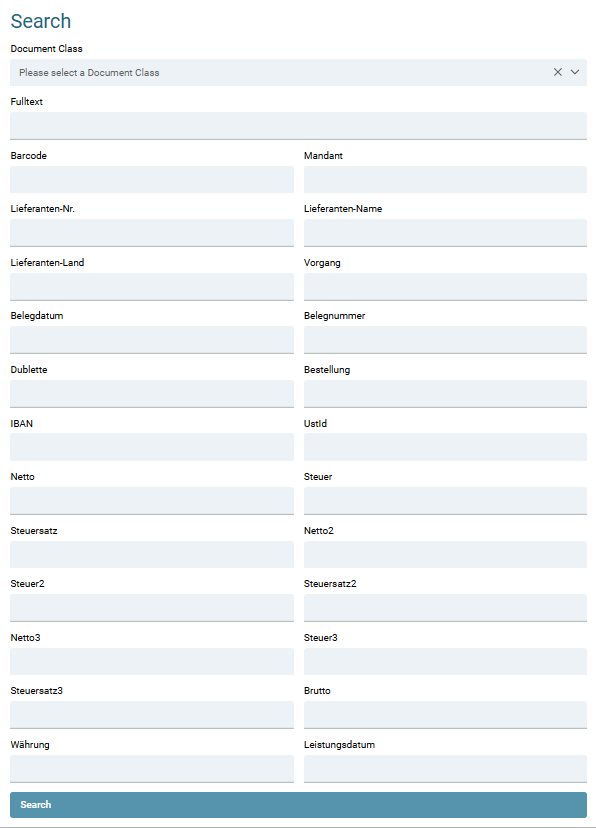](https://docs.squeeze.one/uploads/images/gallery/2025-08/image-1755602223525.png)
**Reports:**
All exported documents, exports, document origins, processed documents, and auto-validated documents are displayed in the sidebar under Reports. The time periods and filters to be read out can be defined independently in the respective tile.
[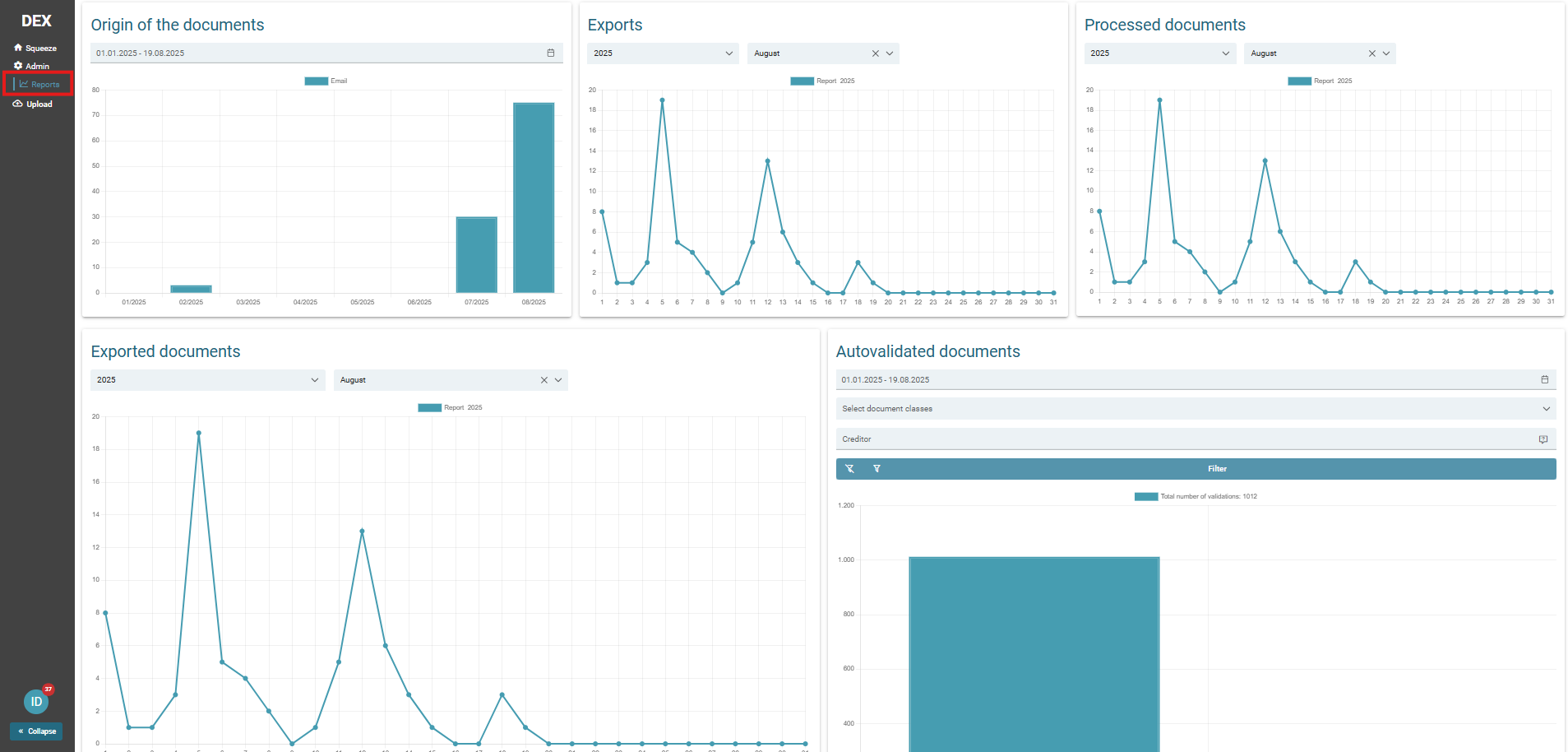](https://docs.squeeze.one/uploads/images/gallery/2025-08/image-1755603182553.png)
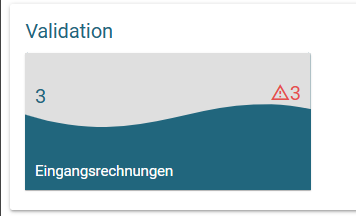
**Validation:**
The Validation tile takes you to the validation process which is described in the following pages.
[](https://docs.squeeze.one/uploads/images/gallery/2025-08/image-1755605327001.png)
# User Settings
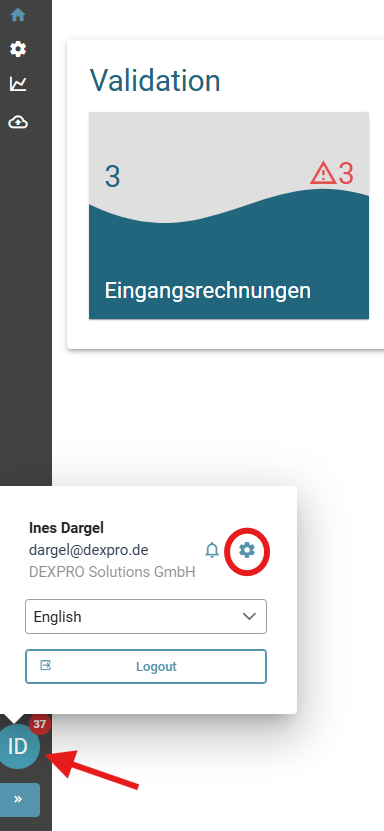
You can open the user settings by clicking on the circle with your initials in the navigation bar (left side of the user interface) and then selecting the gear icon.
[ ](https://docs.squeeze.one/uploads/images/gallery/2025-08/image-1755608818370.png)
#### Setting options
##### User account
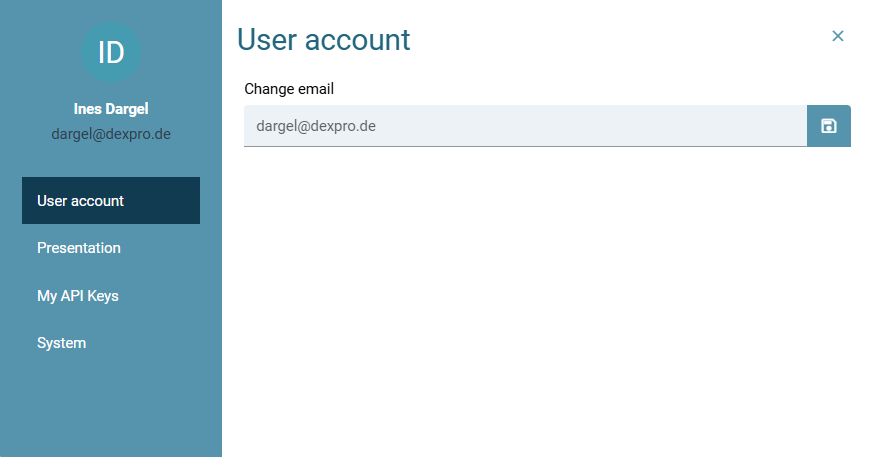
You can change your e-mail in the user account tab.
[](https://docs.squeeze.one/uploads/images/gallery/2025-08/image-1755608997973.png)
##### Presentation
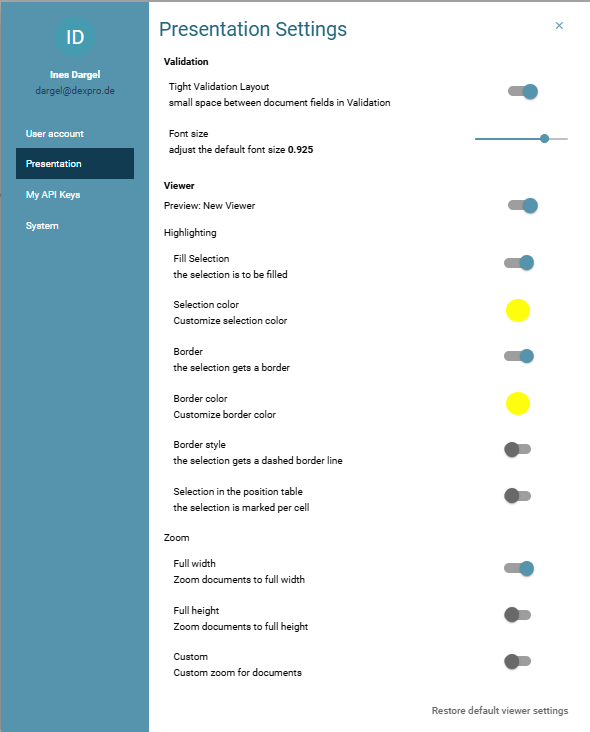
Use the button to specify how the areas are displayed in the application.
[](https://docs.squeeze.one/uploads/images/gallery/2025-08/image-1755609079668.png)
##### My API Keys
You can create, view and copy your API keys to the clipboard in the tab for My API Keys.
[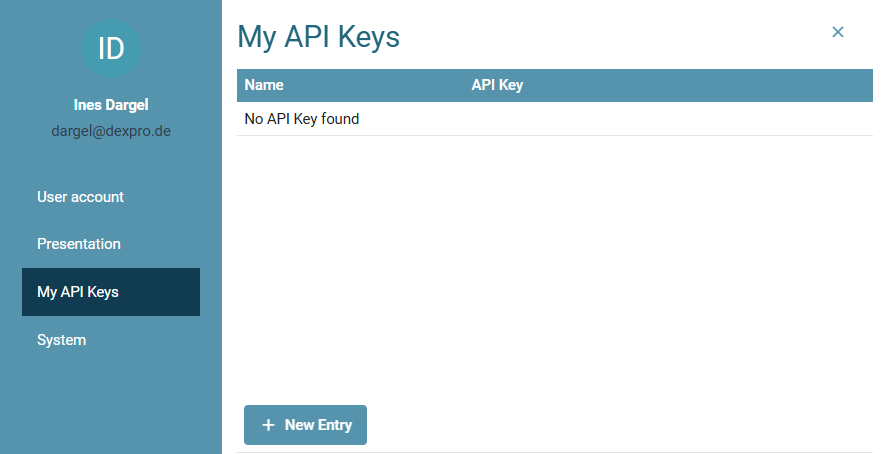](https://docs.squeeze.one/uploads/images/gallery/2025-08/image-1755609677715.png)
#### System
##### System Information
You can display information about your system in the System tab. This includes, for example, the product version, build information, information about the server's operating system, etc.
By clicking on "Copy all", you can copy the system information to your clipboard and send it with support tickets to help you process support cases.
[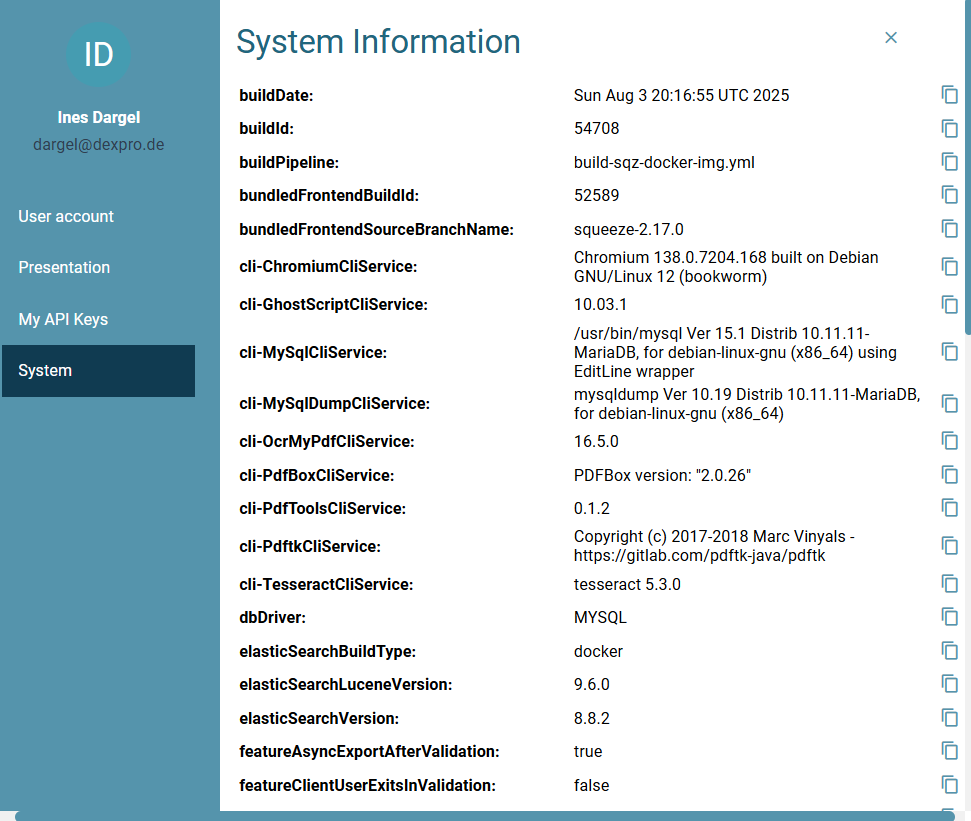 ](https://docs.squeeze.one/uploads/images/gallery/2025-08/image-1755609828047.png)[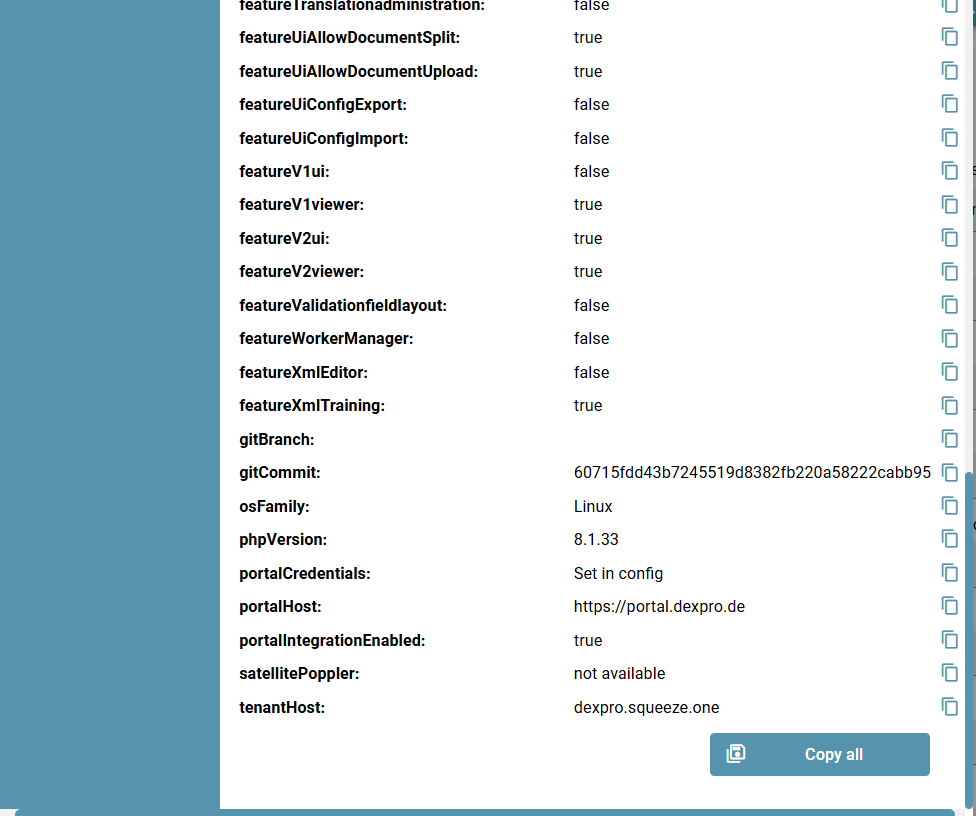](https://docs.squeeze.one/uploads/images/gallery/2025-08/image-1755609861403.png)
# Administration
[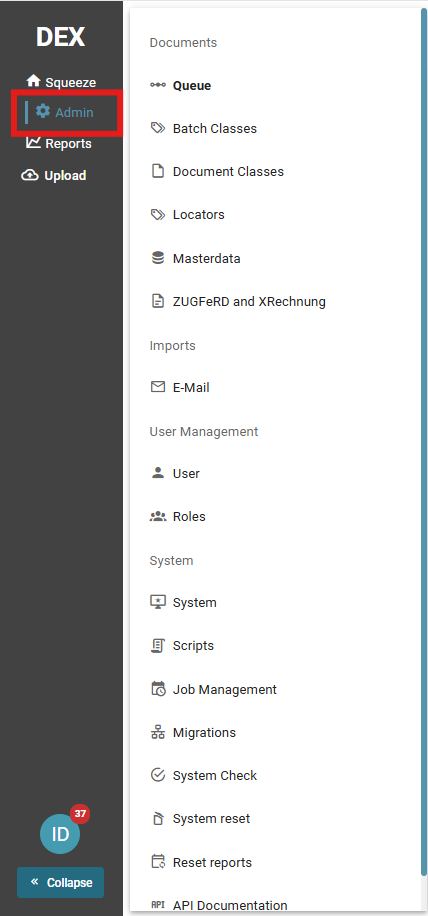](https://docs.squeeze.one/uploads/images/gallery/2025-08/image-1755616328501.png)
##### **Queue:**
In the queue, actions can be executed for the desired document at the end of the line of each document. (See red marking)
[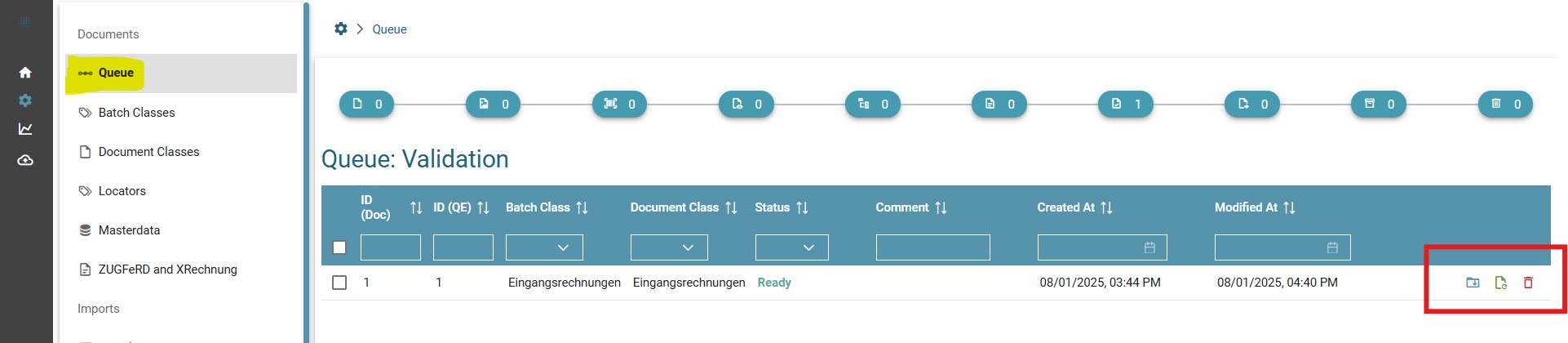](https://docs.squeeze.one/uploads/images/gallery/2025-08/image-1755700072837.png)
**Description of the individual fields:**
[](https://docs.squeeze.one/uploads/images/gallery/2025-08/image-1755701832595.png)
**Download zip file:**
This icon can be used to download the documents in zip format.
[](https://docs.squeeze.one/uploads/images/gallery/2025-08/image-1755702085698.png)
**Process document again:**
Left-click to display a list of processing steps. By selecting the desired step, the document is processed again from this step onwards.
[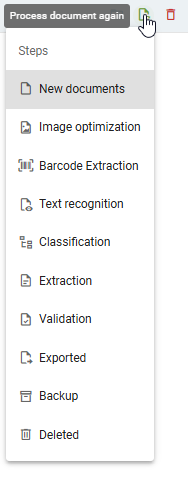](https://docs.squeeze.one/uploads/images/gallery/2025-08/image-1755702708547.png)
[](https://docs.squeeze.one/uploads/images/gallery/2025-08/image-1755702798592.png)
**Delete file:**
This icon can be used to delete selected documents.
# Add new fields
If one of your documents has new fields that now also need to be added in Squeeze you can do this quickly and easily. To do this, click on the "Document Classes" tab in the administration:
[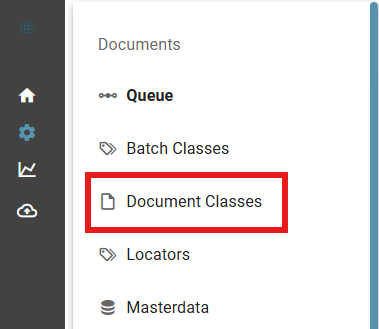](https://docs.squeeze.one/uploads/images/gallery/2025-08/image-1756217105078.png)
Click on your document type to open the overview of the document class.
[](https://docs.squeeze.one/uploads/images/gallery/2025-08/image-1756217237658.png)
[](https://docs.squeeze.one/uploads/images/gallery/2025-08/image-1756217606829.png)
The "Fields" tab shows all existing fields and their details
[](https://docs.squeeze.one/uploads/images/gallery/2025-08/image-1756217527819.png)
To add a new field, click on "New entry" in the bottom left-hand corner. You can now add the field properties.
[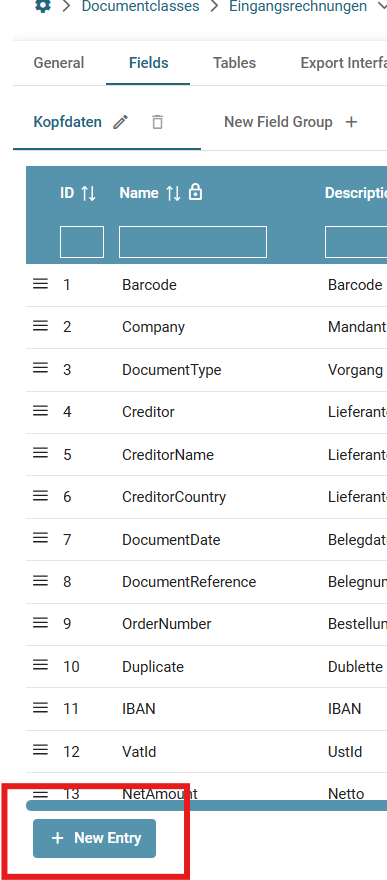](https://docs.squeeze.one/uploads/images/gallery/2025-08/image-1756217739596.png)
[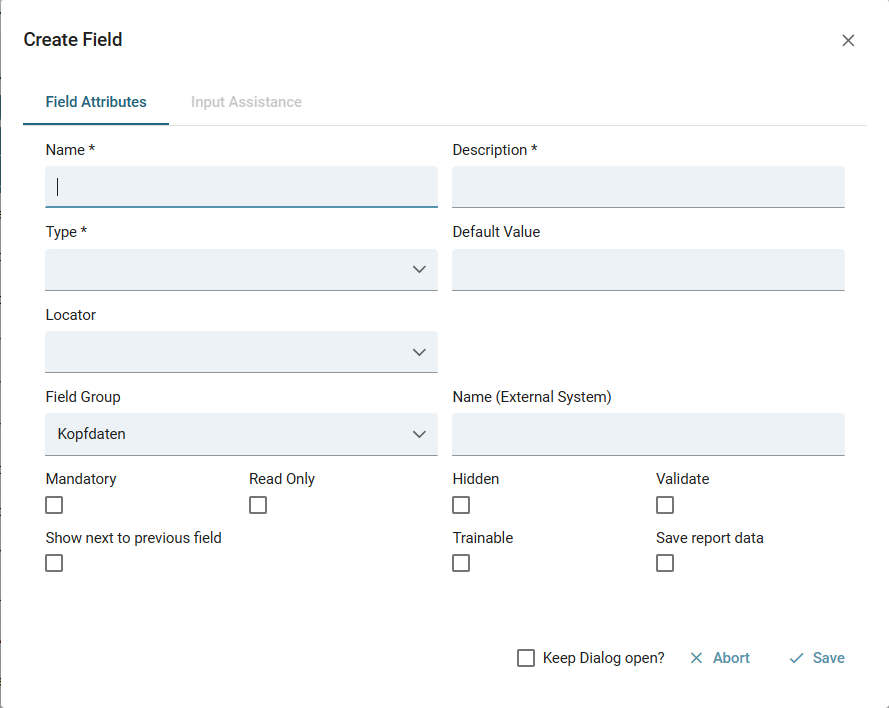](https://docs.squeeze.one/uploads/images/gallery/2025-08/image-1756217805117.png)
The name is a technical designation from the database or the target system.
The description is the displayed label of the field. The "Type" determines the type of field, do you need a checkbox, a radio button, a text or date field?
If you need locators to automatically fill the new field with a value from your document please contact your admin. In the group, you differentiate whether the field is in the header data on the document or in the items.
The following selections determine whether the field is mandatory, whether it can be edited or whether it must be confirmed before the voucher can be validated.
When everything is filled in press "Save" and the field is ready for use.
# Document Search
Here you will learn how to search and find documents.
# Save search
### Manage searches
If the icon for managing the search is not displayed, please contact your project contact person.
The corresponding function may need to be activated in the Squeeze instance
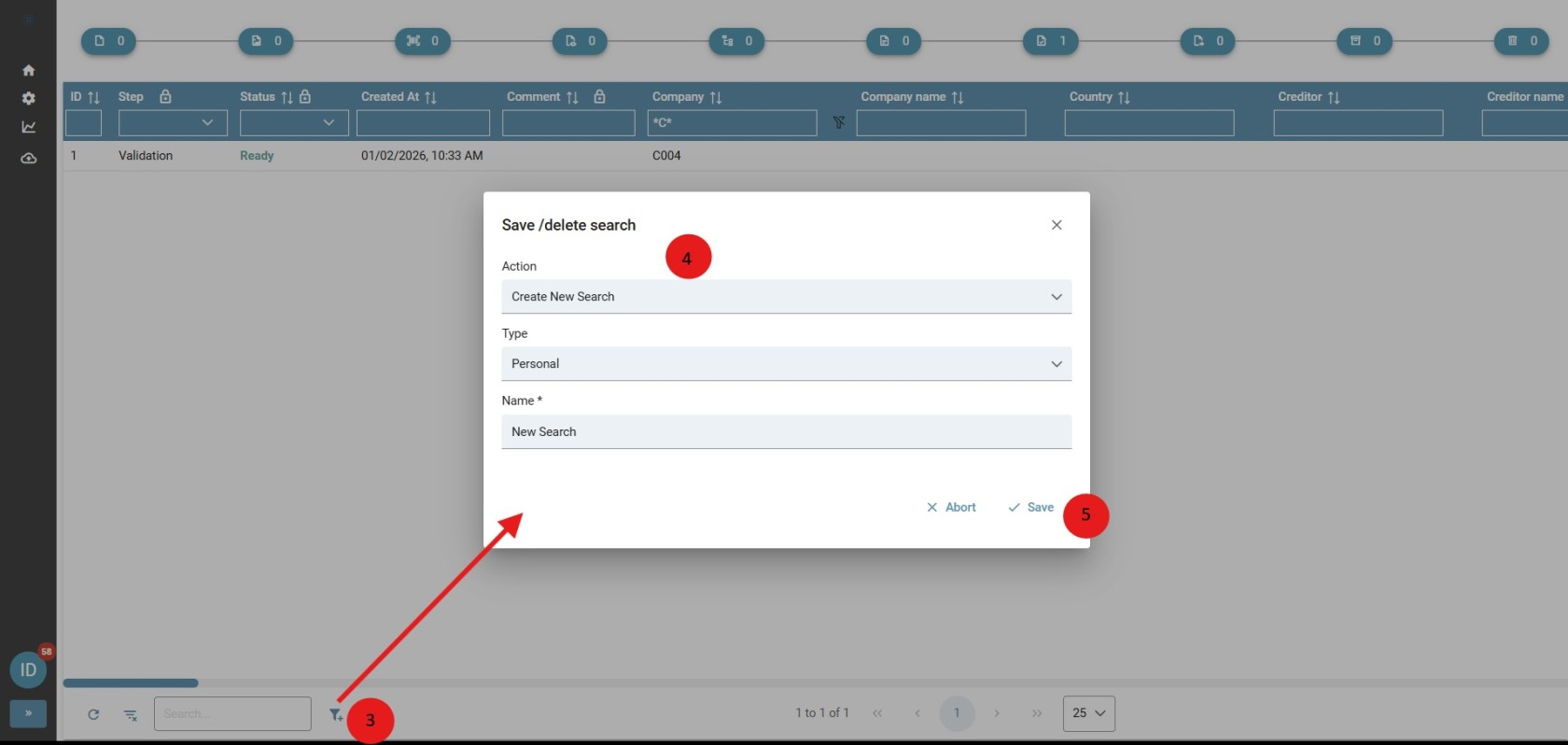
Creating a search To save a search, first carry out a search. Then click on "Save / delete search" in the hit list of the document search. In the following dialogue, you can give the search a name and save it as personal or global.
[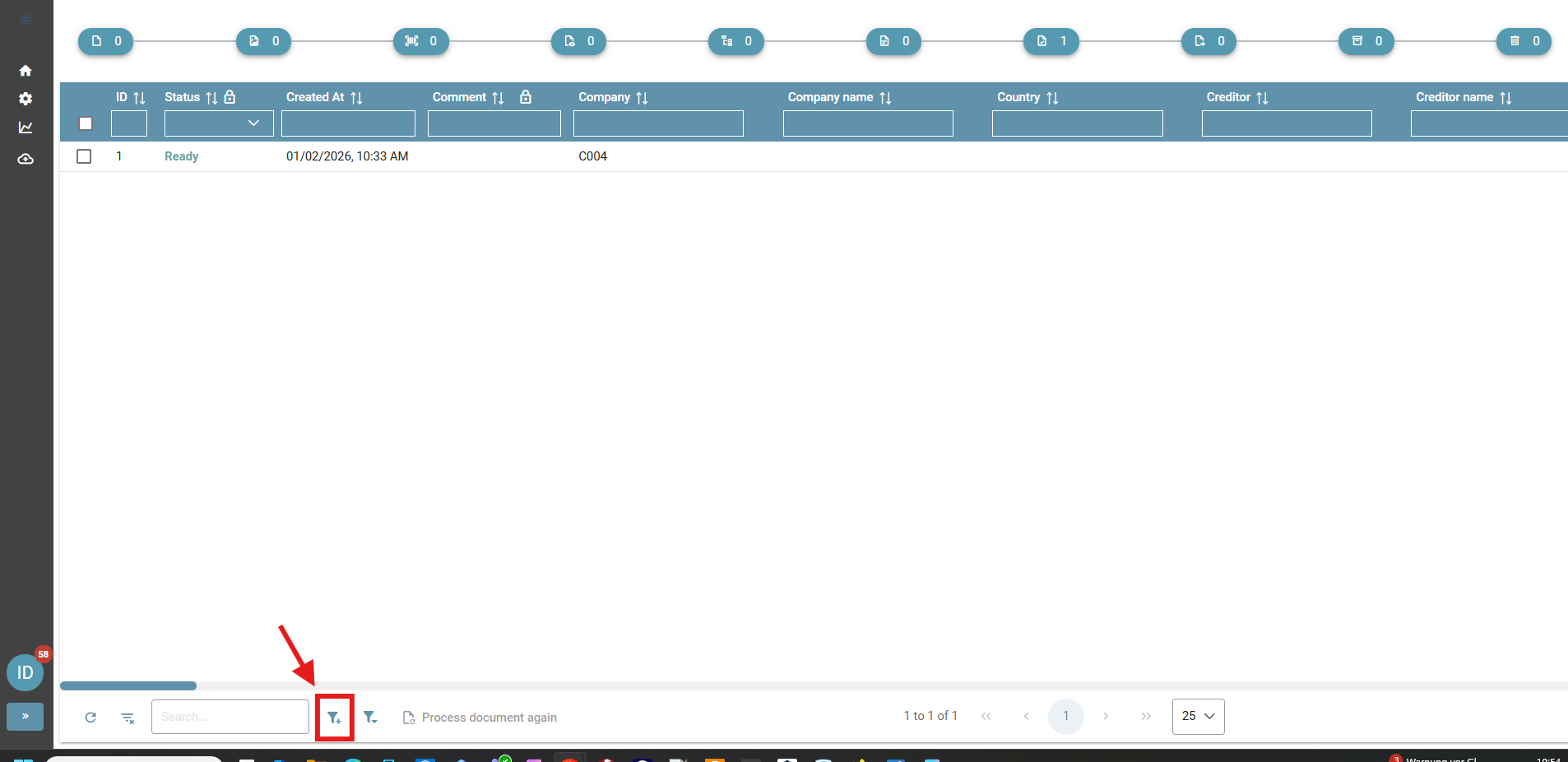](https://docs.squeeze.one/uploads/images/gallery/2026-01/image-1767347700110.png)
[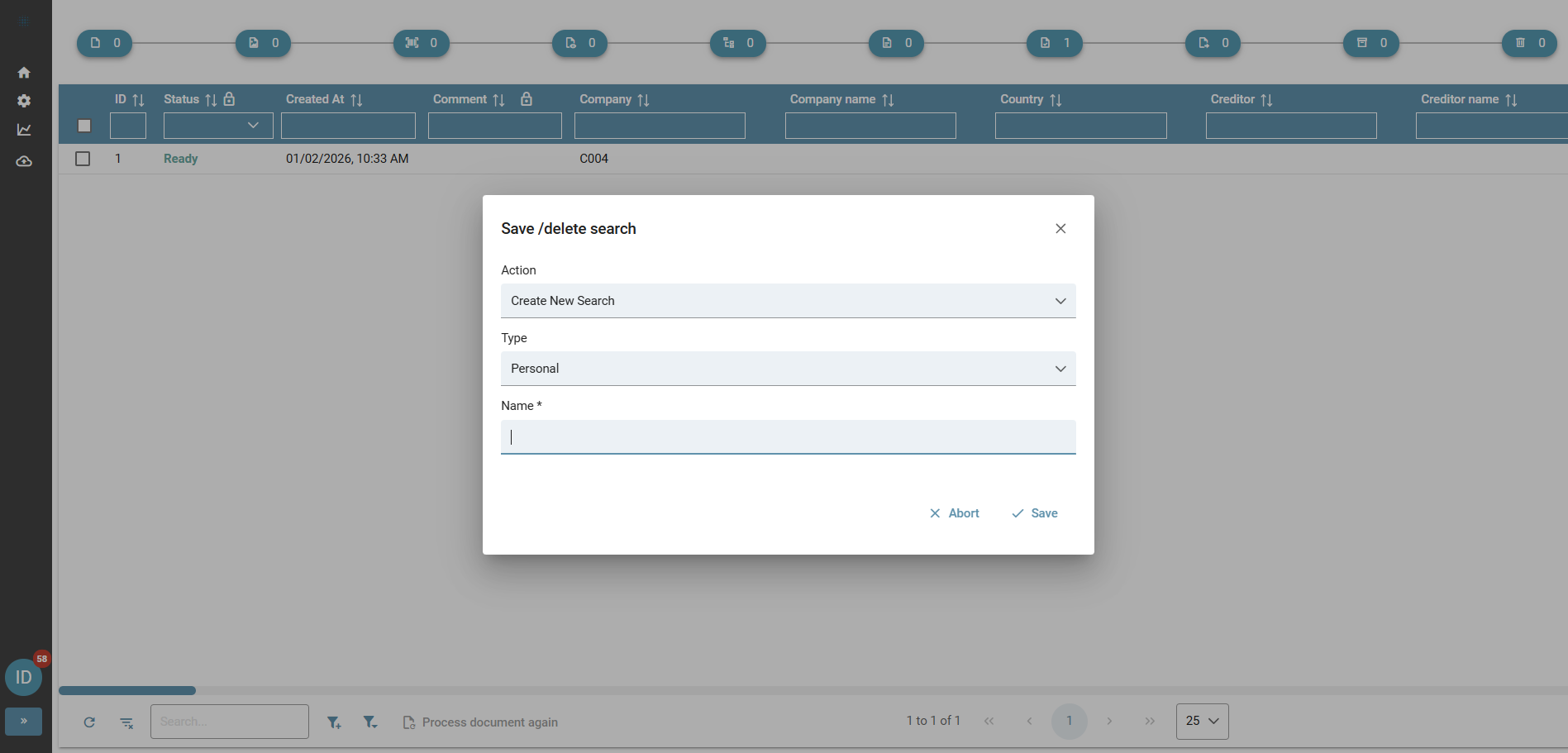](https://docs.squeeze.one/uploads/images/gallery/2026-01/image-1767347721702.png)
### Search as a separate tile on the dashboard
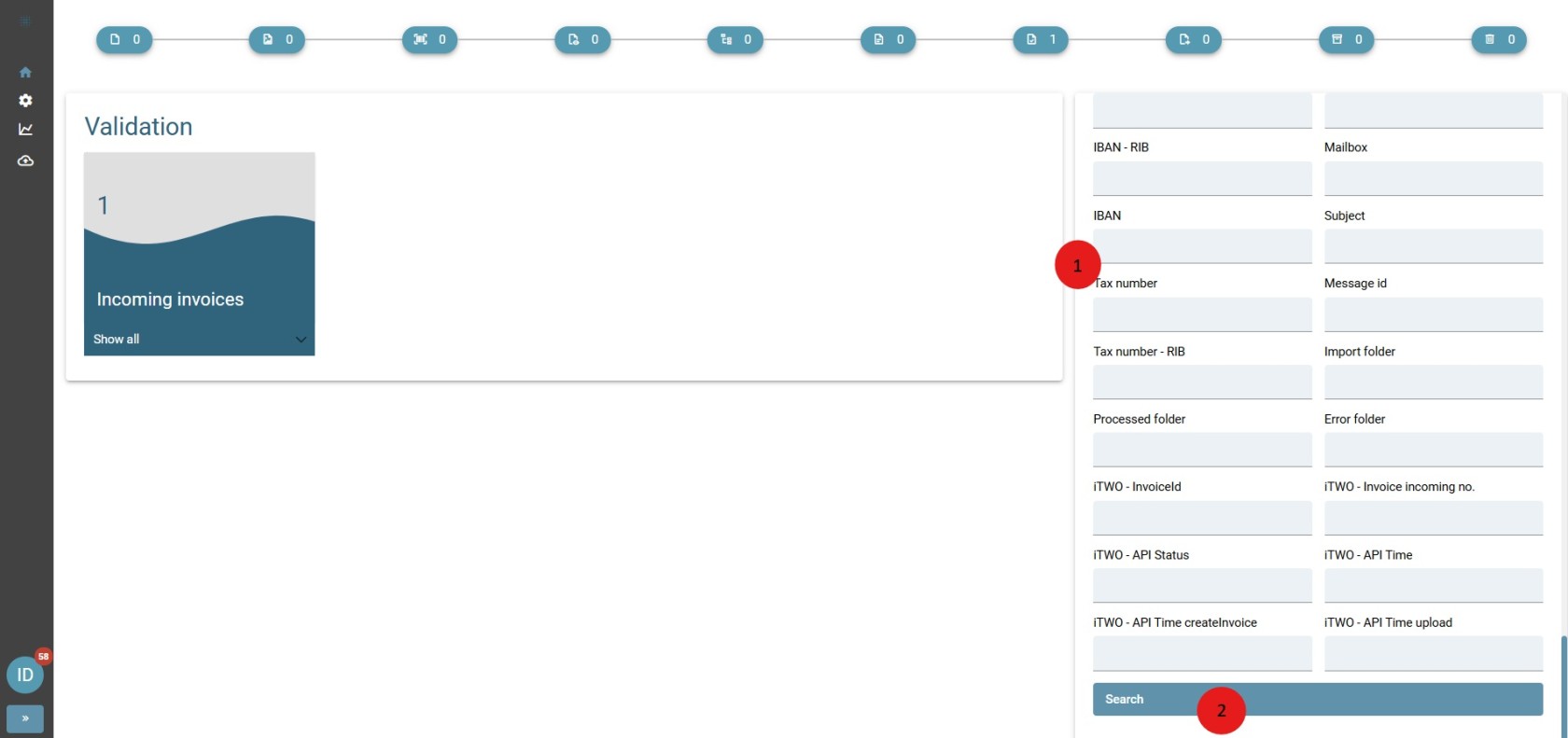
The search result can also be displayed as a tile directly on the dashboard. The number of hits is displayed directly on the tile.
Procedure:
1\) Fill in the search field(s) on the dashboard
2\) Click on Search
3\) Click on Save search in the displayed results list
4\) Fill in the fields (Name / Global or Personal)
5\) Save
###
[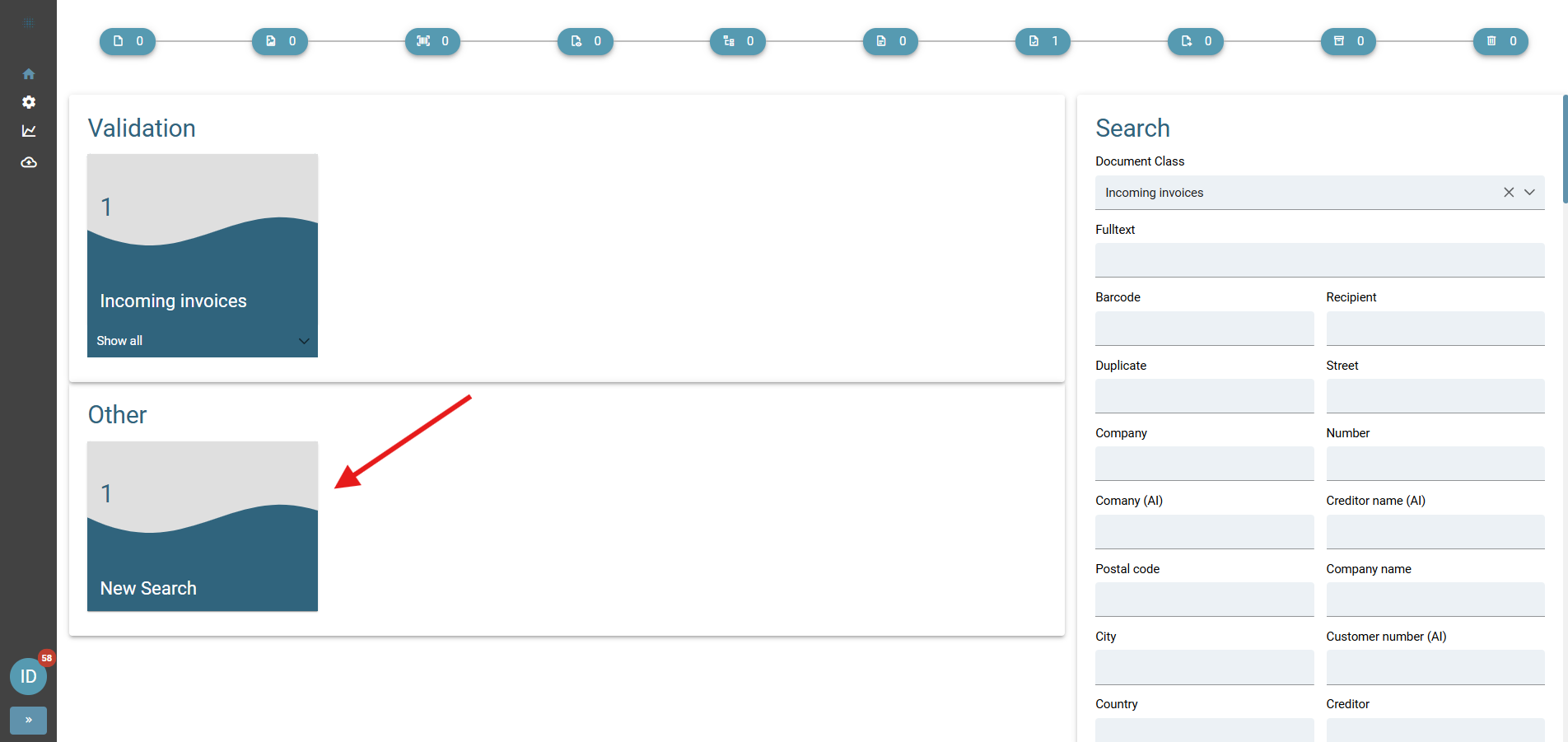](https://docs.squeeze.one/uploads/images/gallery/2026-01/image-1767348011175.png)
[](https://docs.squeeze.one/uploads/images/gallery/2026-01/image-1767351063532.jpg)
[](https://docs.squeeze.one/uploads/images/gallery/2026-01/image-1767351349497.jpg)
### Use saved search
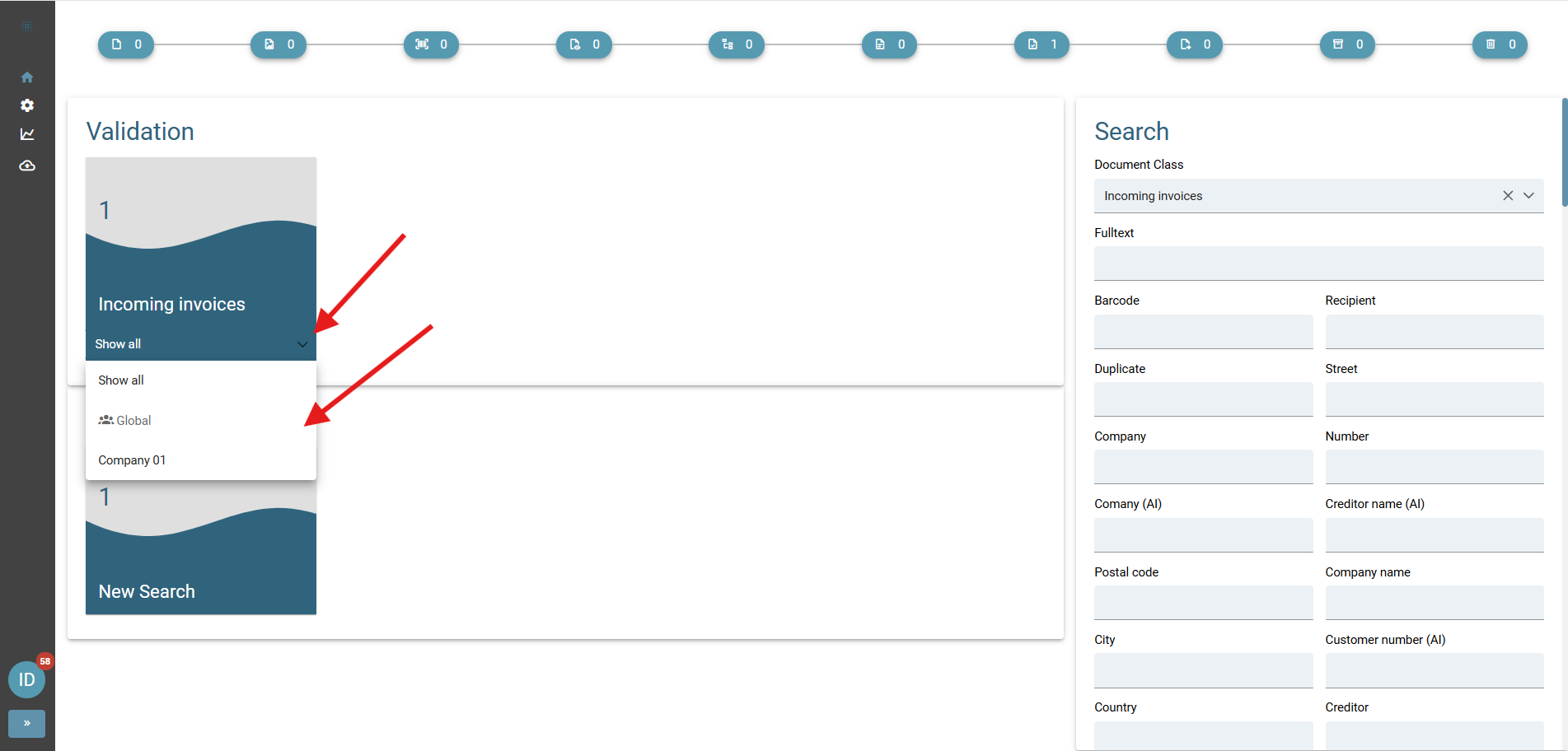
Saved searches are displayed on the dashboard below the respective validation tile. Use the dropdown to select the search you want to use.
[](https://docs.squeeze.one/uploads/images/gallery/2026-01/image-1767351545106.png)
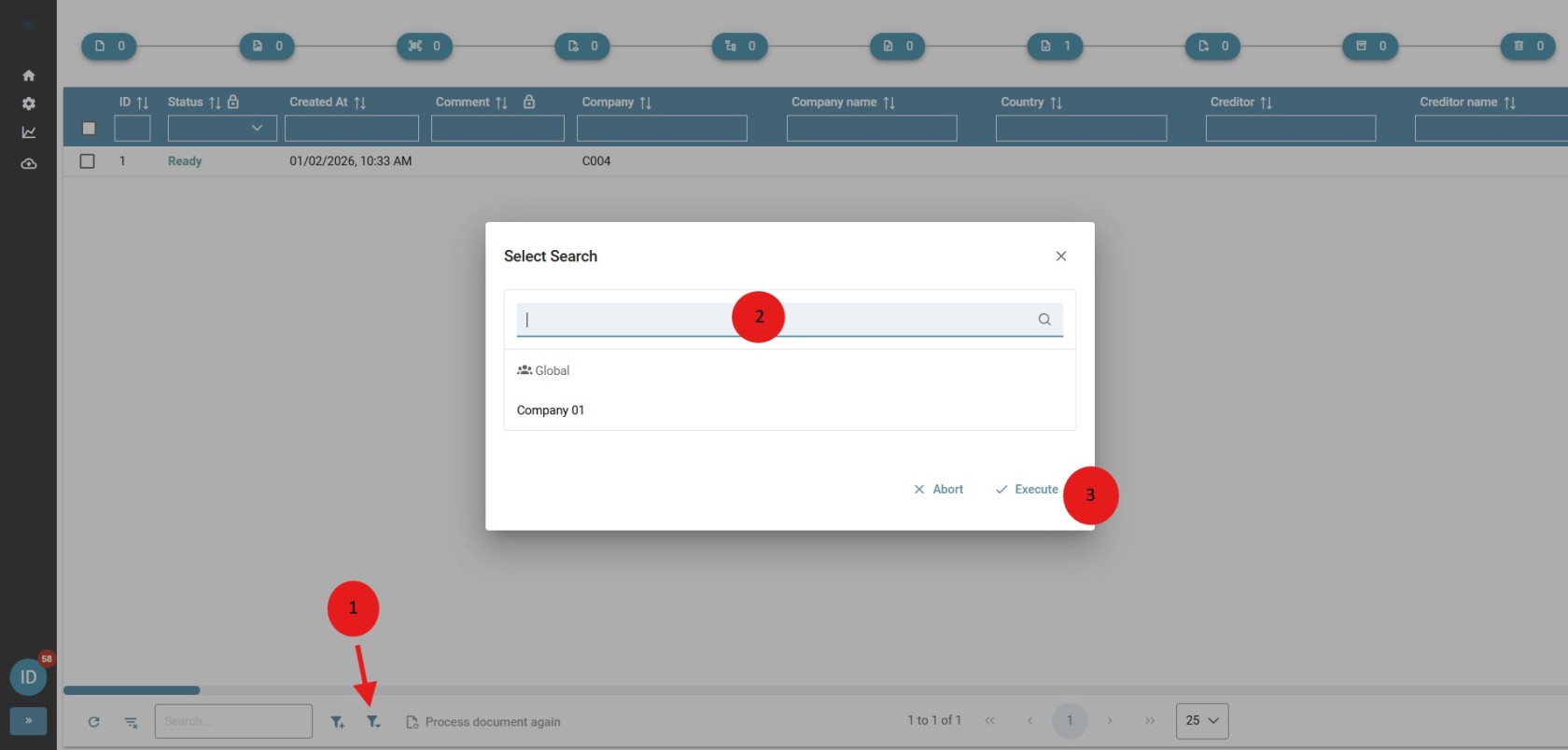
You can also select searches in the hit list. To do this, use the "Select search" button in the lower ribbon of the table.
[](https://docs.squeeze.one/uploads/images/gallery/2026-01/image-1767351847691.jpg)
# Search for documents
The document search is the entry point for searching and filtering documents.
####
Sort
You can sort the results of your document search by using the Sort button:
[](https://docs.squeeze.one/uploads/images/gallery/2026-01/image-1767352139659.png)
#### Filter
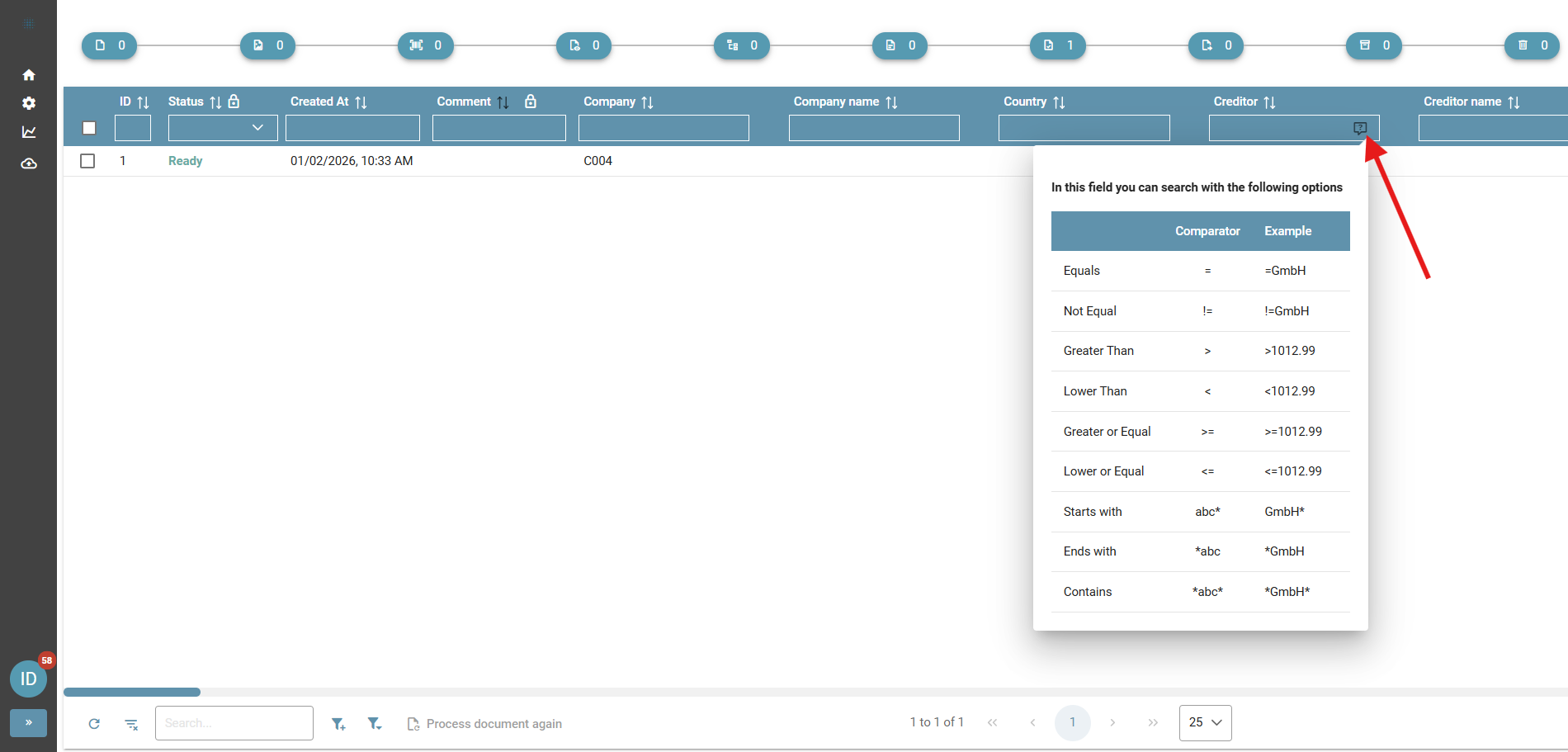
You can filter the results of your document search by using the input fields in the header row of the table. To find out how to search in a field, press the help button (available from Squeeze 2.6 onwards). The menu that opens will show you examples of searches in the selected field:
[](https://docs.squeeze.one/uploads/images/gallery/2026-01/image-1767352376644.png)
# Sqeeze Validation
# Guideline - Validation
This guide documents how a document should normally be documented.
#### 1. Opening the validation
"Validation" takes you to the main work area of the application. Here, the user checks and confirms the documents that have been read. Validation can be opened via the Squeeze item in the tab bar.
[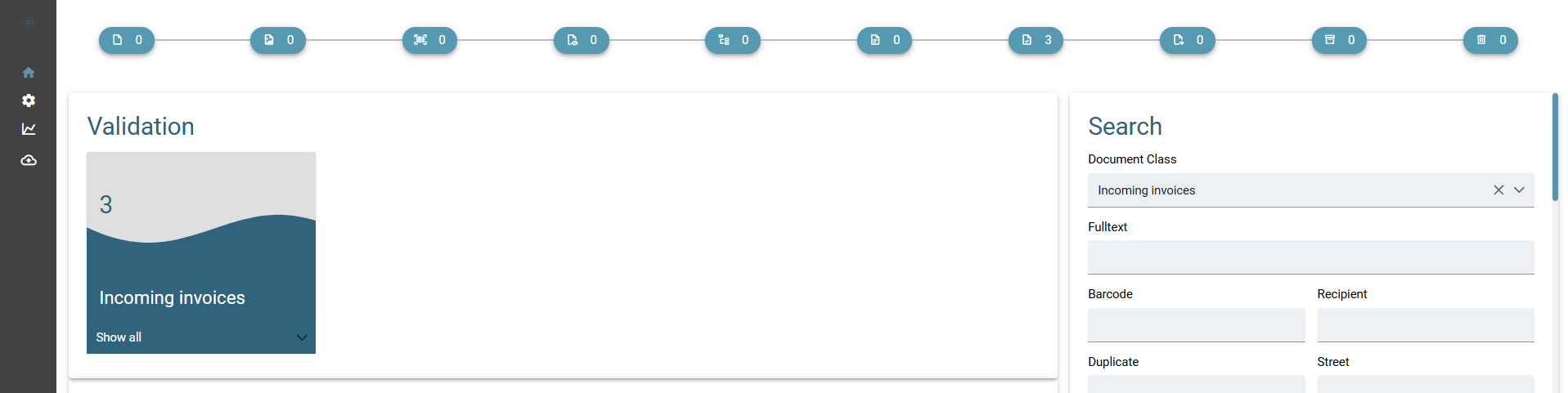](https://docs.squeeze.one/uploads/images/gallery/2026-01/image-1767353855450.png)
A new page opens showing all documents that Squeeze has processed so far and which now need to be validated, i.e. confirmed or corrected by the user.
[](https://docs.squeeze.one/uploads/images/gallery/2026-01/image-1767353963876.png)Clicking on a line opens the selected document so that it can be checked and confirmed.
#### 2. Overview of validation
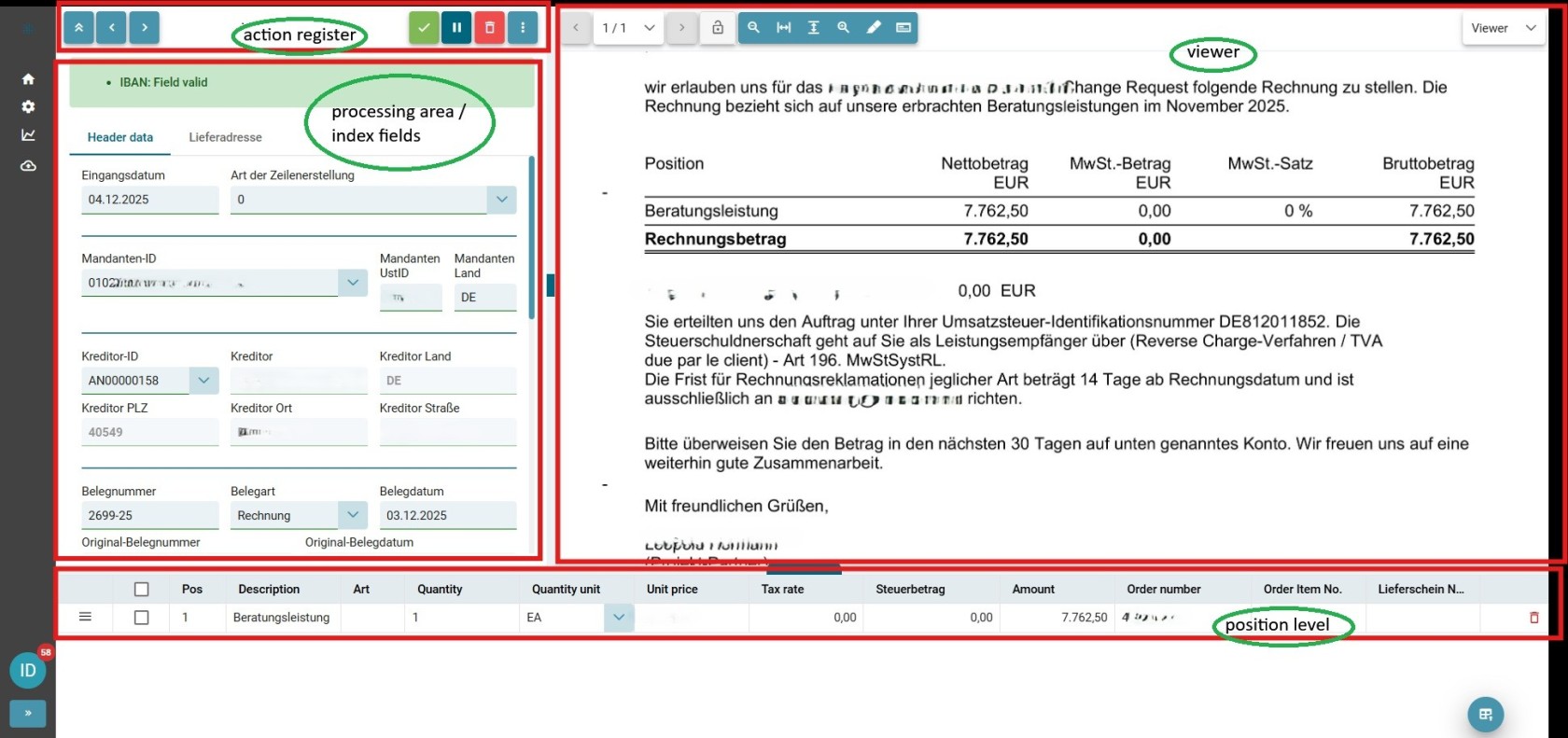
The validation view is divided into four areas:
• index fields / processing area
• action register
• viewer
• position level
[](https://docs.squeeze.one/uploads/images/gallery/2026-01/image-1767362931019.jpg)
#### 3. Example validation of a document
Now the actual validation of the extracted document begins.
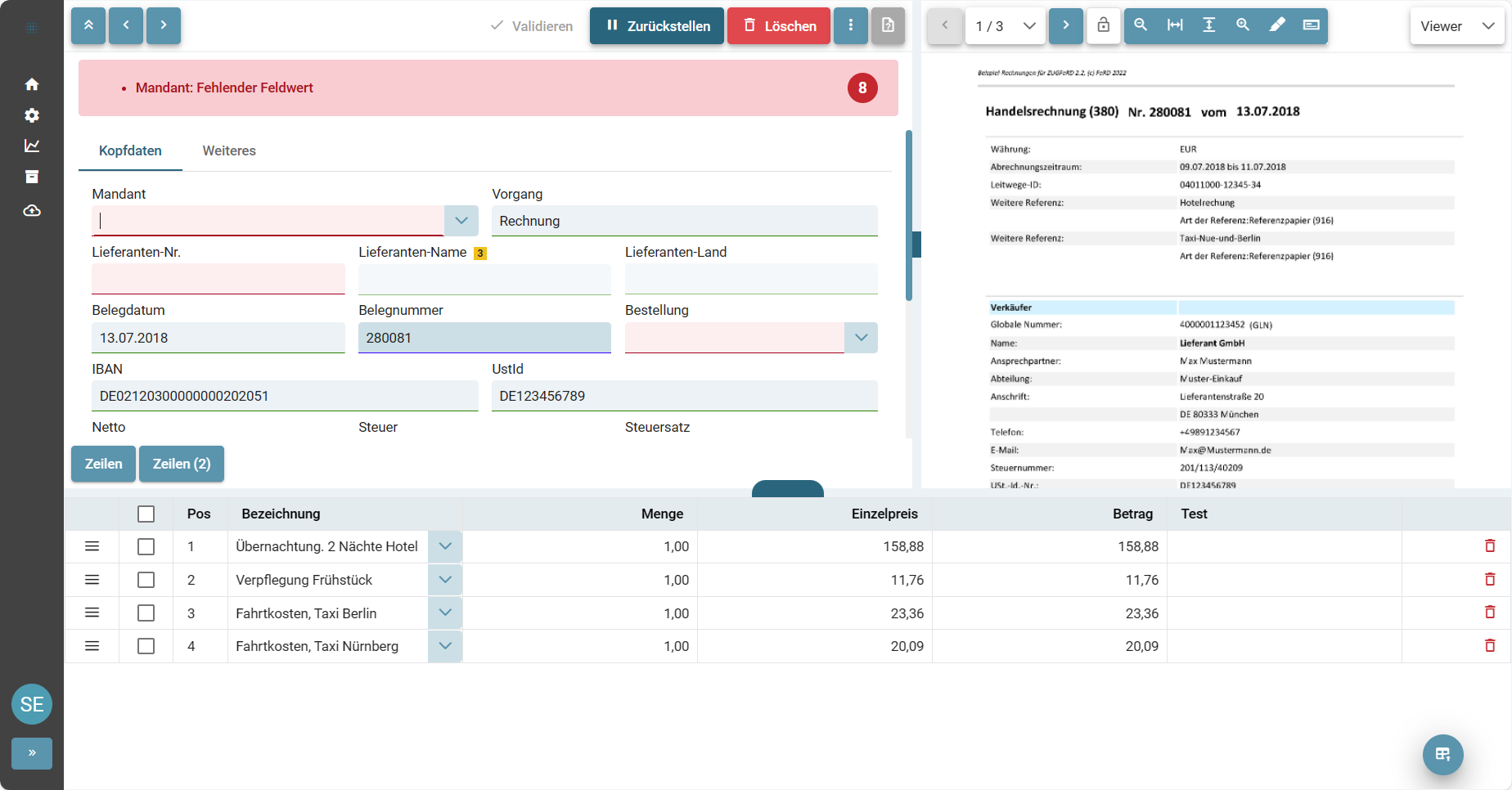
During validation, you usually perform two tasks:
• Checking the field values recognised by Squeeze. Has all the information from the processed document been read correctly?
• Correcting incorrect field values and adding missing ones.
The user interface supports this activity by colour-coding the fields. For example, empty mandatory fields are marked in red to indicate that the document is not yet valid.
[](https://docs.squeeze.one/uploads/images/gallery/2024-04/image-1713362544386.png)
Sind alle Felder gefüllt und bestätigt wird der Validierungsbutton grün und das Dokument kann als valide bestätigt werden. Der Beleg wird gespeicht und an die Schnittstellen geschickt. Danach wird der nächste Beleg geladen.
[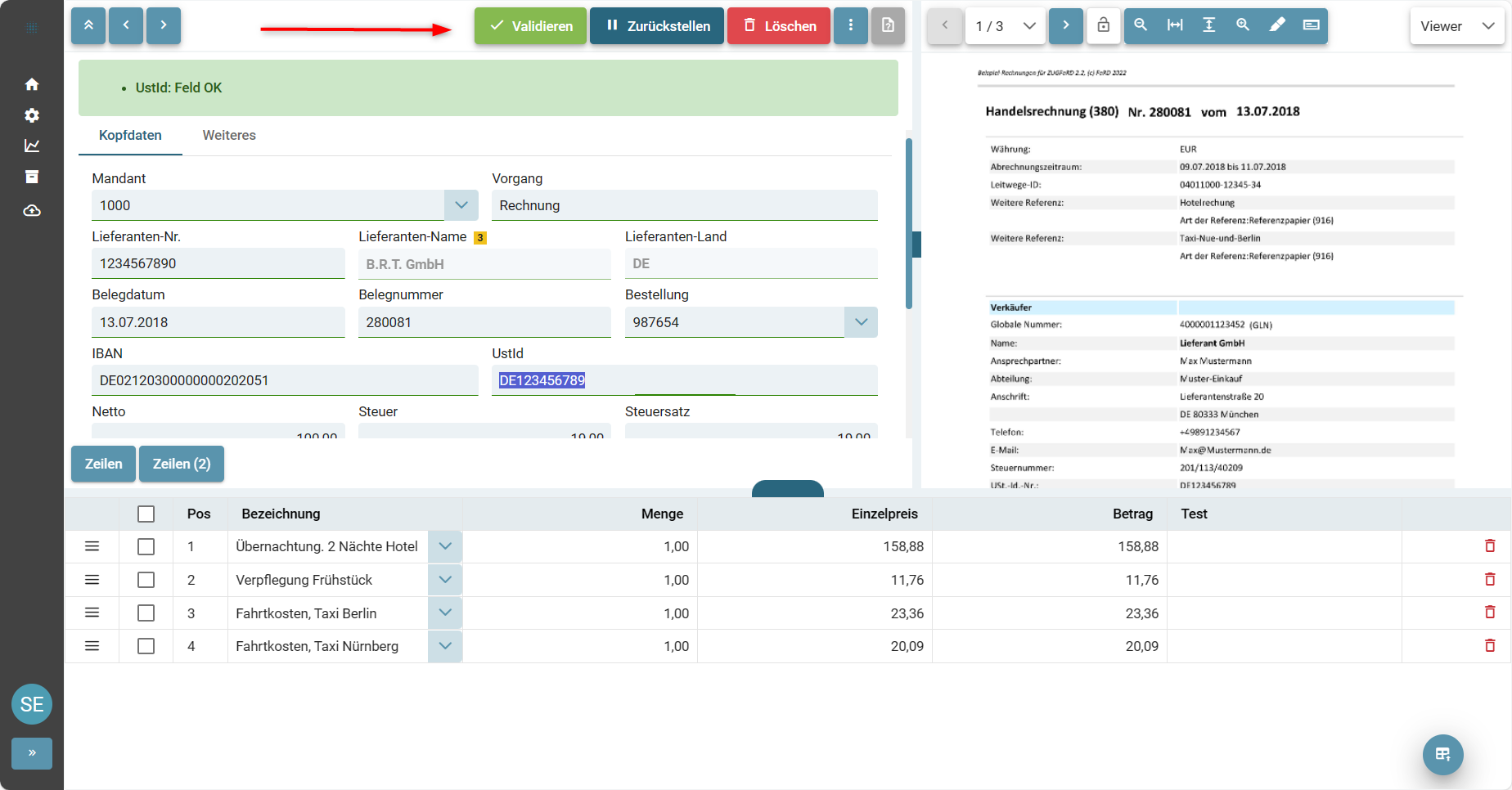](https://docs.squeeze.one/uploads/images/gallery/2024-04/image-1713362602334.png)
Werden Fehler in der Schnittstelle gemeldet, wird der Mitarbeiter direkt darüber informiert.
In der Regel handelt es sich hierbei um Plausibilitätsprüfungen, die fehl geschlagen sind oder die Schnittstelle meldet einen Fehler zurück, welcher dann durch manuelle Eingabe zu korrigieren ist. Z.B. „Buchung nicht möglich, Periode geschlossen“.
Wurden die Daten korrigiert, kann erneut „validiert“ werden.