Validation
Visual inspection of the read documents
- SQUEEZE Document Overview
- Cross Company Document Overview
- Import Queue Entries
- SQUEEZE Document Validation
- Vendor-specific Training
- Document Split
- Order & Goods Receipt Reconciliation
- Import Order / Goods Receipt Lines
- External Viewer
- Upload Documents
- SQUEEZE Queue
- Viewer in Target Document
- Plausibility Checks
- Order Confirmations
SQUEEZE Document Overview
The document overview lists all documents that have been read by SQUEEZE.
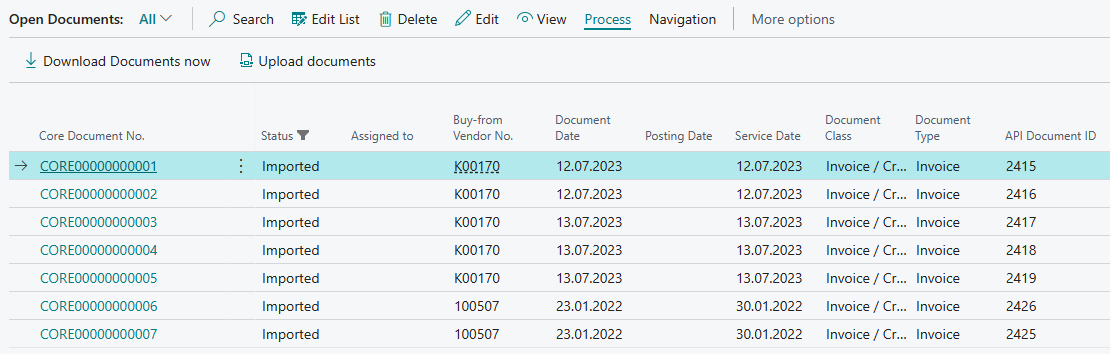
By double-clicking with the mouse or via Edit/View, a single document is opened in the validation view.
Start

Download Documents now
This function is used to manually execute the document pickup from SQUEEZE. Optionally, this is controlled and executed via the corresponding background job.
Upload Documents
Use this function to upload documents directly from BC to your Squeeze tenant.
Navigation

Import Queue Entries
This menu displays a list of SQUEEZE vouchers that are ready to be imported into the SQUEEZE for BC app. By changing the system filter it is also possible to view already imported vouchers.
Cross Company Documents
Opens an cross-company document overview.
Queue
Opens an overview that gives you information about the documents in the SQUEEZE queue of the connected client.
Cross Company Document Overview
The cross-company document overview provides a consolidated view of all SQUEEZE documents across all Business Central companies where SQUEEZE is activated.
Overview
The view displays the following KPIs for each company:
- Company: The name of the respective Business Central company.
- Open Documents: The number of open SQUEEZE documents.
- Custom Processing: The number of documents in "Custom Processing" status.
- Overdue Documents: The number of overdue documents.
- Duplicates: The number of documents flagged as duplicates.
- Rejected Documents: The number of rejected documents.
- Documents Created Today: The number of documents created today.
- My Open Documents: The number of documents assigned to the current user.
Additionally, order matching results are summarized across companies:
- Total Differences Identified: Total number of documents with order match deviations.
- Price / Quantity / Receipt Date / Discount Differences: Breakdown by deviation type.
Navigation
Each KPI is implemented as a drilldown: clicking on a value opens the correspondingly filtered document overview of the respective company in a new tab.
Refresh
The data is loaded asynchronously in the background and refreshes automatically every 60 seconds. A manual refresh can be triggered via the Refresh data action.
The cross-company document overview is accessible from the document overview via the Cross-Company Documents action or via the Role Center (Squeeze > Cross-Company).
Import Queue Entries
The import queue is a middle layer that imports SQUEEZE vouchers into the appropriate target companies - the target company must match the current BC company (important: the name (primary key) is crucial, not the display name) in which the vouchers are downloaded. If no target company has been detected, the documents for validation will be created in the fallback company that has been set up.

Navigation
Import Queue Setup

Fallback Company
Specifies the value of the fallback client. This client is used to import documents that have an empty target client in the import queue.
Warning time span (hours)
Specifies the time period after which a warning should be displayed if there are unprocessed entries.
Process
Handle unprocessed entries
Import Buffer
The Import Buffer action opens a page where SQUEEZE document IDs can be entered manually. This is useful when a specific document needs to be downloaded from SQUEEZE, e.g. when a document was not fetched automatically.
System Filter
By default, the Import Queue only shows unprocessed entries for the current company. Using the system filter, you can also view already processed entries as well as entries from other companies.
The Target Company column is highlighted in red when the target company differs from the current company. This indicates that the document is intended for a different company.
SQUEEZE Document Validation
Voucher validation is the main working area of the application. Here the user checks the read documents, completes and confirms missing information.
Menu
Process

Open field training
The supplier-specific field training is opened over here.
Open line training
The supplier-specific position training is opened over here.
Recreate result
Here over the document is sent again to SQUEEZE to the extraction. There the Readout result re-evaluated based on current master data and training and then made available for collection again.
Start splitting
This is used to call the document separation. This is used if a supplier has sent several invoices in one PDF.
Autocomplete
The positions are automatically completed with the last validated position data of the vendor. This function is only available for documents without purchase order reference.
Order match
The order comparison is opened here.
Validate
This is used to complete the validation process of the document.
Duplicate check
Over here, the duplicate check is performed manually.
Navigation
Dimensions
Here you can reach the dimension menu to define dimensions for the document header.
Actions

Use external viewer
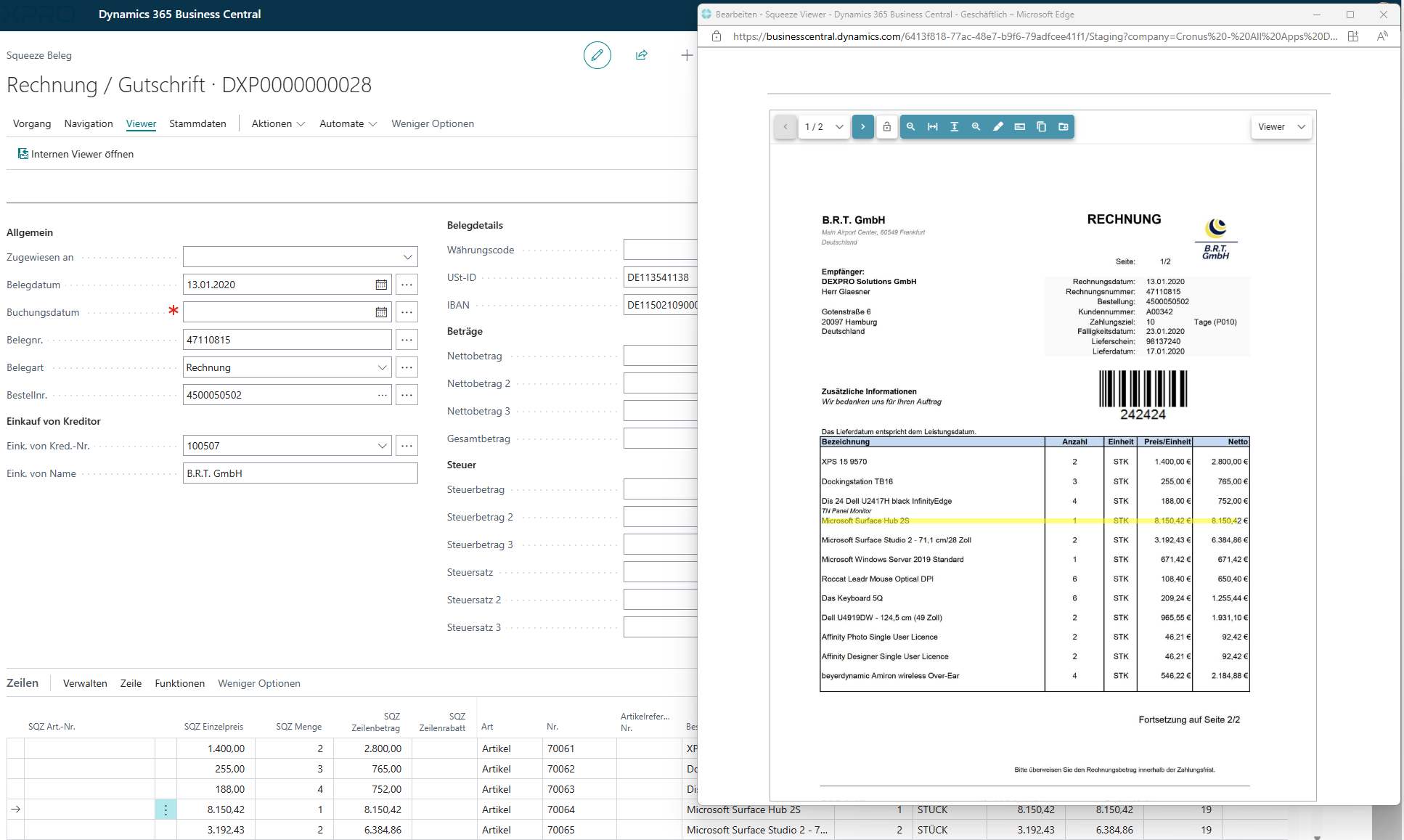
The viewer is undocked over here. This allows you to work on two monitors.
Move document
This is used to move a document to another client.
Download attachments
Over here you download the attachments of the document. Once the download is complete, they will be displayed in the Attachments infobox.
Fasttabs
Document
This area displays the document head information and the SQUEEZE Viewer.
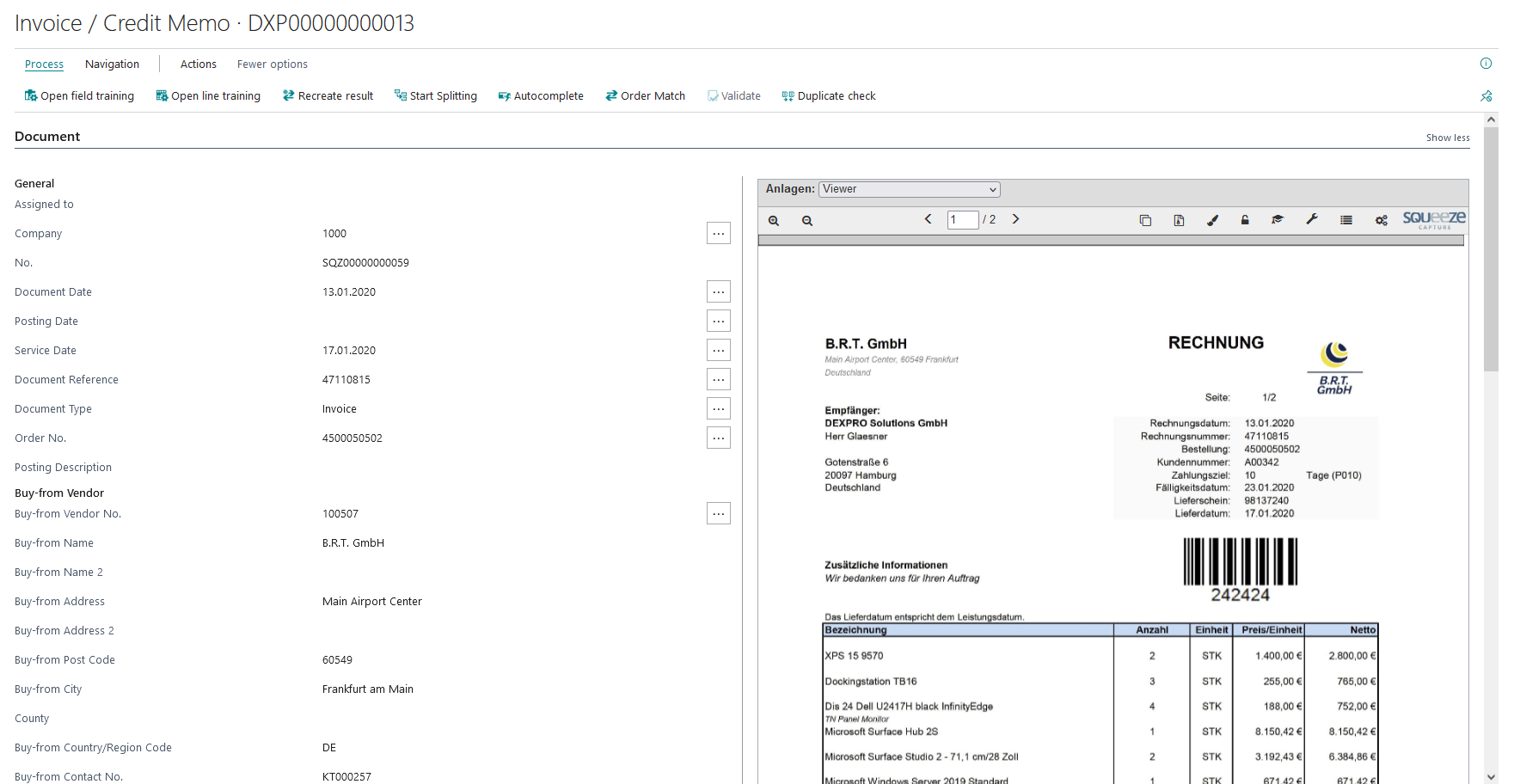
Header fields
These fields are prefilled with the results from the document reading. The user checks these and corrects or enriches them with further data and thus completes the reading result.
The three dots highlight the location of the respective read result in the viewer.
Viewer
On the right side the SQUEEZE Viewer is displayed. This is not a PDF, but an integrated web component, which is remotely controlled from the validation. It serves for the pictorial representation of the document and for the highlighting of
Findings of read values. Furthermore, the supplier-specific field training is also carried out here.
Lines
In this area the read positions are displayed. The user checks these and corrects or enriches them with further data and thus completes the reading result.
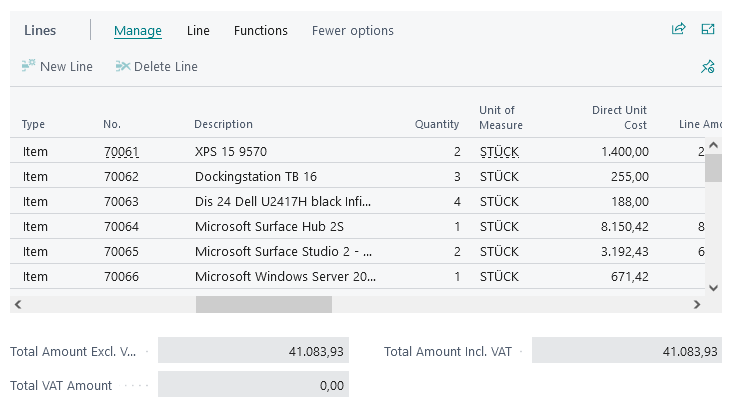
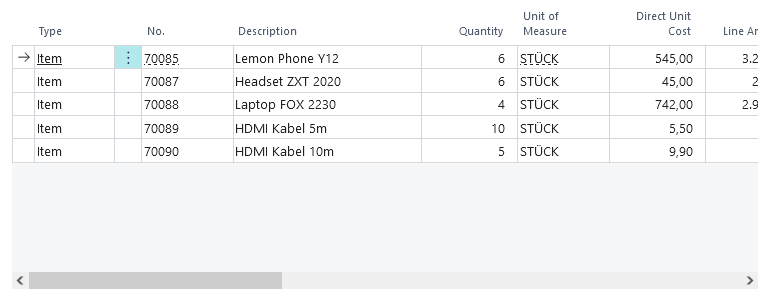
If the reading result is not sufficient for invoices with purchase order reference, the purchase order/goods receipt lines can be imported directly.
Dimensions
Here the shortcut dimensions 1 & 2 of the document are displayed.

SQUEEZE Details
SQUEEZE specific document information is displayed here.

Infoboxes
The respective info boxes are only displayed depending on the situation.
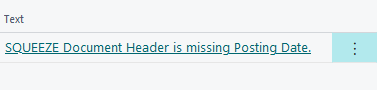
Plausibility entries
All topics to be clarified for a successful validation are listed here.
Metadata boxes
The metadata mapping is only displayed if additional fields deviating from the standard have been transferred by SQUEEZE.
Metadata mapping header fields
Here additional fields from SQUEEZE are listed, which do not belong to the standard assignment of header fields.
Metadata mapping position fields
Here additional fields from SQUEEZE are listed, which do not belong to the standard assignment of the positions.
Order matching boxes
The order matching boxes are only displayed if one or more order numbers have been recognized on the document.
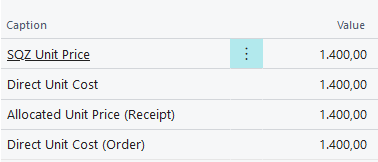
Order matching info (prices)
Here the price comparison is displayed for the selected line. The results of SQUEEZE, the delivery, the order and the current line are compared.
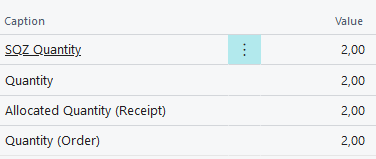
Order matching info (quantities)
Here the quantity comparison is displayed for the selected line. The results of SQUEEZE, the delivery, the order and the current line are compared.
Attachments
This info box is only displayed if the attachments have been downloaded before. The attachments can be removed again via the three dots.
Put Document On Hold / Remove Document From Hold
The Put document on hold action allows you to temporarily put a document on hold. A dialog opens where you must select a reason:
- Vendor Not Found: The vendor was not found in the system.
- Service Clarification Needed: Delivery or service details need to be clarified.
- Awaiting Goods Receipt: Waiting for goods to be received.
An optional free-text note can also be provided. Documents on hold cannot be validated until the hold is removed via Remove document from hold.
Documents on hold are displayed in the Role Center in dedicated activity tiles, broken down by reason.
Withdraw Document Rejection
If a document has already been rejected, the rejection can be withdrawn via the Withdraw document rejection action. The document then returns to its previous status.
Move Document to Other Company
The Move Document to other Company action (in the Actions menu) allows you to move a document to another company. The document is deleted in the current company and recreated in the target company.
Create/Find Vendor
The Create/Find Vendor action allows you to search for a matching vendor in the system or create a new one based on the recognized text fields (name, address, VAT registration number, etc.).
Create Missing Bank Account
The Create Missing Bank Account action allows you to create a vendor bank account from the recognized IBAN, provided the IBAN was recognized on the document but no matching bank account exists for the vendor.
Apply Account Assignment Code
The Apply Account Assignment Code action in the lines allows you to delete all positions and automatically generate new lines based on a configured tax-based account assignment setup. This function is available through the Account Assignment Setups.
Viewer Modes
The SQUEEZE Viewer in the document validation supports three display modes:
- Document Overview: Displays the entire document in the viewer.
- Position Focus: Focuses the viewer on the line items area of the document.
- Detached: Opens the viewer in a separate browser window (see also "External Viewer").
Field Alternatives
When SQUEEZE recognizes multiple possible values for a field during document reading (e.g. multiple possible vendor numbers), these are provided as field alternatives. The field alternatives can be viewed via the info box. The user can then select the appropriate value.
Vendor-specific Training
Training represents an essential optimization component of processing.
If data is not clearly recognized by the system, supplier-specific training can be applied, which increases the degree of automation when entering invoices.
When the training mode is started, all relevant fields for a training can be selected.
Any number of courses can be created per supplier and per invoice field.
External invoice numbers cannot usually be checked for content in the system, as no data exists for verification. This field is ideal for training, for example.
The training window is displayed within the viewer at the bottom of the screen.
Head field training
Train a field
After the training function has been started, the field to be trained must be selected.
After selecting the appropriate field, define the anchor.
Anchor in this case means the reference term. In this case, the term for the external document number attached to the respective invoice. The anchor term is to be marked with the right mouse button on the document in the viewer and is then highlighted in yellow.
Then click on the "Value" field in the action area and then on the value to be searched for. This is also to be marked with the right mouse button. If the searched value is not a coherent value, an arbitrarily large area can also be marked with the right mouse button in order to read out all desired information. If the information is specified, the training can be saved via "Train".
The system generates a "regular printout" - this can be optimized by trained specialists or IT staff at any time. E.g. blanks can be ignored, since these are rarely also indicated in the ERP system / in the booking.
Testing and review of existing training
With "Test" an overview of all previous head field trainings is displayed. The results are output directly as well. Double-clicking on an entry highlights the anchor and the value in the viewer.
Removing a training
To remove a course, open the overview of existing courses and select the entry to be removed. The entry is deleted with the delete key "Del".
Position field Training
Train a column
After the training function has been started, the field to be trained and the corresponding column must be selected.
After this has been selected, the region must be defined.
This should be selected so that it covers the entire column of a field if possible. The region is to be marked with the right mouse button on the document in the viewer and is then highlighted in yellow. It should be noted that no regions should overlap with regions that have already been trained.
If the information is given, the training can be saved via "Train".
Testing and review of existing training
With "Test" an overview of all previous position field trainings is displayed. By double-clicking on an entry, the respective trained area is displayed.
Removing a training
To remove a course, open the overview of existing courses and select the entry to be removed. The entry is deleted with the delete key "Del".
Document Split
The separator function is mainly intended for email invoices. When suppliers do not adhere to the email invoice delivery default (one invoice per PDF file).
In the new window, a dialog is started to separate the documents from each other and thus turn one document into several.
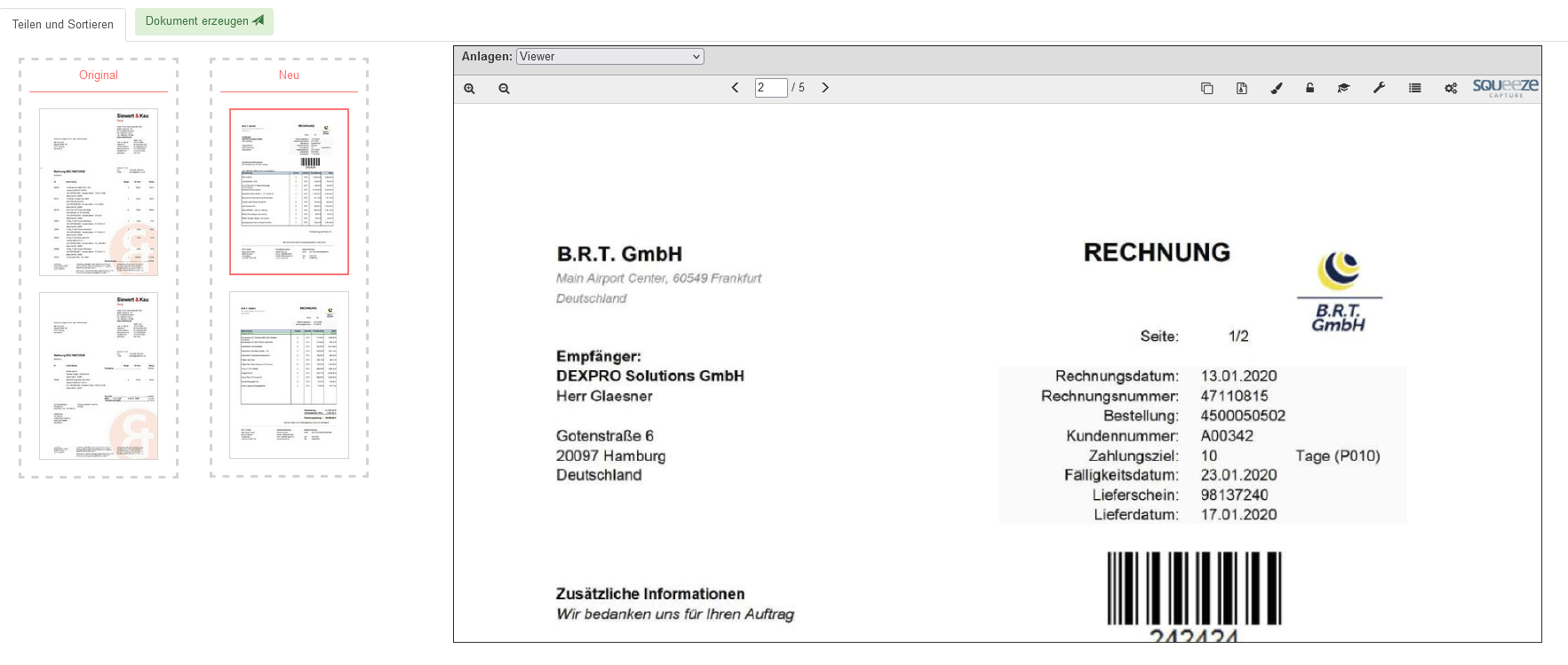
On the left side all pages of the original PDF are listed. In the middle is the area for rebuilding and on the right you can see the currently selected page.
To split a document, the pages belonging to an invoice are transferred individually to the center area either by dragging and dropping them with the mouse or by pressing the arrow key on the keyboard.
There you can also correct the order of the pages.
If the invoice document is correctly separated, the creation of a new single document can be started with "Create document". The new document is read out directly by SQUEEZE, processed and, as soon as it is ready, also made available in the overview list. This process is repeated until the original document has been completely separated.
Order & Goods Receipt Reconciliation
The purchase order & goods receipt comparison checks the read out document items and compares them with all purchase order & goods receipt lines based on the read out purchase order numbers of the document.
The order comparison can only be opened if SQUEEZE has read one or more order numbers from the document or if an order number (stored in the system) has been entered manually in the validation header field.
This comparison is performed automatically after the document has been retrieved from SQUEEZE. The user has the possibility to perform or correct this comparison manually as well.
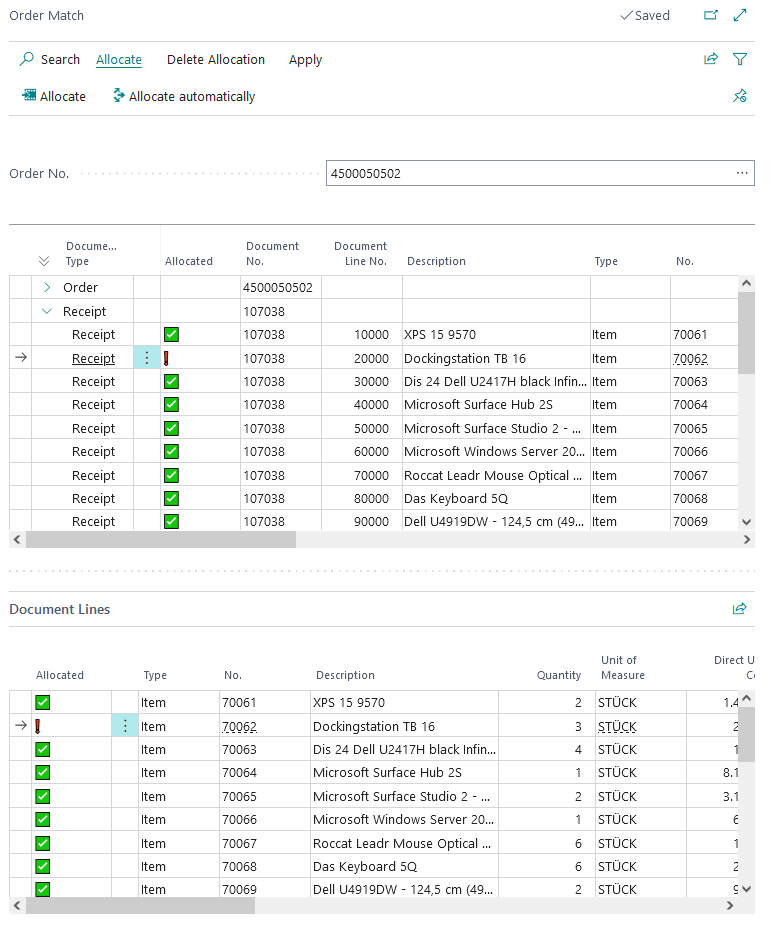
Menu
Allocate

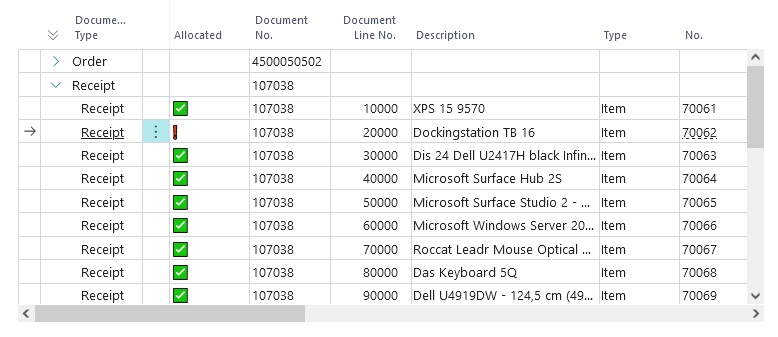
Assigned lines are represented by a green tick  .
.
Allocate
This assigns the selected order/delivery line to the selected SQUEEZE document line.
Allocate automatically
This assigns the appropriate order/delivery line to all SQUEEZE document lines. For this, the order/delivery itself must be selected in the upper area.
Delete allocation

Unassigned lines are represented by a red exclamation mark  .
.
Delete selected allocation
This removes the assignment of the selected line.
Delete all allocations
This removes all assignments.
Apply

Apply selected
This applies the assignment of the selected line. Missing information will be added from the order/delivery line. This also immediately transfers this change to the validation line.
Apply all allocated
This applies the assignment of all assigned lines. Missing information will be added from the assigned order/delivery lines. This will also immediately transfer these changes to the validation lines.
Areas
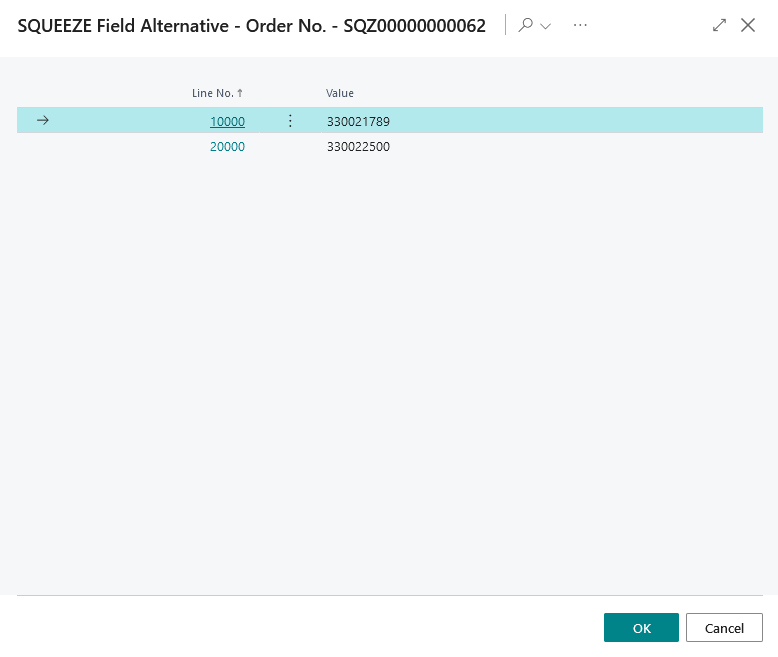
Order number

The order number currently to be compared is displayed here. If several order numbers have been read out, the corresponding list can be opened via the three dots.
Order & Deliveries
in this area the order and all its lines are listed, as well as all related deliveries and their lines.
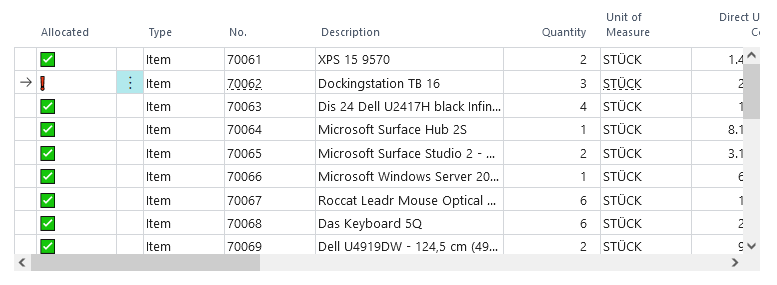
SQUEEZE document lines
In this area all read out positions of the SQUEEZE document are listed.
Import Order / Goods Receipt Lines
Get items from purchase order / goods receipt
Menu

Add to import preview
This transfers all selected lines to the import preview. Selected lines are represented by a green check mark .
Delete selected preview line
This removes all selected lines from the import preview.
Apply preview
This transfers all lines from the import preview to the document to be validated. You have the choice whether these lines should replace the SQUEEZE positions or be appended at the end.
Areas
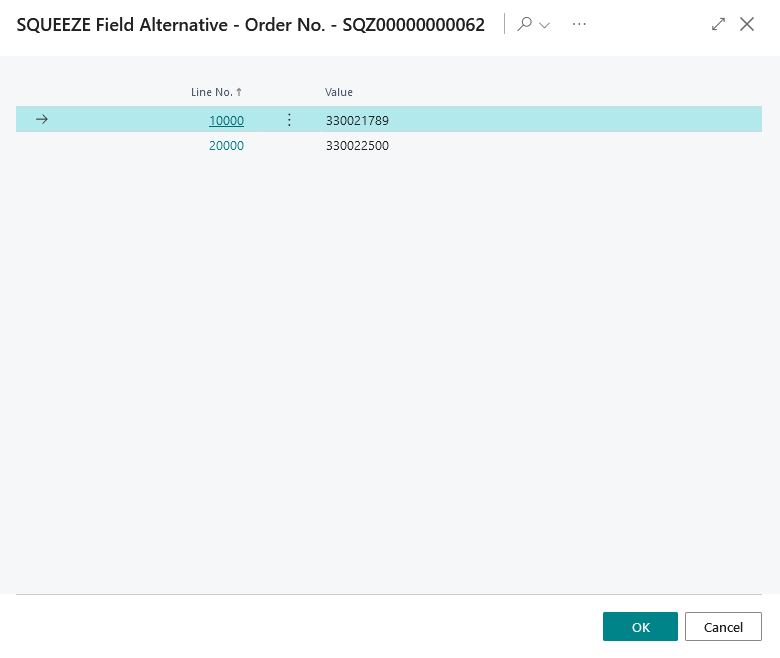
Order number

The order number read out is displayed here. If several order numbers have been read out, the corresponding list can be opened via the three dots.
Order & Deliveries
In this area the order and all its lines are listed, as well as all related deliveries and their lines.
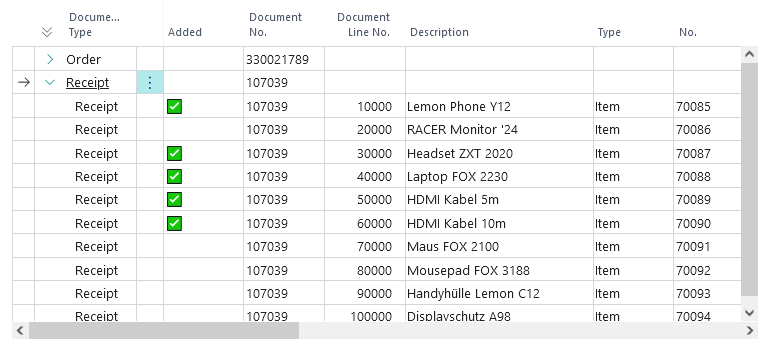
Import preview
All selected items are listed in this area.
External Viewer
To simplify working with the Viewer, the embedded Viewer can be undocked and thus used on a second screen.
All viewer functions, such as highlighting of header and position data, as well as the viewer's training functions are still supported.
To ensure that the undocked viewer remains active and updates itself automatically when a document is changed, the "Use external viewer only" field must be set in the user-specific setup.
Upload Documents
SQUEEZE for BC offers the ability to send documents directly from Business Central to the connected SQUEEZE system.
Upload Documents via the Document Overview
In the SQUEEZE Document Overview, the Upload documents action is available. When invoked, you will be prompted to select the document class. The upload page then opens.
Squeeze File Upload
On the upload page, files can be dropped into the drop zone via drag & drop. Multiple files can be dropped simultaneously.
The Upload files action uploads all dropped files to the SQUEEZE tenant. After a successful upload, each file is marked with a checkmark.
When closing the page, it checks whether all dropped files have been uploaded. If at least one file was not uploaded, a corresponding warning is displayed.
SQUEEZE Queue
The SQUEEZE Queue provides a real-time overview of the processing status of all documents in the SQUEEZE pipeline of the connected tenant.
Overview
The queue displays the number of documents at each processing step:
- Error: Documents where an error has occurred (highlighted in red). The drilldown opens the SQUEEZE web interface.
- Init Process: Documents in the initial processing step.
- Image Optimization: Documents currently being pre-processed for image quality.
- Barcode Extraction: Documents where barcodes are being read.
- OCR: Documents where text recognition is being performed.
- Classification: Documents being assigned to a document class.
- Extraction: Documents where data extraction (document reading) is being performed.
- Export: Documents ready to be fetched by Business Central.
- Backup: Already processed documents.
Non-empty steps are displayed in bold. The view refreshes automatically every 5 seconds.
Actions
- Download Documents now: Triggers a manual document download from SQUEEZE.
- Upload document: Allows uploading a document to the SQUEEZE system.
The queue is accessible from the SQUEEZE Document Overview via the Queue action.
Viewer in Target Document
The SQUEEZE Viewer can also be displayed in the resulting target documents (Purchase Invoices and Purchase Orders). This allows users to view the originally scanned document at any time without having to navigate back to the SQUEEZE document.
Activation
The feature is enabled in the SQUEEZE Setup in the Viewer FastTab via the Viewer in Target Document toggle.
How it works
When the feature is enabled, the SQUEEZE Viewer appears as a FactBox on the following pages:
- Purchase Invoice: The viewer displays the originally scanned document from which the invoice was created.
- Purchase Order: For order confirmations, the viewer displays the associated scanned document.
The viewer supports all standard functions, such as highlighting field locations. Detached mode is also supported.
Note
The link between the target document and the SQUEEZE document is established automatically via DEXPRO Core. The viewer is only displayed if a corresponding SQUEEZE document exists for the respective purchase document.
Plausibility Checks
Plausibility checking is a central component of document validation. It ensures that all relevant data is plausible and complete before a document is processed further. The results are displayed in the Plausibility Entries info box.
Header Field Checks
- Vendor exists / not blocked: The specified vendor must exist in the system and must not be blocked (optionally: blocked status "Payment" can be skipped via "Ignore Vendor Blocked (Payment)" in the Document Class Setup).
- Mandatory fields: Document Date, Posting Date, Document Reference, and Document Type must be filled in.
- Posting Date: The posting date must fall within an allowed posting period (can be disabled via "Disable Posting Date Check").
- IBAN check: If an IBAN was recognized, the system checks whether a matching bank account is stored for the vendor (can be disabled via "Disable IBAN Check").
- VAT Reg. No. check: If a VAT registration number was recognized, the system checks whether it matches the vendor's stored VAT registration number (can be disabled via "Disable VAT Reg. No Check").
- Duplicate check: The system checks whether a document with the same reference number and vendor already exists.
- Currency Code: The specified currency code must exist in the system.
- Order Number: If an order number is specified, the corresponding order must exist in the system.
Amount Checks
- Header Amount Check: Checks whether the net, tax, and total amounts are mathematically correct (can be disabled via "Disable Amounts Check").
- Line Amount Comparison: The sum of line amounts is compared with the header amounts (can be disabled via "Disable Line Comparison").
- Header Tax Check: Checks whether the tax amount matches the net amount and tax rate (can be disabled via "Disable Header Tax Check").
Line Checks
- Posting Groups: For each line, the system checks whether the required VAT posting groups and general posting groups exist.
- Items: If an item is assigned, it must exist in the system.
- Unit of Measure: The specified unit of measure must be valid for the assigned item.
- Location Code: If a location code is specified, it must exist (can be disabled via "Disable Location Code Check").
- Dimensions: Dimension values in header and lines are checked for validity.
- Project data: If project data (Project No., Project Task No.) is assigned, their existence and validity are checked.
Configuration
Individual plausibility checks can be disabled in the Document Classes Setup under the Plausibility Check section. This allows you to adapt the validation to your specific business processes.
Order Confirmations
In addition to purchase invoices and credit memos, SQUEEZE for BC also supports the processing of Order Confirmations. This document class enables automated capture of incoming order confirmations from vendors and reconciliation with existing purchase orders.
Processing
Order confirmations go through the same processing workflow as invoices (SQUEEZE extraction, import, validation). The following specifics apply:
- Mandatory order allocation: Unlike invoices, order confirmations require at least one line to be allocated to an order line before validation can be completed.
- Promised Receipt Date: The delivery date confirmed by the vendor is captured at line level and adopted as "Promised Receipt Date".
- No goods receipt matching: Order confirmations can only be matched against orders, not against goods receipts (posted receipts).
Order Matching for Order Confirmations
Order matching for order confirmations additionally checks the following conditions:
- The promised receipt date must not be empty.
- The confirmed quantity and unit price must not be zero.
- Deviations between confirmed and ordered values (quantity, price, discount, delivery date) are highlighted in the order match info boxes.
Tolerances
Unlike invoices, order confirmations additionally provide the Receipt Date Tolerance setting in the Document Class Setup and the Vendor Related Setup. This defines as a date formula how far the confirmed delivery date may deviate from the expected date (e.g. 2D for two days).
Setup
To process order confirmations, a separate document class of type Order Confirmation must be set up in SQUEEZE and in the Document Classes Setup in Business Central.