Document Split
The separator function is mainly intended for email invoices. When suppliers do not adhere to the email invoice delivery default (one invoice per PDF file).
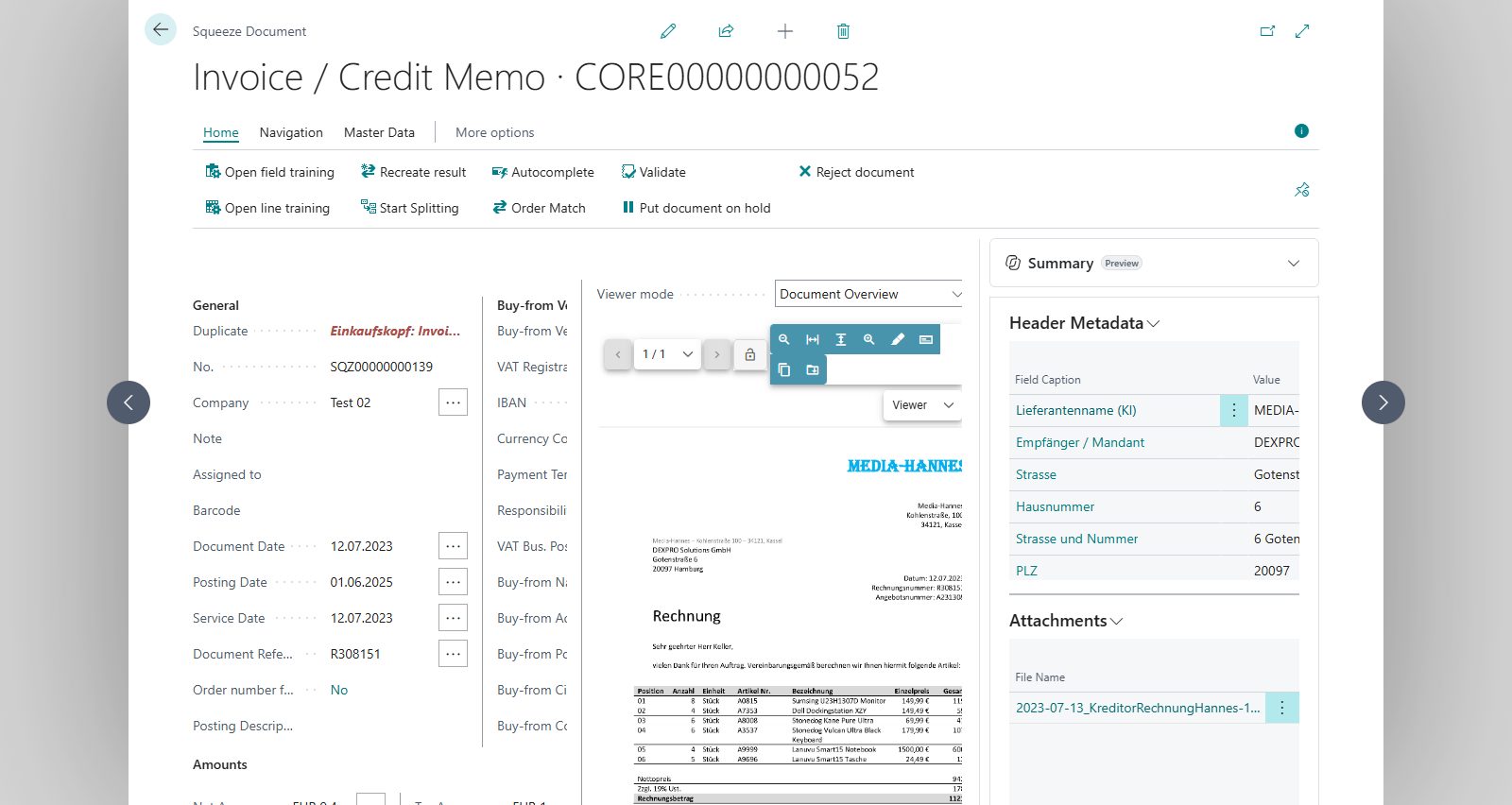
You start the split on the SQUEEZE Document Validation page with the Start Splitting action. From the pages you put together in the split dialog, SQUEEZE creates new documents, which Business Central then downloads like any other document. As soon as every page of the original belongs to a new document, the original gets the status Deleted. You can also use the split to put the pages of a PDF into a new order (see Example 3).
Prerequisites
- Splitting allowed: in the Document Class Setup, FastTab Squeeze, the Disable Document Splitting switch is off for the document's class. This is the default. There is no per-vendor setting.
- PDF document: the document is a PDF. For documents in any other file format the action is greyed out.
- Document still open: the document's status is neither Rejected nor Deleted. Documents that are on hold can be split.
- SQUEEZE connected: in the Squeeze Setup, Activated is switched on and the connection to your SQUEEZE tenant is established – the Version (Squeeze Tenant) field is filled in. The split dialog is a page of your SQUEEZE system; Business Central opens it with the same connection as the viewer.
- Permissions: the permission sets DEXPRO SQUEEZE User (DXP SQUEEZE User) and DEXPRO SQUEEZE Admin (DXP SQUEEZE Admin) contain everything splitting needs. See Permission sets.
Starting the split
- In the Squeeze Documents list, open the document that contains several invoices. Don't enter anything yet – data entered on the original is not carried over to the new documents (see below).
- On the validation page, choose the Start Splitting action.
- The Squeeze Viewer window opens with the SQUEEZE split dialog. From this moment on the split counts as started.
In the split dialog
In the new window, a dialog is started to separate the documents from each other and thus turn one document into several.
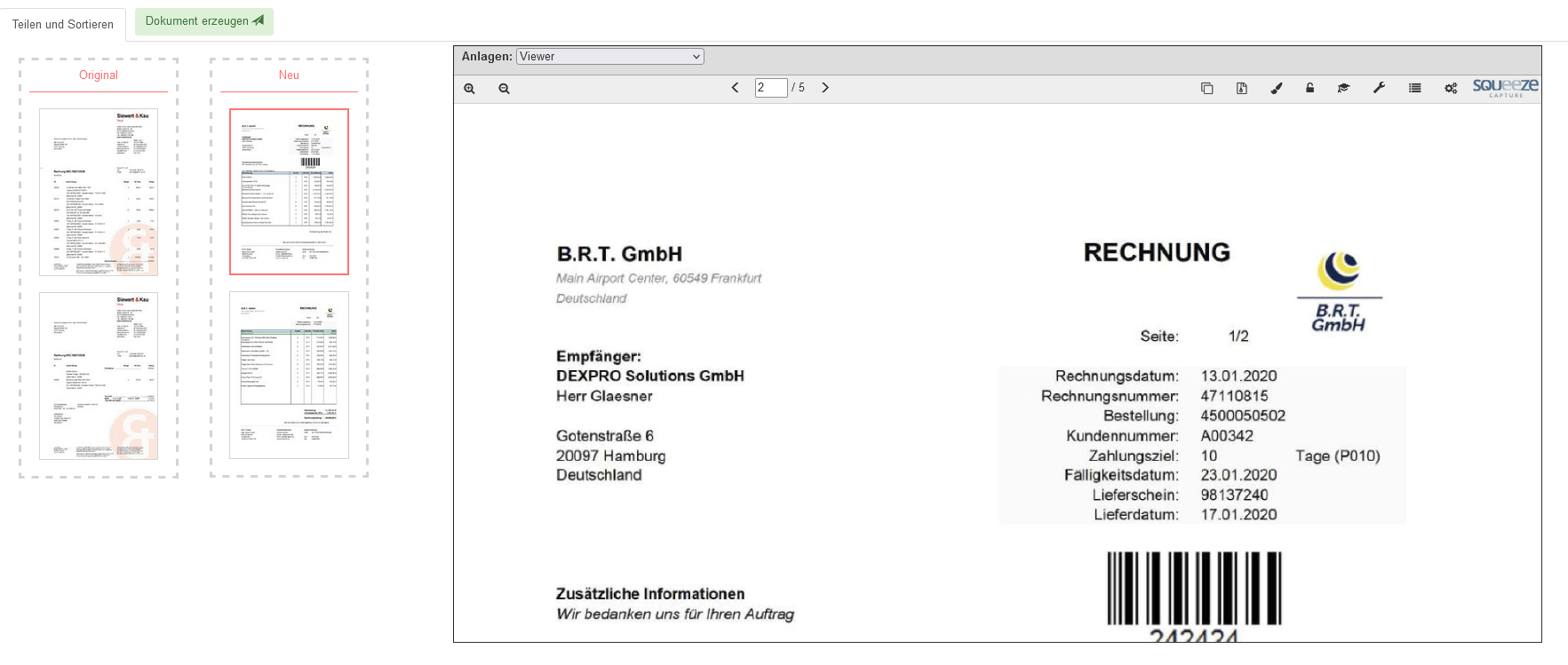
On the left side all pages of the original PDF are listed. In the middle is the area for rebuilding and on the right you can see the currently selected page.
To split a document, the pages belonging to an invoice are transferred individually to the center area either by dragging and dropping them with the mouse or by pressing the arrow key on the keyboard.
There you can also correct the order of the pages.
If the invoice document is correctly separated, the creation of a new single document can be started with "Create document". The new document is read out directly by SQUEEZE, processed and, as soon as it is ready, also made available in the overview list. This process is repeated until the original document has been completely separated.
Finishing the split
Once you have created all documents, close the window. Business Central then asks SQUEEZE which pages of the original already belong to a new document and reacts as follows:
| State of the split | What happens |
|---|---|
| No page assigned | The split is discarded. The document stays as it is and can be edited and validated as usual; the Start Splitting action is available again. |
| Some pages assigned | The split stays open. The validation page is reopened, the message The Document is not completely split. Please split all pages. appears, and the Squeeze Viewer window opens again. |
| All pages assigned | The original gets the status Deleted. The validation page is closed and – if there are still documents with the status Imported – reopened on the next document. |
While the split is open, the validation page shows the Finish Splitting action instead of Start Splitting. It opens the Squeeze Viewer window again; when you close it, Business Central checks again as described above.
If you open a document whose split is still open, the message The Document is not completely split. Please split all pages. appears as well and the window opens by itself. This applies when the viewer is embedded in the page (Viewer mode Document Overview or Positions Focus). In the Detached viewer mode, continue the split with Finish Splitting.
A document with an open split cannot be validated. The Plausibility Entries FactBox shows The Document is not completely split. Please split all pages., and Validate stops with the message The document is not valid - please check the plausibility entries in the factbox to the right, solve the problems and try again.
What happens to the original
- Status Deleted: as soon as all pages are assigned, the original gets the status Deleted. Its Note field then reads, for example, Deleted by user JSMITH - Reason: Split completed.
- Gone from the list: the Squeeze Documents list hides deleted documents by default. You find the original in the Deleted view, which also shows the Note column.
- Read-only: the original's fields are locked and most actions are greyed out. If the viewer is embedded, opening it shows the message Split complete. This document will be deleted.
- Removed for good: the automatic cleanup (a background job of the Squeeze Setup) permanently deletes documents with the status Deleted once their import date lies as far back as the Cleanup Interval (Date Formula) in the Squeeze Setup specifies – -1M, one month, by default. What counts is the day of the import, not the day of the split.
- No data carried over: whatever you entered or corrected on the original – such as vendor, posting date, lines or dimensions – is not transferred to the new documents.
So split a document before you start working on it.
The new documents
- SQUEEZE reads each new document itself. Business Central picks it up with the next document download – through the background job, or immediately with the Download Documents now action in the Squeeze Documents list.
- Each new document appears in the Squeeze Documents list with the status Imported and its own reading result. It goes through the same processing as any other newly downloaded document – including automatic validation, if that is switched on.
- To see whether SQUEEZE is still processing a new document, use the Queue action in the Squeeze Documents list (see SQUEEZE Queue).
Examples
Example 1: Three invoices in one PDF
A supplier sends a five-page PDF that contains three invoices:
| Pages | Content |
|---|---|
| 1–2 | Invoice INV-1001 |
| 3 | Invoice INV-1002 |
| 4–5 | Invoice INV-1003 |
- You open the document and choose Start Splitting before entering anything.
- In the Squeeze Viewer window you move pages 1 and 2 to the center area and start "Create document".
- You repeat this with page 3 and then with pages 4 and 5.
- You close the window. All five pages are assigned: the original gets the status Deleted and disappears from the list.
- After the next document download, three new documents are in the Squeeze Documents list – one per invoice. You process and validate them as usual.
Example 2: Split interrupted
As in example 1, but you close the window right after INV-1001 and INV-1002. Pages 4 and 5 do not belong to a document yet. So The Document is not completely split. Please split all pages. appears and the window opens again. You create INV-1003 and close the window – now the split is complete.
Example 3: Reordering pages
A three-page invoice was scanned with the last page first. You move all three pages to the center area in the correct order and create a single new document. Since this assigns every page, the original gets the status Deleted and you continue with the new document.
Example 4: Started by mistake
You chose Start Splitting although the document contains only one invoice. Close the window without creating a document: no page is assigned, the document stays unchanged and can be validated as usual. If the validation page still shows Finish Splitting afterwards, choose that action and close the window once more.
Limitations
- Documents are split by whole pages. If two invoices are printed on the same page, they cannot be separated.
- The split is only complete when every page of the original belongs to a new document. Assign enclosures such as terms and conditions or a cover letter to one of the invoices.
- A document is split completely or not at all: while the split is open, the original cannot be validated.
- Data entered on the original is not carried over to the new documents.
- Only documents in PDF format can be split.
- Splitting can only be switched off per document class, not per vendor.
Troubleshooting
The "Start Splitting" action is greyed out
- Is Disable Document Splitting switched on for this document class in the Document Class Setup?
- Is the document in a format other than PDF?
- Does the document have the status Rejected or Deleted? You undo a rejection with Withdraw document rejection.
- Is Activated switched on in the Squeeze Setup and is Version (Squeeze Tenant) filled in? Without a connection, the other SQUEEZE actions are greyed out as well.
"Finish Splitting" is shown instead of "Start Splitting"
A split was started for this document and not finished. Choose Finish Splitting, assign the remaining pages and close the window. If you have not created any new document yet, simply close the window again – the split is then discarded.
"Validate" reports "The document is not valid …"
If the plausibility entries show The Document is not completely split. Please split all pages., the split is still open. Proceed as in the previous point.
On opening, "The Document is not completely split. …" appears and the Squeeze Viewer opens
Some pages of the original do not belong to a new document yet. Assign them and close the window. As long as pages are left over, the window opens again after you close it.
On opening, "Split complete. This document will be deleted." appears
You opened the original of a completed split, for example from the Deleted view. There is nothing left to do here; continue with the new documents.
The new documents do not appear
- In the Squeeze Documents list, choose Download Documents now.
- Use the Queue action to check whether SQUEEZE is still processing the new documents.
The original has disappeared from the list
After a completed split, the original has the status Deleted. Switch the Squeeze Documents list to the Deleted view; the Note column shows who split the document.