Document Class Setup
In the document class setup, the mapping between the respective document class and your export interface is done. Furthermore, the field mapping of each document class is downloadedconfigured here,for creatingprocessing. a set of standard fields and their usage in Microsoft Dynamics 365 Business Central.
The document class setup is cross-app and is managed via the DEXPRO Core.
Process

Download field mapping
This downloadsCore; the fieldBreeze structureInterface adds the settings described below. For the general (cross-app) configuration of the SQUEEZE document class.classes, These are needed forsee the metadata mapping.
Navigation

Metadata mapping
List
Document classes
This overview lists all the document classes that have been set up.

Card
Document class
Here, each document class is set up individually.page.
General

In this fastabFastTab the name of the document class,class and the next process step,step as well as the automatic enrichment of the positions isare set up. To route Core documents of this document class into the Breeze app, set Next Process Step to "Breeze Interface". The Breeze settings below only become visible once this next process step is selected.
Breeze

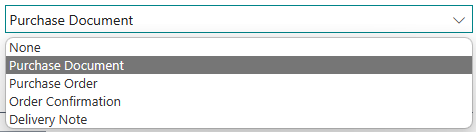
Here you canset setthe Breeze Target Template for this document class. This is the default target template that is used when a Breeze document is created for this document class.
The following are available as standard: