
eInvoice Sender Setup
In the eInvoice Sender setup, both the connection to the DIGIvoice system and the processing within the app are set up.
MenueMenu
Download Configuration
This is used to download the configuration and structure of the e-invoice documents.
Related
Document Queue
You can access the document queue via this menu item.
Process Log
You can access the process log of transactions with Digivoice via this menu item.
Customer Setup
You can access the customer-specific setup via this menu item.
Vendor Setup
You can access the vendor-specific setup via this menu item.
OAuth 2.0 Setup
This menu item takes you to the OAuth 2.0 setup for authentication on the Digivoice system.
Mappings
- Payment Term Keywords
- Unit of Measure Codes
- XR Field Structure
General
In this FastTab, you can activate/deactivate the use of this app and set up the connection to the Digivoice system.

Export Settings
The standards for the export are saved here.

XRechnung 3.0 defaults
The export defaults ship pre-configured for the current XRechnung 3.0 standard. The Business Process Type and Specification Identifier are the two profile fields that identify the e-invoice standard against which each document is generated:
- Business Process Type - default urn:fdc:peppol.eu:2017:poacc:billing:01:1.0.
- Specification Identifier - default urn:cen.eu:en16931:2017#compliant#urn:xeinkauf.de:kosit:xrechnung_3.0 (the XRechnung 3.0 CIUS identifier).
These defaults ensure generated documents declare conformance to XRechnung 3.0. Only change them if you are targeting a different profile and you understand the downstream validation impact.
E-invoice in email sending
When a document is sent through the Business Central email (the Email action on a posted document), the app completes the email. Two fields control the attachments:
- Add eInvoice to Email Attachments – attaches the e-invoice in the format of the sending profile.
- Keep Standard PDF with ZUGFeRD – with the ZUGFeRD sending profile, the ZUGFeRD PDF replaces the document's standard PDF. When this field is on, the standard PDF stays in the email as well. It is off by default.
The following applies:
- Only the standard PDF that Business Central attaches as <document type> <No.>.pdf is replaced. All other attachments – such as terms and conditions, incoming-document files or attachments of other extensions – always stay.
- The app only handles the document that is actually being sent. Emailing an issued reminder leaves the email unchanged: the reminder PDF stays the attachment, and no e-invoice is created for the reminded invoices.
- When App Enabled is off, the app does not change outgoing emails at all – neither the attachments nor the recipient and CC.
If another extension renames the standard PDF so that the document number is missing from the file name, the app does not recognise it as the standard PDF. It then stays in the email next to the ZUGFeRD PDF.
Document attachments in the e-invoice
With Add Document Attachments to eInvoice switched on, the attachments of the posted document are embedded in the e-invoice as supporting documents - each with its content, its MIME code and its file name including the extension. The field is off by default, because everything embedded goes to the customer: switch it on only if all attachments of your posted documents may be passed on.
- Only the file types XRechnung allows for embedded documents are embedded: pdf, png, jpg/jpeg, csv, xlsx and ods. Attachments of any other type, and attachments without content, are left out; the e-invoice itself is still created.
- The e-invoice file that the app itself attaches to the posted document (Add eInvoice to Document Attachments) is not embedded again.
- File names must be unique within a document: two attachments with the same name and extension make the e-invoice fail the KoSIT check.
- The compliance check reports an attachment with a file type that is not allowed, and a file name used more than once, as a warning (rule VAL-ATT-001).
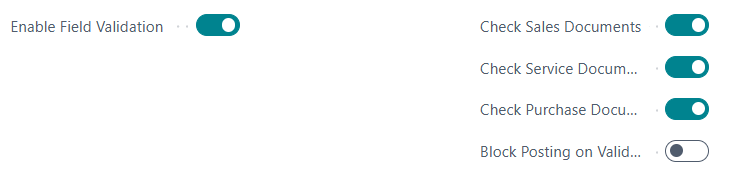
eInvoice Compliance Check
Here you will find the settings for the compliance check.
Document Queue
Here you can specify how long the entries are to be kept.

Expert Settings
The Show Expert Settings toggle hides advanced, low-level configuration by default. It is a UI-only switch (it is not stored in the setup). When you enable it, the following additional groups become visible on the setup page:
- XRechnung - profile identifiers and XRechnung-specific export defaults (see XRechnung 3.0 defaults above).
- XML Validation - settings controlling schema/schematron validation of the generated XML.
- Validation Patterns - the regular-expression patterns used by the compliance rules.
- Object Schemas - the schema definitions describing the document object structure.
Leave Expert Settings switched off during normal operation. These groups define how documents are built and validated - incorrect changes can cause generation or validation to fail.
The behaviour of individual compliance rules (enable/disable, severity override, category and stage) is configured separately - see the Rule Setup page.