
Login with Microsoft – User Provisioning and Groups
This page supplements Login with Microsoft (registering the Azure/Entra app, client ID and secret) and describes how users are provisioned automatically on Microsoft login and what the two fields "Gruppen ID Squeeze User" and "Gruppen ID Squeeze Admins" (Squeeze User Group ID / Squeeze Admin Group ID) are for.
Configuration is done in Squeeze under System → Microsoft authentication:
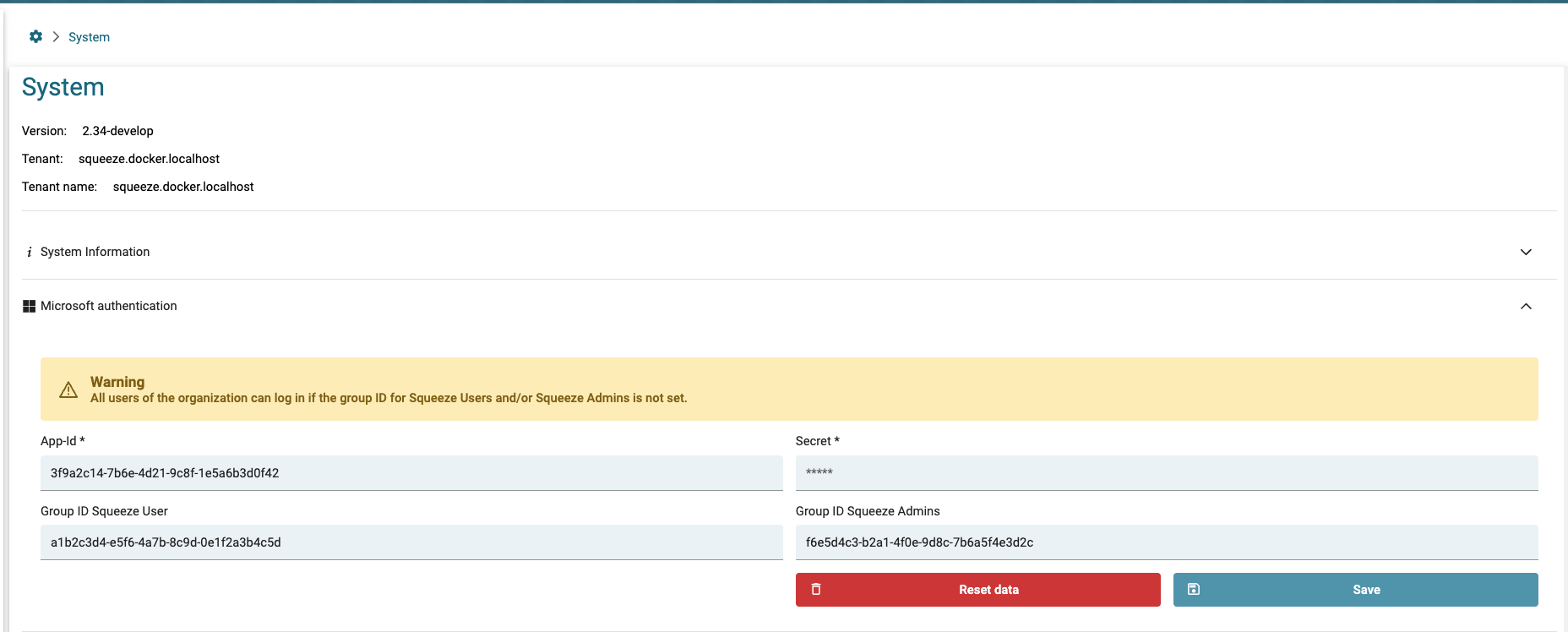 > [SCREENSHOT: insert the "Microsoft authentication" settings dialog with the fields App-Id, Secret, Gruppen ID Squeeze User and Gruppen ID Squeeze Admins here]
Automatic user provisioning
Automatic provisioning is active for Microsoft login: when a user signs in who does not yet exist in Squeeze, the Squeeze account is created automatically. Users therefore do not need to be created manually in Squeeze beforehand.
Matching is done via the email address from the Microsoft profile. If a Squeeze user with that email already exists, it is reused and updated; otherwise a new user is created.
Requirements in the Microsoft profile
For a user to be created automatically, the following fields must be populated in the Microsoft Entra / Azure AD profile:
| Microsoft field | Squeeze field |
|---|---|
mail (email) |
Login / email |
givenName (first name) |
First name |
surname (last name) |
Last name |
Important: If one of these fields is missing in the Microsoft profile, automatic creation fails with an error (e.g. "No firstname for the user.", "No lastname for the user." or "No email address defined for the user."). Login then only works for users that were created manually in Squeeze beforehand — because for existing users the creation step is skipped.
Many tenants only populate
displayNameby default, but notgivenName/surname. In that case, check the user profiles in Microsoft Entra ID.
Configuration fields
The "Microsoft authentication" settings dialog contains four fields:
| Field | Content | Format |
|---|---|---|
| App-Id | Application (client) ID of the Azure/Entra app | GUID, e.g. 3f9a2c14-7b6e-4d21-9c8f-1e5a6b3d0f42 |
| Secret | Client secret value (not the secret ID!) | ~40 characters |
| Gruppen ID Squeeze User | Object ID of a security group | GUID |
| Gruppen ID Squeeze Admins | Object ID of a security group | GUID |
App-Id: use the application (client) ID of the app — not the directory (tenant) ID.
Secret: enter the secret value (the long string) in Squeeze, not the secret ID. After saving, the secret can no longer be viewed.
Group configuration
Both group fields expect the object ID (GUID) of a security group from Microsoft Entra ID — not the group name.
| Field | Effect |
|---|---|
| Gruppen ID Squeeze User | Members may log in and receive a regular Squeeze account. |
| Gruppen ID Squeeze Admins | Members may log in and are additionally granted the administrator role (root). |
Behavior depending on configuration
- Both fields empty: the group check is skipped — any user of the organization can log in. This is exactly what the warning in the dialog points out: "Es können sich alle Benutzer der Organisation einloggen, wenn die Gruppen ID für Squeeze User und/oder Squeeze Admins nicht gesetzt ist." (All users of the organization can log in if the group ID for Squeeze User and/or Squeeze Admins is not set.) No one is granted the admin role automatically.
- At least one field set: only members of the configured group(s) may log in. If a user is in neither group, login is rejected with "You are not a member of an authorized group."
- Gruppen ID Squeeze Admins set: members of this group are automatically granted the
rootrole on login. This assignment is additive — a role already granted is not revoked on login.
Note on the object ID: you can find the required GUID in Microsoft Entra ID under Groups → <group> → Object ID.
Roles of automatically created users
- Admins (members of the admin group) are automatically granted the
rootrole. - Regular users are created without an assigned role. To be able to work, they must subsequently be assigned a suitable role (e.g. via user management or a group/role assignment). Without a role a user can log in but cannot work meaningfully in the system — which can give the impression that login "does not take effect".
Troubleshooting
| Symptom | Likely cause |
|---|---|
| Login only works for users created manually beforehand | Missing profile fields (givenName/surname/mail) in the Microsoft profile → automatic creation fails |
| Error "You are not a member of an authorized group." | User is in none of the configured groups |
| User is created but cannot do anything | Regular user without an assigned role → assign a role afterwards |
| Error "No firstname/lastname/email …" | The corresponding field is not populated in the Microsoft profile |