
Start und Login
Login:
Use a modern/up-to-date browser to access the system.
We recommend using the latest version of Google Chrome or Firefox.
Log in to your Squeeze client with your initial user login details at the following URL:
https://squeeze.dexpro-solutions.de/main.php
If the initial password needs to be changed or is no longer known, the password can be reset using the “Forgot password?” function.
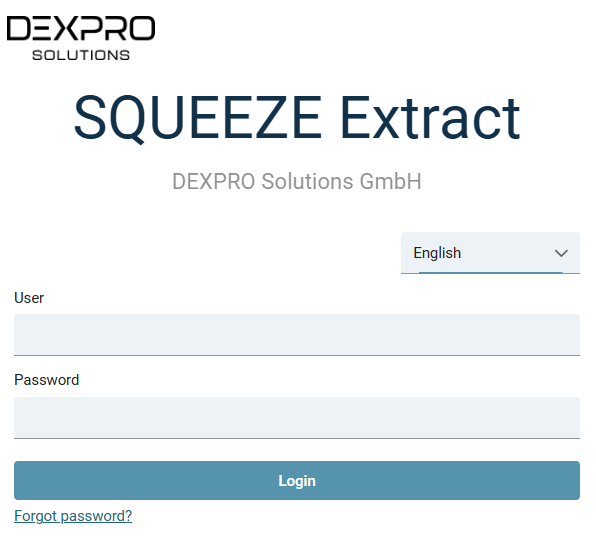
A message with further information will be sent to the user's registered email address.
A new password can then be assigned.
After successfully logging in, the central dashboard appears with live tiles and additional application options.
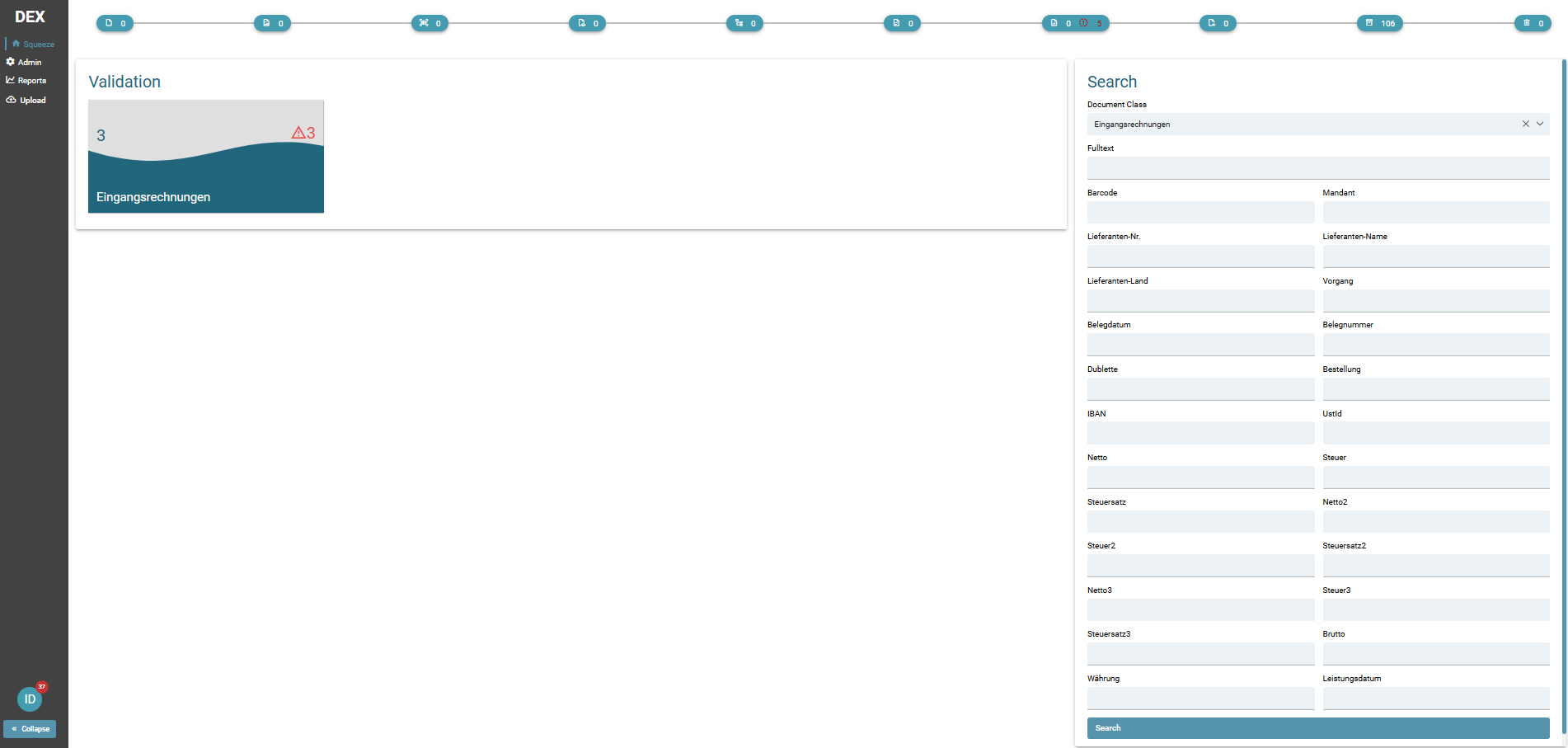
The live tiles in detail:

NEW DOCUMENTS: Shows the number of documents currently in the import/worklist. The view cannot be opened; it is only used to show how many documents are currently at the beginning of the processing chain. When the system is operating normally, the information changes constantly, as the system usually imports new documents from copiers, scanners, or email inboxes and forwards them to the next stage.

IMAGE OPTIMIZATION: Shows the number of documents currently in image processing. The view cannot be opened.
Image processing checks the input format for necessary corrections, which is particularly relevant for scanned documents, as document processing has a significant impact on subsequent text recognition. During image processing, documents are straightened and minor spots and shadows are removed without significantly altering the character of the document.
For “electronic” documents (readable PDF files), image processing is automatically skipped if there are no embedded images in the PDF document.

BARCODE EXTRACTION:

TEXT RECOGNITION: Shows the number of documents currently undergoing text recognition. The view cannot be opened.
Image processing is followed by text recognition. Depending on the size and optimization of the training data set, this is the stage that requires the most processing time.
Documents can usually “back up” in the processing chain at this point. If this happens frequently or to a significant extent, please contact your system administrator, as these processes can also be parallelized to achieve a balanced load/usage behavior.

CLASSIFICATION: Shows the number of documents currently in classification. The view cannot be opened.
Based on the recognized and/or evaluated text information, documents are compared with trained patterns and automatically assigned to a document type (invoice, delivery note, order).
If Squeeze is used without document classification, e.g., in pure incoming invoice extraction projects, the classification is skipped.

EXTRACTION: Shows the number of documents currently being extracted. The view cannot be opened.
Once the documents have been optimized, textually read, and classified, their contents are compared with the master data available in the company's ERP/financial accounting/CRM system and checked automatically where possible. The result is visible in the next step.

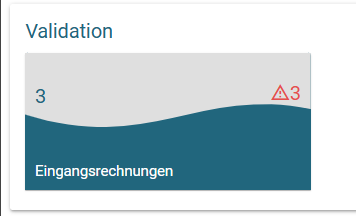
VALIDATION: Displays the number of documents awaiting validation. This live tile can be opened with a simple left click and then displays the documents for manual validation in a chronologically sorted work list (queue).
The validation tile always shows the current worklist of the team/department.

EXPORTED: Shows the number of documents currently being exported to your selected target system. This view cannot be opened. For information on the export structures, please refer to the project description/documentation.

BACKUP: Shows the total number of documents processed.

DLETED: Shows the total number of deleted documents
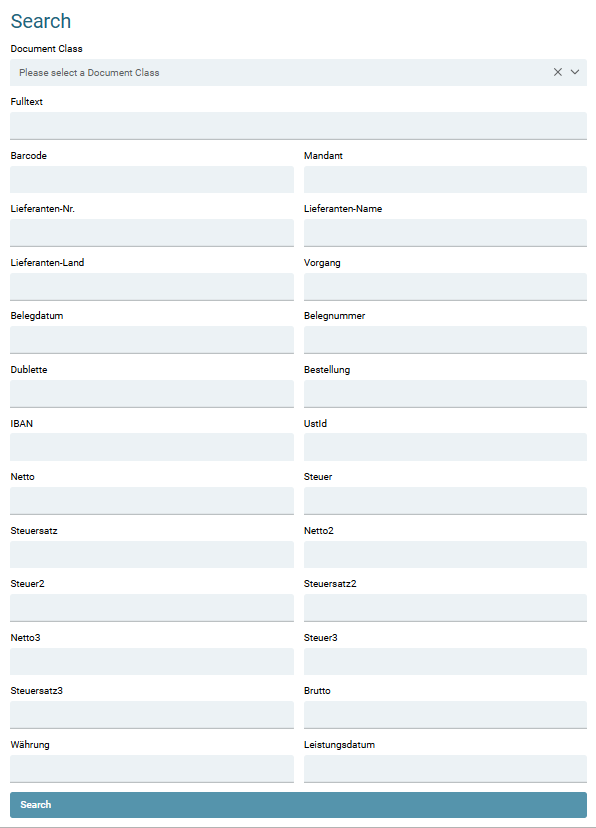
The search:
The search function allows you to search for documents using a wide variety of filters.
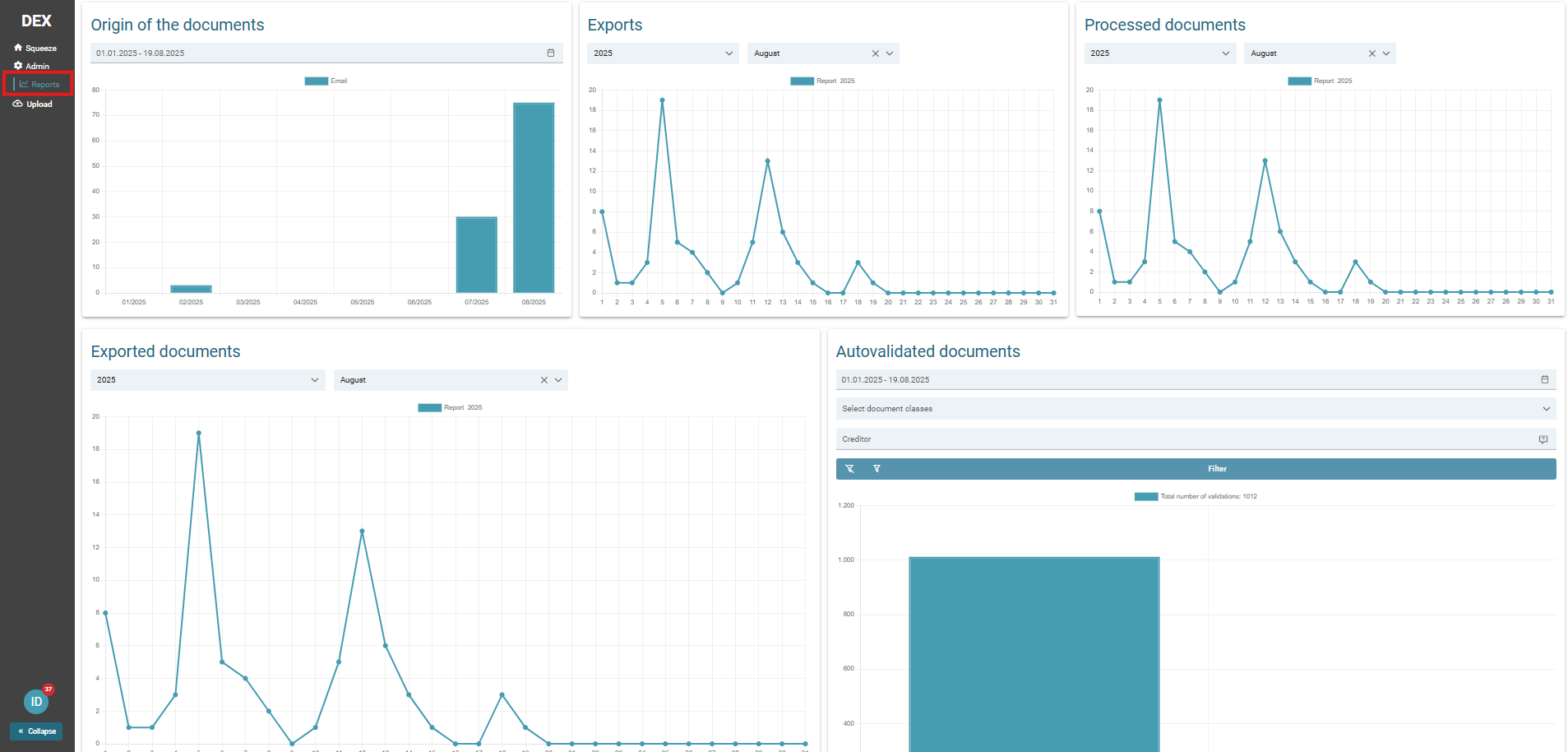
Reports:
All exported documents, exports, document origins, processed documents, and auto-validated documents are displayed in the sidebar under Reports. The time periods and filters to be read out can be defined independently in the respective tile.
Validation:
The Validation tile takes you to the validation process which is described in the following pages.
No comments to display
No comments to display