
Order & Goods Receipt Reconciliation
The purchase order & goods receipt comparison checks the read out document items and compares them with all purchase order & goods receipt lines based on the read out purchase order numbers of the document.
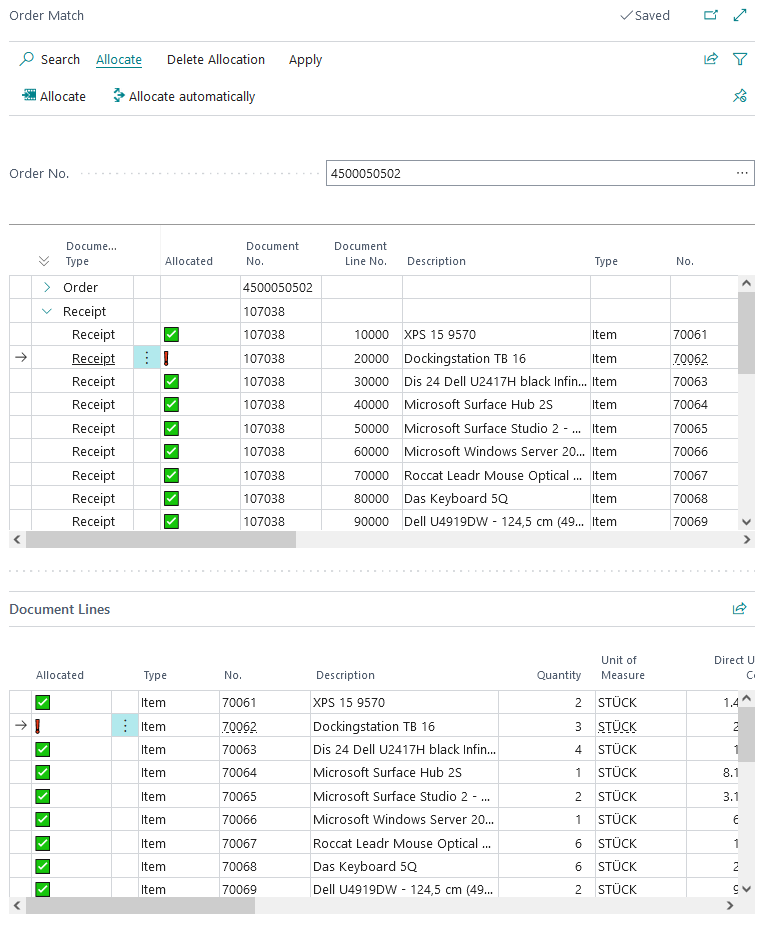
TheYou can open the order comparisonmatch canat onlyany betime openedwith ifthe Order Match action on the SQUEEZE hasDocument readValidation onepage, except for deleted or morerejected documents. The match uses the order numbersnumber that SQUEEZE read from the document or ifthat is entered in the Order No. header field. If the document has no order number, the list stays empty until you select an order number (stored in the system)Order hasNo. beenfield entered manually inat the validation header field.top.
This comparison is performed automatically after the document has been retrieved from SQUEEZE. The user has the possibility to perform or correct this comparison manually as well.
Prerequisites
- Document class: Documents of the document class Invoice / Credit Memo are matched against purchase orders and receipts. Documents of the document class Order Confirmation are matched against purchase orders only (see Order Confirmations).
- Vendor: The document has a vendor, and it is the same as the Buy-from Vendor No. of the purchase order. The order match does not show orders and receipts of other vendors.
- Order number: For the automatic match on import, SQUEEZE must have recognized at least one order number – in the header, as an additional order number or on a line (SQZ Order No.). The header field Order number found shows whether this is the case. In the order match itself you can select any order of the vendor.
- Open lines: The purchase order has lines that are not fully invoiced yet. To match against receipts, a posted purchase receipt for the order with a Qty. Rcd. Not Invoiced must exist.
- Setup: Automatic Order Match is filled in (see Setup). To allocate lines to purchase order lines, Allow Order Allocation must be switched on as well.
- Different units of measure: For 24 PCS to be matched with an order line of 1 PALLET, for example, both units must be set up for the item in Item Units of Measure with their Qty. per Unit of Measure.
- Permissions: The permission sets DEXPRO SQUEEZE User and DEXPRO SQUEEZE Admin include the order match (see Permission sets). The order match reads purchase orders and posted purchase receipts with the user's own permissions, so the user also needs read access to purchase orders and posted purchase receipts in Business Central.
Setup
The settings are on the Order Match FastTab of the Document Class Setup (default for all vendors) and of the Vendor Related Setup (exception for individual vendors). If the vendor has a Vendor Related Setup, its values apply to the order match; only Allow Order Allocation always comes from the Document Class Setup. A new Vendor Related Setup takes over the values of the document class when it is created.
{add screenshot of Document Class Setup here}
| Field | Effect |
|---|---|
| Automatic Order Match | What documents are matched against automatically on import: Receipt (lines of posted purchase receipts) or Order (purchase order lines). Blank = no automatic match. Default: Receipt for Invoice / Credit Memo, Order for Order Confirmation. |
| Amount Tolerance %, Max. Amount Tolerance | Permitted deviation of the line amount as a percentage or as an amount (see Tolerances). |
| Ignore Amount Tolerance | The amount is not checked in the final check. |
| Quantity Tolerance %, Max. Quantity Tolerance | Permitted deviation of the quantity as a percentage or as an absolute quantity. |
| Ignore Quantity Tolerance | The quantity is not checked in the final check (for the search, see the note under Tolerances). |
| Description Similarity % | Minimum similarity of the descriptions for search step 4. Blank or 0 means 70%. The field is hidden; show it with Personalize. |
| Replace Data | Invoice / Credit Memo only: when a line is applied, its direct unit cost is replaced by that of the order line – or, for a receipt line, by that of the receipt line. With the switch off, the direct unit cost read by SQUEEZE stays, unless it is 0. Description, quantity and line discount % are taken over either way (see 4. Apply). Default: on. |
| Allow Order Allocation | Document Class Setup only, shown for Invoice / Credit Memo: permits allocations to purchase order lines. Default: off for Invoice / Credit Memo, on for Order Confirmation. |
| Receipt Date Tolerance, Shipping Time | Order confirmations only (Shipping Time only in the Vendor Related Setup), see Order Confirmations. |
In the Document Class Setup, Automatic Order Match can only be set to Order if Allow Order Allocation is switched on. The Vendor Related Setup does not check this – only choose Order there if the document class allows order allocation.
Menu
Allocate

Assigned lines are represented by a green tick  .
Allocate
This assigns the selected order/delivery line to the selected SQUEEZE document line.
Allocating manually does not check any tolerances. If the document line already has an allocation, it is replaced. Order lines (document type Order) can only be allocated if Allow Order Allocation is switched on in the Document Class Setup.
Allocate automatically
This assigns the appropriate order/delivery line to all SQUEEZE document lines. For this, the order/delivery itself must be selected in the upper area.
You can also select several orders/receipts or individual lines in the upper area; for an order or receipt, all of its lines are processed. Only document lines without an allocation are searched, using the same rules as on import (see "How the automatic match works"). Only the order shown in the Order No. field at the top is taken into account. The allocations found are not applied yet – use the actions under Apply for that.
Delete allocation

Unassigned lines are represented by a red exclamation mark  .
Delete selected allocation
This removes the assignment of the selected line.
Delete all allocations
This removes all assignments.
Deleting an allocation does not undo an earlier apply: type, no., quantity, description and the other values taken over stay on the document line.
Apply

Apply selected
This applies the assignment of the selected line. MissingThe informationdocument willline betakes added fromover the data of the allocated order/delivery line.line, and existing values are overwritten – see "4. Apply" further down for which ones. This also immediately transfers this change to the validation line.
Apply all allocated
This applies the assignment of all assigned lines. MissingThe informationdocument willlines betake added fromover the assigneddata of the allocated order/delivery lines.lines, and existing values are overwritten. This will also immediately transfer these changes to the validation lines.
Apply all allocated applies every allocation of the document again – including those already applied. Corrections you made to these document lines afterwards (for example to the quantity) are overwritten.
Areas
Order number

The order number currently to be compared is displayed here. If several order numbers have been read out, the corresponding list can be opened via the three dots.
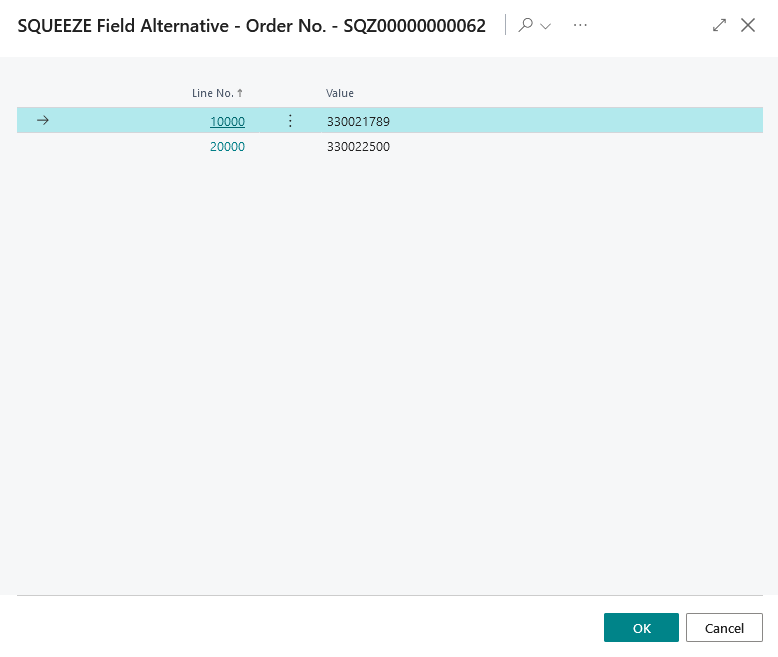
The field is pre-filled with the order number from the document header or, if there is none, with the first additional order number SQUEEZE read. The list behind the three dots contains the order number from the header, all additional order numbers read, the order numbers from the lines (SQZ Order No.) and all released purchase orders of the vendor, each with where it comes from.
If the number does not belong to a purchase order of the vendor on the document, a red message appears next to it, for example Order No. 106099 does not match the Buy-from Vendor No. 20000. The list below then stays empty.
Order & Deliveries
inIn this area the order and all its lines that are listed,not asyet wellfully asinvoiced allare listed; for invoices and credit memos also the related deliveries andwith their lines.lines that are not yet invoiced.
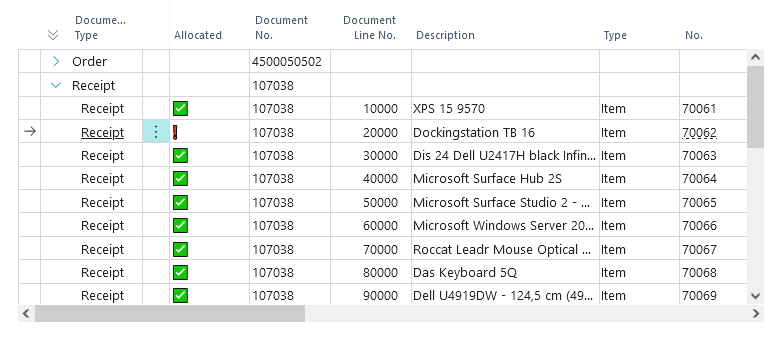
Lines without a type (such as text lines), fully invoiced order lines and receipt lines without an open quantity are not shown. The Quantity column shows the open quantity: for order lines the quantity not yet invoiced (quantity minus Quantity Invoiced), for receipt lines the Qty. Rcd. Not Invoiced, for order confirmations the Outstanding Quantity. Quantity (Base) shows the same quantity in the base unit of measure. The Allocated column shows whether a line of this document is allocated to the line.
SQUEEZE document lines
In this area all read out positions of the SQUEEZE document are listed.
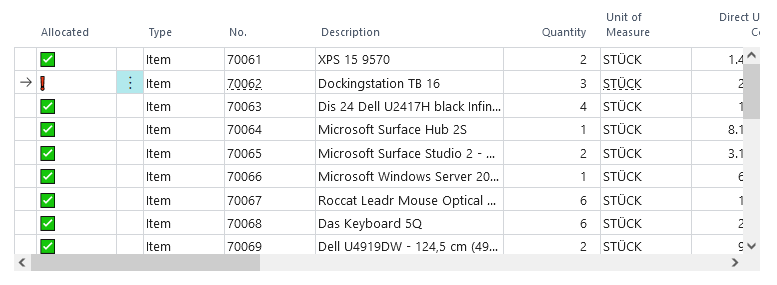
The Allocated column shows whether the document line has an allocation; the columns Allocated Document Type, Allocated Document No., Allocated Document Line No., Allocated Quantity, Allocated Unit Price, Allocated Line Amount and Allocated Line Discount % show what it is allocated to.
How the automatic match works
The automatic match runs when a document is imported, if Automatic Order Match is filled in, and every time you choose Allocate automatically in the order match. The system goes through the open order or receipt lines one by one and looks for a matching document line for each of them.
1. Determining the order and receipt lines
- On import, every order number of the document is used: the one from the header, the additional ones read by SQUEEZE and those from the lines (SQZ Order No.). Allocate automatically only uses the order in the Order No. field of the order match.
- On import, only lines of the type set up are used: receipt lines for Receipt, order lines for Order. Allocate automatically uses the lines you selected.
- The comparison uses the open quantity: for an order line the quantity not yet invoiced, for a receipt line the Qty. Rcd. Not Invoiced. The amount of the order or receipt line is converted to this quantity.
2. Searching for a matching document line
Candidates are document lines that have no allocation yet and whose SQZ Order No. is blank or matches the order. For each order or receipt line, the system tries one step after the other:
- Type and no.: same Type, the No. equals the no. or the Item Reference No. of the order line, and the Quantity is within the quantity tolerance.
- Same description: the SQZ Description equals the description of the order or receipt line; upper and lower case do not matter.
- Description contained: the SQZ Description contains the description of the order or receipt line.
- Recognized values: SQZ Quantity and SQZ Unit Price are within the quantity and amount tolerance, and the SQZ Description is at least as similar to the description of the order or receipt line as set in Description Similarity % (default 70%). The similarity is the number of characters you would have to change, relative to the length of the longer description.
If several document lines qualify, the top one is taken. If the document line has a different unit of measure than the order or receipt line, steps 1 and 4 first compare via the base unit of measure and only then the values as they stand (see Example 3).
3. Final check
Once a step has found a document line, the system checks
- the Line Amount of the document line against the amount of the order or receipt line for the open quantity (amount tolerance), and
- the Quantity of the document line against the open quantity (quantity tolerance, also via the base unit of measure).
The document line is allocated only if both fit. If the document line found fails the check, the order or receipt line stays without an allocation – the following search steps are not tried for it.
Tolerances
The final check works the same way for amount and quantity:
| % value | Max. value | Permitted deviation |
|---|---|---|
| 0 | 0 | none – the values must match exactly |
| greater than 0 | 0 | at most the percentage, relative to the value of the document line |
| 0 | greater than 0 | at most the max. value |
| greater than 0 | greater than 0 | both limits must be met |
With Ignore Amount Tolerance or Ignore Quantity Tolerance the respective check is skipped.
During the search – quantity in steps 1 and 4, unit price in step 4 – the system only permits a deviation if the % value and the max. value are both greater than 0; the narrower of the two limits then applies. If one of the two values is 0, or Ignore Quantity Tolerance is switched on, the quantity must match exactly there. So if you want to permit deviations, always fill in both values. For the unit price in step 4, the Max. Amount Tolerance is divided by the quantity; with Ignore Amount Tolerance the unit price is not compared there, but the document line then needs an SQZ Unit Price greater than 0.
4. Apply
On import, the allocations found are applied right away. Allocate and Allocate automatically only allocate; you apply with Apply selected or Apply all allocated.
When applied, a document line of the document class Invoice / Credit Memo takes over from the allocated line:
- Type, No., Item Reference No., Unit of Measure, posting groups, dimensions, location, bin, deferral code and project details of the order line – for a receipt line, the dimensions of the receipt line,
- the Description of the order line,
- as Quantity the open quantity of the allocated line: for an order line the quantity not yet invoiced, for a receipt line the quantity received but not yet invoiced,
- the Line Discount % of the order line,
- the Direct Unit Cost only with Replace Data (see Setup).
The Line Amount is then recalculated from quantity, direct unit cost and discount. If the document line has a different unit of measure than the allocated line, it is first converted into that unit: 24 PCS at 10.00 become 1 PALLET at 240.00. The Item Match Method column of the lines then shows, for example, Matched by Order Match (Purch. Rcpt. Line: Document No. 107001, Line No. 10000). The column is hidden by default; show it with Personalize.
When the purchase invoice is created, document lines allocated to a receipt line are created from that receipt line – as with Get Receipt Lines – and then receive quantity, direct unit cost, line discount % and posting groups from the validation.
Order confirmations
- Only purchase order lines are matched; the comparison uses the Outstanding Quantity. Order lines without an outstanding quantity are not shown.
- Order lines that have no Promised Receipt Date yet are allocated first, the others afterwards.
- In steps 2 and 3 the quantity must also be within the quantity tolerance.
- When applied, the confirmed quantity, the confirmed direct unit cost and the description are kept (converted if the unit of measure differs); type, no., unit of measure, posting groups and dimensions, among others, are taken over.
See Order Confirmations for more.
Deviations after allocation
For each allocated line, the SQUEEZE Document Validation page shows the info boxes Order Match Info (Quantity), Order Match Info (Price) and Order Match Info (Discount), for order confirmations also Order Match Info (Date). Deviations are shown in red:
- Price: direct unit cost against the allocated unit price, with the amount tolerance; the max. amount tolerance is divided by the quantity for this.
- Quantity: quantity against the allocated quantity, with the quantity tolerance.
- Discount: line discount % against the allocated line discount % – without tolerance.
If the line is allocated to a receipt line, the system also compares it with the order line; if it is allocated to an order line and a receipt already exists for it, also with the receipt line. The Order Match Activities tiles in the role center count documents with deviations (see Role Center Activities).
Examples
The examples assume the document class Invoice / Credit Memo with its default values: Automatic Order Match = Receipt, Replace Data on, Allow Order Allocation off, all tolerances 0.
Example 1: Invoice for a partial delivery
Purchase order 106001 for vendor 20000 has one line: item 1000 "Office chair Comfort", quantity 10, direct unit cost 120.00. Receipt 107001 over 6 pieces has been posted. The invoice states order number 106001 and one line over 6 pieces at 120.00. SQUEEZE recognized item 1000; the description read is "Office chair Comfort black".
- On import, the system determines receipt line 107001 / 10000 with an open quantity of 6.
- Step 1 finds the line: type Item, no. 1000, quantity 6.
- The final check finds no deviation: line amount 720.00 = 6 × 120.00, quantity 6 = 6.
- The line is allocated and applied. Its description is now "Office chair Comfort", its item match method Matched by Order Match (Purch. Rcpt. Line: Document No. 107001, Line No. 10000).
- When the purchase invoice is created, the invoice line is created from receipt line 107001 / 10000.
If Automatic Order Match were set to Order, the line would be compared with the order line and its quantity not yet invoiced, 10. Without a quantity tolerance, the line over 6 pieces would then not be allocated.
Example 2: Price deviation and amount tolerance
As example 1, but with Amount Tolerance % = 1 and Max. Amount Tolerance = 5. Both limits must be met:
| Direct unit cost on the invoice | Line amount | Deviation from 720.00 | Result |
|---|---|---|---|
| 120.50 | 723.00 | 3.00 (0.41%) | allocated |
| 121.00 | 726.00 | 6.00 (0.83%) | not allocated – more than 5.00, although below 1% |
In the first case the line has the direct unit cost of the receipt line after applying (120.00, line amount 720.00), because Replace Data is on; with the switch off, 120.50 stays. In the second case the line remains without an allocation. You can allocate it by hand with Allocate in the order match – no tolerances are checked then.
Example 3: Different unit of measure
Item 70000 "Hexagon bolts M8 galvanized" has the base unit PCS, the unit PACK with a Qty. per Unit of Measure of 2 and the unit PALLET with a Qty. per Unit of Measure of 24. 1 PALLET at 240.00 was ordered and received. The vendor invoices 24 PCS at 10.00.
- Step 1 converts via the base unit: 1 PALLET = 24 PCS – the quantity fits.
- Final check: line amount 240.00 = 240.00; quantity 24 PCS = 1 PALLET.
- When applied, the line is converted into the unit of the receipt line: 1 PALLET at 240.00, line amount still 240.00.
Because the conversion is checked first, an order line over 1 PALLET goes to an invoice line over 1 PALLET and not to a line over 1 PACK of the same item, even though both have the quantity 1.
Example 4: Line without a recognized item
As example 3, but SQUEEZE did not recognize an item on the line. It read SQZ Description "Hexagon bolts M8 galv.", SQZ Quantity 24 and SQZ Unit Price 10.00.
- Step 1 finds nothing because the line has no item. Steps 2 and 3 find nothing because the description of the receipt line, "Hexagon bolts M8 galvanized", is neither equal to nor contained in the SQZ description.
- Step 4: SQZ quantity 24 corresponds to 1 PALLET, SQZ unit price 10.00 corresponds to 240.00 per PALLET, and the descriptions are about 78% similar (6 changed characters out of 27) – more than the required 70%.
- Check and apply as in example 3. The line gets type Item and no. 70000.
Limitations
- The automatic match on import runs only once per document. If a receipt is posted later or an order number is added afterwards, open the order match, choose Allocate automatically and then Apply all allocated.
- On import, documents are matched against one type only: receipt lines or order lines.
- Receipts are only shown for invoices and credit memos.
- Lines whose SQZ Order No. refers to a different order are not allocated to this order automatically.
- Steps 2 and 3 compare the description only. If the first document line found fails the final check, the system does not look for another document line for this order or receipt line.
- Allocating manually checks neither tolerances nor open quantities.
- The system does not prevent an order or receipt line from being allocated to several document lines – by hand, for example, or when you run Allocate automatically again. When the purchase invoice is created, however, only one invoice line is created per receipt line. Check the Allocated column before validating.
- Deleting an allocation does not undo the apply.
- When applied, an invoice line replaces quantity, description and line discount % with the values of the allocated line. If the vendor invoices only part of a receipt or order line, correct the quantity after applying.
Troubleshooting
No line was allocated on import
- Is Automatic Order Match filled in – in the Vendor Related Setup if the vendor has one, otherwise in the Document Class Setup?
- Did SQUEEZE recognize an order number (field Order number found)? If not, select the order in the order match and use Allocate automatically.
- Does the order belong to the vendor of the document? Otherwise the order match shows a red message next to the order no.
- Are there open lines of the type set up? For Receipt, the receipt must be posted and not yet invoiced. If it was posted after the import, run Allocate automatically by hand.
- Are quantity and line amount within the tolerances? With the default values of 0 they must match exactly. If only one of the two tolerance values is filled in, the search by type and no. only finds identical quantities (see Tolerances).
- Does the SQZ Order No. of the line refer to a different order?
Error about "Allow Order Allocation" when allocating
You allocated an order line or ran Allocate automatically on an order, but Allow Order Allocation is switched off in the Document Class Setup – the default for Invoice / Credit Memo. Select the receipt or its lines instead, or switch on Allow Order Allocation. Note that when the order match opens, the first row is selected – and that is the order.
The plausibility check reports "Allocated Document Type cannot be Order."
A line is allocated to an order line although Allow Order Allocation is switched off. Delete the allocation and allocate the line to the matching receipt line, or switch on Allow Order Allocation.
"Order No. … does not match the Buy-from Vendor No. …" next to the order number
There is no purchase order with this number for the vendor on the document. Check the vendor in the document header and select the order number via the three dots.
After applying, the line has a different quantity or description
This is the result of applying (see 4. Apply). Correct the values by hand afterwards and do not run Apply all allocated again – otherwise your corrections are overwritten again.
"Allow Order Allocation" cannot be switched off
The message Automatic Order Match cannot be Order. Please change the value of the Automatic Order Match. appears. First set Automatic Order Match to Receipt or blank.