
Vendor-specific Training
Training represents an essential optimization component of processing.
If data is not clearly recognized by the system, supplier-specific training can be applied, which increases the degree of automation when entering invoices.
When the training mode is started, all relevant fields for a training can be selected.
Any number of trainings can be created per supplier and per invoice field.
External invoice numbers cannot usually be checked for content in the system, as no data exists for verification. This field is ideal for training, for example.
In Business Central you start the training on the SQUEEZE Document Validation page with the Open field training and Open line training actions. The training itself takes place in the SQUEEZE Viewer on the right and is saved in SQUEEZE – Business Central does not store any trainings itself and only passes on which vendor you are training for. To see the effect on the current document right away, have it read again with Recreate result afterwards.
Field training or line training?
| Field training | Line training | |
|---|---|---|
| Action | Open field training | Open line training |
| Used for | Header fields – values that occur once per document | Lines – the columns of the line item table |
| Typical fields | Document Reference (the vendor's invoice number), Document Date, Service Date, Order No., Net Amount, Total Amount, IBAN, VAT Registration No. | the values in the SQZ columns of the lines, e.g. SQZ Item No., SQZ Description, SQZ Quantity, SQZ Unit Price |
| In the viewer | mark the anchor and the value – see Head field training | mark a region covering the whole column – see Position field Training |
The quickest way to see whether a header field was read from the wrong place is the three dots (…) next to the field: the viewer highlights where SQUEEZE found the value. For lines, compare the SQZ columns with the document in the viewer; SQZ Description and SQZ Unit of Measure are hidden by default – show them with Personalize. Which SQUEEZE field ends up in which field of the Squeeze document is defined by the Field Mapping.
Training improves what SQUEEZE reads from the document. If the value read is correct but Business Central assigns the wrong account, item or dimensions, training will not help. Use Autocomplete, the account assignment setup or line account assignment rules for that.
Prerequisites
- Connection to SQUEEZE: in the SQUEEZE Setup, Activated is switched on and the Version (Squeeze Tenant) field is filled in. If either is missing, the actions are greyed out.
- PDF document: the actions are only available for documents that are PDF files. For other file types they are greyed out.
- Correct vendor: the Buy-from Vendor No. field contains the vendor you want to train for. When you open the training, Business Central passes this number to the viewer – the same number under which Business Central transfers the vendor to SQUEEZE as master data. Business Central does not check whether the field is filled in, so enter or correct the vendor before you open the training.
- Viewer mode Document Overview or Detached: in Document Overview the training opens in the viewer embedded in the page, in Detached in the external viewer – which has to be open for it. In the Positions Focus viewer mode the actions are hidden.
- Permissions: the permission sets DEXPRO SQUEEZE User and DEXPRO SQUEEZE Admin include the page with the training actions (see Permission sets). Business Central has no separate permission just for training. Business Central loads the viewer with the API key from the SQUEEZE Setup – or with a document-specific token if Use Document Token is switched on there.
Starting and carrying out the training
- Open the document from the Squeeze Documents list (see SQUEEZE Document Overview). It opens on the Squeeze Document page.
- Check the vendor in the Buy-from Vendor No. field and correct it if necessary.
- If the Viewer mode is not set to Document Overview, change it.
- In the action bar, under Process, choose Open field training (header fields) or Open line training (lines). The action then changes to Close field training or Close line training. As long as one of the two trainings is open, the action for the other one is greyed out.
- Train in the viewer as described under Head field training or Position field Training below.
- Close the training with Close field training or Close line training. If you move to the next or previous document, Business Central closes an open training automatically.
- Decide whether to correct the current document by hand or have it read again with Recreate result – see Applying the training to the current document below.
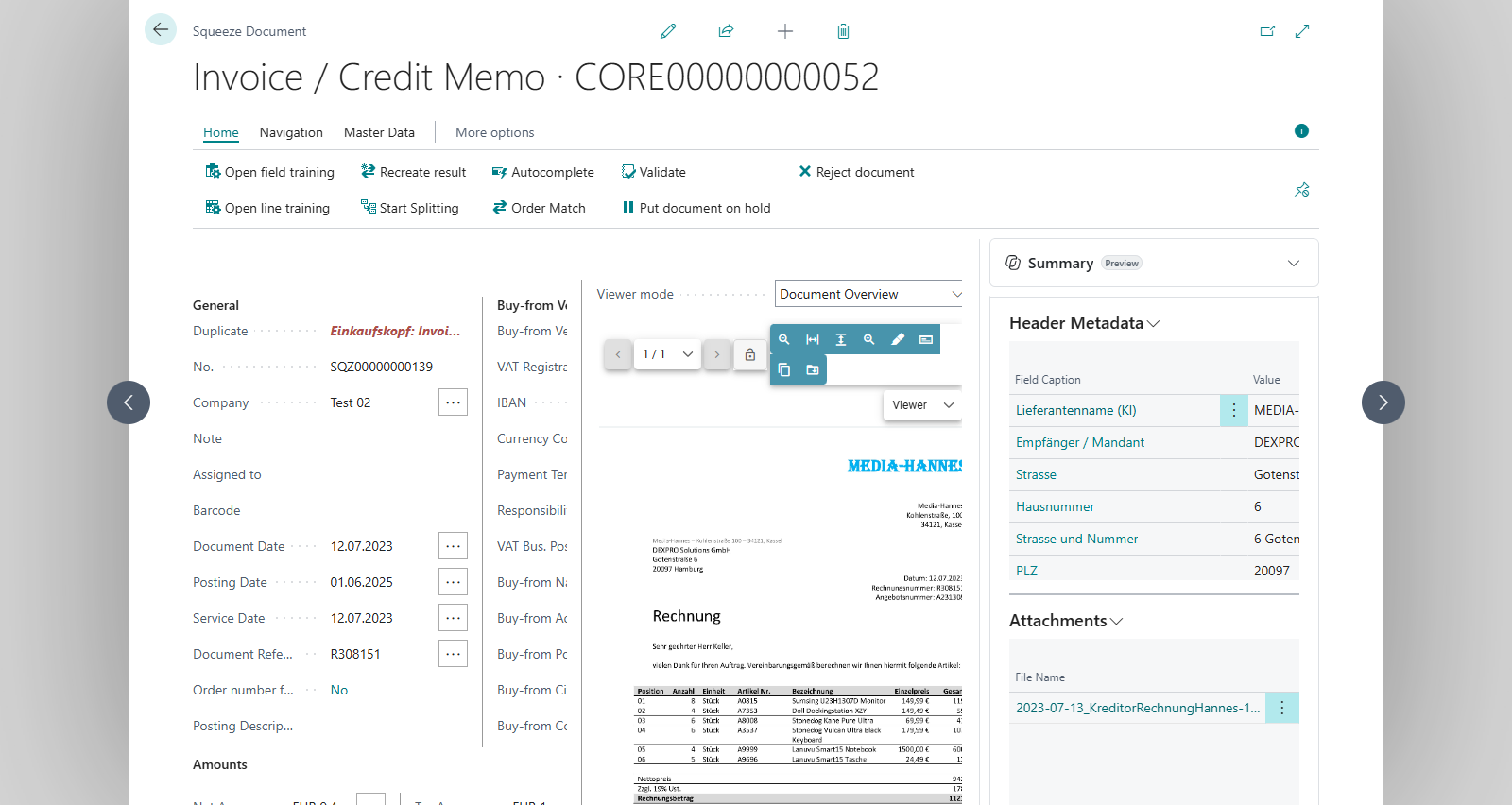
The training window is displayed within the viewer at the bottom of the screen.
Head field training
Train a field
After the training function has been started, the field to be trained must be selected.
After selecting the appropriate field, define the anchor.
Anchor in this case means the reference term. In this case, the term for the external document number attached to the respective invoice. The anchor term is to be marked with the right mouse button on the document in the viewer and is then highlighted in yellow.
Then click on the "Value" field in the action area and then on the value to be searched for. This is also to be marked with the right mouse button. If the searched value is not a coherent value, an arbitrarily large area can also be marked with the right mouse button in order to read out all desired information. If the information is specified, the training can be saved via "Train".
The system generates a "regular expression" - this can be optimized by trained specialists or IT staff at any time. E.g. blanks can be ignored, since these are rarely also indicated in the ERP system / in the booking.
Testing and review of existing training
With "Test" an overview of all previous head field trainings is displayed. The results are output directly as well. Double-clicking on an entry highlights the anchor and the value in the viewer.
Removing a training
To remove a training, open the overview of existing trainings and select the entry to be removed. The entry is deleted with the delete key "Del".
Position field Training
Train a column
After the training function has been started, the field to be trained and the corresponding column must be selected.
After this has been selected, the region must be defined.
This should be selected so that it covers the entire column of a field if possible. The region is to be marked with the right mouse button on the document in the viewer and is then highlighted in yellow. It should be noted that no regions should overlap with regions that have already been trained.
If the information is given, the training can be saved via "Train".
Testing and review of existing training
With "Test" an overview of all previous position field trainings is displayed. By double-clicking on an entry, the respective trained area is displayed.
Removing a training
To remove a training, open the overview of existing trainings and select the entry to be removed. The entry is deleted with the delete key "Del".
Applying the training to the current document
A training does not change the document you trained on by itself: the header fields and lines in Business Central stay as they were imported. You have two options:
- Correct by hand and validate as usual. The training then takes effect from this vendor's next document on.
- Recreate result: SQUEEZE reads the document again with the new training. This lets you check on the same document whether the training works.
Recreate result
- Choose Recreate result and confirm the question Do you want to recreate the result?
- Business Central sends the document back to the SQUEEZE extraction step. In Business Central the document gets the status Deleted; the page closes and – if there are any – reopens with the remaining imported documents.
- As soon as SQUEEZE has finished processing the document, Business Central picks up the new result the next time documents are downloaded: automatically via the job queue (see SQUEEZE Setup) or straight away with Download Documents now in the Squeeze Documents list. Until then the document has the status Resynchronize in the Core Documents list.
- A new Squeeze document with a new number is created. It is processed like a newly imported document of the same document class – for example with order matching, autocomplete and line account assignment rules. If automatic validation is enabled, the document is validated provided it passes all plausibility checks.
Corrections you made on the previous document are not carried over – the new document contains only the new extraction result. So choose Recreate result right after the training, before you continue working on the document.
For documents with the status Deleted or Rejected the action is greyed out.
Effect on future documents
A training applies to the vendor you opened it for and is used by SQUEEZE when it reads this vendor's following documents. There is nothing else to set up in Business Central. You review and remove existing trainings in the viewer (see Testing and review of existing training) – Business Central does not display trainings.
If you use Autocomplete for the vendor, keep in mind: autocomplete recognises a line by the values SQZ Item No., SQZ Unit of Measure, SQZ Description and SQZ Unit Price. If, after a line training, SQUEEZE reads different values into these columns than before, the remembered entries no longer match. Assign the affected lines once by hand and validate the document – autocomplete then remembers the lines with the new values.
Examples
Example 1: Invoice number read from the wrong place
A supplier (vendor 20000) prints "Customer No. 10442" in the invoice header and "Invoice No. INV-24-0815" below it. SQUEEZE reads 10442 as the invoice number, so the Document Reference field shows 10442. Because the customer number is the same on every invoice from this supplier, every further invoice would get the same document reference – and the duplicate check, which compares the document reference and the vendor, would flag it as a duplicate.
- Click the three dots next to Document Reference – the viewer highlights 10442 next to "Customer No.".
- Make sure the Buy-from Vendor No. field contains 20000 and choose Open field training.
- In the training window, select the field for the invoice number. Mark the anchor "Invoice No." with the right mouse button, click "Value", mark "INV-24-0815" and save with "Train".
- Use "Test" to check that the training returns INV-24-0815, then close it with Close field training.
- Choose Recreate result. After the next download, the new document shows INV-24-0815 in Document Reference – and so do the following invoices from vendor 20000.
Example 2: Item numbers missing on the lines
On a wholesaler's invoices (vendor 30000) the item number is printed in its own "Item No." column to the left of the description. Even so, SQZ Item No. stays empty in the lines of the Squeeze Document page.
- Choose Open line training.
- Select the field for the item number and the corresponding column. Mark a region covering the whole "Item No." column with the right mouse button – without overlapping regions that have already been trained – and save with "Train".
- Close the training with Close line training and choose Recreate result.
- On the new document, SQZ Item No. is filled in on the lines. If you have been using autocomplete for this vendor, assign the lines once by hand and validate: the previous entries were remembered with an empty item number and no longer match.
Limitations
- You can only start a training on the Squeeze Document page. The Viewer in Target Document has no training actions.
- Training is only possible for PDF documents.
- In the Positions Focus viewer mode the actions are hidden. Order confirmations usually open in this mode – switch the viewer mode to Document Overview to train.
- Field training and line training cannot be open at the same time.
- A training applies only to the vendor it was created for.
- A training only affects the current document through Recreate result – and your corrections on this document are lost in the process.
- Business Central does not display trainings; reviewing and removing them is only possible in the viewer.
Troubleshooting
The "Open field training" and "Open line training" actions are missing
The viewer mode is set to Positions Focus. Switch it to Document Overview.
The actions are greyed out
- Is the other training still open? Close it first.
- Is the document a PDF? Training is not possible for other file types.
- Is there a connection to SQUEEZE? In the SQUEEZE Setup, Activated must be switched on and Version (Squeeze Tenant) must be filled in.
No training window appears in the viewer
Check the viewer mode. In Detached the training window appears in the external viewer – open it if it is closed, then choose the action again. In Positions Focus the training actions are hidden; switch the viewer mode to Document Overview.
If Use external viewer only is switched on in the User specific setup, the page opens the viewer detached. The training then opens in the external viewer.
"Recreate result" is greyed out
The document has the status Deleted or Rejected, or there is no connection to SQUEEZE (see above).
The document does not come back after "Recreate result"
- Are documents being downloaded? Choose Download Documents now in the Squeeze Documents list or check the job queue entry.
- Has SQUEEZE finished processing the document? Business Central only picks up the new result once the document has reached the Export, Backup or Delete step in SQUEEZE. Until then it stays in the Core Documents list with the status Resynchronize. See also Documents are not retrieved from Squeeze and remain there in the export step.
Message "Document … could not be retrieved from SQUEEZE …"
SQUEEZE no longer knows the document or cannot be reached, so Recreate result cannot have it read again. Nothing was changed on the document. Check the connection in the SQUEEZE Setup and whether the document still exists in SQUEEZE; otherwise process the document by hand.
The new document still contains the wrong value
- Was the training saved with "Train"? Check it in the viewer with "Test".
- Did Buy-from Vendor No. contain the right vendor when you opened the training? Business Central passes the number that is entered at that moment. If you changed the vendor afterwards, close the training and open it again.
- Was the same vendor recognised on the new document? A training applies only to the vendor it was created for.
- For line training: does the region overlap a region that has already been trained?
No comments to display
No comments to display