
SQUEEZE Setup
In the SQUEEZE setup, both the connection to the SQUEEZE system and the processing within the app are set up.
Menu
Home

Setup Wizard
This is used to start the setup wizard. This guides the user step by step through all menu items.
Get API key
This function is used to set the API key for the configured API name from the connected SQUEEZE system.
Create jobs
The automated retrieval and processing of documents from SQUEEZE requires the setup of background jobs. This can be done via this function, which creates the Document Download Job and the Cleanup Job.
Copy setup
This copies the setup to other clients.
Master data

Initially Upload master data
Via the function "Upload master data for the first time" all accounts payable and accounts payable bank accounts are transferred to SQUEEZE for the first time.
Navigation

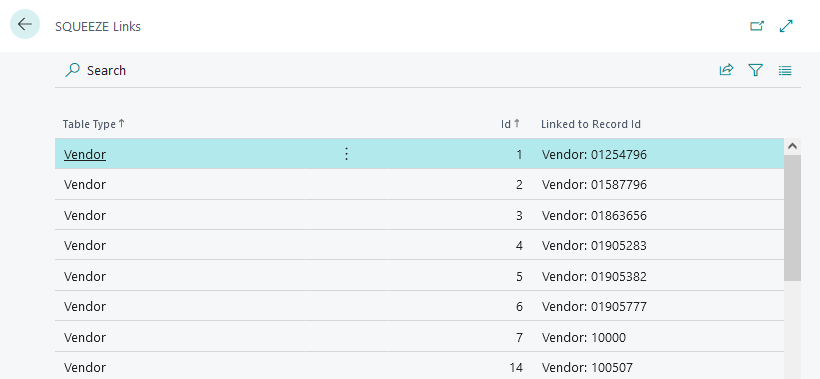
SQUEEZE links
Using the SQUEEZE links menu item, you can see which vendor/vendor bank account has which ID on the squeeze page.
User specific setup
This menu item is used to access the user-specific setup. In this, different rules can be stored for each user.
Import queue entries
This menu displays a list of SQUEEZE vouchers that are ready to be imported into the SQUEEZE for BC app. By changing the system filter it is also possible to view already imported vouchers.
Vendor related setup
Document classes setup
Squeeze Master Data Tables
Opens up an overview over all squeeze master data tables which were synchonisized.
Fasttabs
General
In this Fasttab you can activate/deactivate the use of this app. Additionally you can see the version of the connected SQUEEZE system.

API
In this Fasttab the URL of the SQUEEZE system is specified. Furthermore, an API name is set and the corresponding API key is entered via the "Get API key" function.
- API Key Name: The name of the API key on the connected SQUEEZE system. The matching API key value is then retrieved for this name via the "Get API key" function.

No. Series
The number series for the SQUEEZE covers is indicated here.

Background jobs
The automated retrieval, processing and cleanup of documents from SQUEEZE is handled by two separate recurring job queue entries. Each is referenced by its own GUID in the SQUEEZE setup and points to a dedicated codeunit. Both job queue entries are created automatically when the setup wizard is completed (or via the "Create jobs" function).
- Document Download Job: Runs codeunit DXP SQUEEZE Download Tasks to retrieve and process documents from SQUEEZE. It is scheduled as a recurring job with a default frequency of every 2 minutes and is created with status On Hold so that you can review the setup before activating document processing. Set its status to Ready to start the automated download. The referencing GUID is stored in the Document Download field of the setup.
- Cleanup Job: Runs codeunit DXP SQUEEZE Cleanup Tasks to remove documents that have been marked for deletion. It is created with status Ready and honours the Cleanup Interval (Date Formula) configured in the Job Settings (see below), e.g.
-1M. The referencing GUID is stored in the Cleanup Job field of the setup.
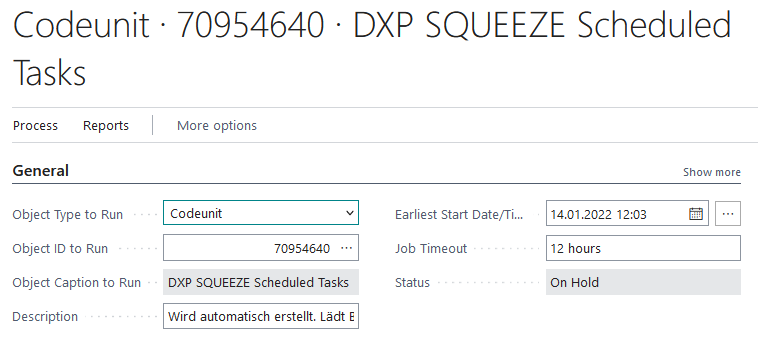
Note: Earlier versions used a single codeunit 70954640 "DXP SQUEEZE Scheduled Tasks" for this purpose. That codeunit is now obsolete (ObsoleteState = Pending) and is no longer used. The current model uses the two separate job queue entries described above.

Job queue entries
Two entries are created in the job queue entries: one running codeunit "DXP SQUEEZE Download Tasks" (Document Download Job) and one running codeunit "DXP SQUEEZE Cleanup Tasks" (Cleanup Job).
Security
This FastTab contains security-related settings:
- Use Document Token: When enabled, a per-document access token is used instead of the API key in viewer URLs. The token is valid for 30 minutes and is automatically refreshed. This increases security because the API key is not transmitted in browser URLs.
Viewer
This FastTab contains settings for the SQUEEZE Viewer:
- Use new Viewer: When enabled, the new SQUEEZE Viewer is used to display the scanned documents.
- Viewer in Target Document: When enabled, the SQUEEZE Viewer is displayed as a FactBox in the resulting target documents, e.g. in Purchase Invoices and Purchase Orders. This allows users to view the originally scanned document at any time after validation without having to navigate back to the SQUEEZE document.
Job Settings
In addition to the background jobs themselves, the following value can be configured in the job settings:
- Cleanup Interval (Date Formula): Defines how old the documents marked for deletion must be before they are cleaned up. Example:
-1Mmeans documents must be at least one month old.
No comments to display
No comments to display